
Fix Reolink Doorbell Notification Issues: 2026 Guide
A missed doorbell notification isn’t just an inconvenience; in a security context, it is a failure of the device’s primary mission. If your Reolink doorbell rings at the door but stays silent on your phone, you are likely dealing with a conflict between the app’s background permissions and the manufacturer’s P2P (peer-to-peer) notification server.
Quick Answer: Fix Reolink doorbell notification issues by disabling battery optimization on your phone, ensuring the device is added via UID (not IP), and updating to the June 2026 firmware (v3.0.0.6460) via the Reolink Download Center.
The symptom
Related: Fix: TP-Link Tapo Camera Integration Not Working (2026 Guide) · Wyze Doorbell HomeKit Function Broken? 2026 Fixes & Tips · Eufy Doorbell P2P & Motion Detection Failure: September 2026 Fixes
Reolink doorbell users generally report three distinct types of notification failure. Identifying which one you are experiencing is the first step in narrowing down whether the fault lies with your smartphone’s operating system, your local network, or Reolink’s cloud infrastructure.
- Delayed alerts: You hear the physical chime or the person walking away before the notification hits your phone. These delays typically range from 10 to 30 seconds.
- Missing alerts: The doorbell functions perfectly in every other way—it records to the SD card and rings the internal chime—but the Reolink app provides zero indication of a visitor.
- App-only alerts: Notifications arrive reliably only when the Reolink app is open on your screen. As soon as you switch to another app or lock your phone, the alerts cease.
- Rich Notification failures: You receive a text alert (“Visitor detected”), but the “Rich” preview (the snapshot of the person) is a gray box or a “failed to load” icon.
- Operation Failed errors: When you attempt to toggle the “Push Notification” switch in the app’s settings, you receive a “Failed to enable the service” or “Operation Failed” message.
Lag vs. Total Failure
There is a technical distinction between a laggy notification and a total failure. Lag is almost always a result of Network Latency or the doorbell struggling to wake up its WiFi radio (on battery models). Total failure—where no alert ever arrives—is usually a Handshake Issue between the doorbell and the Reolink Push Server, or a permission block on the smartphone side.
The ‘Rich Notification’ Subscription Gap
In 2026, Reolink continues to offer a “Basic” (free) tier for Rich Notifications, but it is limited to 25 image previews per day. If your notifications suddenly lose their images in the late afternoon or evening, you have likely hit this ceiling. Unlimited Rich Notifications (GIFs and snapshots) currently require a Reolink Cloud Plan, which typically falls in the $3.50–$7.00/month range depending on the number of supported cameras.
| Symptom | Affected Firmware | Status / Workaround |
|---|---|---|
| “Operation Failed” Error | v3.0.0.6460 (DB_566128M5MP_W) | Re-add via UID; toggle P2P settings |
| 10s+ Notification Lag | WiFi/Battery Models (Pre-2026) | Switch to 5GHz band; disable “Doze” mode |
| Missing Rich Previews | All (Free Tier) | 25-image daily limit reached; check Cloud Plan |
| No Alert (Phone Locked) | iOS 19 / Android 16 | Enable ‘Unrestricted’ battery usage |
| Push Service Toggle Fails | App v4.45.0 | Clear app cache and re-login |
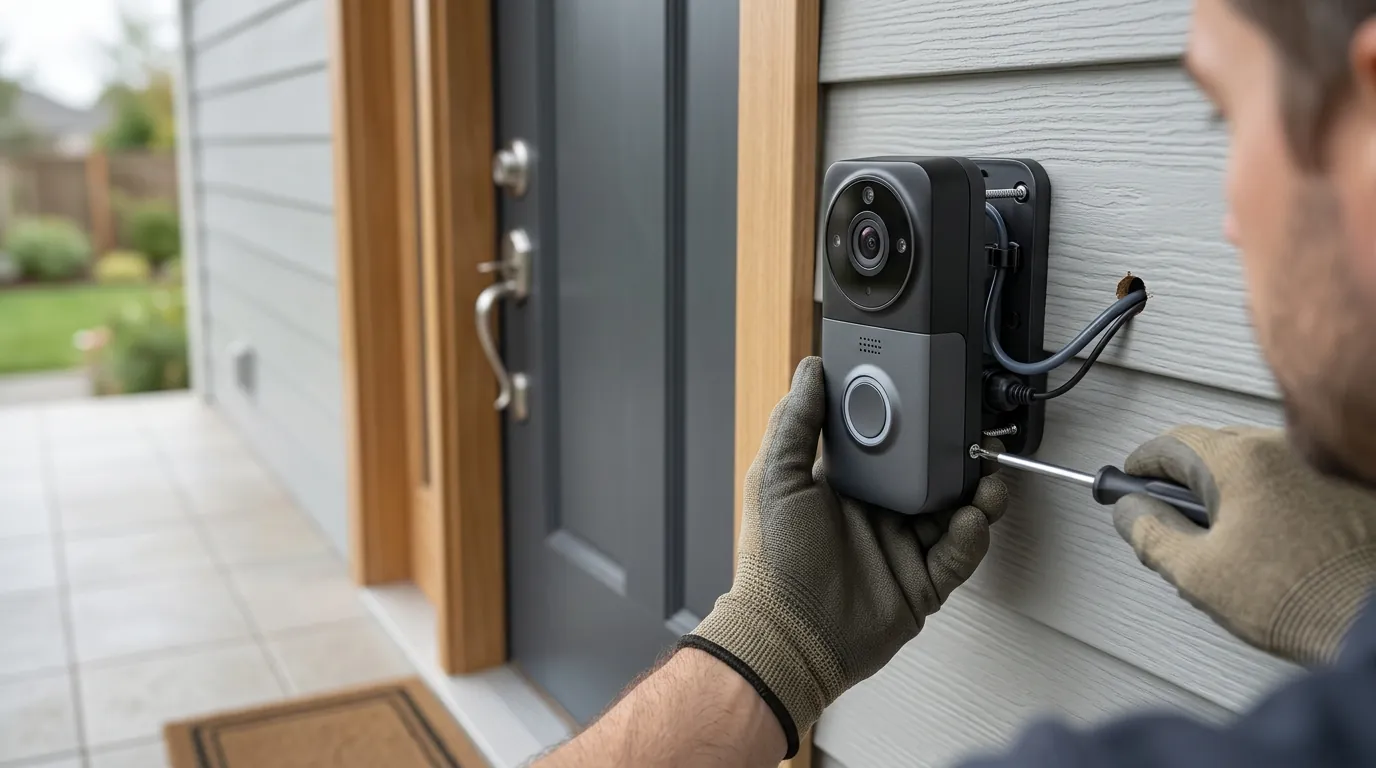
A split-screen view showing a Reolink Video Doorbell installed on a modern porch next to a smartphone displaying a ‘Person Detected’ push notification with a clear snapshot preview.
What’s likely happening
To fix the issue, it helps to understand the journey a notification takes. When the button is pressed, the doorbell contacts a Reolink P2P server (often pushx.reolink.com). That server then sends a request to Apple (APNs) or Google (FCM), which finally pushes the alert to your device.
The Role of the Reolink Push Server
Reolink uses a P2P (Peer-to-Peer) architecture to bypass the need for complex port forwarding. For this to work, the doorbell must maintain a persistent “heartbeat” connection to the Reolink server over port 443. If your router’s firewall is too aggressive, or if the doorbell was added to the app via its local IP address instead of its UID (Unique ID), the push server cannot “find” the doorbell to initiate the alert.
Hardware Version Conflicts
Reolink frequently updates its internal hardware without changing the external model name. As of late 2026, the two primary hardware versions for the Video Doorbell are:
- DB_566128M5MP_W: The common WiFi variant.
- D340P: The PoE (Power over Ethernet) variant.
The firmware for one will not work on the other. A “firmware regression” in early 2026 caused some DB_566128M5MP_W units to lose push notification stability when updated through the “Auto-Update” feature in the app, necessitating a manual flash of version v3.0.0.6460.
Aggressive OS Power Management
Modern smartphones are designed to kill background processes to save battery. Android’s “Doze” mode and iOS’s “Background App Refresh” restrictions are the most common culprits for Reolink notification issues. If the OS decides the Reolink app hasn’t been used recently, it puts the app into a “deep sleep,” preventing it from receiving the push signal from Google or Apple servers.
Network Latency and RSSI
For the WiFi model, signal strength is measured in RSSI (Received Signal Strength Indicator). An RSSI worse than -60dBm often causes the doorbell to time out during the “push handshake.” Even if the video stream looks fine, the millisecond-level timing required for a push notification can fail if there is high interference on the 2.4GHz band.
Quick fixes (in order of likelihood)
Before diving into firmware flashes, perform these five “low-hanging fruit” fixes. According to community consensus on r/reolink, these resolve approximately 70% of notification delays.
The 60-Second Reset
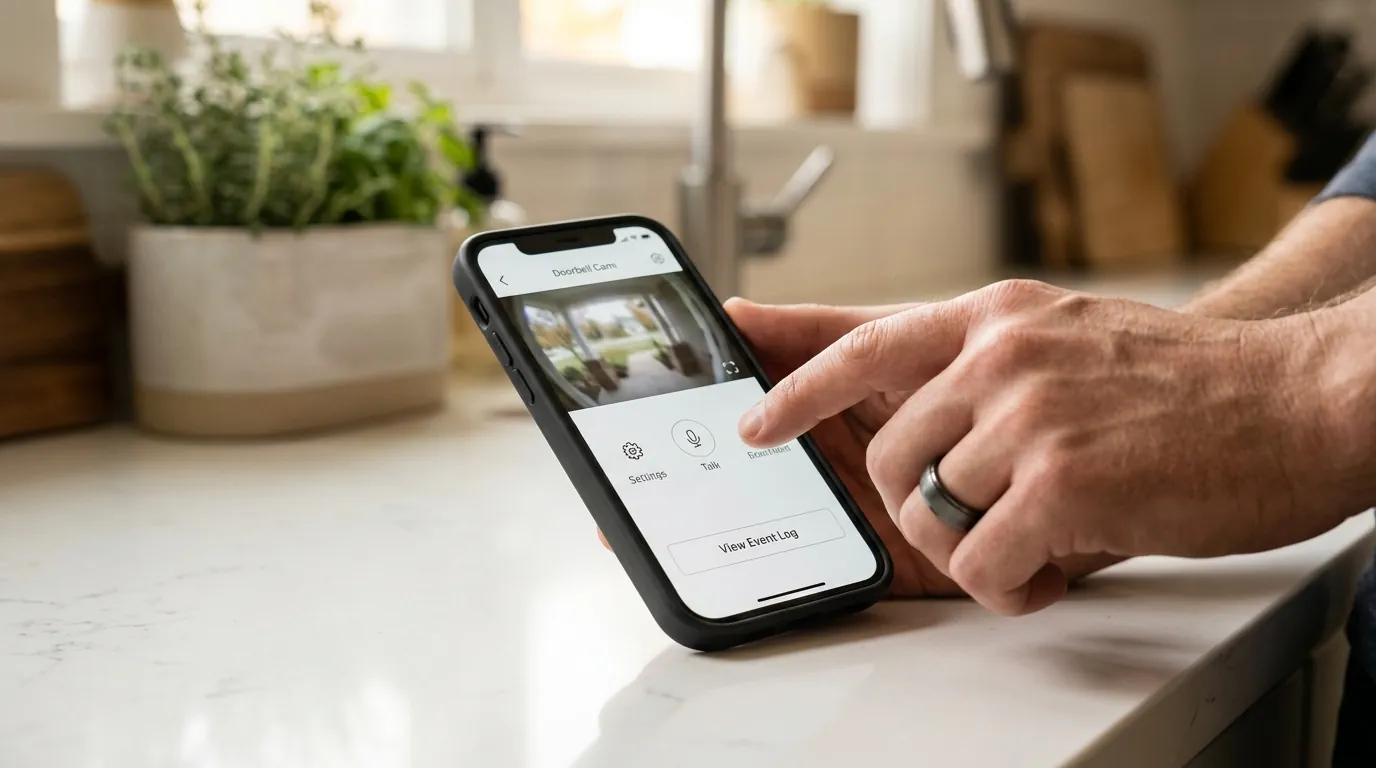
- Toggle Push Settings: Open the Reolink app, go to Settings > Surveillance > Push, and toggle the switch off. Wait 10 seconds, then toggle it back on. This forces the app to re-register its push token with the Reolink server.
- Sync Device Time: Go to Settings > System > Date & Time. Tap “Sync Phone Time.” If the doorbell’s internal clock differs from the push server’s clock by more than a few seconds, the security certificate for the notification will be rejected.
Phone-Side Permission Audit
- Android (Unrestricted Battery): This is the most critical step for Android users. Go to Settings > Apps > Reolink > Battery. Select “Unrestricted”. By default, most phones are set to “Optimized,” which will delay notifications by minutes or block them entirely when the screen is off.
- iOS (Background App Refresh): Go to Settings > General > Background App Refresh and ensure it is toggled ON for the Reolink app. Additionally, check Settings > Notifications > Reolink and ensure “Critical Alerts” (if available) and “Banners” are set to “Persistent.”
Clear App Cache
On Android, navigate to Settings > Apps > Reolink > Storage > Clear Cache. This removes temporary files that may be corrupting the push token. On iOS, you must “Offload App” or delete and reinstall the app to achieve a similar refresh.
Check ‘Do Not Disturb’ and Focus Modes
Ensure that your phone’s “Focus” or “Do Not Disturb” settings aren’t silencing the Reolink app. In 2026, both iOS and Android have granular schedules that can accidentally silence security apps during specific hours of the night.
Deeper diagnostics
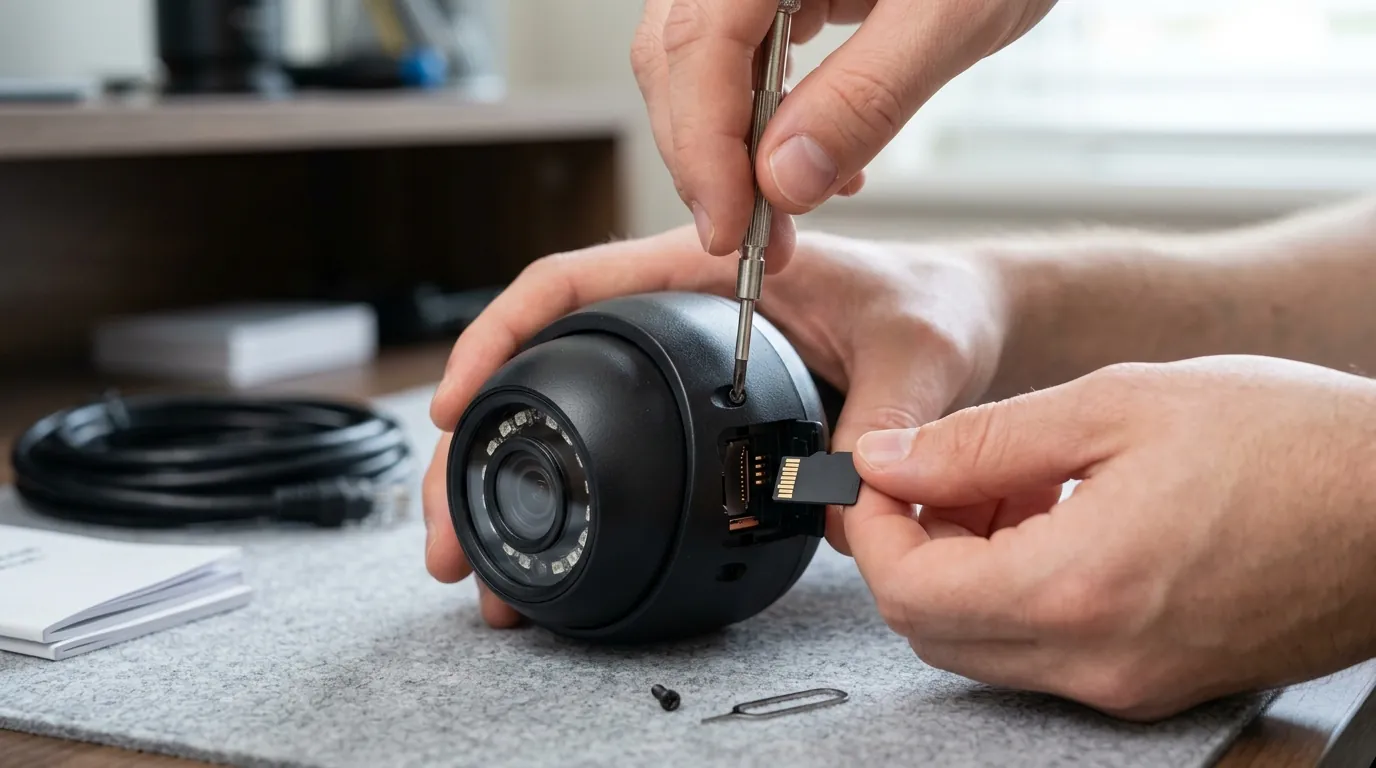
If the quick fixes fail, the problem is likely deeper in the device configuration or firmware.
Manual Firmware Flash Guide
The “Auto-Update” feature in the Reolink app is notoriously unreliable; it often reports that the device is “up to date” even when a newer version exists on the Reolink Download Center.
Current 2026 Firmware Versions:
- WiFi/PoE Models (Hardware DB_566128M5MP_W): v3.0.0.6460 (Released June 2026).
- Battery 2nd Gen (Hardware D340P): v3.0.0.6304.
To update manually:
- Download the
.pakfile from the official Reolink site to a PC. - Access the doorbell via the Reolink Client (Desktop) or a web browser by typing the doorbell’s IP address.
- Go to Settings > System > Maintenance > Upgrade and upload the file.
- Crucial: Ensure “Update Configuration” is checked to wipe any legacy bugs.
Re-add via UID
If you added your doorbell by “Searching in LAN” or typing an IP address, push notifications will often fail because the Reolink server doesn’t have a stable route to the device.
- Delete the doorbell from the Reolink app.
- Tap the ”+” icon to add a new device.
- Scan the QR code on the back of the doorbell. This adds it via its UID.
- The UID method ensures that even if your router changes the doorbell’s local IP, the Reolink Push Server can still find it.
Testing the P2P Connection
You can verify if the doorbell can “talk” to the push server by checking the P2P status. In the Reolink Client, go to Settings > Network > Advanced. Ensure that the P2P box is checked. If it is checked but notifications still fail, try changing your router’s DNS settings to Google (8.8.8.8) or Cloudflare (1.1.1.1), as some ISP DNS servers block Reolink’s push domains.
Upgrade Recommendation
If you are using the WiFi or Battery model and continue to face 10s+ lag despite a strong signal, the hardware-level solution is the Reolink Video Doorbell PoE (around $100). Because PoE uses a dedicated wired data path, it eliminates the “wake-up” time required for WiFi radios, providing near-instant alerts. This is the preferred choice for users who prioritize speed over ease of installation.
When to contact support
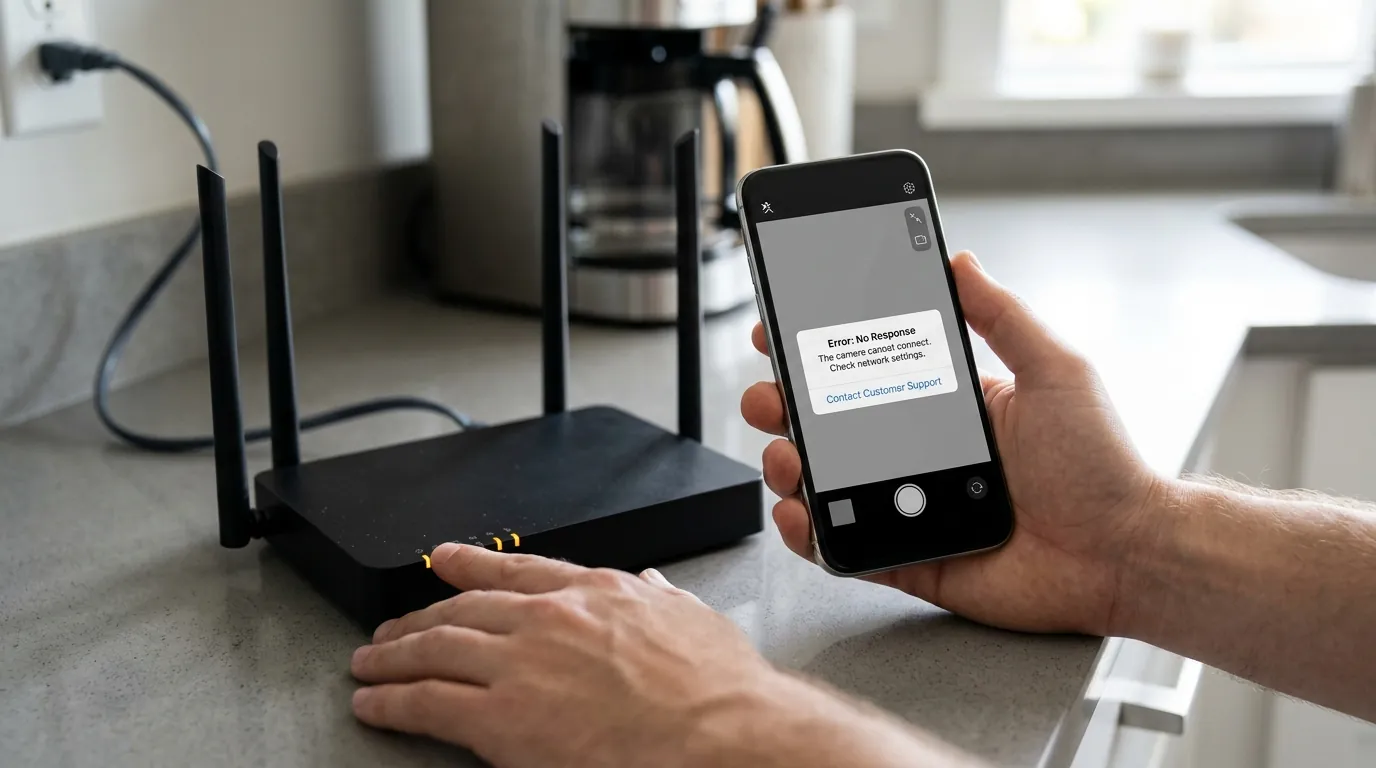
If you have performed a manual firmware flash and a factory reset (using the physical reset button on the back of the unit) and still see “Operation Failed,” you may have a hardware defect.
- Persistent ‘Operation Failed’: If the push toggle refuses to stay “On” after a factory reset, the internal push token registration is failing. This often requires Reolink support to reset your UID on their server side.
- Hardware Button Failure: If the mechanical chime rings but the app shows no “Visitor” event in the log, the signal is not reaching the doorbell’s logic board.
- Cloud Sync Issues: If you have a paid subscription but Rich Notifications refuse to activate after 24 hours, contact support to manually sync your account.
Checklist for Support: When contacting Reolink, provide your UID, Hardware Version, App Version, and your ISP (Internet Service Provider). This helps them determine if there is a regional server outage or a known conflict with your router.
How to prevent it
Once your notifications are working, implement these strategies to ensure they stay that way.
Network Optimization for Doorbells
- Static IP Assignment: Assign a static IP to the doorbell in your router settings. This prevents “Device Offline” blips during DHCP renewals, which can occasionally break the push handshake.
- 5GHz vs 2.4GHz: If your WiFi doorbell is within 20 feet of the router, use the 5GHz band. While 2.4GHz has better range, it is often too crowded with interference from neighbors’ routers and microwaves, causing the lag you’re trying to avoid.
Local Redundancy Strategies
Never rely solely on cloud-based push notifications for security.
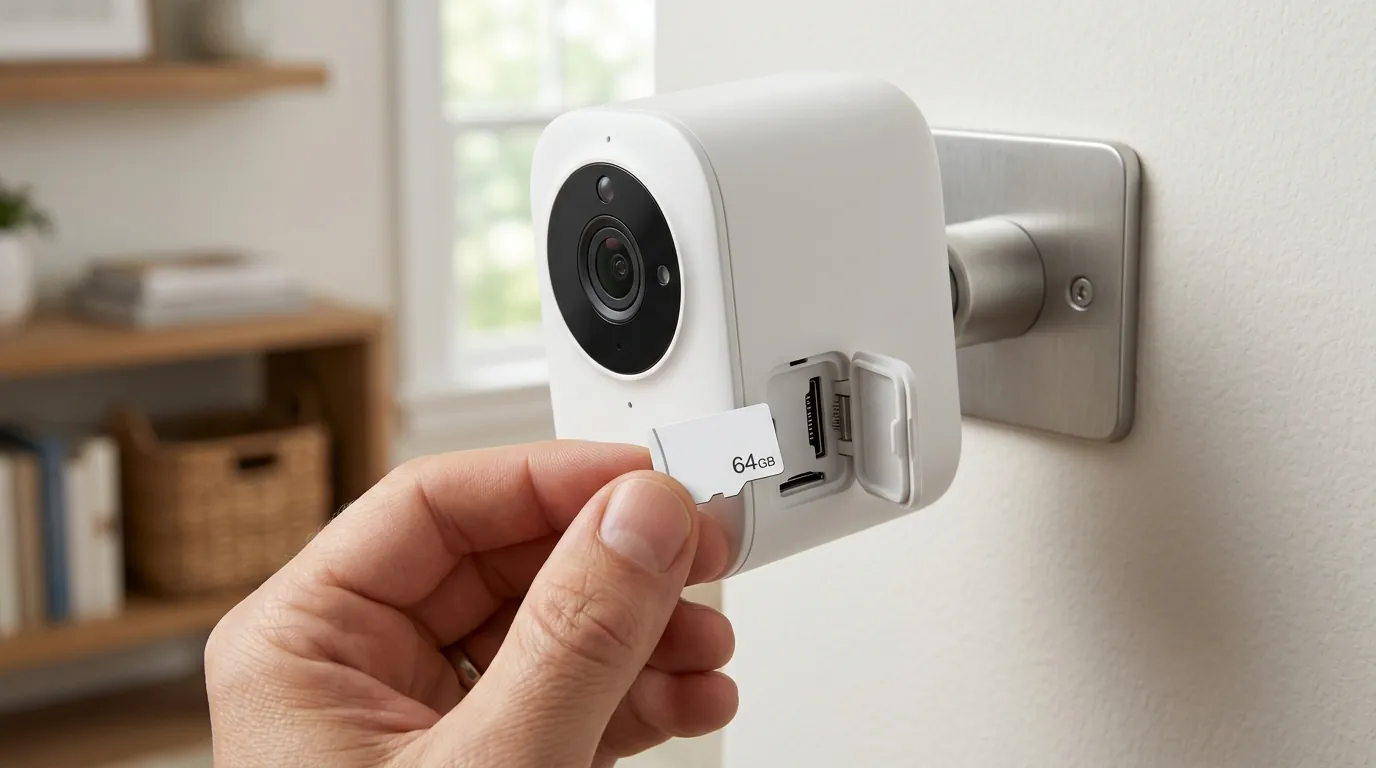
- High-End MicroSD: Use a high-end card like the SanDisk Max Endurance (around $15–$30). This ensures that even if the notification fails or your internet is down, the doorbell is still recording the event locally.
- Auto-Reboot Schedule: In the Reolink app, go to Settings > System > Maintenance and enable a weekly “Auto-Reboot” (e.g., Sunday at 3:00 AM). This clears the doorbell’s memory and refreshes the connection to the push server.
Issue Timeline (2026)
- March 2026: First widespread reports of “Operation Failed” errors on hardware version DB_566128M5MP_W following an Android 16 system update.
- June 12, 2026: Reolink releases firmware v3.0.0.6460 specifically to address push notification “handshake” timeouts.
- August 2026: Reolink App v4.45 update improves background notification handling for iOS 19 users.
- September 2026 (Current): Issues are largely resolved for users on the latest firmware; remaining “lag” issues are typically attributed to local WiFi RSSI or OS battery optimization.
Frequently Asked Questions
Why does my Reolink doorbell chime ring but I get no notification?
This happens because the chime uses a local 433MHz RF signal, which doesn’t require the internet. The phone notification requires a successful connection to the Reolink Push Server. If your internet is down or the P2P service is disabled in settings, the chime will work while the app remains silent.
Do I have to pay a subscription for Reolink doorbell notifications?
No, standard push notifications (text alerts) are free. However, “Rich Notifications,” which include a snapshot or GIF of the person at the door, are limited to 25 per day on the free tier. For unlimited rich previews, a Cloud Plan (around $3.50/month) is required.
How do I fix the “Operation Failed” error when enabling push?
This error usually means the doorbell cannot register its unique ID (UID) with the Reolink push server. To fix it, ensure P2P is enabled in the network settings, sync the device time with your phone, and ensure you added the camera by scanning the QR code rather than using a local IP address.
Can I get Reolink notifications on my PC?
Yes, the Reolink Client for Windows and macOS can show “pop-up” notifications, but they are generally less reliable than mobile alerts because the PC client must be actively running in the background. For critical security, mobile push notifications are the primary method.
Does the Reolink doorbell work with Home Assistant for notifications?
Yes, many users bypass the Reolink app entirely by using the Home Assistant Reolink integration. This allows for local push notifications that do not rely on Reolink’s cloud servers, though it requires a dedicated home automation server (like a Raspberry Pi) to set up.
Sources
- Reolink Download Center - Official Firmware Updates
- Reolink Support - Troubleshooting Push Notifications
- Reddit r/reolink - Community Firmware Discussion
- Reolink Privacy Policy - Data Handling and P2P Servers