
Fix: TP-Link Tapo Camera Integration Not Working (2026 Guide)
Integration failures can turn a high-performance security setup into a frustrating series of “Device Unresponsive” notifications. If your TP-Link Tapo camera has stopped communicating with Alexa, Google Home, or your local NVR in 2026, the solution usually lies in a specific set of firmware-driven authentication changes.
Quick Answer: Most Tapo integration failures in 2026 are caused by disabled ‘Camera Account’ settings or Matter pairing timeouts. Enable ‘Third-party Compatibility’ in the Tapo app and ensure firmware is updated to at least v1.4.4 to fix most bugs. For local integrations like Home Assistant, you must create a dedicated “Camera Account” (different from your TP-Link ID) to authorize RTSP and ONVIF streams.
The symptom
Related: Wyze Doorbell HomeKit Function Broken? 2026 Fixes & Tips · Eufy Doorbell P2P & Motion Detection Failure: September 2026 Fixes · Wyze App 3.21 Device Groups Not Opening? Here is the Fix
When a Tapo camera integration fails, the behavior varies depending on whether you are using a cloud-based voice assistant or a local-network controller. In 2026, the most common report involves cameras that work perfectly within the native Tapo app but appear “Offline” everywhere else.
Voice Assistant Disconnections
Users frequently report that Alexa or Google Home displays the camera as “Unresponsive.” Even if the device appears in the device list, attempting to pull up a live stream on an Echo Show or Nest Hub results in a “Waiting for TP-Link…” message followed by a black screen. This often indicates a broken OAuth token between the TP-Link cloud and the service provider.
Matter and Thread Pairing Errors
With the 2026 push toward Matter-enabled hardware like the Tapo C125 and C225, pairing failures have become a primary symptom. You may encounter “Unable to Find Your Matter Device” or “Pairing Timed Out” errors. These typically occur when the camera is already bound to one “Fabric” (e.g., Apple Home) and lacks the proper “New Setup Code” to join a second ecosystem like Google Home.
Local Stream (RTSP/ONVIF) Failures
For users of Home Assistant, Scrypted, or Blue Iris, the symptoms are often more technical. You may see “SSL Handshake” errors or “401 Unauthorized” messages in your logs. This is frequently tied to the 2026 security hardening in Tapo firmware, which requires explicit permission for local streaming that was previously enabled by default.
| Error Code/Symptom | Affected Integration | Primary Cause (2026 Data) | Status/Workaround |
|---|---|---|---|
| “Unresponsive” | Alexa / Google Home | Expired OAuth Cloud Token | Relink Tapo Skill in Assistant App |
| Error -40211 | Home Assistant (HACS) | Firmware v1.4.4+ Auth Change | Update Integration to v5.2.0+ |
| “Pairing Timed Out” | Matter / Thread | Multi-Admin Fabric Lock | Generate “New Setup Code” in Tapo App |
| SSL Handshake Fail | Blue Iris / Synology | Port 2020 / 554 Blocked | Enable “Third-party Compatibility” |
| Black Screen Lag | Smart Displays | Low RSSI / Signal Noise | Verify RSSI is better than -60dBm |
What’s likely happening
Understanding the “why” behind these failures is critical for a permanent fix. In 2026, TP-Link has shifted toward a “Secure by Default” posture, which inadvertently breaks older “plug-and-play” integration methods.
The 2026 Firmware ‘Handshake’ Bug
Recent firmware updates (specifically versions starting with v1.4.4, released in late 2025 and early 2026) introduced a change in how the camera handles digest authentication. Older versions of third-party plugins (like the popular tapo-control HACS component for Home Assistant) were built on an older handshake protocol. When the camera updates, it rejects the old handshake, resulting in the dreaded “Unauthorized” error.
Matter Multi-Admin Restrictions
Matter is designed to work across multiple platforms, but it has a “Multi-Admin” security feature. If you set up your Tapo C125 in Apple Home first, the camera “locks” its commissioning window. To add it to Alexa, you cannot use the QR code on the back of the camera; you must generate a temporary digital code within the app that first “owns” the device.
Session Expiry and Token Timeouts
Cloud-to-cloud integrations rely on digital “tokens.” If you haven’t opened the Tapo app in several weeks, or if TP-Link has updated their Privacy Policy (as they did in early 2026), these tokens may be revoked. This forces the integration into an “Unresponsive” state until the user re-authenticates.
Timeline of Integration Issues
- Late 2025: TP-Link begins rolling out “Third-party Compatibility” toggles to comply with updated Matter 1.3/1.4 specifications.
- January 2026: First reports of “Error -40211” appear in community forums following the v1.4.4 firmware rollout.
- March 2026: TP-Link acknowledges a “Handshake” bug affecting local RTSP streams and releases a secondary patch (v1.4.6) for select C-series models.
- Today: Most issues are resolved through manual setting adjustments rather than waiting for further patches.
Quick fixes (in order of likelihood)
Before diving into network logs, try these three high-probability fixes. According to community consensus on r/HomeSecurity, these resolve approximately 80% of Tapo integration issues.
Refreshing the Cloud Link
If Alexa or Google Home is the problem, the link between the two clouds has likely “stale-dated.”
- Open your Alexa or Google Home app.
- Navigate to Skills & Games (Alexa) or Works with Google (Google).
- Find the TP-Link Tapo skill and select Disable or Unlink.
- Wait 30 seconds, then Re-enable it. You will be prompted to log in with your TP-Link ID.
- Run a discovery command: “Alexa, discover my devices.”
The ‘Third-party Compatibility’ Toggle
In 2026, many Tapo models require you to “unlock” the camera for non-Tapo apps.
- Open the Tapo App and select your camera.
- Tap the Gear Icon (Settings) > Advanced Settings.
- Look for Third-party Compatibility or Device Collaboration.
- Ensure this is toggled ON. If it was already on, toggle it off and back on to refresh the local service broadcast.
Network Power Cycling
The “30-Second Rule” is more than a cliché; it forces the camera to clear its internal cache and request a new IP address and DNS resolution.
- Unplug the camera from power.
- Wait a full 30 seconds (this allows the capacitors to fully discharge).
- Plug it back in and wait for the LED to turn solid green (or the equivalent “Connected” state for your model).
Deeper diagnostics
If the quick fixes fail, the issue is likely rooted in your network configuration or the specific way the camera is identified by your hub.
Advanced RTSP/ONVIF Troubleshooting
For local integrations, Tapo uses two specific ports: 554 for RTSP (video/audio) and 2020 for ONVIF (control/PTZ).
- The Camera Account: You cannot use your TP-Link email and password for RTSP. You must go to Camera Settings > Advanced Settings > Camera Account and create a separate username and password.
- Port Verification: Use a tool like “Fing” or a desktop network scanner to see if the camera is actually listening on port 2020. If it isn’t, the ONVIF service has crashed or been disabled by firmware. A factory reset is often the only way to re-enable it.
Matter Setup Codes and Fabrics
If you are struggling with a Matter integration, check the “Fabrics” list:
- In the Tapo App, go to Device Settings > Matter.
- View Connected Ecosystems. Matter typically supports up to 5 “Fabrics.” If this list is full, you cannot add another integration without removing an old one.
- To add a new one, tap Share Device to generate a “New Setup Code.” This code is usually only valid for 15 minutes.
IP Address Stability
Integrations often break because the camera’s IP address changed. If your Home Assistant configuration points to 192.168.1.50 but the router reassigned the camera to 1.62 after a reboot, the integration will fail.
- Action: Log into your router’s web interface and set a Static IP Reservation (or DHCP Reservation) for the camera’s MAC address.
Signal Strength (RSSI) vs. Stability
A camera may show “Online” in the Tapo app but fail to stream to an Echo Show because the bandwidth required for the integration’s “handshake” is higher than the app’s low-bitrate preview.
| RSSI Value | Stability Level | Integration Performance |
|---|---|---|
| -30 to -50 dBm | Excellent | Instant loading, no lag. |
| -50 to -65 dBm | Good | Reliable for most smart displays. |
| -65 to -75 dBm | Poor | Frequent “Unresponsive” errors in Alexa. |
| -75 dBm and lower | Unstable | Integration will likely fail to initialize. |
When to contact support
If you have performed a factory reset (holding the reset button for 5-10 seconds until the LED blinks red) and the integration still fails, you may be facing a hardware or regional account issue.
Identifying Hardware Failure
- Solid Red LED: This often indicates a firmware update that failed and “bricked” the integration module.
- Alternating Red/Blue: The camera is in pairing mode but failing to broadcast its Bluetooth/Wi-Fi beacon.
- Regional Account Locks: TP-Link IDs are region-specific. If you purchased a camera in the UK but are using a US-based TP-Link ID, the cloud-to-cloud integration (Alexa/Google) may fail due to server mismatch. You must contact TP-Link support to migrate your account region.
Beta Firmware and Trial Fixes
For the persistent “Error -40211,” TP-Link occasionally provides beta firmware via their official community forums. Check for threads tagged with your specific model (e.g., C310, C500) to see if a “Trial APK” or “Beta Firmware” has been released to address the 2026 authentication bugs.
The Local-First Alternative
If your Tapo hardware is over two years old and continues to drop local streams despite these fixes, it may be a sign of the hardware’s limited processing power struggling with 2026 security overhead. For users who prioritize a “set it and forget it” integration with Home Assistant or NVRs, we often recommend moving toward “local-first” hardware. The Reolink E1 Pro (typically in the $50-60 range) is a robust 2026 alternative that offers native ONVIF support without the need for cloud toggles or “Third-party Compatibility” menus.
How to prevent it
Once you have restored your integration, take these steps to ensure it doesn’t break during the next global firmware rollout.
Firmware Management Strategy
Don’t let “Auto-Update” ruin a stable setup.
- Disable Auto-Update: In the Tapo app, go to Me > Firmware Update and toggle off “Auto-Update.”
- The “Wait and See” Rule: When a new firmware version is announced, wait 14 days and check the Home Assistant or TP-Link forums for reports of integration breaks before manually updating.
Network Optimization for IoT
- Dedicated IoT VLAN: If your router supports it, put your cameras and your smart hubs (Echo, Nest, Home Assistant) on the same VLAN. Ensure mDNS (Multicast DNS) is enabled on your router so the devices can “find” each other without cloud intervention.
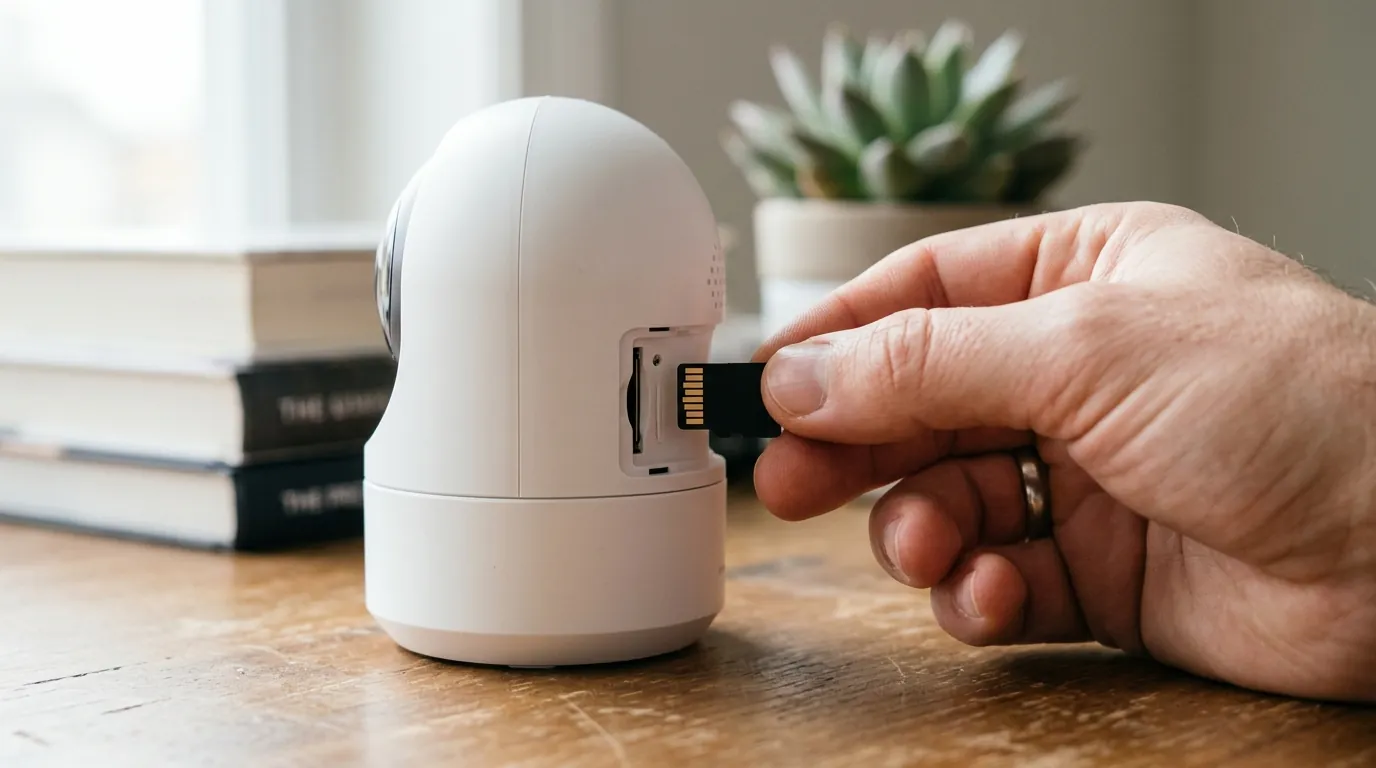
- High-End MicroSD Cards: Surprisingly, a failing or slow SD card can lag the camera’s CPU, causing it to time out during an integration handshake. Use “High Endurance” cards specifically rated for security cameras.
Checklist: 5 Steps to a ‘Bulletproof’ Tapo Setup
- Assign Static IP: Prevent address hopping in your router settings.
- Create Camera Account: Separate from your TP-Link ID for RTSP/ONVIF.
- Optimize Wi-Fi: Ensure RSSI is stronger than -60dBm.
- Enable Third-party Toggle: Found in Advanced Settings.
- Audit Skills: Every 90 days, check your Alexa/Google Home app to ensure the “Tapo” skill hasn’t requested a re-authorization.
Frequently Asked Questions
Why does my Tapo camera work in the app but not in Alexa?
This is usually caused by a “stale” cloud token. The Tapo app uses a direct connection to TP-Link servers, while Alexa uses a cloud-to-cloud bridge. Disabling and re-enabling the Tapo skill in the Alexa app forces a fresh security handshake.
Does Tapo support Matter without a hub?
No. While the camera itself is Matter-compatible (on models like C125), you still need a Matter Controller (like an Echo Hub, Nest Hub Gen 2, or Apple HomePod) to bridge the camera into your smart home ecosystem.
What is the default ONVIF password for Tapo?
There is no default password. For security, you must manually create a “Camera Account” in the Advanced Settings of the Tapo app. This username and password will be what you use for ONVIF and RTSP streaming.
Why is my Tapo stream lagging on my Nest Hub?
Lag is typically caused by high network latency or a weak Wi-Fi signal (RSSI). If the camera is more than two walls away from the router, the “handshake” between Google’s servers and the camera may take too long, causing the stream to buffer or fail.
Sources
- TP-Link Official Support — https://www.tapo.com/us/support/
- Home Assistant Tapo Control (GitHub/xnorpx) — https://github.com/xnorpx/keeppeek
- Matter Smart Home Standards — https://csa-iot.org/all-solutions/matter/
- TP-Link Community Forums — https://community.tp-link.com/en/smart-home/forum/584