
Wyze Cam v4 Night Vision Flickering: 2026 Troubleshooting Guide
A flickering image at night can render a security camera useless, turning a clear 2.5K stream into a strobing mess of light and shadow. For Wyze Cam v4 owners, this issue often emerges immediately following a firmware update, where the camera’s logic for switching between color and infrared modes becomes unstable.
Quick Answer: Flickering is typically caused by the IR cut filter cycling rapidly due to “borderline” light levels or firmware sensitivity bugs. Fix it by manually toggling Night Vision to “On” or “Off” instead of “Auto” in the Wyze app settings.
What it means
Related: Fixing eufyCam S330 & HomeBase 3 Firmware Sync Errors · Fixing Google Nest Cam Battery Drain After June 2026 Update · Ring Doorbell Recording Neighbors? Understand Your Privacy Rights
When a Wyze Cam v4 “flickers,” users are generally describing one of two distinct technical failures: mechanical cycling or digital exposure hunting. Mechanical flickering is characterized by a physical “clicking” sound coming from the camera body, while digital flickering is a silent, rapid change in the brightness or color of the video feed.
The “twilight loop” is the most common manifestation. This occurs when the ambient light is exactly at the threshold where the camera’s software thinks it should switch to Night Vision. As soon as the infrared (IR) LEDs turn on, the camera perceives the environment as “bright” again and switches back to color mode, creating an infinite loop of switching. This behavior has been increasingly reported following the 4.52.9.x firmware branches, which adjusted the sensitivity of the Starlight sensor.
In the live stream, this looks like a strobe light effect. In recorded playback, it often results in fragmented clips or “Motion Detected” events that consist of nothing but the camera changing its own modes.
Visual Symptoms: The ‘Strobe’ Effect
The digital “strobe” occurs when the camera’s CMOS sensor rapidly adjusts its gain and shutter speed. This is often a result of the camera’s Wide Dynamic Range (WDR) settings fighting against the sudden influx of 850nm infrared light. Unlike the mechanical click, this is purely an image processing error where the “Color Night Vision” feature fails to find a stable exposure balance.
Audible Symptoms: The Infinite Click
The audible click is the sound of the Solenoid-driven IR Cut Filter (ICR) physically moving in front of the lens. Under normal conditions, you should hear this once at dusk and once at dawn. If you hear a rhythmic click-clack every few seconds, the camera is caught in a hardware logic loop that can eventually wear out the mechanical components.
| Symptom | Type | Primary Cause | Audible? |
|---|---|---|---|
| Rapid Brightness Shift | Digital | Exposure/Gain hunting | No |
| B&W to Color Loop | Mechanical | IR Cut Filter cycling | Yes (Clicking) |
| Pink Tint | Mechanical | Stuck IR Cut Filter | No |
| Static/Snow | Digital | High Gain (ISO) noise | No |
[Image Specification: A Wyze Cam v4 mounted on a white exterior wall at night, with its IR LEDs glowing faint red and a visible reflection on the nearby siding. Aspect Ratio: 16:9]
Why it exists
The Wyze Cam v4 relies on a delicate balance between its Starlight sensor—which is designed to see color in extremely low light—and its traditional 850nm IR LEDs. Firmware updates often recalibrate the “lux thresholds,” which are the specific light levels that trigger the transition between these modes.
Firmware Threshold Shifts
When Wyze releases a firmware update, such as those in the 4.52.9.x branch, they often tweak the “Hysteresis” logic. Hysteresis is the programmed lag that prevents the camera from switching modes too quickly. If a firmware update narrows this gap, a small reflection or a passing car’s headlights can trigger an immediate and repetitive mode switch.
The IR Reflection Trap
Environmental factors play a massive role in flickering. IR light is invisible to the human eye but highly reflective off certain surfaces. If your Wyze Cam v4 is mounted too close to a white soffit, a brick wall, or a glass window, the IR light bounces off that surface and directly back into the lens. The camera “sees” this bright reflection, assumes it is daytime, and turns off the IR LEDs. Once the LEDs are off, the environment becomes dark again, and the camera turns the IR back on, starting the cycle anew.
Common IR-Reflective Materials:
- White vinyl siding
- Glossy paint (especially white or light gray)
- Glass windows (causes immediate “blindness”)
- Aluminum gutters or downspouts
- Dust or spiderwebs directly on the lens cover
Voltage Sag and IR Activation
The Wyze Cam v4 requires a stable 5V/2A power supply. Activating the IR LED array increases the power draw of the device significantly. If you are using a third-party power adapter or an exceptionally long USB extension cable (over 20 feet), the camera may experience “voltage sag” the moment the LEDs kick in. This drop in power can cause the camera’s processor to brown out or reset the image sensor, which looks like a flicker or a reboot loop.
How it works under the hood
To understand why the v4 flickers, we must look at the internal components: the IR Cut Filter (ICR) and the 850nm LED array.
The Mechanics of the IR Cut Filter
During the day, the IR Cut Filter—a small piece of treated glass—sits between the lens and the sensor to block infrared light, which would otherwise wash out the colors. At night, a solenoid (an electromagnetic coil) physically pushes this filter out of the way.
[Image Specification: Close-up macro shot of a security camera lens assembly showing the thin glass IR cut filter partially engaged. Aspect Ratio: 4:3]
Technical Spec: Wyze Cam v4 850nm IR LED Array
- LED Count: 2-4 High-intensity SMD LEDs
- Wavelength: 850nm (visible as a faint red glow)
- Power Draw (LEDs Only): Approximately 1.2W to 1.8W when active.
- Total Device Draw (IR On): Up to 4.5W peak during filter transition.
Logic Loops and Hysteresis Gaps
The camera’s firmware uses a “High/Low” logic gate for night vision. For example, it may be programmed to turn IR on when ambient light hits 1 Lux and turn it off when light hits 3 Lux. This 2-Lux “Hysteresis Gap” is what prevents flickering. If a firmware update accidentally sets both the “on” and “off” points to 2 Lux, the camera has no “buffer zone” and will flicker at the slightest change in photon count.
Sensor Gain vs. Shutter Speed
The Wyze Cam v4 uses Pulse Width Modulation (PWM) to control the brightness of its IR LEDs. If the PWM frequency conflicts with the 60Hz frequency of your home’s outdoor lighting (or the 50Hz frequency in some international regions), the video will appear to pulse. This is often misidentified as a night vision failure when it is actually a frame-rate synchronization issue between the camera’s shutter and the ambient light.
Real-world implications
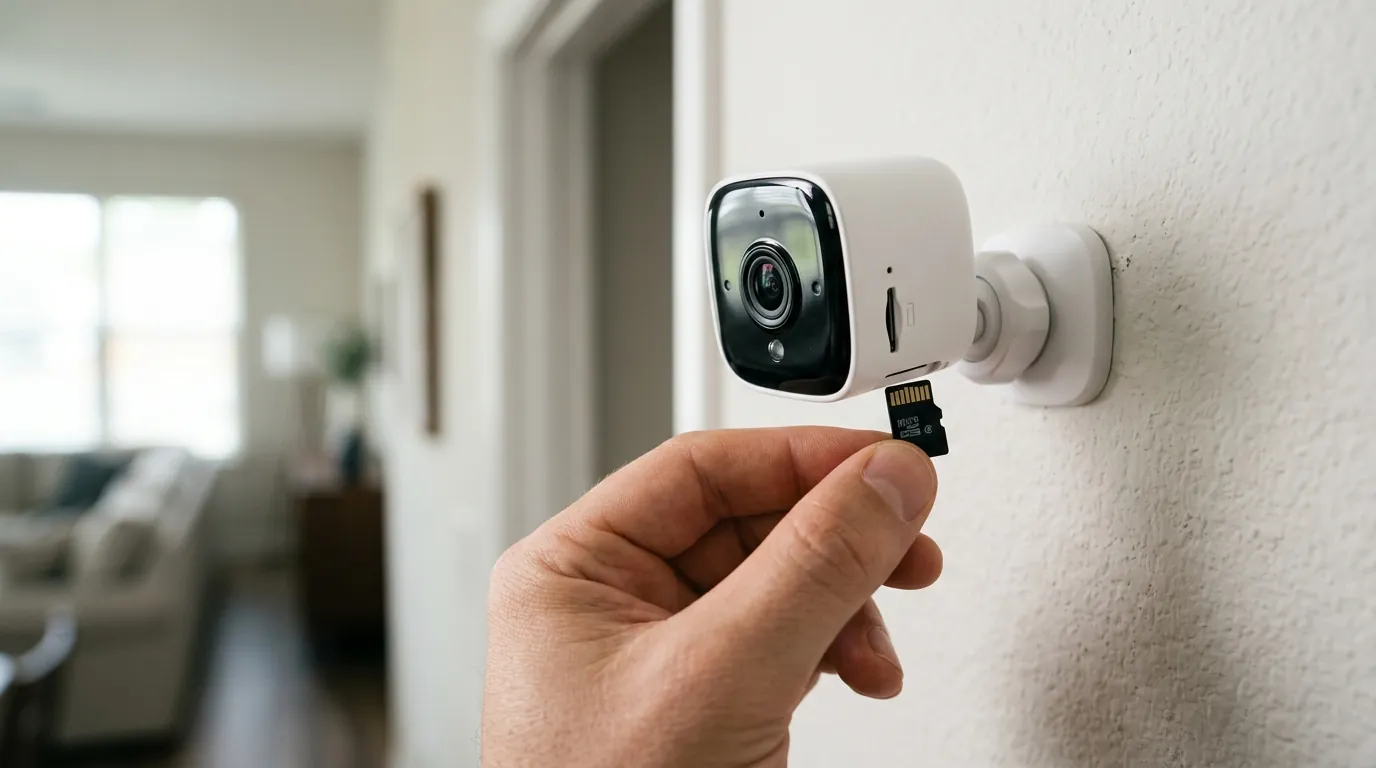
Flickering is more than just an annoyance; it has tangible effects on the security and longevity of your hardware.
Notification Fatigue
Every time the camera switches between IR and color mode, the entire image changes. To the camera’s motion detection algorithm, this looks like a massive movement event. If your camera is flickering every 10 seconds, you will receive hundreds of “Motion Detected” notifications on your phone, likely leading you to mute the alerts and miss an actual security event.
Hardware Longevity Concerns
The solenoid that moves the IR cut filter is a mechanical part with a finite lifespan. It is designed to actuate a few thousand times over the life of the camera. If a firmware bug causes it to cycle every few seconds, the solenoid can burn out within weeks, leaving the camera permanently stuck in “Pink Mode” (where the filter is stuck halfway) or permanent “Black and White” mode.
The ‘Blind Spot’ During Switching
There is a 1-2 second period during the mode switch where the image sensor must recalibrate its gain. During these seconds, the video is often completely black or completely white. If an intruder moves quickly during this “blind spot,” the camera may fail to capture a usable image of their face.
Storage Bloat
Flickering creates “visual noise.” Because video compression (H.264/H.265) works by only recording the changes between frames, a flickering image—where every pixel changes every second—results in a massive spike in bitrate.
Benchmark: Storage Consumption (MicroSD)
- Stable Night Clip (IR On): ~12 MB per minute.
- Flickering Clip (Switching Loop): ~38 MB per minute.
- Impact: A flickering camera can reduce your effective MicroSD storage capacity by 60-70% and significantly shorten the lifespan of the card due to constant high-speed writes.
Common misconceptions
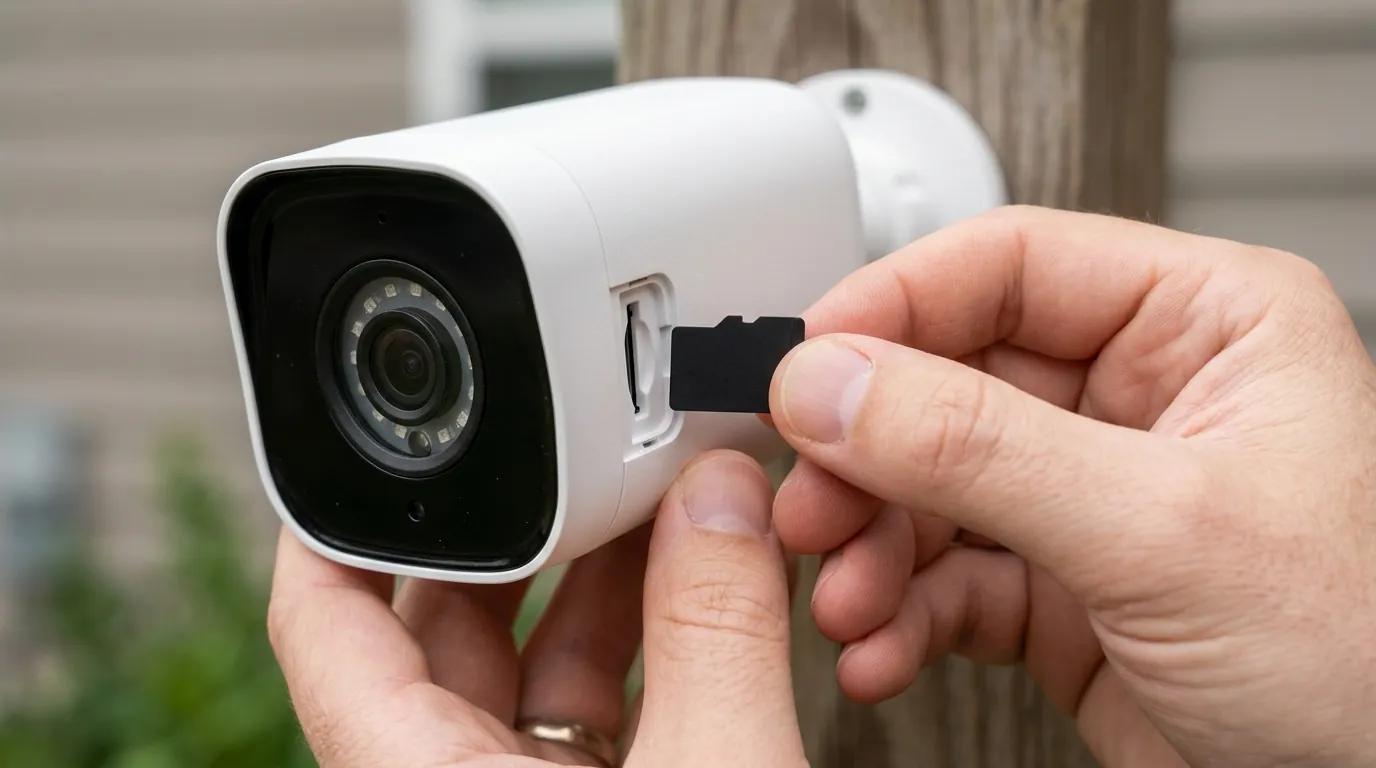
When troubleshooting the Wyze Cam v4, many users head down the wrong path based on common myths about how these cameras operate.
Misconception: “The camera is broken and needs a replacement.”
- Reality: While hardware failures happen, 90% of flickering issues on the v4 are software-logic conflicts. If the camera works fine during the day, the hardware (sensor and lens) is functional. The issue is the decision-making software.
Misconception: “It’s a Wi-Fi signal issue.”
- Reality: Wi-Fi issues cause lagging, stuttering, or “reconnecting” spinning wheels. Flickering (the image changing brightness or clicking) is processed locally on the camera’s mainboard before it even reaches the Wi-Fi chip.
Misconception: “I need a new SD card.”
- Reality: A corrupted SD card can cause the camera to reboot, but it won’t trigger the IR filter to cycle. If you see the IR LEDs (the red dots) turning on and off, the SD card is not the culprit.
Troubleshooting Flowchart: Is it Hardware or Software?
- Cover the light sensor: Completely cover the front of the camera with black electrical tape.
- Does it still flicker? Hardware/Power Issue. Check your power adapter and cable.
- Does it stay stable in B&W? Software/Environment Issue. Proceed to settings.
- Move the camera: Take the camera off its mount and point it into a dark room with no nearby walls.
- Does it still flicker? Firmware Bug. Perform a firmware rollback.
- Is it stable? Environmental Glare. Reposition the camera away from reflective surfaces.
Further reading
If the basic “Auto” toggle doesn’t solve your issue, you may need to take more advanced steps to stabilize your Wyze Cam v4.
Manual Firmware Rollback Guide
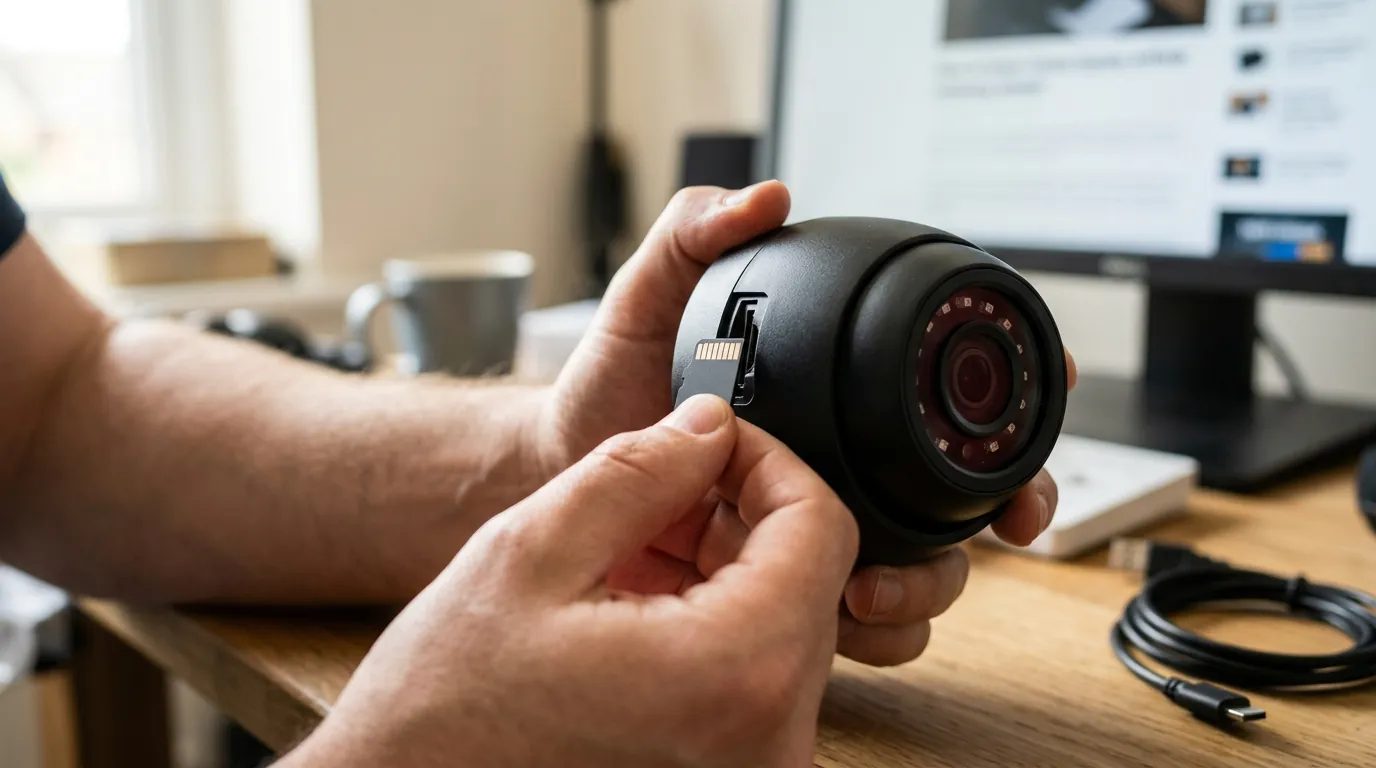
If a specific update broke your night vision, you can revert to a previous version. Unlike other brands, Wyze allows manual flashing via the MicroSD card.
- Download a stable firmware version (e.g., an older 4.52.9.x version) from the Wyze Support site.
- Rename the file to
recovery_wcv4.binordemo_v4.bin(check the specific release notes for the v4 naming convention; olderdemo.binfiles will not work). - Turn off the camera and insert the MicroSD card.
- Hold the “Setup” button while plugging the power back in. Hold until the light turns solid purple/blue.
- Wait 3-5 minutes for the camera to reboot.
Optimizing App Settings for 2026
In the current Wyze app, navigate to Settings > Detection Settings > Night Vision Conditions. You will see options for “Dusk” and “Dark.”
- Dusk: Switches to IR sooner. Use this if your camera is in a shaded area.
- Dark: Delays the switch to IR. Use this if you have streetlights nearby to force the camera to stay in “Color Night Vision” mode longer.
The External IR Solution
The most effective way to stop flickering is to disable the camera’s internal IR LEDs entirely (Set Night Vision to “Off” but keep the IR Filter “Off”) and use a dedicated external IR illuminator mounted 5-10 feet away from the camera. This eliminates the “reflection trap” because the light source is no longer on the same axis as the lens.
Decision Framework: How to Fix Your Flickering
- If you are a Renter: You likely can’t move the mount. Fix: Use the “Night Vision Conditions” setting in the app to “Dark” and manually set the IR to “Off” if there is any ambient streetlight.
- If you are a Homeowner: You have mounting flexibility. Fix: Use a 1-inch standoff or spacer to move the camera away from the wall/soffit to reduce IR glare.
- If you are a Business: Security is critical. Fix: Disable internal IR and install a high-powered external IR floodlight. This prevents the “blind spot” during switching and ensures 24/7 coverage.
Total Cost of Ownership (3-Year Estimate)
While the Wyze Cam v4 is an affordable entry point, maintaining a stable system involves more than the initial purchase.
- Hardware: Around $35-$45 (Base unit).
- Storage: $15 (High-endurance 128GB MicroSD for high-bitrate flickering events).
- Subscription: $60 ($19.99/yr for 3 years of Cam Plus to manage “Motion Detected” storage).
- Accessories: $20 (Optional external IR illuminator to fix flickering permanently).
- Total 3-Year Cost: ~$130-$140 per camera.
Frequently Asked Questions
Why does my Wyze Cam v4 click but the image stays dark?
This usually indicates a stuck IR Cut Filter. The solenoid is trying to move the glass, but it is physically jammed. You can sometimes fix this by gently tapping the side of the camera or using a strong magnet briefly near the lens to “pull” the filter back into place.
Does “Color Night Vision” require the IR lights to be on?
No. Color Night Vision uses the Starlight sensor to amplify existing ambient light (from streetlights or the moon). If you turn on the IR LEDs, the camera will usually switch to black and white mode because the IR light overwhelms the color sensor.
Can a firmware update physically break my camera?
While firmware doesn’t “break” the glass, it can cause “accelerated wear.” If a bug causes the IR filter to click hundreds of times a night, the mechanical solenoid will fail much sooner than intended. It is important to fix flickering issues immediately rather than letting them persist.
Why is my night vision image pink?
A pink tint means the IR Cut Filter is stuck halfway. It is blocking some visible light but allowing IR light through, which the sensor interprets as pink/purple. This is often caused by the same logic loops that cause flickering, eventually leading to a mechanical jam.
Sources
- Wyze Cam v4 Official Specifications — https://www.wyze.com/products/wyze-cam-v4
- Wyze Firmware Release Notes — https://support.wyze.com/hc/en-us/articles/360024852172-Release-Notes-Firmware
- RTINGS: Understanding Image Sensor Gain and Noise
- FCC ID 2AUIU-WCV4 (Wyze Cam v4 Radio/Power Filings) — https://apps.fcc.gov/oetcf/eas/reports/ViewExhibitReport.cfm?mode=Exhibits&RequestTimeout=500&calledFromFrame=N&application_id=f%2B8%2F%2B%2B%2B%2B%2B%2B%2B%2B%2B%2B%2B%2B%2B%2B%2B%2B%2B%2B%2B%2B%2B%2B%2B%2B%2B&fcc_id=2AUIU-WCV4