
Fix Tapo Camera Live View Streaming Failure: A 2026 Guide
A security camera that cannot provide a real-time feed is reduced to a decorative deterrent, failing its primary purpose of providing situational awareness. For Tapo camera owners, the “Live View Streaming Failure” is a nuanced issue that often stems from the delicate handshake between local hardware, Wi-Fi stability, and TP-Link’s cloud infrastructure.
Tapo camera live view streaming failures are often resolved by checking Wi-Fi signal strength, updating camera firmware and the Tapo app, ensuring a stable power supply, and disabling VPNs or ad-blockers on your viewing device. Lowering video quality can also provide an immediate fix for buffering or slow loading.
What it means
Related: Nest Cam Battery False Motion Alerts from Shadows: Fixes & Settings · Blink Outdoor 4 Sync Module 2 Offline Loop: Causes & Fixes · Arlo Essential Indoor Camera Blinking Blue: Meanings & Troubleshooting
When a Tapo camera suffers a live view failure, the Tapo app (or a third-party RTSP stream) fails to render the video data packetized by the camera’s image processor. This failure manifests in several distinct ways, each pointing to a different segment of the data chain.
- The “Spinning Icon” or Infinite Loading: The app attempts to establish a handshake with the camera but never receives the first I-frame of the video stream. This usually indicates a network timeout or a device that is technically “online” but lacks the bandwidth to push video data.
- “Tap to Refresh” or “Try Again” Messages: These errors appear when the app loses the connection after it was already established. In 2026, many Tapo models (especially battery-powered units like the C425) implement a 10-minute viewing timeout to preserve battery and cloud bandwidth, requiring a manual refresh to resume.
- Intermittent Freezing: The stream starts but stutters or stops after a few seconds. This is a classic symptom of high packet loss or electromagnetic interference (EMI) on the 2.4GHz band.
- Remote-Only Failure: The camera works perfectly when your phone is on the home Wi-Fi, but fails when you switch to 5G/LTE. This indicates an issue with the TP-Link cloud relay or restrictive firewall settings on your mobile carrier or home router.
Why it exists
Understanding the root causes of streaming failures requires looking at the hardware-software ecosystem. Tapo cameras are built to be affordable, which often means they rely on 2.4GHz Wi-Fi modules that are more susceptible to congestion than more expensive 5GHz or dual-band alternatives.
Network Connectivity Issues
The most common culprit is a weak Received Signal Strength Indicator (RSSI). Even if your phone shows “full bars” of Wi-Fi near the camera, the camera’s smaller internal antenna may be struggling to penetrate brick, stucco, or insulation. Furthermore, the 2.4GHz band is often crowded by neighboring routers, baby monitors, and microwave ovens.
Power Supply Problems
For wired cameras like the Tapo C210 or C320WS, using an aftermarket power cable that is too long can cause a voltage drop. If the camera doesn’t receive its required 5V or 9V (depending on the model), the Wi-Fi chip is often the first component to underperform or reboot under the load of high-bitrate streaming.
Software & Firmware Glitches
TP-Link frequently releases firmware updates to patch security vulnerabilities and improve streaming protocols. An outdated app version may use an older decryption method that is no longer compatible with the camera’s updated firmware, leading to a “failed to load” error.
App & Device Limitations
If you are using an older smartphone or a device with an aggressive battery-saver mode, the Tapo app may be throttled. Additionally, virtual private networks (VPNs) and ad-blockers (like Pi-hole or AdGuard) can inadvertently block the specific domains used by TP-Link to authenticate and relay video streams.
How it works under the hood
To fix a Tapo stream, you must understand the path the data takes. Tapo cameras use H.264 or H.265 (HEVC) compression to turn raw sensor data into a streamable format.
- Local Data Flow: When your phone and camera are on the same network, the Tapo app attempts a “P2P” (Peer-to-Peer) connection. The app asks the TP-Link cloud for the camera’s local IP address, and the stream travels directly from the camera to the router to the phone. This is the fastest and most stable method.
- Remote Data Flow: When you are away from home, the camera pushes data to a TP-Link relay server. Your phone then pulls that data from the server. This adds “hops” to the journey, increasing latency and the potential for failure if the cloud server is under heavy load or if your home upload speed is insufficient.
- The Role of RTSP/ONVIF: Many Tapo models support the Real-Time Streaming Protocol (RTSP), allowing you to view the feed on a PC using VLC or a Network Video Recorder (NVR). According to TP-Link’s official developer documentation, this bypasses the Tapo app entirely. If the RTSP stream works but the app doesn’t, the issue lies with the Tapo app or cloud services, not the camera hardware.
- RSSI Thresholds: Tapo cameras generally require an RSSI better than -60dBm for a stable 2K or 4K stream. Once the signal drops to -70dBm or lower, the packet loss becomes too high for the H.265 decoder to maintain a fluid image, leading to the “spinning wheel.”
| Feature | Tapo C210 (Indoor) | Tapo C320WS (Outdoor) | Tapo C425 (Battery) | Tapo C520WS (Pan/Tilt) |
|---|---|---|---|---|
| Resolution | 2K (3MP) | 2K QHD (4MP) | 2K QHD (4MP) | 2K QHD (4MP) |
| Connectivity | 2.4GHz Wi-Fi | 2.4GHz + Ethernet | 2.4GHz Wi-Fi | 2.4GHz + Ethernet |
| Power Type | 9V DC (Wired) | 9V DC (Wired) | 10,000mAh Battery | 9V DC (Wired) |
| Max SD Card | 512GB | 512GB | 512GB | 512GB |
| RTSP Support | Yes | Yes | No (Cloud/App only) | Yes |
| Typical Price | Around $30-40 | Around $50-60 | Around $100-120 | Around $70-90 |
Data sourced from TP-Link Tapo Product Specifications.
Real-world implications
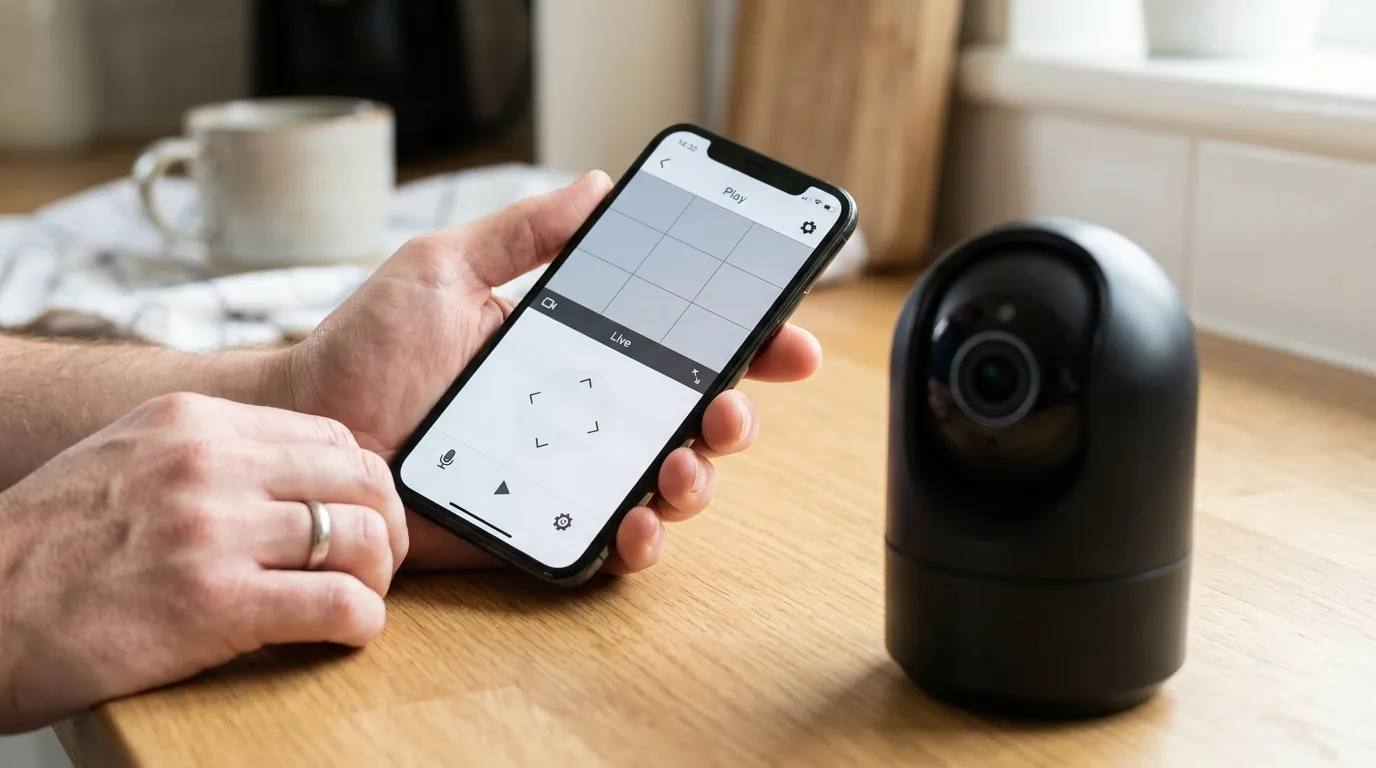
A failure in live viewing isn’t just a technical nuisance; it has tangible security consequences.
- Delayed Response: If a “Person Detected” alert arrives, but the live view fails to load, those 30 seconds of troubleshooting are the difference between catching a package thief and seeing an empty porch.
- False Sense of Security: Users may assume the camera is recording because the status LED is green, but if the network is congested, the camera may fail to upload “Event Clips” to the cloud, leaving you with no evidence of an incident.
- Battery Degradation: On battery-powered models like the C420, a camera that constantly tries to reconnect to a weak Wi-Fi signal will drain its battery in weeks rather than the advertised months. The “radio-on” time is the most significant power draw for wireless cameras.
- System Trust: Frequent failures lead to “alert fatigue” where the user stops checking notifications because they expect the stream to fail anyway, defeating the purpose of a monitored security system.
Common misconceptions
- “It’s always a camera defect”: In reality, over 80% of streaming failures reported in community forums like r/Tapo are resolved by router adjustments or Wi-Fi channel changes. Hardware failure usually results in a complete lack of power (no LEDs) rather than just a streaming error.
- “Tapo cameras require a subscription for live view”: This is false. Unlike some competitors, TP-Link allows free 24/7 live streaming and basic AI detection (person/pet) without a Tapo Care subscription. The subscription is primarily for 30-day cloud video history and rich notifications.
- “Higher resolution is always better”: While 4MP or 2K looks great, it requires significantly more upload bandwidth. If your home internet’s upload speed is under 10Mbps, you should manually set the Tapo app’s video quality to “Standard” or “Good” instead of “Best” to ensure a stable stream.
- “Wi-Fi extenders always improve signal”: Cheap Wi-Fi extenders often create a separate “EXT” network that adds latency. A camera might show a strong signal to the extender, but the extender’s weak backhaul to the main router still causes the live view to fail. A dedicated mesh system is almost always superior for security cameras.
Decision Framework: Optimizing Your Setup
To minimize streaming failures, match your hardware to your environment using this framework:
- If you are a Renter: Prioritize the Tapo C210. It is affordable and easy to move. Since you likely cannot drill holes for Ethernet, ensure your router is within 20 feet of the camera and use the 2.4GHz band with a fixed channel (1, 6, or 11) to avoid interference.
- If you are a Homeowner: Prioritize wired outdoor models like the Tapo C320WS or C520WS. Crucially, use the built-in Ethernet port whenever possible. A hardwired connection eliminates 99% of live view failures.
- If you have no outdoor power: The Tapo C425 is the best option, but it requires the strongest Wi-Fi signal because it enters a deep sleep state to save power. If your live view fails to “wake up” the camera, you may need a Wi-Fi access point closer to the mounting location.
- If you prioritize privacy: Use a high-end microSD card (Max Endurance) for local storage and use the “Privacy Mode” in the app, which physically shutters the lens on models like the C225.
Total Cost of Ownership (TCO) Analysis
When buying a Tapo camera, the sticker price is only the first component. To ensure a failure-free experience over three years, consider these costs:
- Hardware (Initial): $35 - $120 depending on the model.
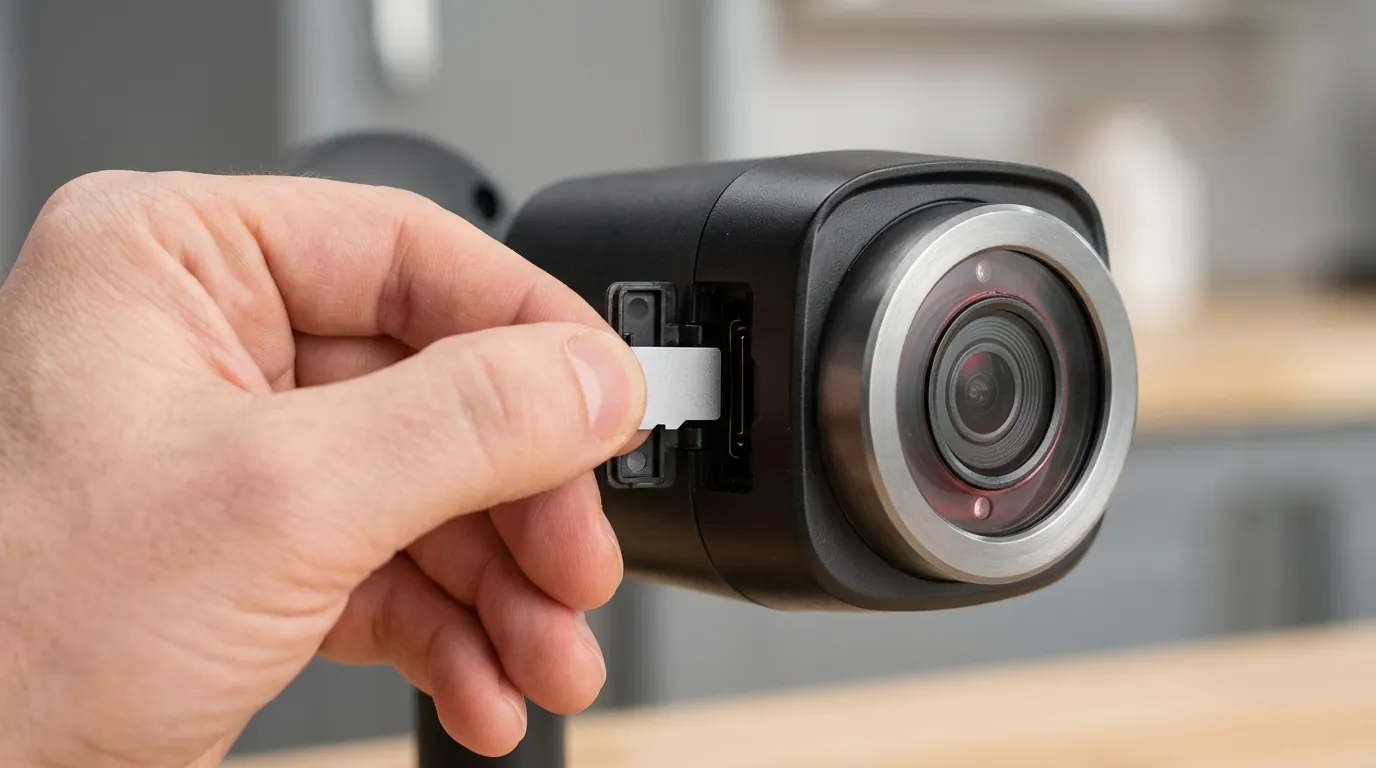
- Storage (One-time): A high-quality 256GB “High Endurance” microSD card costs around $25-35. This is essential for local recording when the live stream fails.
- Subscription (Optional): Tapo Care costs approximately $3.49/month for a single camera or $11.99/month for up to 10 cameras (as of 2026 pricing bands). Over three years, a single-camera plan adds roughly $125 to the cost.
- Network Upgrades (Hidden): If your current router cannot handle 3-4 cameras, a mid-range Mesh Wi-Fi system ($150-$250) may be necessary to ensure streaming reliability.
3-Year Estimated Total:
- Budget (Local only, existing Wi-Fi): ~$70 (Camera + SD Card)
- Premium (Cloud + Mesh Wi-Fi): ~$450+ (Camera + SD Card + 3 Years Tapo Care + Mesh Node)
Further reading
- Understanding Wi-Fi signal strength (RSSI): Learn how to use the “Network Analysis” tool within the Tapo app to find the perfect placement.
- Advanced router settings for home security cameras: Why setting a “Static IP” for your cameras can prevent “Device Not Found” errors.
- Maximizing local storage: A guide to choosing between Continuous Recording and Detection Recording to extend the life of your microSD card.
- Comparing Tapo vs. Kasa: Understanding the transition as TP-Link merges its two smart home ecosystems.
Frequently Asked Questions
Why does my Tapo camera say “Offline” even when it’s plugged in?
This usually indicates the camera has lost its DHCP lease from your router or the Wi-Fi signal has dropped below the minimum threshold (approx -75dBm). Try power-cycling the camera; if it returns to “Online” status, the issue is likely network congestion rather than hardware.
Can I watch my Tapo camera on a PC?
Yes, you can use the RTSP protocol to stream to software like VLC, Blue Iris, or iSpy. You must first create “Camera Account” credentials in the Tapo app under Settings > Advanced Settings > Camera Account to authorize the stream.
Does Tapo Care improve live view stability?
Not directly. Tapo Care provides cloud storage and AI features, but the actual “pipe” the video travels through remains your home Wi-Fi. However, Tapo Care users may experience slightly faster remote loading times due to prioritized routing on TP-Link’s relay servers.
How do I fix the “10-minute timeout” on live views?
This is a built-in battery and bandwidth-saving feature. For wired cameras, you can often bypass this by viewing the camera via a Google Home or Alexa smart display, or by using an RTSP stream on a local NVR, which does not have a timeout.
Sources
- TP-Link Official Support — https://www.tp-link.com/us/support/faq/2680/
- Tapo Privacy Policy & Data Handling — https://www.tapo.com/en/privacy/
- Reddit HomeSecurity Community Consensus — https://www.reddit.com/r/HomeSecurity/
- TP-Link Community Forums (Troubleshooting Live View) — https://community.tp-link.com/en/smart-home/forum/584
- RTINGS Security Camera Testing Methodology