
How to Show Home Assistant Camera Snapshots on AirDot
Visual verification is the bridge between a vague motion alert and actionable security intelligence. By integrating Home Assistant with the Sensy-One AirDot, users can transform a dedicated air quality monitor into a glanceable security terminal that displays real-time snapshots without a smartphone or a cloud subscription.
The quickest way to display camera snapshots on an AirDot is to trigger the camera.snapshot action in Home Assistant to save a JPEG to your /config/www/ directory. Once the file is saved, you use an ESPHome service call or an HTTP request component within the AirDot’s firmware to fetch the image from the local URL (e.g., http://homeassistant.local:8123/local/snapshot.jpg) and render it on the 2.1-inch display.
What it means
Related: Eufy Security Camera Matter Integration: 2026 Setup Guide · Home Assistant Matter Integration: Aqara Hub Connection Guide · Wyze Camera Water Ingress: 2026 Guide to Hardware Failure
Integrating camera snapshots into a secondary display like the AirDot represents a shift toward “glanceable security.” Instead of relying on a smartphone—which may be charging, silenced, or in another room—this setup provides a dedicated physical point of presence for visual data.
The AirDot Hardware Ecosystem
The Sensy-One AirDot, released in early 2026, is a compact smart home appliance primarily marketed as a high-end air quality monitor. However, its internal hardware makes it a potent target for Home Assistant enthusiasts. It features a 2.1-inch round LCD with a 480x480 resolution, powered by an ESP32-S3 microcontroller. Unlike typical “smart clocks,” the AirDot includes the Sensirion SEN66 sensor suite, which tracks PM2.5, VOCs, NOx, temperature, and humidity [sensy-one.com].
Because the device is built on the ESP32-S3 architecture, it is natively compatible with ESPHome. This allows users to overwrite or augment the factory firmware to accept custom data streams, including image buffers from Home Assistant.
Snapshot vs. Live Stream: Managing Expectations
It is critical to distinguish between a static snapshot and a live video feed. While the ESP32-S3 is a capable chip, it lacks the hardware-accelerated video decoding required to play high-bitrate H.264 or H.265 streams at 30 frames per second (fps).
Showing a “snapshot” means the AirDot displays a single, high-resolution still frame captured at the moment of a trigger (such as a doorbell press). This image can be refreshed every few seconds, but it should not be confused with the fluid motion provided by a tablet or a dedicated NVR monitor.
| Feature | Sensy-One AirDot | Amazon Echo Show 5 (3rd Gen) | Google Nest Hub (2nd Gen) |
|---|---|---|---|
| Display Size | 2.1” Round (480x480) | 5.5” (960x480) | 7.0” (1024x600) |
| Primary Processor | ESP32-S3 | MediaTek MT8169B | Synaptics VS680 |
| Local Control | 100% (ESPHome/MQTT) | Limited (Cloud-dependent) | Limited (Cloud-dependent) |
| Air Quality Sensors | Sensirion SEN66 (Full Suite) | None | None (Sensing only) |
| Video Capability | Static Snapshots / Low-FPS | Full Motion (Cloud) | Full Motion (Cloud) |
| Privacy Mode | Local-only (No Cloud) | Physical Shutter | Software/Physical Switch |
Defining the “AirDot” Name
It is important to clarify that the “AirDot” discussed here is the 2026 smart display hardware from Sensy-One. It is unrelated to the “Redmi AirDots” or “Xiaomi AirDots,” which are budget wireless earbuds. When searching for documentation or firmware, ensure you are referencing the Sensy-One hardware to avoid incompatible configuration files.
Why it exists
The drive to push camera snapshots to a device like the AirDot stems from three primary pain points: notification fatigue, subscription costs, and the need for contextual awareness.
Solving the ‘Phone-in-Pocket’ Problem
In a standard security setup, a motion event triggers a push notification to a smartphone. This requires the user to find their phone, unlock it, and open an app—a process that can take 10 to 15 seconds. By the time the app loads, the visitor may have already left.
By placing an AirDot on a desk, nightstand, or kitchen counter, the visual confirmation is instantaneous. When the doorbell rings, the AirDot’s 480x480 screen automatically switches from air quality metrics to a clear image of the front porch. This “zero-friction” interaction is the core value of glanceable hardware.
The Subscription-Free Advantage
Mainstream security brands like Ring, Nest, and Arlo often lock “rich notifications” (notifications that include a thumbnail image) behind monthly subscription tiers. Over a three-year period, these fees can exceed the original cost of the camera.
Using Home Assistant to push snapshots to an AirDot bypasses these paywalls entirely. The image is captured locally from your camera, stored on your Home Assistant server, and pushed over your local Wi-Fi to the AirDot. There is no third-party cloud involved, ensuring that your data remains private and your monthly bill remains zero.
Comparison of Notification Latency
- Mobile Push (Cloud): 3–8 seconds (depending on server load and LTE/5G latency).
- AirDot (Local ESPHome): <1.5 seconds (triggered via local Wi-Fi).
How it works under the hood
The integration relies on a three-step pipeline: capturing the image, hosting it locally, and instructing the AirDot to render it.
The Snapshot Pipeline
The process begins with the camera.snapshot service in Home Assistant. This service takes a single frame from a camera entity and saves it as a file. To make this file accessible to the AirDot, it must be saved in the /config/www/ folder of your Home Assistant installation.
In Home Assistant’s internal logic, any file placed in /www/ is served at the URL path /local/. For example, a file saved at /config/www/doorbell_snap.jpg is reachable by other devices on your network at http://<your-ha-ip>:8123/local/doorbell_snap.jpg.
Configuring the /www/ Folder Permissions
For the AirDot to “see” the image, the Home Assistant web server must allow local network access. By default, the /www/ folder is accessible, but you may need to restart Home Assistant after creating the folder for the first time.
YAML Automation Snippet:
alias: "Push Snapshot to AirDot"
trigger:
  - platform: state
    entity_id: binary_sensor.front_doorbell_visitor
    to: "on"
action:
  - action: camera.snapshot
    data:
      filename: "/config/www/airdot_snapshot.jpg"
    target:
      entity_id: camera.front_door_high_res
  - action: esphome.airdot_display_image
    data:
      url: "http://192.168.1.50:8123/local/airdot_snapshot.jpg"
ESPHome Service Calls
On the AirDot side, the ESPHome configuration must define how to handle the incoming image. The ESP32-S3 uses its PSRAM (Pseudo-Static RAM) to buffer the image before drawing it to the LCD. Because the screen is round, the firmware often uses the LVGL (Light and Versatile Graphics Library) or the native ESPHome display component to crop or mask the square snapshot into a circular frame [esphome.io].
The AirDot’s firmware typically exposes a service to Home Assistant called display_image. When Home Assistant calls this service, it passes the URL of the snapshot. The AirDot then performs an HTTP GET request, downloads the JPEG, and refreshes the screen.
Memory Management on the ESP32-S3
A 480x480 image in 16-bit color (RGB565) requires approximately 460KB of memory. The ESP32-S3 chip inside the AirDot typically has 8MB of PSRAM, which is more than enough to store the current frame and a “back buffer” to prevent screen flickering during updates. This allows for relatively fast transitions between the air quality dashboard and the security snapshot.
Real-world implications
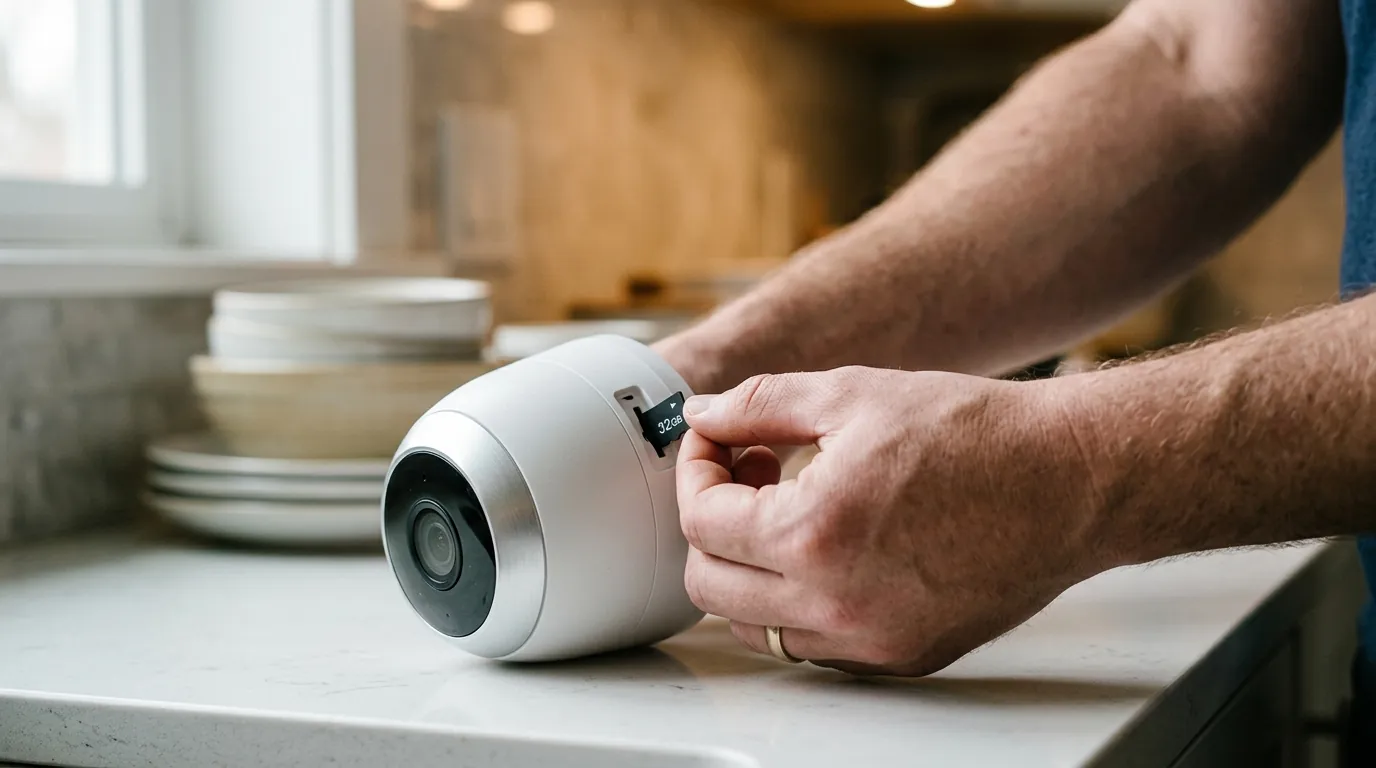
Deploying an AirDot as a snapshot viewer changes how a household interacts with its security system, particularly regarding speed and privacy.
Daily Use Cases: From Doorbell to Driveway
- The “Silent” Doorbell: If you have a sleeping infant, you can disable audible chimes and rely on the AirDot to show you who is at the door.
- Nursery Monitoring: Use the AirDot as a low-profile baby monitor. Instead of a bright tablet screen, a quick glance at the AirDot on your nightstand confirms if the baby is awake.
- Driveway Alerts: Pair the system with an AI-driven camera (like those from Reolink or Amcrest) that distinguishes between humans and vehicles. The AirDot can be programmed to only show snapshots when a person is detected, reducing “false positive” glances.
Privacy and Data Sovereignty
Because this entire pipeline—from the camera to Home Assistant to the AirDot—is local, your images never leave your house. This is a significant advantage over systems like Amazon Ring, which has historically cooperated with law enforcement by sharing footage without a warrant in certain “emergency” situations [security.org]. For users concerned about data sovereignty, the AirDot/Home Assistant combination provides a “closed-loop” security environment.
Hardware Recommendation for Local Snapshots
Not all cameras are compatible with this setup. To use the camera.snapshot service effectively, the camera must support local integration via RTSP, ONVIF, or a dedicated Home Assistant integration.
| Camera Brand | Local Snapshot Support | Recommended Models |
|---|---|---|
| Reolink | Excellent (RTSP/ONVIF) | RLC-811A, Doorbell Wi-Fi |
| Amcrest | Excellent (RTSP/HTTP) | AD410 Video Doorbell |
| Eufy | Partial (Requires RTSP) | SoloCam Series (with HomeBase) |
| Ring | Poor (Cloud-only) | Not recommended for this use case |
| Nest | Poor (Cloud-only) | Not recommended for this use case |
Decision Framework: Is this setup right for you?
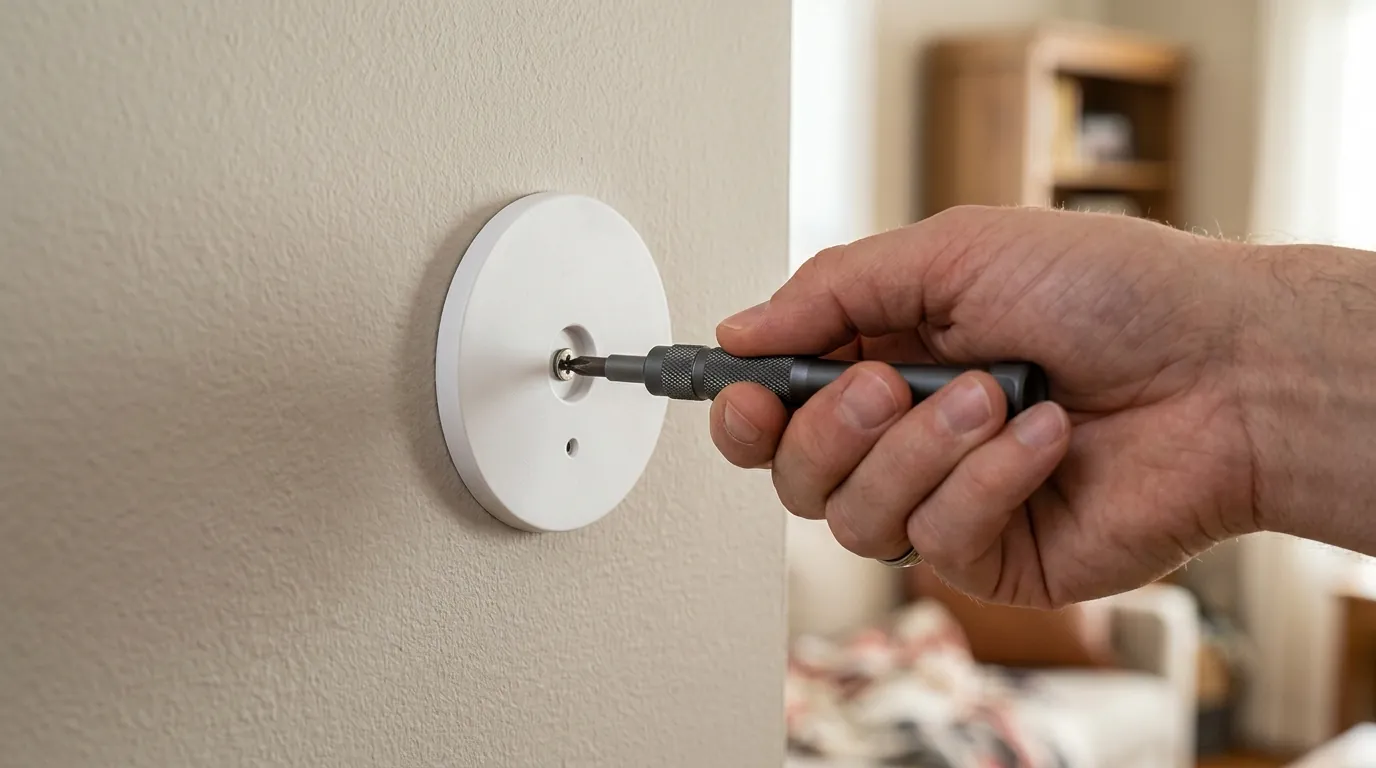
Choosing to integrate snapshots into an AirDot depends on your technical comfort level and your existing camera ecosystem.
- If you are a Renter: Prioritize a Wi-Fi-based AirDot and a plug-in camera like the Reolink E1 Pro. This setup is portable and requires no permanent wiring.
- If you are a Privacy Advocate: This is the gold standard. By using an AirDot with ESPHome and an Amcrest or Reolink camera, you ensure 100% local data processing with zero cloud leakage.
- If you already own Ring/Nest: You will face significant hurdles. You may need to use a “bridge” like the Ring-to-MQTT add-on, which still relies on the cloud and may introduce 5–10 seconds of latency, defeating the purpose of the AirDot’s “instant” display.
- If you need 24/7 Live Video: The AirDot is not the right tool. You should instead look at a dedicated wall-mounted tablet running Home Assistant’s “Lovelace” dashboard.
Total Cost of Ownership (3-Year Projection)
When evaluating the cost of an AirDot-based security display, you must look beyond the sticker price. Traditional cloud-based cameras often look cheaper upfront but become significantly more expensive over time.
AirDot + Local Camera System:
- AirDot Hardware: Around $120
- High-Quality Local Camera (e.g., Reolink): Around $100
- Home Assistant Server (Raspberry Pi/Mini PC): Around $60–100
- Subscription Fees (3 Years): $0
- Total: $280–320
Mainstream Cloud System:
- Cloud-enabled Doorbell: Around $100
- Subscription Fees (3 Years, Basic Plan): $150–180
- Feature Paywalls (e.g., Person Detection): Often included in sub
- Total: $250–280 (but fees continue forever)
While the initial investment for the AirDot system is slightly higher, the “break-even” point usually occurs around the 30-month mark. After that, the AirDot system is essentially free to operate, whereas the cloud system remains a perpetual monthly expense.
Common misconceptions
Misconception: AirDot can play 30fps live video
As noted, the AirDot is a snapshot and status monitor. Attempting to stream high-definition video to an ESP32-S3 will result in extreme lag, crashed firmware, or a “slideshow” effect of roughly 1–2 frames per second. It is designed for “glanceable” information, not for watching a movie or monitoring a high-traffic area in real-time.
Misconception: You need a cloud account to use AirDot
The Sensy-One AirDot is built to be “local-first.” While the manufacturer may provide an optional app for air quality tracking, the device is fully functional via ESPHome without ever connecting to the internet. This distinguishes it from the Echo Show or Nest Hub, which are essentially unusable if your internet connection goes down or the manufacturer’s servers are offline.
Misconception: Any camera works with the snapshot service
The “snapshot” action requires Home Assistant to be able to pull a still frame from the camera’s stream. Some battery-powered cameras (like certain Arlo or older Blink models) stay in a “sleep” state to save power and cannot be woken up fast enough by Home Assistant to take a snapshot when motion is detected. For the best results, use cameras with a constant power source.
Frequently Asked Questions
Can I show multiple cameras on one AirDot?
Yes, but not simultaneously. You can create an automation in Home Assistant that cycles through your cameras (e.g., showing the front door for 10 seconds, then the driveway). Because the screen is only 2.1 inches, a “grid view” of multiple cameras would be too small to be useful.
Does the AirDot screen stay on all the time?
You can configure this in ESPHome. Most users keep the air quality dashboard on by default and only “interrupt” the screen with a camera snapshot when a specific event occurs. You can also use the AirDot’s built-in light sensor to dim or turn off the screen at night.
What happens if my Wi-Fi goes down?
Since the AirDot and Home Assistant communicate over your local network, they will continue to work even if your actual internet connection (ISP) is down. However, if your Wi-Fi router itself fails, the AirDot will be unable to receive new snapshots until the local network is restored.
Is the AirDot waterproof for outdoor use?
No. The Sensy-One AirDot is an indoor-rated device. It contains sensitive air quality sensors that require airflow through the chassis, meaning it cannot be sealed against moisture or dust. It should be kept in climate-controlled environments.
Sources
- Home Assistant Camera Documentation — https://www.home-assistant.io/integrations/camera/
- ESPHome Display Component — https://esphome.io/components/display/index.html
- Sensy-One Official Site — https://sensy-one.com
- Security.org: Privacy and Police Cooperation
- Reolink RTSP Configuration Guide — https://support.reolink.com/hc/en-us/articles/360007010473-How-to-Live-View-Reolink-Cameras-via-RTSP/