
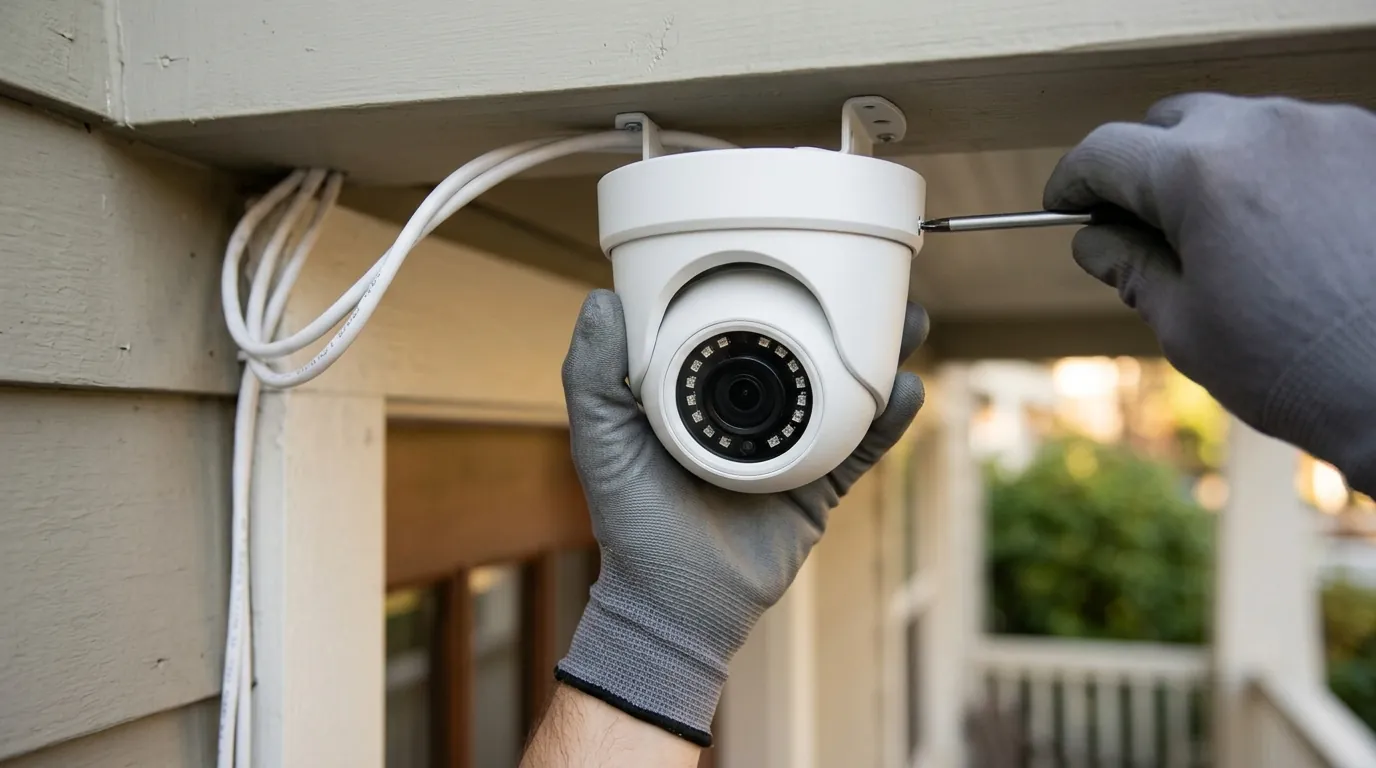
Fixing Reolink Camera Offline Errors: A 2026 Troubleshooting Guide
When a Reolink camera drops its connection, it rarely signals a hardware failure; more often, it is a symptom of a handshake breakdown between the device, your router, and Reolink’s P2P relay servers.
Quick Answer: Fix Reolink offline errors by checking power levels (especially on solar-powered Altas models), restarting your router to clear IP conflicts, and ensuring the “UID” setting is enabled in the camera’s network configuration. For 2026 hardware like the Altas PT Ultra, verify that the Home Hub is connected to the internet and update firmware manually via the Reolink Client on a PC/Mac, as the mobile app’s auto-update feature frequently misses critical patches.
What it means
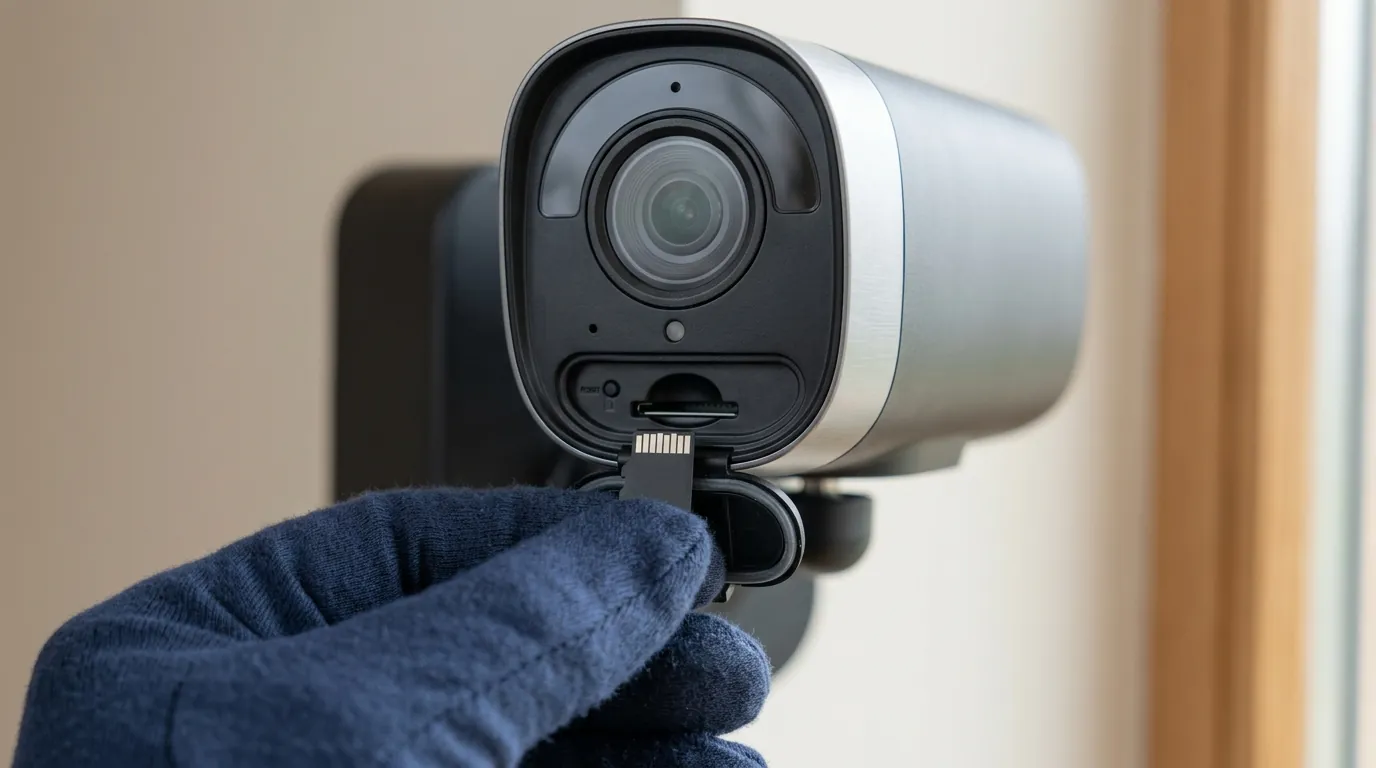
In the Reolink ecosystem, “Offline” and “Connection Failed” are distinct technical states. Understanding the difference is the first step in troubleshooting. A “Connection Failed” error usually indicates a software timeout—the camera is powered on and connected to the router, but the app cannot establish a handshake. “Device Offline” typically suggests a total loss of power or a complete disconnection from the Wi-Fi or Ethernet network.
For 2026 models, Reolink has standardized its diagnostic LED patterns to help users identify the break in the chain without needing to unmount the camera.
Symptom Checker: App vs. Client Errors
- “Connection Failed” (App): The camera is visible but the stream won’t load. This is often caused by insufficient upload bandwidth or a P2P relay server bottleneck.
- “Device Offline” (App): The camera is unreachable. This usually points to a dead battery, a loose PoE cable, or a router that has assigned the camera’s IP address to another device.
- “Video Loss” (NVR): Specific to Reolink NVR systems, this indicates the NVR has lost the signal from a PoE or Wi-Fi camera, often due to a faulty cable or a port failure on the back of the NVR.
LED Indicator Cheat Sheet
The following table covers the standard LED behaviors for the 2026 lineup, including the Altas and Home Hub series.
| Model Series | LED Pattern | Status Meaning |
|---|---|---|
| Altas PT Ultra | Flashing Blue | Wi-Fi pairing mode / Ready for setup |
| Altas PT Ultra | Flashing Red | Wi-Fi connection failed / Incorrect password |
| Home Hub / Hub Pro | Solid Red | No internet connection (WAN port disconnected) |
| Home Hub / Hub Pro | Solid Blue | System normal and connected to Reolink servers |
| Argus 4 Pro | Flashing Blue/Red | Firmware update in progress (Do not power off) |
| Argus 4 Pro | No Light | Battery exhausted or LED disabled in settings |
Source: Reolink Support - LED Indicator Status Guide
Why it exists
The transition to high-resolution 4K and 16MP sensors in 2026 has placed unprecedented strain on home networks. Most Reolink “offline” errors are not caused by the camera itself, but by environmental factors and network management failures.
The Solar Charging ‘Winter Gap’
For battery-powered models like the Altas PT Ultra, the “offline” error is frequently a power management issue. In North American winters, temperatures dropping below 32°F (0°C) prevent lithium-ion batteries from accepting a charge from solar panels. Even if the sun is shining, the camera will shut down once the battery hits 0% to prevent permanent cell damage. Furthermore, salt spray in coastal areas or simple dust buildup can cause micro-corrosion on the USB-C solar connector, leading to a slow drain that eventually takes the camera offline.
Router DHCP and IP Address Leasing
By default, most home routers use DHCP (Dynamic Host Configuration Protocol) to assign IP addresses. These assignments have “leases” that expire. When a Reolink camera attempts to renew its lease, the router may fail to respond in time, or it may assign the camera’s old IP to a different device (like a smartphone or smart bulb). This creates an IP conflict, rendering the camera “offline” to the Reolink App because the internal routing table is broken.
Network Congestion: The 5GHz Trade-off
While 2026 Reolink models support dual-band Wi-Fi, the 5GHz band is significantly more sensitive to physical obstructions. Wi-Fi Signal Drop-off by Material (2.4GHz vs. 5GHz):
- Drywall (Standard Interior): 2.4GHz: -3dB | 5GHz: -5dB
- Brick/Masonry (Standard Exterior): 2.4GHz: -12dB | 5GHz: -20dB
- Glass/Windows: 2.4GHz: -3dB | 5GHz: -8dB (Low-E glass can be worse)
If your Altas PT Ultra is mounted behind a brick wall and connected to 5GHz, a slight increase in atmospheric moisture or a new piece of furniture can push the signal-to-noise ratio (SNR) below the threshold required for a 4K stream, causing a “Connection Failed” error.
How it works under the hood
To understand why a camera goes offline, you must understand how Reolink moves data from your home to your phone.
The Role of P2P Relay Servers
Reolink uses a UID (Unique ID) system. When you open the app, your phone doesn’t talk directly to your camera. Instead, both the phone and the camera connect to a P2P (Peer-to-Peer) relay server (usually hosted on AWS or Azure). This allows the camera to work without complex port forwarding on your router.
If the P2P relay server is throttled or if your ISP is blocking UDP packets, the handshake will fail. Reolink’s relay servers occasionally experience high latency during peak hours, which can cause 4K “Clear” streams to time out while the lower-resolution “Fluent” sub-stream continues to work. Switching the app to “Fluent” mode is a common fix for “Connection Failed” errors because it reduces the packet size and the demand on the relay server.
Local Subnets and the Reolink Home Hub
The 2026 Reolink Home Hub Pro introduces a new architectural layer. It creates a private, isolated Wi-Fi subnet (typically in the 172.16.25.xx range) specifically for the cameras. This is designed to reduce congestion on your main home Wi-Fi. However, if the Home Hub itself loses its WAN connection to your main router, every camera attached to it will simultaneously report as “offline,” even if the cameras themselves are fully powered and communicating with the Hub.
Source: Reolink Home Hub Product Specifications
Real-world implications
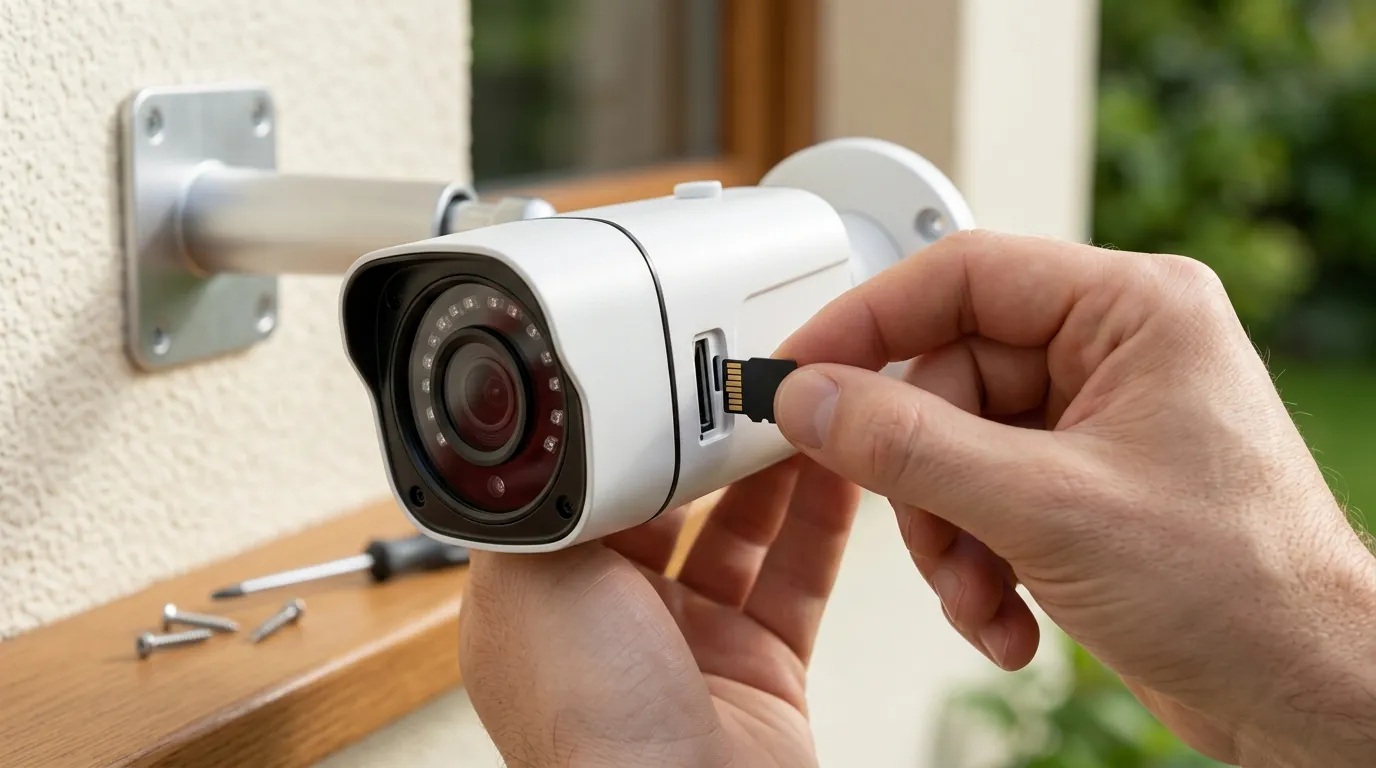
An “offline” error is more than a technical nuisance; it creates significant security and hardware risks.
Impact on Motion Alerts and Recording
When a camera is offline, its behavior depends on its storage configuration. If the camera is “offline” due to a P2P/WAN failure but still has power and local Wi-Fi, it will continue to record to its internal microSD card. However, you will receive zero motion alerts. This creates a “silent failure” where an event is recorded, but you aren’t notified to intervene. If the camera is offline due to a power failure, all recording ceases immediately, creating a total security blind spot.
Battery Degradation
One of the most overlooked consequences of an unstable connection is reduced hardware lifespan. When a Reolink battery camera loses its Wi-Fi connection, it enters a “search and reconnect” loop. This process is power-intensive, as the Wi-Fi radio must operate at maximum gain to find a signal. A camera that stays in a reconnection loop for 48 hours can drain more battery than a camera that records 50 motion events in a day. Constant deep-cycling of the lithium-ion battery in this manner will significantly shorten the battery’s total life expectancy.
Smart Home Integration Breakage
For users utilizing Home Assistant, Alexa, or Google Home, an offline Reolink camera breaks automated routines. If you have a routine where “If Altas PT Ultra detects motion, turn on porch light,” that routine will fail silently. Unlike the native Reolink App, third-party integrations often do not provide “offline” notifications, leaving the user unaware that their automation logic is broken.
Common misconceptions
The ‘Cloud Outage’ Myth
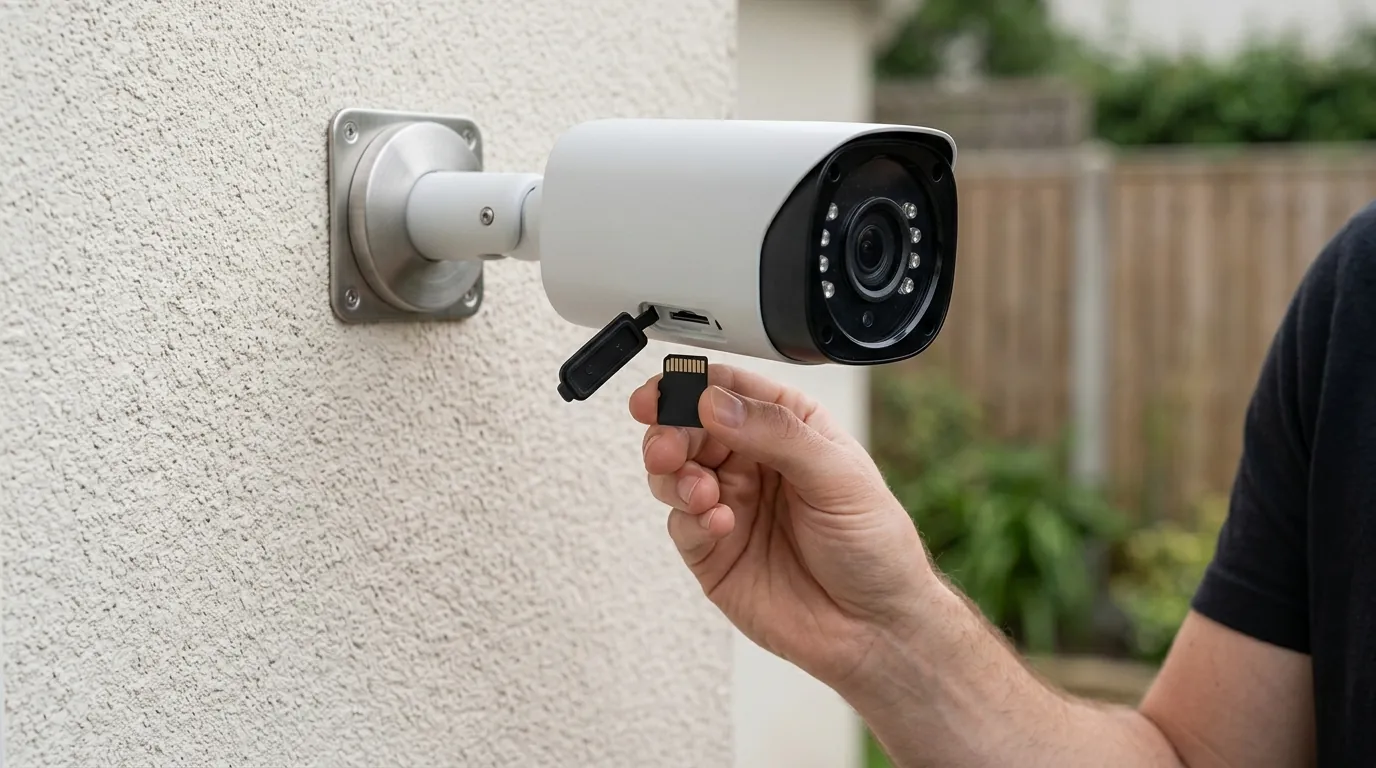
Users often assume that if their camera is offline, “Reolink’s servers are down.” In reality, Reolink cameras are designed to function primarily on a local network. If you are at home and your phone is on the same Wi-Fi as the camera, the app should connect even if the internet is completely out (provided UID is enabled for local discovery). Over 90% of “offline” issues are traced back to local Wi-Fi interference or DHCP issues, not a global Reolink outage.
Why ‘Full Wi-Fi Bars’ Can Lie
The signal strength indicator in the Reolink App is a measure of RSSI (Received Signal Strength Indicator), but it does not account for “noise” or “interference.” You can have “full bars” of signal strength but still experience constant disconnects if a neighbor’s router is operating on the same channel or if a microwave is leaking RF interference. High-resolution 4K video requires a “clean” signal, not just a “strong” one.
Checklist: 5 Things to Try Before Hitting the Reset Button
- Toggle the “Fluent” Stream: Switch from Clear to Fluent in the app to see if it’s a bandwidth timeout.
- Check the UID Status: Go to Settings > Network > Advanced and ensure UID is toggled ON.
- Power Cycle the Router: This clears the DHCP table and often resolves IP conflicts.
- Check Battery Temp: If it’s below freezing, the camera may have shut down to protect the battery.
- Manual Firmware Update: Check the Reolink Download Center via a PC; the app often says “latest version” even when it’s not.
Further reading
The Case for PoE (Power over Ethernet)
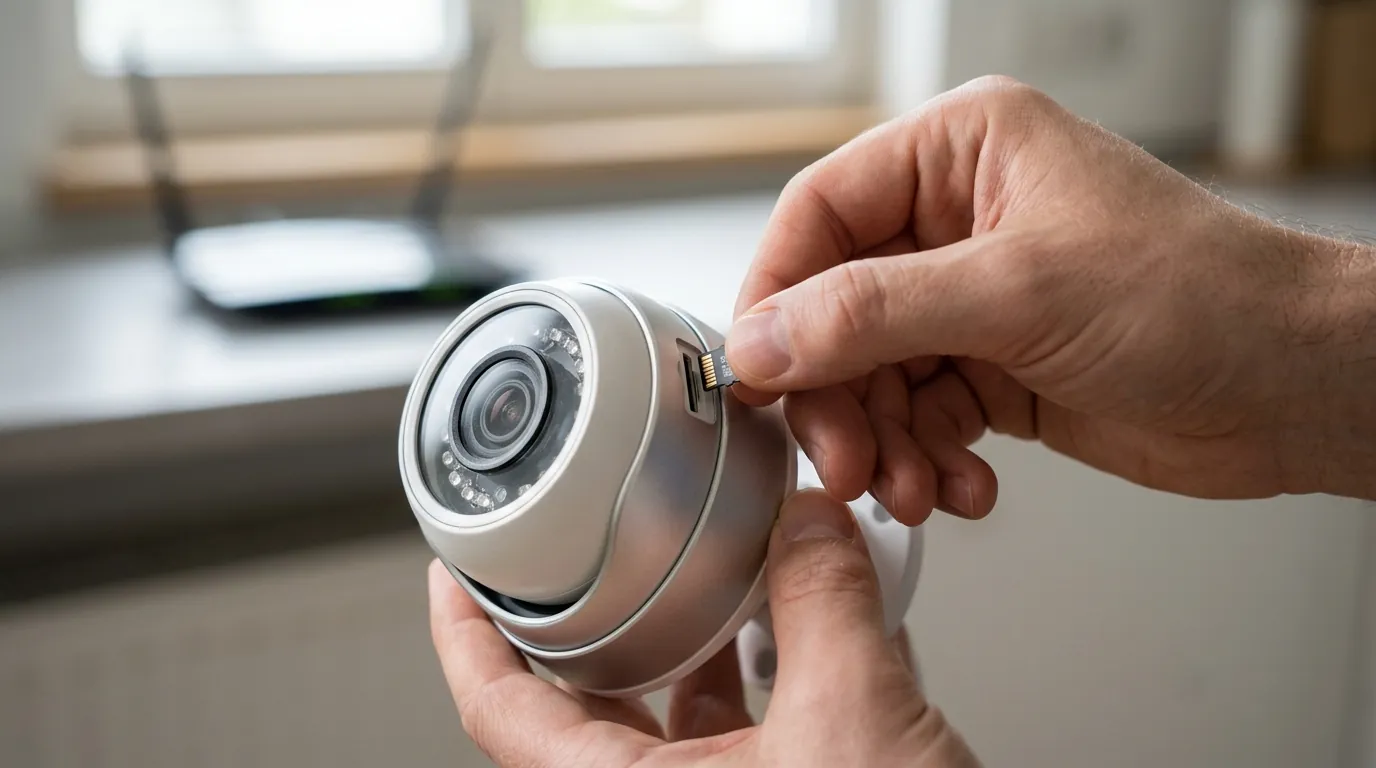
For homeowners who are tired of “offline” anxiety, the ultimate solution is transitioning to PoE cameras like the RLC-811A or the 16MP Duo 3 PoE. By using a physical Cat6 cable for both power and data, you eliminate Wi-Fi interference, battery temperature issues, and solar panel maintenance. PoE cameras are significantly more stable and offer a “set and forget” reliability that Wi-Fi models cannot match.
Hardening Your Camera Privacy
If you are concerned about the P2P relay servers mentioned earlier, you can disable UID in the settings. This makes the camera “fully local.” To access it from outside your home, you would then need to use a VPN (like WireGuard or Tailscale) to tunnel into your home network. This removes the third-party relay from the equation and ensures your video data never touches a Reolink server.
2026 Reolink Feature Comparison
| Feature | Altas PT Ultra (Wi-Fi) | Argus 4 Pro (Wi-Fi) | RLC-811A (PoE) |
|---|---|---|---|
| Resolution | 4K (8MP) | 4K (8MP) | 4K (8MP) |
| Power Source | Battery / Solar | Battery / Solar | PoE (802.3af) |
| Continuous Recording | Yes (Industry First for Battery) | No (Motion Only) | Yes |
| Connection Stability | Moderate | Moderate | High |
| MSRP Band | $200 - $250 | $150 - $200 | $100 - $150 |
Decision Framework: Which Reolink setup is right for you?
- If you are a Renter: Prioritize the Argus 4 Pro. It is completely wireless and easy to move, though you must be diligent about Wi-Fi signal strength.
- If you are a Homeowner (New Build): Prioritize PoE (RLC-series). If the walls are open, run Cat6 cable. It is the only way to guarantee 99.9% uptime.
- If you have a Remote Property (No Wi-Fi): Prioritize the Reolink Go Ultra (4G LTE). It bypasses home network issues entirely by using cellular data.
- If you want “Always On” Battery: The Altas PT Ultra is the only choice in 2026 that supports continuous recording on battery, but it requires a strong 5GHz Wi-Fi signal to maintain that stream.
Total Cost of Ownership (3-Year Estimate)
Reolink is popular because it lacks a “feature paywall.” Unlike Ring or Arlo, you do not need a subscription for person/vehicle detection.
- Hardware: $100 - $250 (one-time)
- Storage: $15 - $30 for a 256GB High-Endurance microSD card (highly recommended for offline backup).
- Subscription: $0 (Local storage) or ~$35/year for basic Cloud backup (optional).
- Total: A single-camera Reolink setup typically costs under $300 over three years, whereas a subscription-locked brand can exceed $600 in the same period.
Sources
- Reolink Official Support: LED Status Guide — https://support.reolink.com/hc/en-us/articles/360003533474-Introduction-to-Status-LED-of-Reolink-Cameras/
- Reolink Product Page: Altas PT Ultra Specs — https://reolink.com/product/altas-pt-ultra/
- Reolink Support: Troubleshooting Connection Failed — https://support.reolink.com/hc/en-us/articles/360022359113-Connection-Failed-when-Remotely-Accessing-Reolink-Cameras/
- RTINGS: Wi-Fi Signal Interference and Materials
- Reolink Firmware Download Center
Note: Quvii monitors the evolving security camera landscape and the transition toward local-first storage solutions. While we do not currently sell hardware, we track these network stability trade-offs across all major consumer brands.