
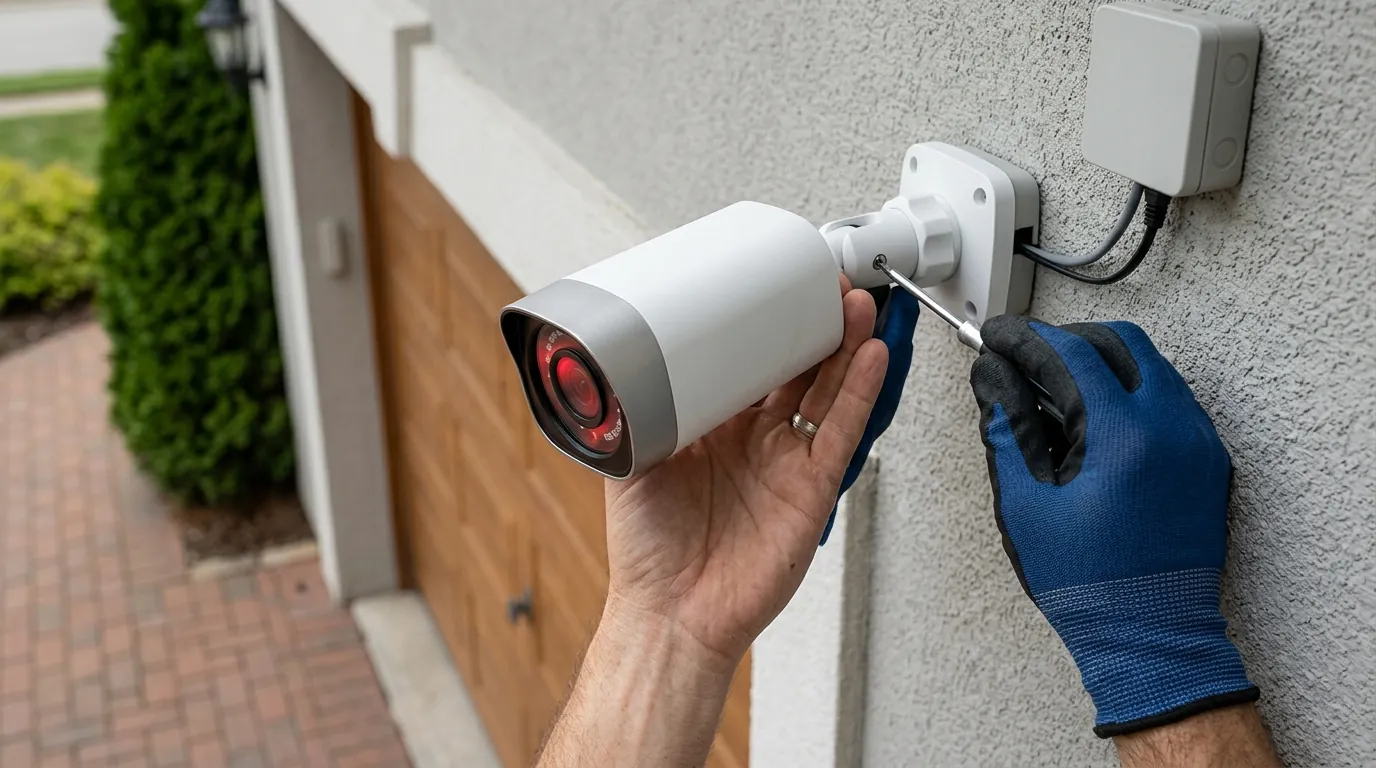
Reolink Camera Connection Failure: 2026 Troubleshooting Guide
When a security camera drops its connection, the gap between “perceived security” and “actual protection” becomes a liability. For Reolink users in 2026, navigating these outages requires understanding the interplay between local hardware stability and the global Peer-to-Peer (P2P) infrastructure that powers remote viewing.
Reolink camera connection failures in 2026 are often due to power interruptions, unstable Wi-Fi signals, outdated firmware, or app-specific issues. Begin by power cycling both your camera and router, then verify Wi-Fi strength and ensure your Reolink app and camera firmware are up-to-date.
What it means
Related: Fix Reolink Camera False Motion Detection Alerts: A 2026 Guide · How to Protect Outdoor Security Cameras from Summer Storms · Ring Doorbell Overheating: 2026 Guide to Summer Heat Fixes
A “connection failure” in the Reolink ecosystem is an umbrella term for any state where the client software (iOS, Android, Windows, or macOS) cannot establish a handshake with the camera hardware. In June 2026, as Reolink has expanded its lineup to include high-bandwidth 16MP sensors and newer wireless models, the complexity of these handshakes has increased.
- Manifestation of Failure: The most common symptom is a “Connection Failed” or “Device Disconnected” overlay on the live view screen. In some cases, the camera may appear “Online” in the device list but fail to load the stream, resulting in a “Buffering” loop or a “Video Loss” message.
- Intermittent vs. Persistent: Intermittent failures often point to environmental factors like network congestion or signal interference. Persistent failures, where the camera remains “Offline” despite restarts, usually indicate a deeper hardware fault, a power supply failure, or a critical mismatch in network credentials.
- Access Disparity: Users may find that the camera works perfectly while their phone is connected to the same home Wi-Fi (local access) but fails immediately upon switching to cellular data (remote access). This distinction is critical for diagnosing whether the fault lies in the local network or the P2P relay service.
Why it exists
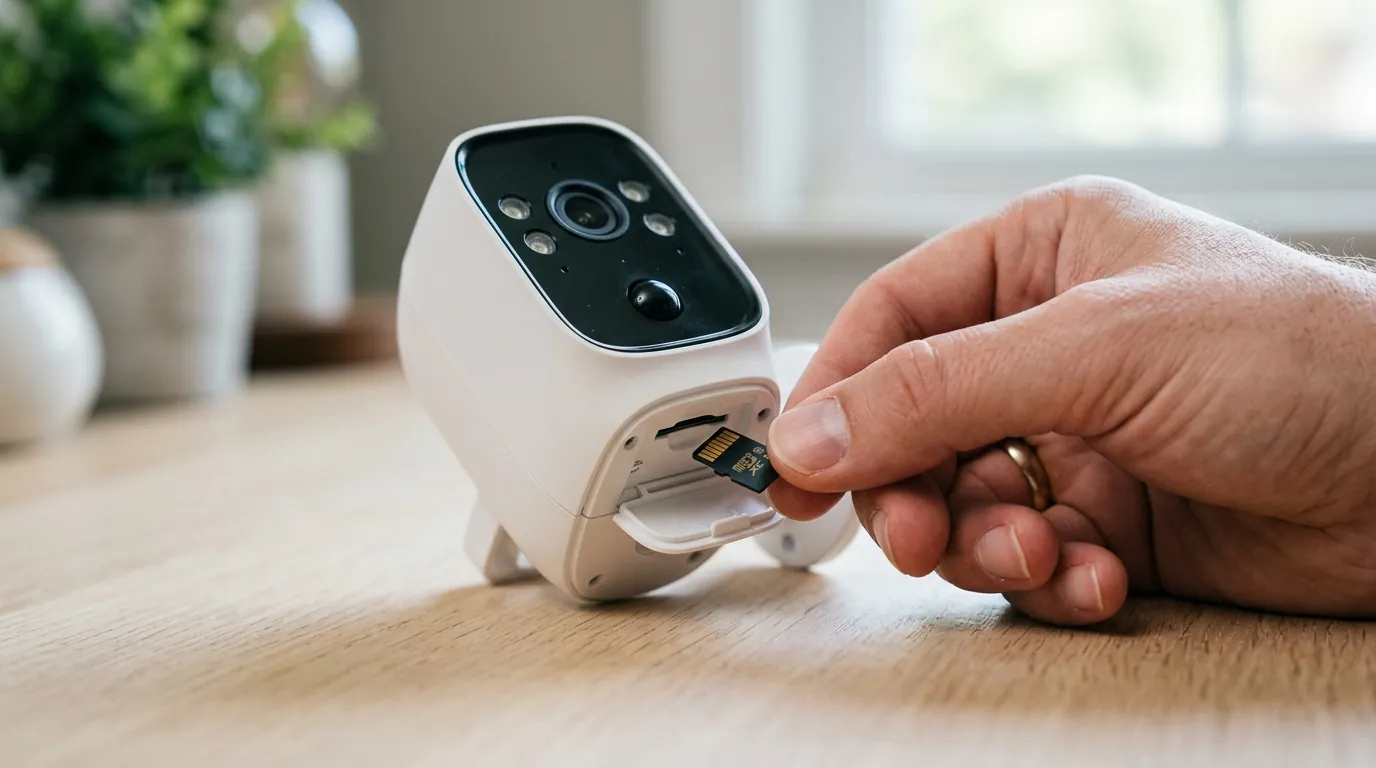
Understanding the root cause of a connection failure is the first step toward a permanent fix. In 2026, the proliferation of smart home devices has made the 2.4GHz and 5GHz bands more crowded than ever, leading to new challenges for older Reolink models.
Power Supply Issues
For battery-powered models like the Argus series, a depleted battery is the primary cause. Even solar-powered units can fail during extended periods of overcast weather or if the solar panel’s positioning has shifted. For wired models (PoE or DC plug-in), a failing power adapter or a degraded Ethernet cable can provide enough power to light up the status LEDs but not enough to maintain a high-bitrate video stream.
Wi-Fi and Network Interference
As neighbor networks upgrade to newer wireless standards, signal “noise” can overwhelm older Reolink cameras. Physical obstructions like brick walls or metal siding significantly attenuate signals. According to Reolink’s official troubleshooting documentation, a signal strength below two bars is insufficient for stable 4K or 8K streaming.
Router and Firewall Conflicts
Modern routers often include “Smart Connect” features that merge 2.4GHz and 5GHz bands under one SSID. Some Reolink cameras, particularly older 2.4GHz-only models, struggle to negotiate this handoff. Additionally, router firewalls or ISP-level security suites may mistakenly flag the camera’s P2P “hole punching” behavior as a security threat, blocking the connection.
Firmware and Software Glitches
Firmware is the operating system of your camera. Outdated firmware can contain bugs that cause the network stack to crash over time. Reolink frequently releases patches to improve P2P stability; failing to apply these can leave the camera incompatible with updated versions of the Reolink App.
Physical Connection Problems
For PoE (Power over Ethernet) systems, the physical layer is often the culprit. Moisture in an outdoor RJ45 connector can cause pins to corrode, leading to “Video Loss.” Community consensus on r/HomeSecurity suggests that using non-copper (CCA) Ethernet cables often leads to voltage drops that cause cameras to reboot during IR (infrared) activation at night.
Cloud Service Discrepancies
If your camera is bound to the Reolink Cloud for storage, a connection failure may be reported if the camera loses its “binding” status. This can happen during a forced password change or if the camera’s internal clock becomes desynchronized from the cloud server’s time.
NVR System Failures
When using a Reolink NVR, the camera must first connect to the NVR, which then connects to the app. If the NVR’s internal DHCP server fails to assign an IP address to the camera, or if the NVR itself has lost its internet gateway, all attached cameras will appear offline in the app despite being powered on.
How it works under the hood
To fix a Reolink camera, one must understand how it talks to the outside world. Unlike professional enterprise systems that require complex port forwarding, Reolink uses a user-friendly P2P architecture.
The Role of P2P (UID) Technology
Every Reolink camera is assigned a Unique ID (UID). This UID is the “phone number” for the camera. Instead of you needing to know the camera’s IP address, the app simply asks the Reolink P2P network, “Where is UID 123456789 right now?”
Mediator Servers and Connection Establishment
When your camera boots up, it reaches out to a Reolink relay server (often hosted on AWS or Azure). It tells the server, “I am online at this public IP address.” When you open the app on your phone, the app asks the same server for the camera’s location. The server then acts as a matchmaker, helping the two devices find each other through the router’s NAT (Network Address Translation).
Encryption and Data Flow
Once the connection is established, Reolink utilizes “hole punching” to create a direct tunnel between the camera and your phone. This data is typically encrypted using AES-128 or AES-256 bits, as noted in Reolink’s security whitepapers. The relay server only facilitates the introduction; the actual video data, in most cases, does not sit on Reolink’s servers unless you are actively using the Cloud Storage service.
Local vs. Remote Access Mechanisms
- Local Access: If your phone and camera are on the same Wi-Fi, the app uses a broadcast protocol to find the camera’s local IP (e.g., 192.168.1.50). This is the fastest and most reliable connection.
- Remote Access: If you are on 5G or a different Wi-Fi, the app must use the UID/P2P method. If your local access works but remote access fails, the issue is almost certainly related to the P2P service, the camera’s gateway settings, or a firewall blocking the camera’s outgoing “ping” to the relay server.
Real-world implications
A connection failure is more than a technical nuisance; it is a total failure of the security objective.
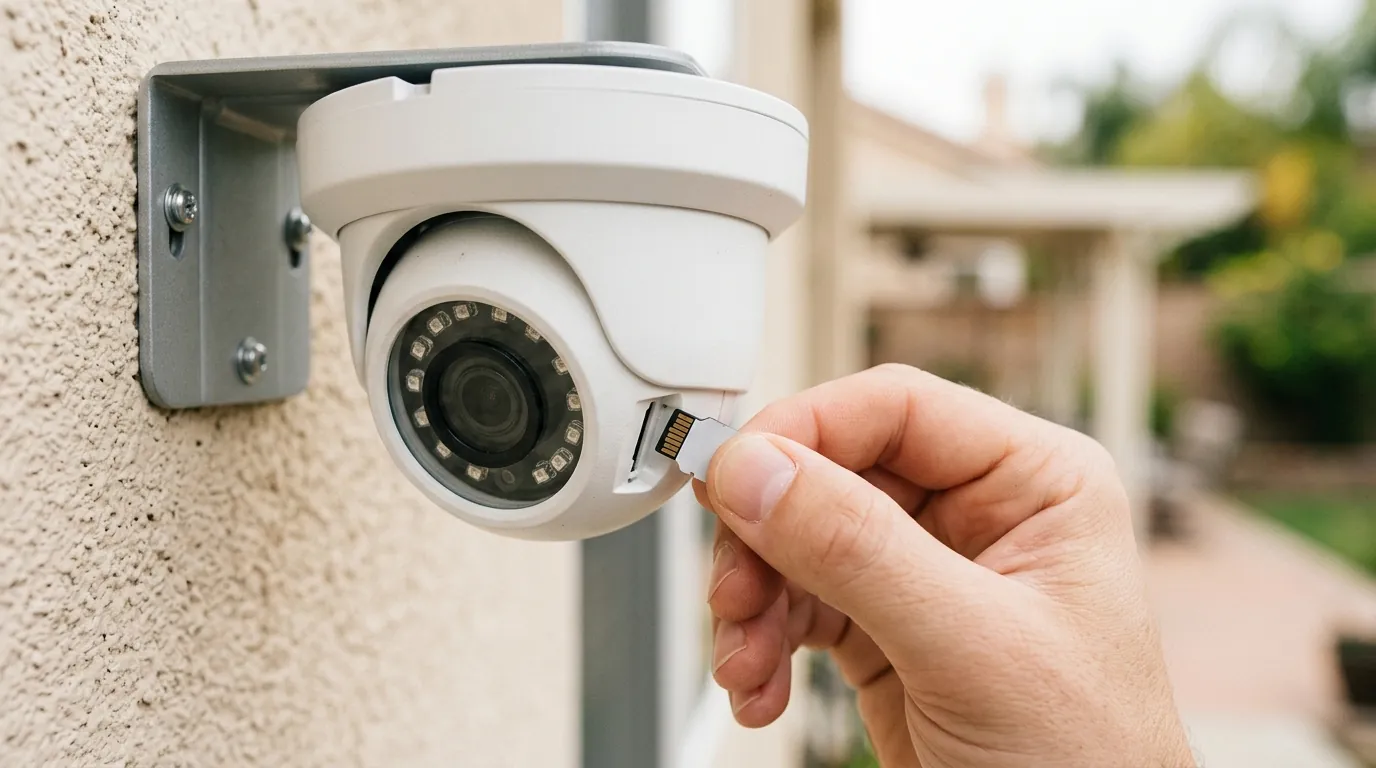
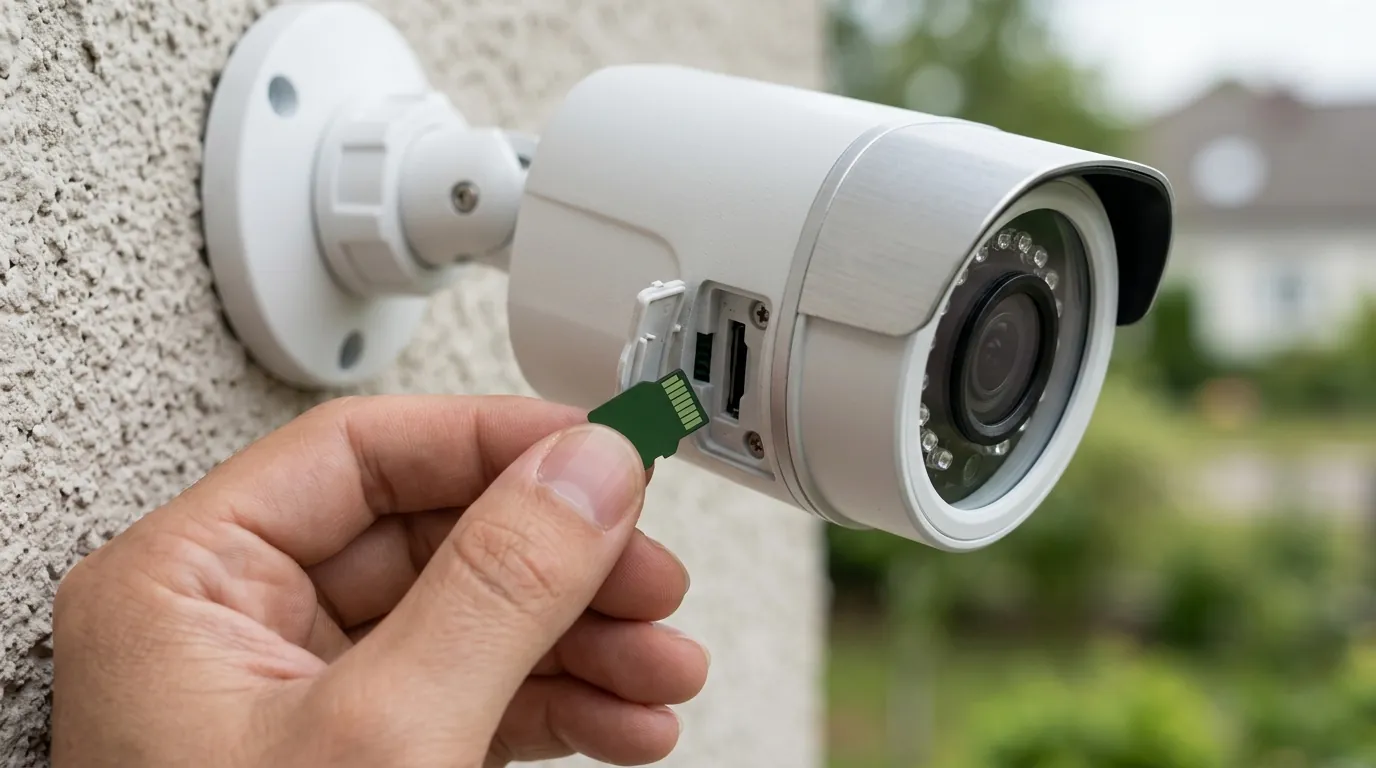
- Security Gaps: A camera that cannot connect cannot record to the cloud. While it may still record to a local SD card, you have no way of knowing if the camera was tampered with or if a crime is currently in progress.
- Missed Alerts: The primary value of a smart camera is the “Push Notification.” During a connection failure, the camera cannot send the signal that motion was detected. If a package is stolen at 2:00 PM and your camera went offline at 1:45 PM, the system has failed its core mission.
- Data Loss: For users relying solely on Reolink Cloud, an offline camera means zero footage is backed up. If an intruder steals the camera itself, and it was offline during the event, no evidence remains.
- Reduced Functionality: High-end 2026 features like “Two-Way Talk” or “Remote Siren” are disabled. You cannot warn off a trespasser if you cannot reach the camera’s interface.
2026 Reolink Model Comparison & Specs
To troubleshoot effectively, you must know the capabilities of your specific hardware. Modern high-bandwidth models have different requirements than legacy 2.4GHz units.
| Model Series | Connectivity | Max Resolution | Power Type | Storage Options |
|---|---|---|---|---|
| Argus 4 Pro | Wi-Fi 6 (Dual Band) | 4K (8MP) | Battery/Solar | MicroSD, Cloud |
| Duo 3 PoE | Wired Ethernet | 16MP (UHD) | PoE (802.3af) | MicroSD, NVR, FTP |
| TrackMix Wi-Fi | Wi-Fi 6 (Dual Band) | 4K (8MP) | DC Plug-in | MicroSD, NVR, Cloud |
| RLC-811A | Wired Ethernet | 4K (8MP) | PoE (802.3af) | MicroSD, NVR, FTP |
| E1 Outdoor Pro | Wi-Fi 6 (Dual Band) | 4K (8MP) | DC Plug-in | MicroSD, NVR, Cloud |
Data compiled from official Reolink product specifications.
Decision Framework: Troubleshooting by Scenario
If you are facing a connection failure, use this prioritized logic to restore service:
Scenario 1: “The camera was working, but now it’s gone.”
- Check Power First: If it’s a battery camera, check the last recorded battery level in the app. If it’s PoE, check the lights on your PoE switch.
- The 30-Second Rule: Power cycle the camera (unplug/plug back in). This clears the temporary cache and forces a new P2P handshake.
- Router Reboot: Routers can “forget” how to route traffic to specific MAC addresses. Rebooting the router is often the “silver bullet” for connection issues.
Scenario 2: “I can see the camera at home, but not when I’m at work.”
- Enable UID: Ensure the “UID” toggle is enabled in the camera settings.
- Check DNS: In the camera’s network settings, manually set the DNS to Google’s (8.8.8.8) or Cloudflare’s (1.1.1.1). This helps the camera find the Reolink relay servers more reliably.
- Cellular Data Restrictions: Ensure the Reolink App has permission to use “Cellular Data” in your phone’s OS settings.
Scenario 3: “The video is choppy and keeps disconnecting.”
- Lower the Bitrate: If your Wi-Fi is weak, go into the “Stream” settings and lower the “Max Bitrate (Kbps).” Reducing a 4K stream from 8192Kbps to 4096Kbps can stabilize a shaky connection.
- Change Wi-Fi Channel: Use a Wi-Fi analyzer app to find a less crowded channel on your router (Channels 1, 6, or 11 for 2.4GHz).
Total Cost of Ownership (TCO) Analysis
When troubleshooting a failing camera, consider if the unit is worth the ongoing investment. Reolink is marketed as a “no-subscription” brand, but the 3-year TCO varies based on your storage choices.
- Hardware Investment: A mid-range 4K Reolink camera costs in the $100-$150 range.
- Storage Costs:
- Local Only: High-end 256GB MicroSD card (High Endurance) costs around $30. Total 3-year cost: $130-$180.
- Cloud Backup: Reolink Cloud plans in 2026 typically range from $3.50 to $10 per month. Over 3 years, this adds $126 to $360 to your cost.
- The “Feature Paywall” Trap: Unlike competitors like Arlo or Ring, Reolink does not lock AI person/vehicle detection behind a paywall. If your connection failure is forcing you to consider a different brand, factor in that most other brands will charge you $100+ per year just to keep the smart alerts you currently get for free with Reolink.
Common misconceptions
- “It’s always the camera’s fault”: In reality, RTINGS testing of Wi-Fi stability shows that most “camera failures” are actually “router saturation” issues where the router cannot handle the simultaneous streams of multiple 4K devices.
- “My phone has strong Wi-Fi, so the camera should too”: Your phone is a $1,000 device with sophisticated antenna arrays. A $100 camera has much smaller antennas and is often mounted against a signal-blocking wall. Never judge a camera’s signal environment based on your phone’s performance in the same spot.
- “Firmware updates are optional or risky”: While a bad update can happen, Reolink’s firmware changelogs frequently cite “improved P2P connection stability” as a primary fix. Running 2-year-old firmware is a recipe for connection failure.
- “A factory reset is the first troubleshooting step”: This should be the last step. A factory reset requires you to physically access the camera (often on a ladder) and re-configure all settings. 90% of issues are resolved by a simple power cycle or router adjustment.
Frequently Asked Questions
Why does my Reolink camera say “Connection Failed” only at night?
This is almost always a power issue. When the sun goes down, the camera activates its Infrared (IR) LEDs for night vision. These LEDs draw significantly more power than the daytime sensor. If your power adapter is failing or your PoE cable is too long/poor quality, the voltage drops, the network chip loses power, and the connection fails.
Can I use my Reolink camera without the P2P/UID service?
Yes. If you are concerned about privacy or the P2P servers are down, you can access the camera via its local IP address or by setting up a VPN on your home router. This allows you to connect directly to your home network and access the camera as if you were sitting on your couch, bypassing Reolink’s servers entirely.
How do I know if the Reolink P2P server is down?
If multiple cameras across different locations are all failing simultaneously, it may be a server-side issue. Check the Reolink community on Reddit or third-party status checkers. However, Reolink uses distributed global servers, so a total global outage is extremely rare.
Does a VPN on my phone interfere with the Reolink connection?
Yes, frequently. Some VPNs block the “hole punching” UDP packets required for a P2P connection. If you are experiencing connection failures, try disabling your phone’s VPN to see if the stream resumes.
Further reading
- Understanding Wi-Fi Security for Home Cameras
- Local Storage vs. Cloud Storage: Which is Right for Your Security Camera?
- Choosing the Best Wireless Security Camera for Your Home
- How to Secure Your Home Network for Smart Devices
Sources
- Reolink Troubleshooting: Connection Failed — https://support.reolink.com/hc/en-us/articles/360003516613-How-to-Fix-Connection-Failed-when-Accessing-Reolink-Cameras-via-WiFi/
- Reolink Firmware Download Center
- Reddit Home Security Community — https://www.reddit.com/r/reolinkcam/
- Reolink Privacy Policy and Security — https://reolink.com/privacy-policy/
- RTINGS Router and Signal Stability Testing — https://www.rtings.com/router/reviews/best/wi-fi-6