
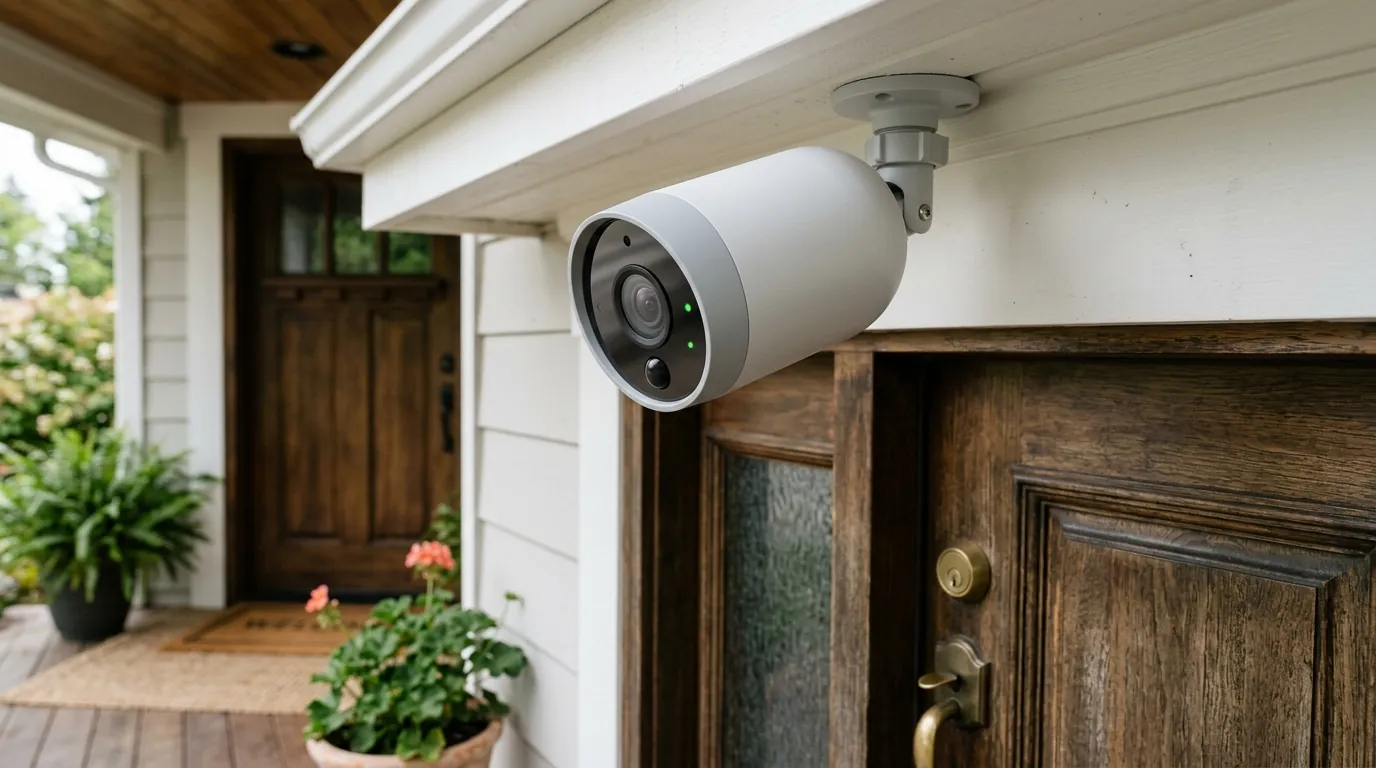
Nest Cam Battery False Motion Alerts from Shadows: Fixes & Settings
Shadows are the most frequent cause of “ghost” notifications for outdoor security cameras, often turning a sophisticated monitoring system into a source of constant distraction. For the Nest Cam (Battery), these false alerts occur when the camera’s software misinterprets the rapid movement of light and dark across a surface as a physical object.
Quick Answer: Nest Cam (battery) false motion alerts from shadows occur because the camera’s motion detection interprets rapid pixel changes caused by moving shadows or shifting light as actual movement. To reduce these, adjust the camera’s wake-up sensitivity to “Low” and configure Activity Zones in the Google Home app to exclude areas prone to shadow movement.
What it means
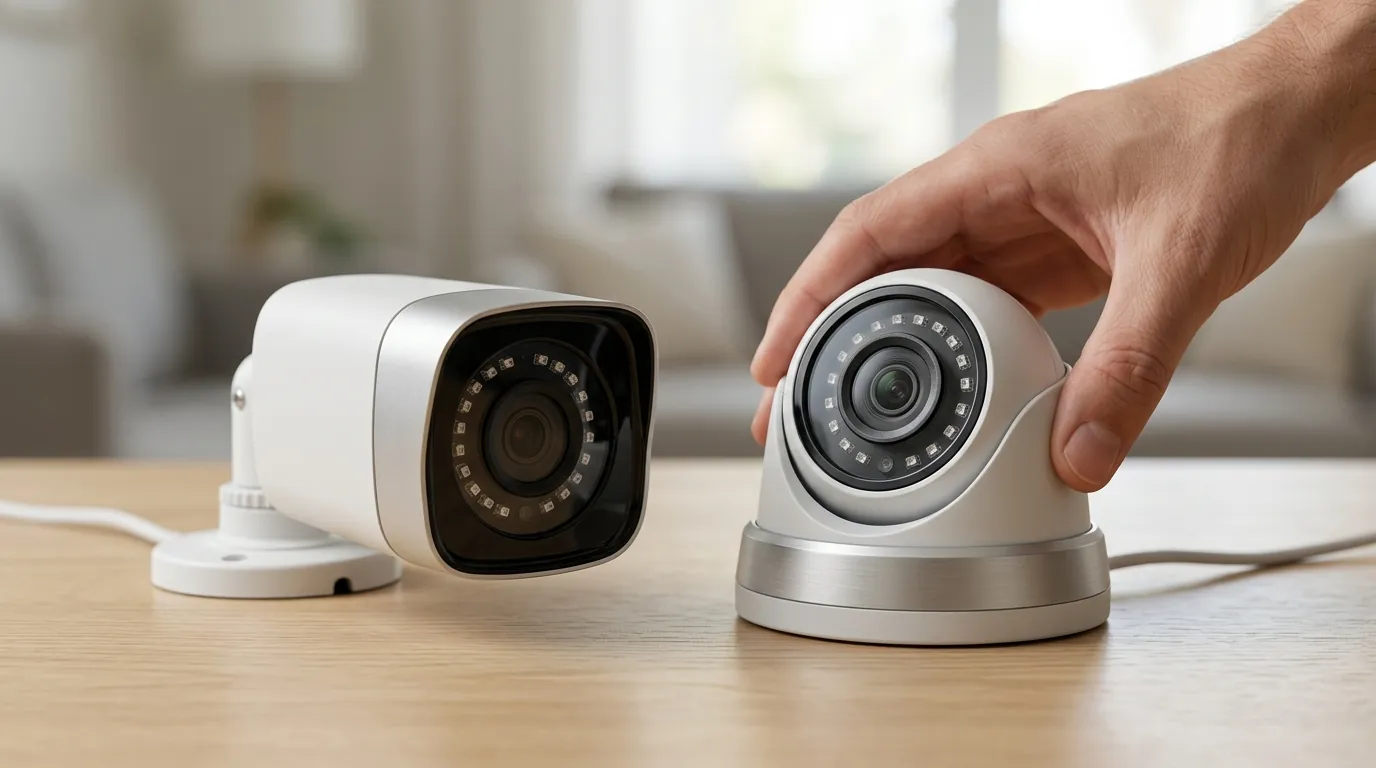
False motion alerts are notifications triggered by non-threatening environmental changes rather than actual security threats. In the context of the Nest Cam (Battery), a “false alert” typically means your phone pings you with a “Motion detected” notification, but when you check the clip, there is no person, animal, or vehicle—only the shifting silhouette of a tree or a passing cloud.
For the Nest Cam (battery), shadows moving across the camera’s field of view are a primary culprit, leading to frequent and irrelevant alerts. This is particularly common during the “golden hours” of sunrise and sunset when shadows are longest and move most rapidly across the ground or walls.
These alerts can be caused by various light changes, such as:
- Cloud Cover: A sun-to-shade transition can look like a large object moving across the entire frame.
- Swaying Vegetation: Wind blowing through tree branches creates a strobe-like effect of moving shadows.
- Headlights: At night, passing cars can cast sweeping shadows across your driveway or porch, triggering the camera’s light-sensitive sensors.
Why it exists
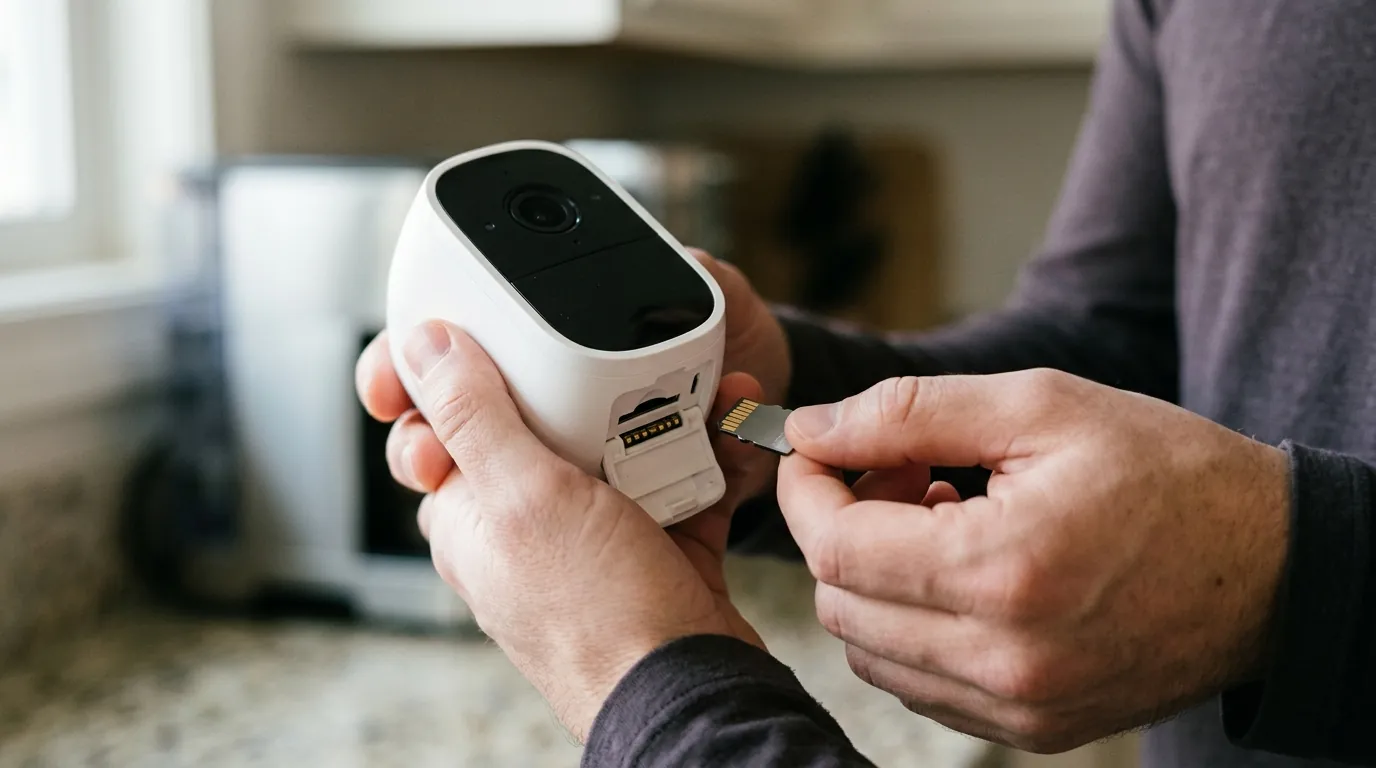
Security cameras, including the Nest Cam (battery), primarily detect motion by analyzing changes in pixel values within the video frame. To the camera, “motion” is simply a mathematical change in the data it receives through the lens.
When a shadow moves, the light intensity and color values of the affected pixels change rapidly, which the camera’s software can interpret as genuine movement. Unlike the human eye, which understands that a shadow is just a lack of light, a digital sensor sees a dark mass appearing where there was previously light—a change indistinguishable from a dark-clothed intruder moving into the frame.
The Nest Cam (battery) uses software for changes in color and lighting, which can inadvertently flag these shifts as motion events. While the camera includes a Passive Infrared (PIR) sensor to “wake up,” once the camera is active, it relies on pixel analysis to determine if the motion is worth an alert. Environmental factors like wind causing trees to sway, or sudden shifts in sunlight due to cloud cover, exacerbate this issue by creating dynamic shadow patterns that mimic the size and speed of legitimate objects.
How it works under the hood
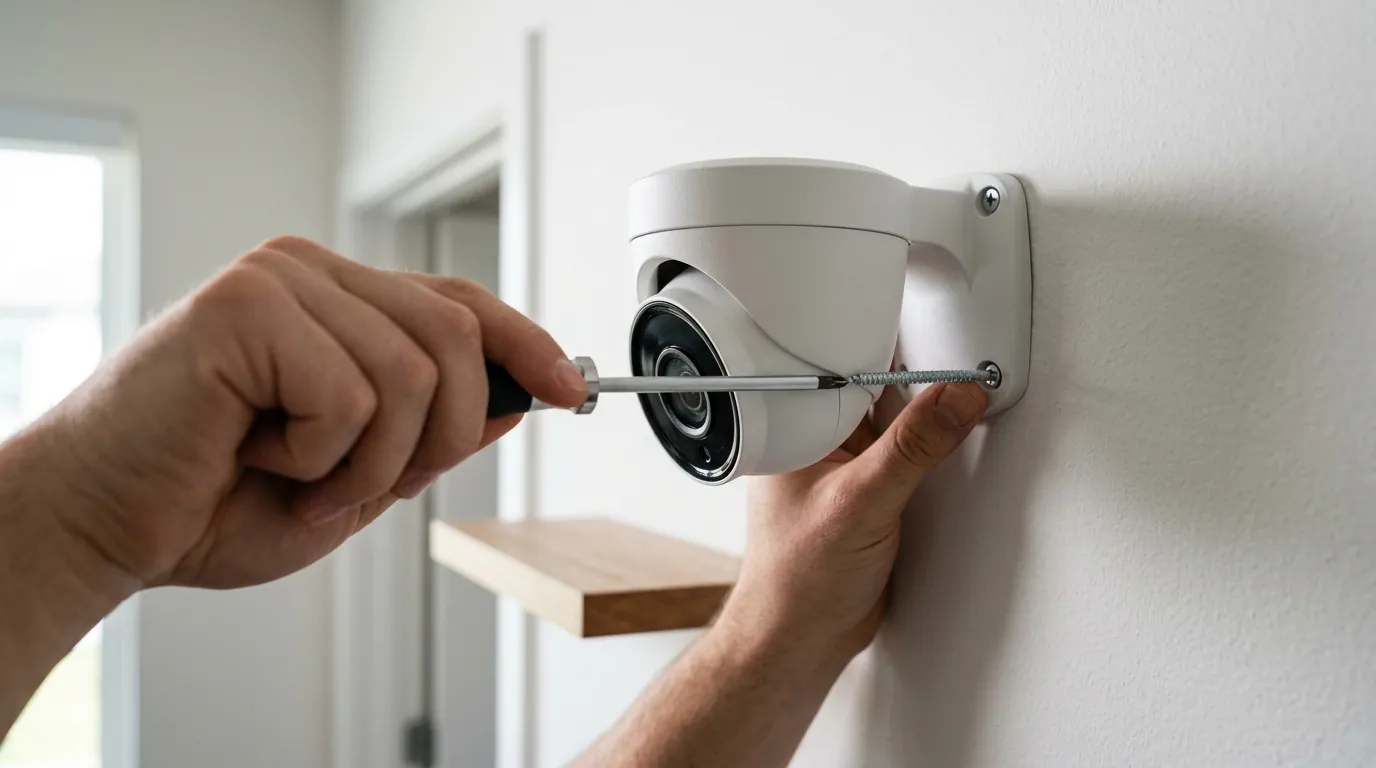
The Nest Cam (battery) features built-in intelligence designed to detect people, animals, and vehicles. This on-device processing is handled by a specialized Tensor processing unit (TPU) that allows the camera to categorize objects without needing to send every frame to the cloud for initial analysis.
Motion Detection Algorithms and AI Capabilities
With a Google Home Premium subscription, the camera leverages Gemini AI for enhanced capabilities, including more detailed activity summaries and smarter alerts. This 2026-era integration allows the camera to provide natural language descriptions of events, such as “The wind is moving the tree shadows on the patio,” rather than a generic “Motion detected” ping.
However, even advanced AI can struggle with complex, unpredictable shadow movements, especially when they mimic the size or speed of legitimate objects. If a shadow of a swaying branch falls on a wall in a way that resembles the height and gait of a human, the algorithm may still “hallucinate” a person-detection event.
Adjusting Sensitivity and Activity Zones
To mitigate these errors, users have two primary software levers within the Google Home app:
- Wake-up Sensitivity: This setting controls the PIR sensor. A “High” sensitivity will wake the camera for almost any thermal or light change, while “Low” requires a larger, more distinct heat signature (like a human body) to trigger a recording.
- Activity Zones: Users can define specific areas within the camera’s view for monitoring. By drawing a zone that excludes the side of a house where shadows frequently play, or the swaying tops of bushes, you effectively tell the camera to ignore motion in those specific pixel coordinates.
The camera’s internal exposure or brightness adjustments, made in response to lighting shifts, can also cause pixel values to change across the frame. When the sun goes behind a cloud, the camera may automatically adjust its digital gain to compensate, which the motion algorithm might interpret as a frame-wide movement event.
Comparison: Nest Cam (Battery) vs. Competition
| Feature | Nest Cam (Battery) | Ring Stick Up Cam Pro | Reolink Argus 4 Pro |
|---|---|---|---|
| Primary Detection | PIR + On-device AI | Radar (3D Detection) | PIR + Dual-Image AI |
| Resolution | 1080p HDR | 1080p HDR | 4K UHD |
| Shadow Mitigation | Activity Zones / Gemini AI | Radar Distance Filtering | Dual-Lens Stitching |
| Local Storage | 1 Hour (Event-based) | No (Subscription req.) | microSD Card Slot |
| Subscription (Base) | ~$80/year | ~$50/year | Optional |
Note: Pricing and specs based on Google Store and RTINGS data for the 2025-2026 product cycle.
Real-world implications
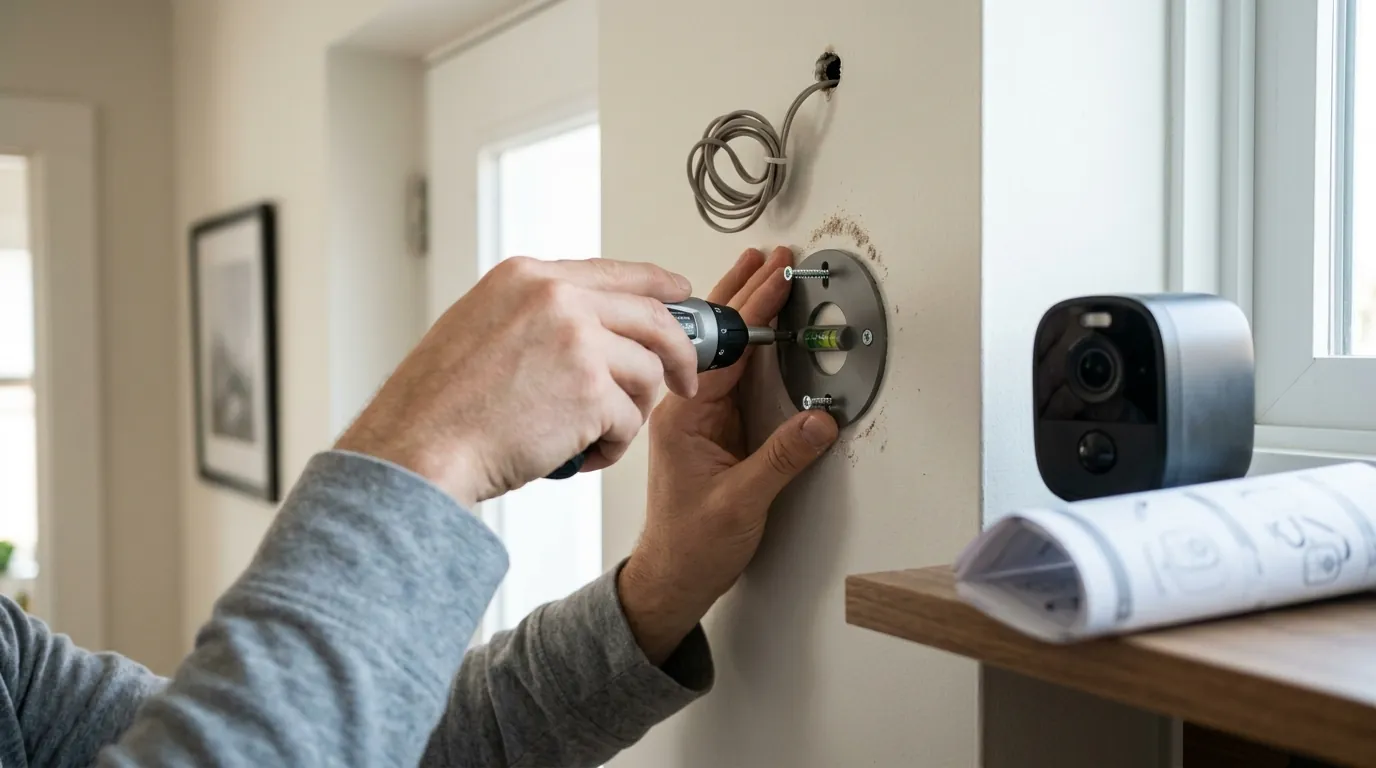
The impact of shadow-induced alerts goes beyond mere annoyance; it affects the core utility and longevity of the security system.
- Notification Fatigue: Frequent false alerts lead to notification fatigue, causing users to ignore important alerts or even disable notifications entirely. If your phone pings 20 times a day because of a tree, you are unlikely to look at the 21st ping, which could be a genuine security threat.
- Battery Drain: Each false alert triggers a recording and, often, a cloud upload. For a battery-powered camera, this is catastrophic for longevity. A camera that should last three months might die in three weeks if it is constantly “waking up” to record shadows.
- Cloud Storage and TCO: Excessive recordings fill up cloud storage history faster. While Google Nest Aware offers “event-based” recording, the sheer volume of clips can make it difficult to find actual incidents in a cluttered timeline.
- Privacy and Data Routing: All motion detection and classification for the Nest Cam (battery) that exceeds the basic on-device capabilities occurs on Google servers. This means video data is constantly being routed through Google’s infrastructure, which remains a point of concern for users prioritizing local-only privacy.
Total Cost of Ownership (TCO) Breakdown
When purchasing a Nest Cam (Battery), the sticker price (usually in the $150-200 range) is only the beginning. To effectively manage false alerts from shadows, a subscription is almost mandatory for the advanced AI filtering.
- Year 1: Hardware (
$180) + Nest Aware ($80) = $260 - Year 2: Nest Aware (~$80) = $80
- Year 3: Nest Aware (~$80) = $80
- 3-Year Total: ~$420
Without the subscription, you lose Activity Zones and the Gemini-powered descriptions that help filter out environmental noise, making the hardware significantly less effective in shadow-heavy environments.
Common misconceptions
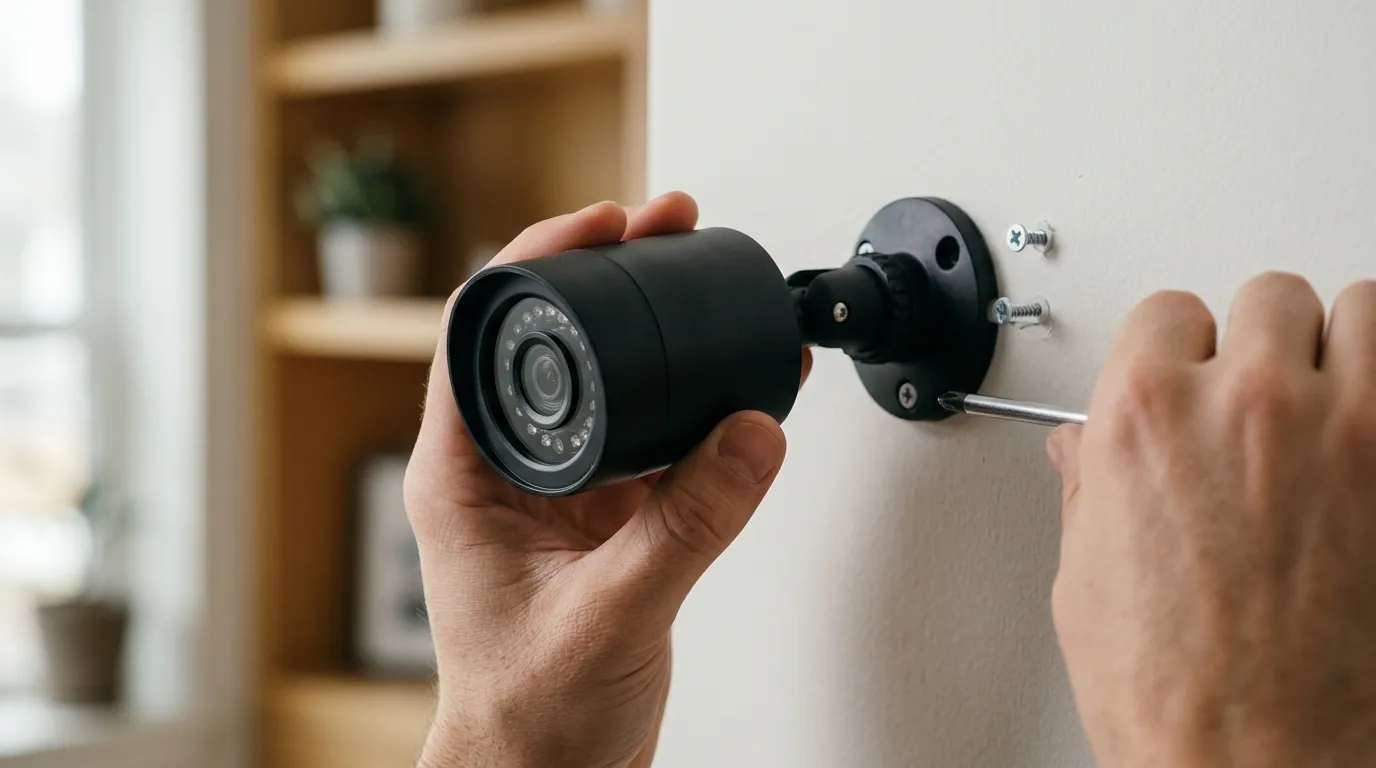
- Misconception: Higher resolution cameras (like 1080p HDR on Nest Cam battery) automatically ignore shadows.
- Reality: While higher resolution provides more detail for the AI to analyze, the underlying pixel-change detection mechanism is still susceptible to shadow movement. In some cases, higher resolution can actually increase false alerts because the sensor is sensitive to even smaller changes in light.
- Misconception: AI-powered cameras, especially with Gemini integration, eliminate all false alerts.
- Reality: While AI helps differentiate objects (people, animals, vehicles), complex shadow patterns can still confuse even advanced algorithms. If a shadow mimics the “skeletal” movement of a person, the AI may categorize it as a person event.
- Misconception: Adjusting sensitivity once is a permanent fix.
- Reality: Environmental conditions change with the seasons. A tree that has no leaves in winter won’t cast many shadows, but in summer, its full canopy may trigger dozens of alerts. Users must periodically review and adjust their Activity Zones as foliage grows and the sun’s path changes.
- Misconception: All motion detection processing happens on the camera itself.
- Reality: For the Nest Cam (battery), basic person/animal/vehicle detection happens on-device. However, more advanced features, long-term event history, and the Gemini-based natural language summaries require the video to be processed on Google’s cloud servers.
Decision Framework: Managing Your Alerts
To determine the best course of action for your specific environment, use the following framework:
- Scenario A: Your camera faces a busy street with moving car shadows.
- Priority: Activity Zones.
- Action: Draw a zone that strictly covers your property line and excludes the street. Turn off “Motion” alerts and only enable “People” and “Vehicles.”
- Scenario B: Your camera is mounted under a tree with heavy swaying shadows.
- Priority: Wake-up Sensitivity.
- Action: Set sensitivity to “Low.” This forces the PIR sensor to wait for a significant heat signature before waking the camera, ignoring the “cold” shadows of the tree.
- Scenario C: You live in a high-wind area with frequent cloud transitions.
- Priority: Notification Settings.
- Action: Use the “Only when I’m away” (Home/Away Assist) feature. This prevents your phone from buzzing while you are home, even if the camera is recording environmental changes.
- Scenario D: You are a renter and cannot change the camera’s position.
- Priority: Nest Aware Subscription.
- Action: Invest in the base tier of Nest Aware to gain access to Activity Zones, which is the most effective software tool for “blacking out” problematic shadow areas.
Further reading
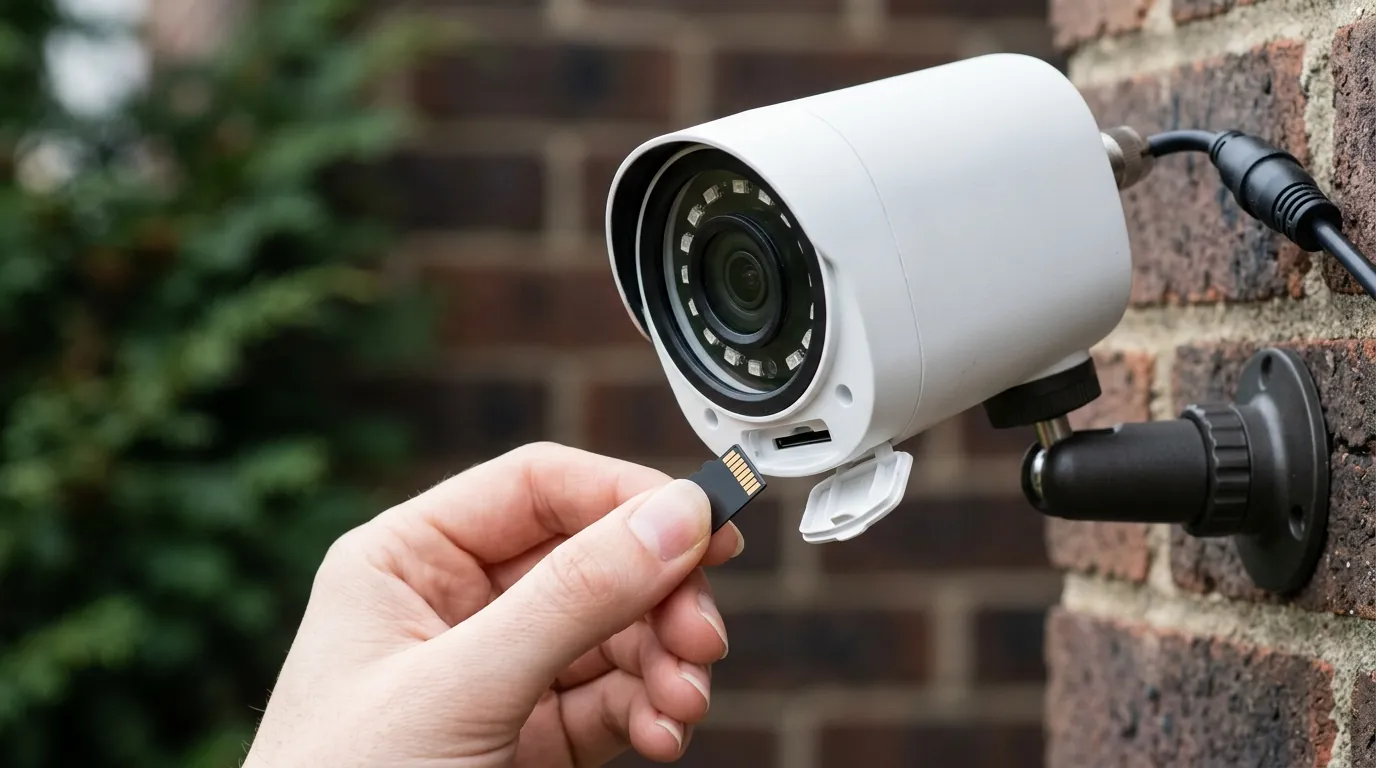
Optimizing your camera placement is the single most effective way to minimize shadow interference. Placing the camera away from direct overhead foliage or using a mounting wedge to angle the lens away from the horizon can significantly reduce the “depth” of shadows in the frame.
For a detailed guide on setting up and refining Activity Zones in the Google Home app, users should explore the “Settings > Events” menu, where you can customize up to four distinct zones per camera.
Managing battery life also goes hand-in-hand with alert management. By reducing false alerts, you decrease the number of times the camera enters its high-power recording state, directly extending the time between charges.
Finally, understanding the Google Nest privacy policy is essential. Because the Nest Cam (Battery) relies on cloud-based AI to help distinguish between a shadow and a person, your video data is processed on Google’s servers. Ensuring you are comfortable with these privacy policies is a key part of the modern smart home experience.
Frequently Asked Questions
Can I turn off motion alerts but keep person alerts?
Yes. In the Google Home app, go to Settings > Events > Seen Events. You can uncheck “Motion” while keeping “People,” “Animals,” or “Vehicles” checked. This is the most effective way to stop shadows from triggering phone notifications, as the AI will only alert you when it identifies a specific object.
Why does my Nest Cam (Battery) record shadows even if I have Activity Zones set up?
Activity Zones primarily control notifications, not always the recording itself. If the camera’s PIR sensor detects motion (even from a shadow triggering a heat-change illusion), the camera may still wake up and record the event to your timeline, even if it doesn’t send a push notification to your phone.
Does the Nest Cam (Battery) use heat or pixels to detect motion?
It uses both. It uses a Passive Infrared (PIR) sensor to detect heat signatures and “wake up” from its low-power state. Once awake, it uses its onboard TPU and pixel-based analysis to categorize the motion as a person, animal, vehicle, or generic movement.
How do I stop car headlights from triggering my Nest Cam at night?
The best fix is to adjust the “Wake-up Sensitivity” to Low and ensure your Activity Zone does not include the street or areas where light reflects off windows. You can also try angling the camera slightly downward to avoid direct line-of-sight with passing headlights.
Sources
- Google Nest Support: Nest Cam (battery) Specs
- Google Safety Center: Nest Privacy — https://safety.google/nest/
- RTINGS: Google Nest Cam (Battery) Review
- Google Nest Community: Reducing False Alerts — https://googlenestcommunity.com/t5/Cameras-and-Doorbells/Nest-Cam-Battery-False-Alerts/m-p/214565
- Google Store: Nest Aware Subscription Tiers — https://store.google.com/product/nest_aware