
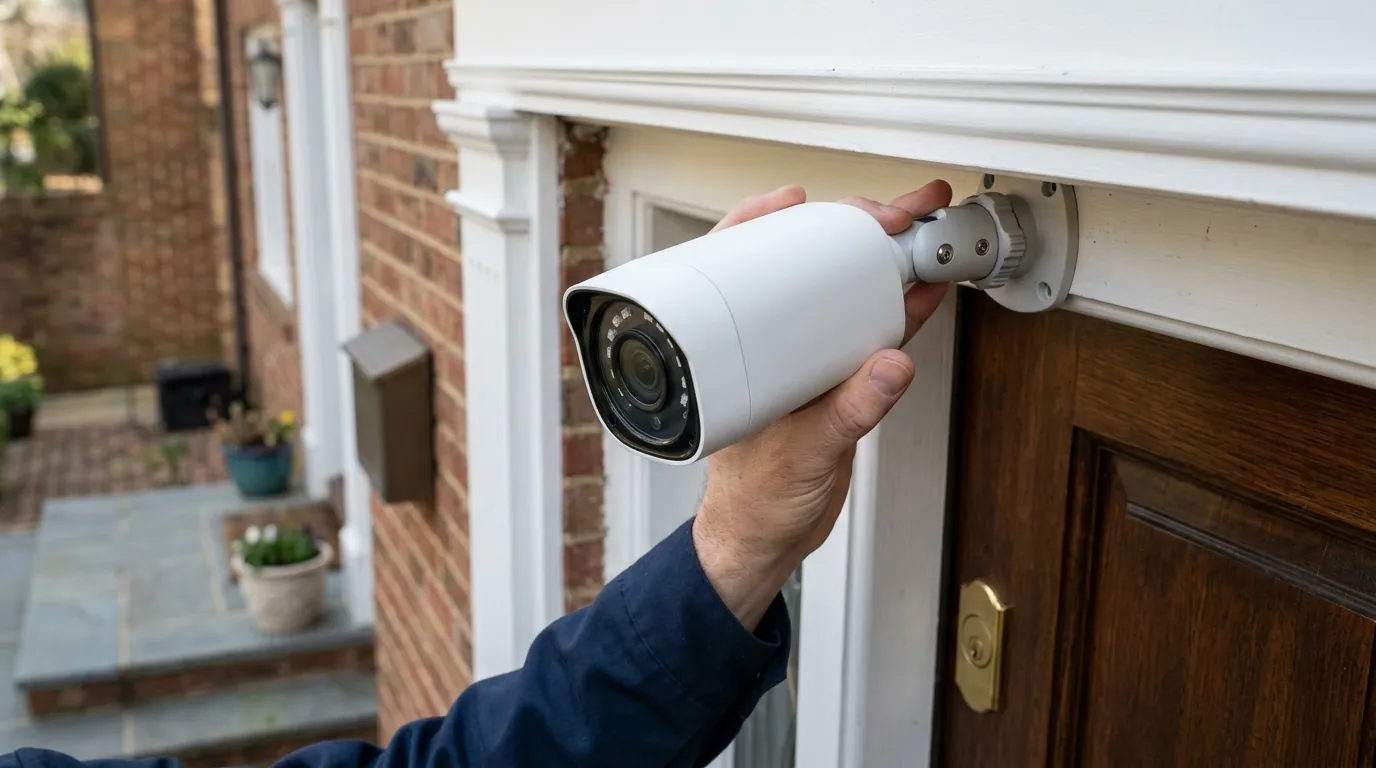
Google Nest Camera Firmware Update Failed: Solutions & Causes
A failed firmware update on your Google Nest Camera can disrupt your home security, leaving your property vulnerable and your device inoperable. Understanding the underlying causes and implementing a structured troubleshooting approach is key to restoring your camera’s functionality and ensuring continuous monitoring.
If your Google Nest Camera firmware update fails, common fixes include checking your Wi-Fi connection, restarting the camera and router, ensuring adequate battery charge, and verifying app and device compatibility. For persistent issues, a factory reset or contacting Google Nest support may be necessary.
What it means
Related: Reolink Camera Connection Failure: 2026 Troubleshooting Guide · Fix Reolink Camera False Motion Detection Alerts: A 2026 Guide · How to Protect Outdoor Security Cameras from Summer Storms
Firmware is the essential, low-level software embedded directly onto your Google Nest Camera’s hardware. It acts as the operating system for the device, dictating its core functionalities, managing hardware components like the image sensor and Wi-Fi module, and enforcing security protocols. Regular firmware updates are crucial as they introduce new features, enhance performance, patch security vulnerabilities, and resolve bugs that could affect your camera’s reliability or protection against threats.
Understanding Firmware
Think of firmware as the brain of your Google Nest Camera. Without it, the camera cannot function. When Google releases a new firmware version, it’s designed to improve the camera’s operation, often by optimizing video processing, refining motion detection algorithms, improving battery life, or strengthening encryption standards. These updates are vital for maintaining both the camera’s operational efficiency and its security posture against evolving digital threats.
Signs of a Failed Update
A failed firmware update on a Google Nest Camera can manifest in several ways, often making the camera unresponsive or displaying unusual behavior. Common indicators include:
- Unresponsiveness: The camera stops recording, streaming live video, or responding to commands from the Google Home app.
- Error Messages: The Google Home app might display specific error messages, such as “Update failed,” “Camera offline,” or similar notifications indicating a problem with the update process.
- Unusual LED Patterns: The camera’s status light can provide diagnostic clues. A solid red light often indicates a critical error, while a blinking amber light might suggest a network issue or a problem during startup after an update attempt. For instance, a slow pulsing green light means the device is updating its firmware.
- Feature Loss: New features announced with a firmware update may not appear, or existing features might cease to work correctly.
- Repeated Restarts: The camera might continuously reboot or cycle through its startup sequence without ever fully coming online.
Why it exists
Firmware update failures are typically not random events but stem from specific environmental or technical issues during the update process. Given the critical nature of these updates, a stable environment is paramount.
Network Connectivity Problems
One of the most frequent culprits behind failed Google Nest Camera firmware updates is an unstable or weak Wi-Fi connection. Firmware files can be large, and any interruption during download can corrupt the update package.
- Weak Signal Strength: If the camera is too far from your Wi-Fi router or experiences significant interference, the data transfer rate can drop, leading to incomplete downloads. Google Nest cameras, like many smart home devices, often rely on 2.4 GHz Wi-Fi, which offers better range but can be slower than 5 GHz. A minimum of 5 Mbps upload and download speed is recommended for reliable camera operation, including updates.
- Intermittent Connection: Brief disconnections from your Wi-Fi network during the update process can cause the update to fail. This can be due to router issues, network congestion, or even physical obstructions affecting the signal.
- DNS or Firewall Issues: Occasionally, overly aggressive DNS filters, VPNs, or router firewall settings can block the camera from accessing Google’s update servers, preventing the download of the firmware package.
Power and Battery Considerations
A consistent power supply is essential throughout the firmware update cycle.
- Power Interruptions: For wired Google Nest Cameras, a sudden loss of power during an update can corrupt the firmware, potentially “bricking” the device.
- Insufficient Battery Charge: Battery-powered Nest Cams require adequate charge to complete an update. For example, the Nest Doorbell (battery) typically needs at least a 10% charge to perform a firmware update. Attempting an update with a low battery can lead to failure if the battery depletes mid-process. It’s generally advisable to ensure a full or near-full charge before initiating any significant software update.
Software and Server-Side Glitches
While less common, software-related issues can also contribute to update failures.
- Outdated Google Home App: An outdated version of the Google Home app on your smartphone might have compatibility issues with newer firmware versions, preventing it from properly initiating or monitoring the update.
- Temporary Google Server Issues: Although rare, Google’s update servers might experience temporary outages or congestion, which could interfere with the camera’s ability to download the firmware. Such issues are usually resolved quickly by Google.
- Device Compatibility: Very old Nest Cam models might eventually lose compatibility with the latest firmware versions as hardware capabilities evolve. However, Google generally provides long-term software support for its devices, including security updates for at least five years from their original sale date.
How it works under the hood
Understanding the technical process of a Google Nest Camera firmware update can help in diagnosing failures. Google prioritizes security and reliability throughout this lifecycle.
The Firmware Update Lifecycle
When Google releases a new firmware version, your Nest Camera typically follows an Over-The-Air (OTA) update process:
- Check for Updates: Your Google Nest Camera periodically checks Google’s servers for available firmware updates. This usually happens automatically in the background.
- Download: Once an update is detected, the camera downloads the encrypted firmware package over your Wi-Fi network. This download requires a stable internet connection.
- Verification: Before installation, the camera verifies the integrity and authenticity of the downloaded file. This step ensures that the package hasn’t been tampered with and is a legitimate update from Google.
- Installation: The camera then installs the new firmware. During this phase, the camera may become temporarily unresponsive or display a specific LED pattern (like a pulsing green light).
- Reboot: After installation, the camera performs a reboot to apply the new firmware changes and restart with the updated software.
- Confirmation: The camera then reports its new firmware version to Google’s servers and the Google Home app.
Security Measures During Updates
Google Nest employs several robust security measures to protect the integrity of firmware updates:
- Cryptographic Verification: All firmware updates are cryptographically signed by Google. The camera verifies this signature before installation, ensuring that only authentic and untampered software is loaded onto the device.
- Verified Boot: For Google Nest devices released in 2019 and after, Verified Boot processes are implemented. This technology ensures that every stage of the bootup sequence, from the bootloader to the operating system, is cryptographically verified to prevent unauthorized modifications. This protects against malicious firmware injection.
- Automatic Updates: Google Nest devices are designed to receive automatic software updates to ensure they always have the latest security features and protection from recently discovered threats. This minimizes the window of vulnerability.
Real-world implications
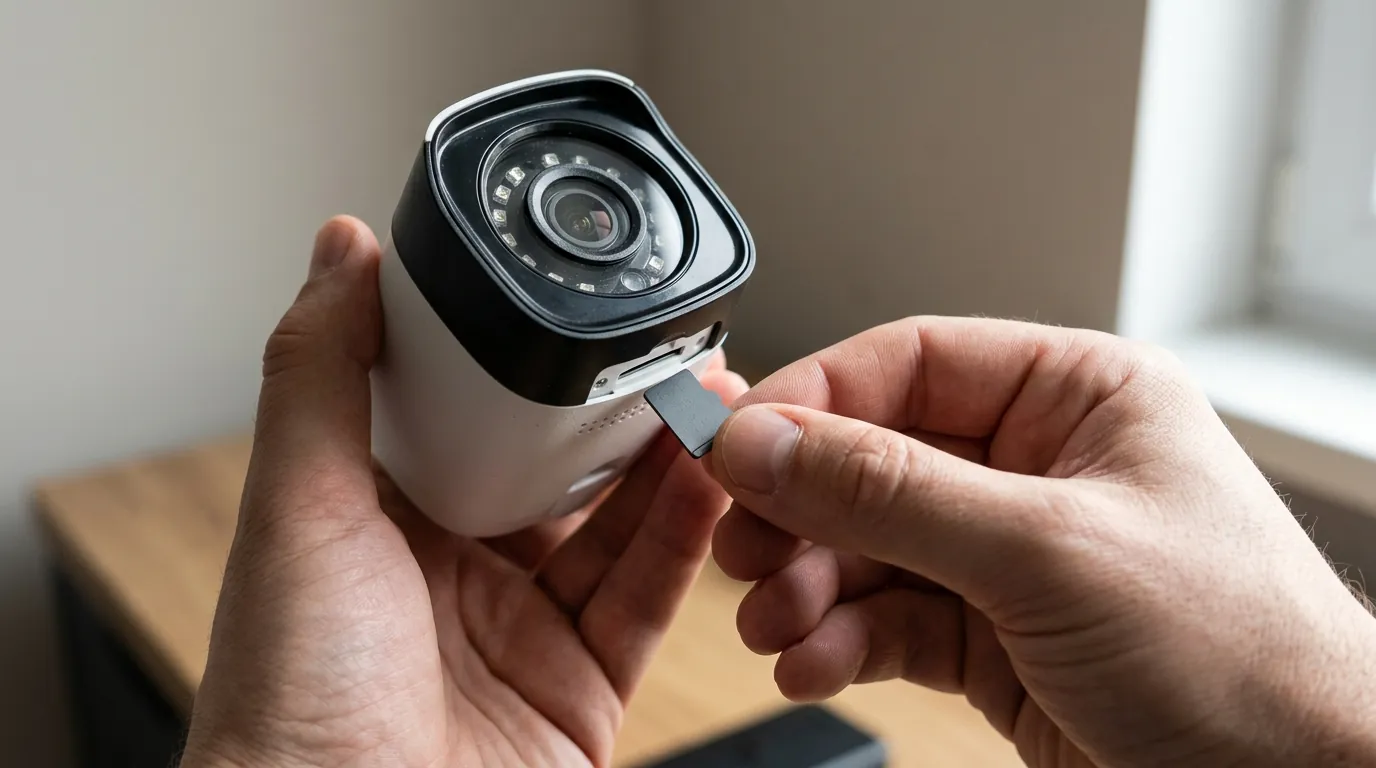
A failed firmware update can have immediate and long-lasting consequences for your home or small business security, ranging from operational disruptions to potential security vulnerabilities.
Immediate Risks
- Loss of Security Monitoring: The most critical immediate risk is the camera becoming inoperable, leading to a temporary or extended loss of surveillance. This means your property could be unwatched, leaving you blind to potential intruders or incidents.
- Device Unresponsiveness: The camera may become unresponsive to commands from the Google Home app, preventing you from viewing live feeds, reviewing recorded events, or adjusting settings.
- Incomplete Features: If the update was meant to introduce new features, these will not be available, and existing features might malfunction.
Long-Term Consequences
- Security Vulnerabilities: Skipping or failing to apply critical security patches leaves your Google Nest Camera vulnerable to exploits. Attackers could potentially gain unauthorized access, disrupt functionality, or compromise your privacy.
- Performance Degradation: Older firmware might contain unaddressed bugs that lead to decreased performance, such as reduced video quality, inaccurate motion detection, or excessive battery drain.
- Limited Support: Google Nest support may require your device to be on a recent firmware version for effective troubleshooting, potentially complicating assistance for persistent issues.
Step-by-Step Troubleshooting Guide
If your Google Nest Camera firmware update fails, follow these steps in order:
- Restart your Google Nest Camera:
- Wired Models: Unplug the power adapter for about 30 seconds, then plug it back in.
- Battery-Powered Models (e.g., Nest Cam (battery), Nest Doorbell (battery)): You might need to remove and reinsert the battery, or if it has a restart button, press and hold it (consult your specific model’s manual for details). For the Nest Cam (battery), you can hold the camera’s button for about 10 seconds to restart it.
- Restart your Wi-Fi Router: Unplug your Wi-Fi router from its power source for at least 30 seconds, then plug it back in. Wait a few minutes for your network to fully re-establish before checking your camera. This can refresh your network connection and resolve temporary glitches.
- Check Wi-Fi Connection:
- Signal Strength: Ensure your camera has a strong, stable Wi-Fi signal. If possible, move the camera closer to the router.
- Interference: Minimize potential interference from other devices (e.g., microwaves, cordless phones).
- Network Band: Google Nest cameras often perform better on a 2.4 GHz Wi-Fi network for range, though some newer models support 5 GHz for faster speeds. Ensure your camera is connected to the appropriate band.
- Speed: Verify your internet speed meets the minimum requirements (typically 5 Mbps upload/download for reliable camera operation). You can use online speed tests.
- Ensure Adequate Power/Battery:
- Battery-Powered Cams: For devices like the Nest Doorbell (Battery), ensure a full charge before attempting an update. It needs at least 10% charge to update.
- Wired Models: Verify a stable power supply and check for any loose connections.
- Update Google Home App: Ensure your Google Home app is updated to its latest version from your device’s app store (Google Play Store for Android, Apple App Store for iOS). Newer app versions often include improved compatibility and diagnostic tools. Version 3.5 and later may include AI-driven diagnostic tools that can help troubleshoot.
- Manually Trigger Update: In the Google Home app, select your Nest Cam, navigate to its settings (usually represented by a gear icon), and look for an option to manually check for firmware updates. This might be under “Technical information” or “Device details.”
- Temporarily Disable DNS/Firewall Filters: If you are using custom DNS servers (e.g., ad-block DNS) or have strict firewall rules on your router, temporarily disable them. These can sometimes block the necessary communication for firmware updates. Remember to re-enable them after troubleshooting.
- Factory Reset (Last Resort): If all other steps fail, a factory reset can resolve deep-seated software issues by returning the camera to its original state.
- Warning: A factory reset will erase all settings, video history, and require you to re-add and re-set up the camera in the Google Home app.
- Process: The reset process varies by model. Consult your camera’s manual or Google’s support pages for the exact reset button location and hold duration (typically 5-15 seconds). For Nest Cam (battery), you press and hold the reset button for 5 seconds until the status light pulses yellow, then release it. For Nest Cam (wired), hold the reset button for 12 seconds.
- Important: If you plan to sell or give away your camera, always remove it from your Google Home app before performing a factory reset.
- Contact Google Nest Support: If issues persist after trying all troubleshooting steps, reach out to Google Nest support. They can provide advanced diagnostics, check for known service outages, and discuss potential replacement options if your device is still under warranty.
Common misconceptions
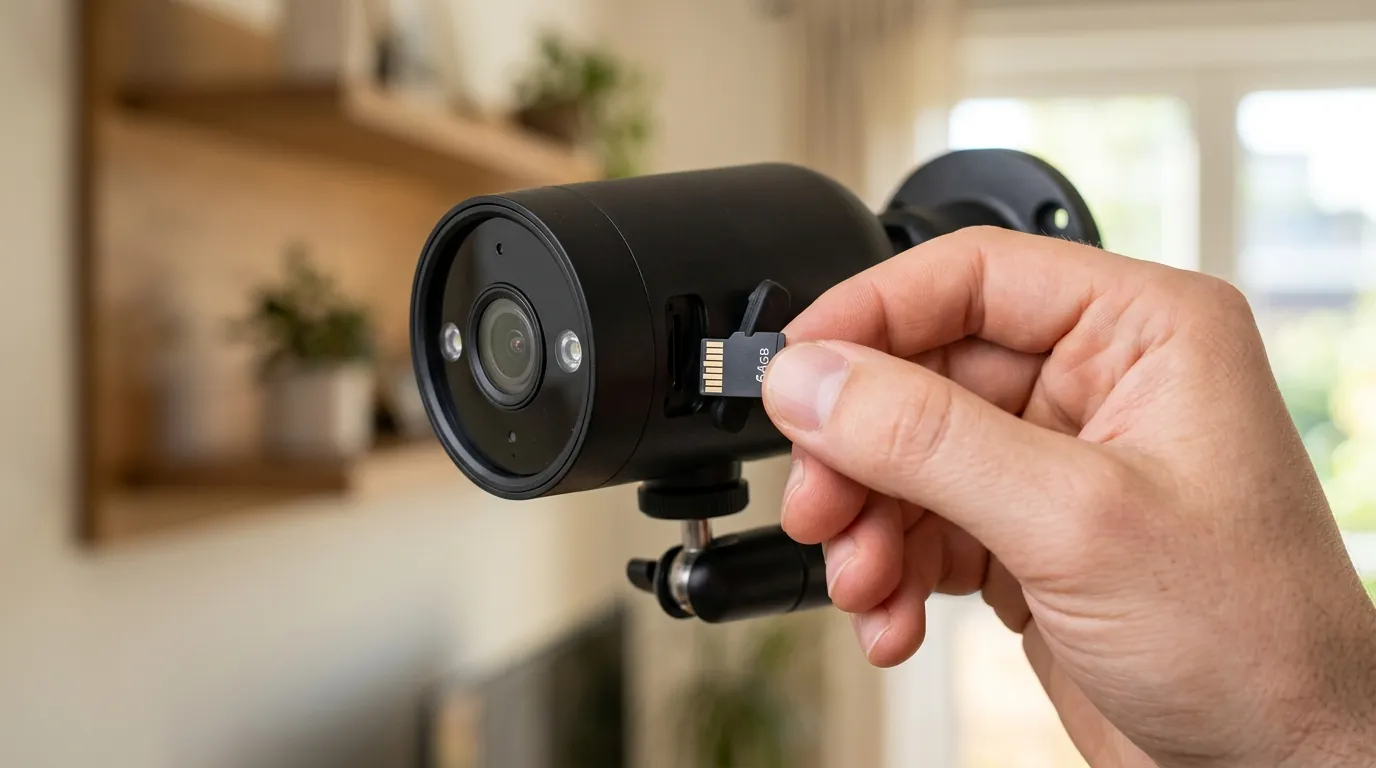
Several myths surround firmware updates for security cameras, which can lead to misunderstandings and potentially harmful practices.
Myth: Updates are Always Perfect
Reality: While firmware updates are designed to improve performance and security, they can occasionally introduce new, unforeseen issues. Users have sometimes reported problems such as decreased night vision quality, increased battery drain, or unexpected connectivity issues after an update. These are typically addressed in subsequent patches, but it’s important to recognize that no software is entirely bug-free.
Myth: Updates are Optional
Reality: Skipping firmware updates can leave your Google Nest Camera vulnerable to security exploits. Updates frequently include critical security patches that protect your device from newly discovered threats. Furthermore, you might miss out on important bug fixes, performance enhancements, and access to new features that rely on the latest firmware. Treating updates as optional can compromise your home’s security and the camera’s functionality.
Myth: Old Cameras Don’t Need Updates
Reality: Google commits to providing automatic critical security updates for Google Nest devices for at least five years from their original sale date. Even older models receive crucial security patches to protect against vulnerabilities. While new feature development might cease for very old devices, security updates remain essential for as long as the product is supported. The idea that an older camera is “done” with updates is incorrect; security is a continuous process.
Further reading
For more insights into optimizing your home security setup, explore our guides on choosing the best Wi-Fi security cameras for your needs. Understanding the nuances of cloud storage options and how they impact your security camera experience is also crucial. Delve deeper into privacy concerns associated with smart home devices and how to protect your data.
Google Nest Camera Comparison
To help illustrate the differences and key specifications across popular Google Nest camera models, here’s a comparison table. Note that specific pricing can fluctuate; these are general bands.
| Feature | Nest Cam (battery) (2021) | Nest Cam (wired) (2021) | Nest Doorbell (battery) (2021) | Nest Doorbell (wired, 2nd gen) (2022) | Nest Hub Max (2019) |
|---|---|---|---|---|---|
| Resolution | 1080p HD | 1080p HD | 1080p HD | 1080p HD | 1080p HD |
| Field of View | 130° diagonal | 130° diagonal | 145° diagonal | 160° diagonal | 127° diagonal |
| Night Vision | Up to 20 ft (6m) | Up to 20 ft (6m) | Up to 10 ft (3m) | Up to 10 ft (3m) | Yes |
| Local Storage | 1 hour event video backup | 1 hour event video backup | 1 hour event video backup | 1 hour event video backup | — |
| Power Type | Battery or wired | Wired (USB-A) | Battery or wired | Wired (doorbell wires) | Wired (AC adapter) |
| Subscription Cost/yr (Nest Aware Basic) | Around $80 | Around $80 | Around $80 | Around $80 | Around $80 |
| Subscription Cost/yr (Nest Aware Plus) | Around $150 | Around $150 | Around $150 | Around $150 | Around $150 |
| Price Band | $150-200 range | $80-100 range | $150-200 range | $150-200 range | $200-250 range |
Decision Framework: Choosing the Right Nest Cam
Selecting a Google Nest Camera involves weighing various factors based on your specific needs. Here’s a framework to guide your decision:
- If you’re a renter or prefer flexibility: Prioritize battery-powered Nest Cams (e.g., Nest Cam (battery), Nest Doorbell (battery)). These offer easy installation and relocation without needing existing wiring. Be mindful of battery life and charging cycles.
- If you need continuous recording and reliable power: Prioritize wired Nest Cams (e.g., Nest Cam (wired), Nest Doorbell (wired)). These provide 24/7 power and often allow for continuous video recording with a Nest Aware Plus subscription.
- If you want integrated smart home control and a display: Consider the Nest Hub Max. While primarily a smart display, its integrated camera offers basic Nest Cam functionalities, making it ideal for common areas where you also want voice control and a visual interface.
- If budget is a primary concern: Look for older wired Nest Cam models or consider refurbished options from reputable retailers, but always verify Google’s support duration for security updates. The Nest Cam (wired) is generally in a lower price band than its battery-powered counterpart.
- If you prioritize privacy and local processing: Understand that Google Nest cameras primarily rely on cloud processing and storage. While some models offer limited local event video backup, a Nest Aware subscription is necessary for extended video history and advanced features.
Total Cost of Ownership (TCO) for Google Nest Cameras
Beyond the initial purchase price, the true cost of owning a Google Nest Camera over several years includes hardware, subscription fees, and potential hidden costs like feature paywalls. Here’s a breakdown for a typical 3-year ownership period:
- Hardware Cost: This is the upfront price of the camera. For example, a Nest Cam (battery) is typically in the $150-200 range.
- Subscription Tier (Nest Aware): This is often the largest ongoing cost.
- Nest Aware Basic: Provides 30 days of event video history and intelligent alerts. Costs around $80 per year. Over three years, this is approximately $240.
- Nest Aware Plus: Offers 60 days of event video history and 10 days of 24/7 continuous video recording (for wired cameras), plus enhanced alerts. Costs around $150 per year. Over three years, this is approximately $450.
- Feature Paywall Trap: Many advanced features, such as familiar face detection, sound detection (like smoke alarm or glass breaking), and extended video history, are locked behind a Nest Aware subscription. Without a subscription, you typically only get three hours of event video history for newer models (like the Nest Cam (battery)), or no video history for older models without a subscription. This means that a significant portion of the camera’s advertised capabilities might be inaccessible without ongoing payments.
- Power Costs: For wired cameras, there’s a negligible increase in electricity consumption. For battery-powered cameras, the cost of recharging is minimal but consider the time and effort involved.
- Replacement/Upgrade Cycle: While Google commits to security updates for at least five years, technological advancements or significant feature improvements might lead users to consider upgrading within 3-5 years.
Example 3-Year TCO for a Nest Cam (battery) with Nest Aware Basic:
- Hardware: Around $180
- Nest Aware Basic (3 years): Approximately $240
- Total Estimated 3-Year TCO: Around $420
This calculation highlights that the subscription cost can quickly exceed the initial hardware cost, making it a critical factor in your purchasing decision.
Frequently Asked Questions
Why is my Google Nest Camera update stuck?
A Google Nest Camera update might get stuck due to a weak or unstable Wi-Fi connection, insufficient battery charge, or a temporary server issue. Try restarting your camera and router, then ensure your camera has a strong Wi-Fi signal and adequate power before attempting to update again.
How do I manually force a firmware update on my Nest Camera?
Google Nest cameras typically update automatically. However, you can sometimes prompt a check for updates within the Google Home app. Navigate to your camera’s settings, then look for an option under “Technical information” or “Device details” to check for or manually trigger an update.
Can a failed firmware update brick my Nest Cam?
While rare, a severe power interruption or data corruption during a firmware update can potentially brick your Nest Cam, rendering it inoperable. Most failed updates are recoverable through troubleshooting steps like restarting or factory resetting the device, but it’s crucial to maintain stable power and a strong Wi-Fi signal during updates to minimize this risk.
How long does a Google Nest Camera firmware update take?
The duration of a Google Nest Camera firmware update can vary depending on the size of the update file and your internet speed. Typically, an update might take anywhere from 5 to 20 minutes to download and install, including the device reboot.
Does Google Nest provide security updates for older cameras?
Yes, Google commits to providing automatic critical security updates for Google Nest devices for at least five years from their original sale date. This ensures that even older, supported models remain protected against known vulnerabilities, although they may not receive new feature updates.
Sources
- Google Support - Nest Cam update failed
- Google Support - What the lights on your Google Nest camera mean
- Google Store - Nest Cam (battery) specs
- Google Store - Nest Doorbell (battery) specs
- Google Safety Center - Security updates for Nest devices
- YouTube - How to Fix Nest Cam Offline Issue (2024)
- YouTube - Nest Camera not connecting to WiFi - Quick fix
- YouTube - How To Fix Google Nest Camera Not Recording
- Google Store - Nest Hub Max specs
- Business Insider - Google Home app AI diagnostic tools
- Google Support - Nest Doorbell (battery) charging and battery life
- Google Store - Nest Cam (wired) specs
- Google Blog - How Nest devices stay secure
- Reddit - Nest Cam (battery) update failure
- Google Support - Internet speed requirements for Nest products
- Google Support - Factory reset Nest Cam
- Whizz-Experts - Google Nest Camera light meanings
- Google Support - Restart Nest Cam (battery)
- Reddit - Nest Doorbell (battery) issues after update
- Reddit - Nest Cam (wired) night vision issues after update
- Reddit - Nest Cam (battery) battery drain after update
- Google Store - Nest Doorbell (wired, 2nd gen) specs
- YouTube - Nest Cam (battery) firmware update issues
- Reddit - Nest Cam (battery) connectivity issues after update
- CNET - Nest Doorbell (wired, 2nd gen) review
- Google Store - Nest Aware pricing
- Engadget - Nest Hub Max review
- Google Nest Community - Camera offline after update
- Thurrott - Google Nest Cam (wired) review