
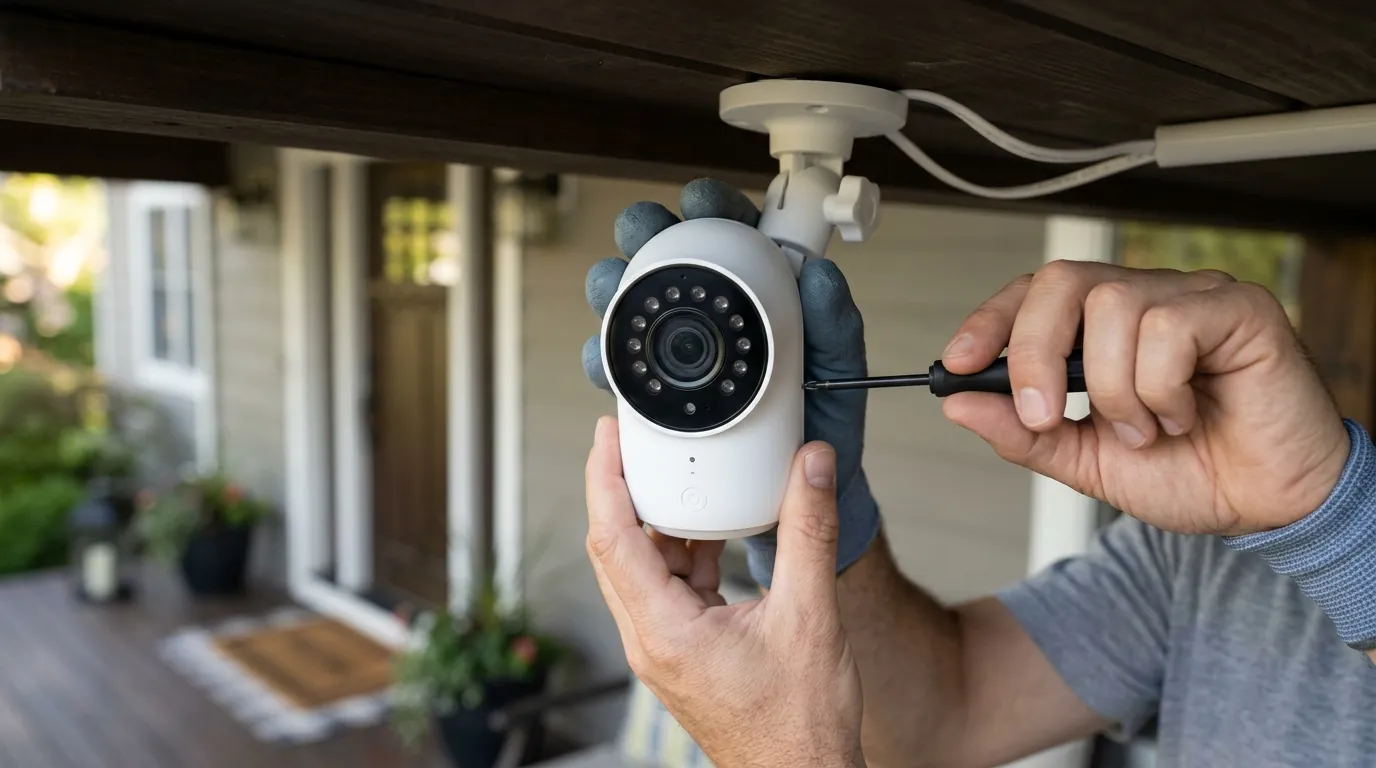
Fixing Eufy Security Motion Alerts in Home Assistant (2026 Guide)
When a security camera fails to report motion to your smart home hub, the system transitions from a proactive guardian to a passive video recorder. For Home Assistant users, this breakdown often occurs silently, leaving automations like porch light triggers or critical security alerts non-functional.
Eufy motion alerts in Home Assistant usually fail because push notifications are disabled in the Eufy app or the eufy-security-ws add-on is disconnected. Ensure notifications are set to ‘Include Thumbnail’ in the Eufy app to trigger the HA event.
What it means
Related: Best Smart Locks for Apple Home Key in 2026: A Buyer’s Guide · Google Nest Cam Battery Overheating: Causes, Fixes & What You Need to · Eufy HomeBase Storage Issues in June 2026: What You Need to Know
When motion alerts fail within a Home Assistant (HA) environment, it signifies a communication break between the Eufy cloud (or HomeBase) and the local eufy-security-ws server. Even if the camera is physically recording video to an SD card or HomeBase 3, the “event” signal never reaches the Home Assistant state machine.
Identifying the ‘Silent Trigger’ Symptom
The most common symptom is the “Silent Trigger.” In this scenario, you can open the Eufy Security mobile app and see a fresh entry in the “Events” tab, yet the binary_sensor.motion_sensor entity in Home Assistant remains stuck in a “Clear” or “Off” state.
In the Home Assistant Developer Tools, you may observe that the last_changed attribute for the motion sensor hasn’t updated in hours or days, despite known activity. This indicates that while the hardware is functioning and the Eufy cloud is aware of the motion, the integration has not been notified. This discrepancy breaks downstream automations, such as exterior lights failing to illuminate when someone approaches the door or text-to-speech (TTS) announcements failing to play on smart speakers.
Integration vs. Hardware Failure
It is vital to distinguish between a “dead” integration and a “silent” one.
- Integration Failure: All entities (camera, sensors, switches) appear as “Unavailable” or “Entity not defined.” This usually points to a crash in the
eufy-security-wsDocker container or an expired authentication session. - Silent Failure: The entities appear “Healthy” and “Online,” and you may even be able to start a P2P video stream, but the motion sensor never toggles to “Detected.” This is almost always a configuration issue regarding how push notifications are routed from Eufy’s servers to the integration.
Why it exists
Eufy does not provide an official local API for Home Assistant. The community-driven integration, primarily maintained via the bropat/eufy-security-ws engine, must use a combination of cloud-polling and push-notification interception to function. This “unofficial” nature makes the connection fragile.
The Cloud-Dependency Paradox
Even though Eufy markets many of its products, like the eufyCam 3 (S330), as “local storage” devices, the mechanism that alerts Home Assistant is almost entirely cloud-dependent. When the camera detects motion, it sends a signal to the Eufy Cloud. The cloud then broadcasts a Firebase Cloud Messaging (FCM) notification. The Home Assistant integration acts as a “virtual phone,” listening for these FCM packets. If the Eufy Cloud doesn’t send the packet—or if the integration isn’t correctly registered to receive it—no motion is recorded in HA.
Authentication and 2FA Hurdles
Eufy’s security policies have tightened significantly. If you use the same account for both your primary smartphone and your Home Assistant integration, Eufy will frequently log out the older session when the new one begins. This “session hijacking” kills the websocket connection required for motion alerts. Furthermore, Eufy’s mandatory Two-Factor Authentication (2FA) can cause the integration to hang if the session token expires and the user is not present to input a new code into the HA configuration flow.
Power Management and Deep Sleep Cycles
Battery-powered models, such as the SoloCam S340 or eufyCam 2C, utilize aggressive deep-sleep cycles to preserve battery life. These cameras do not maintain a constant connection to the Wi-Fi network. Instead, they wake up, record, send a burst of data to the HomeBase or Cloud, and go back to sleep. If the integration’s “heartbeat” check occurs while the camera is in a deep sleep, or if the “wake-up” signal is delayed by network congestion, the motion event packet may be dropped before Home Assistant can process it.
How it works under the hood
To fix motion alerts, you must understand the data path. The integration is not “watching” the video for motion; it is waiting for a digital “flag” to be flipped by a bridge server.
The Websocket Bridge Explained
The backbone of the Eufy-HA connection is the eufy-security-ws (Websocket) server. This is typically installed as a Home Assistant Add-on. Its job is to log into Eufy’s servers, maintain a persistent connection, and translate Eufy’s proprietary communication into a standard Websocket format that the Home Assistant eufy_security integration can understand. If this bridge service encounters an error—often visible in the Add-on logs—the motion sensors will stop updating immediately.
FCM (Firebase) and Push Token Interception
When you set up the integration, it registers itself with Google’s Firebase Cloud Messaging as if it were an Android device. This is the “secret sauce” for real-time alerts. When Eufy sends a push notification to your phone, it also sends one to the “device” known as eufy-security-ws.
Crucially, the integration parses the text and metadata of the notification to determine the state of the sensor. For example, if the notification says “Person detected at Front Door,” the integration flips the binary_sensor to “on.” If push notifications are disabled in the Eufy app, or if the notification style is set to “Basic” (no thumbnail/detail), the FCM packet may lack the specific metadata the integration needs to identify which camera triggered.
Local P2P vs. Cloud API Calls
While motion triggers rely on the cloud, the integration also uses Point-to-Point (P2P) communication for things like starting a live stream or changing camera settings. This P2P connection is established locally if the Home Assistant yellow/blue hardware is on the same subnet as the HomeBase 3. However, the initial “handshake” to find the camera’s local IP still requires a cloud API call. If your internet is down, or Eufy’s servers are having an outage, even “local” motion triggers will often fail because the handshake cannot complete.
| Feature | Local P2P (No Cloud) | Cloud Push Required | 2026 Integration Stability |
|---|---|---|---|
| Motion Detection | No | Yes | Moderate |
| Live Streaming | Yes (after handshake) | No (after handshake) | High |
| BionicMind AI Labels | No | Yes | Moderate |
| Audio Detection | No | Yes | Low |
| Siren Toggle | Yes | No | High |
Real-world implications
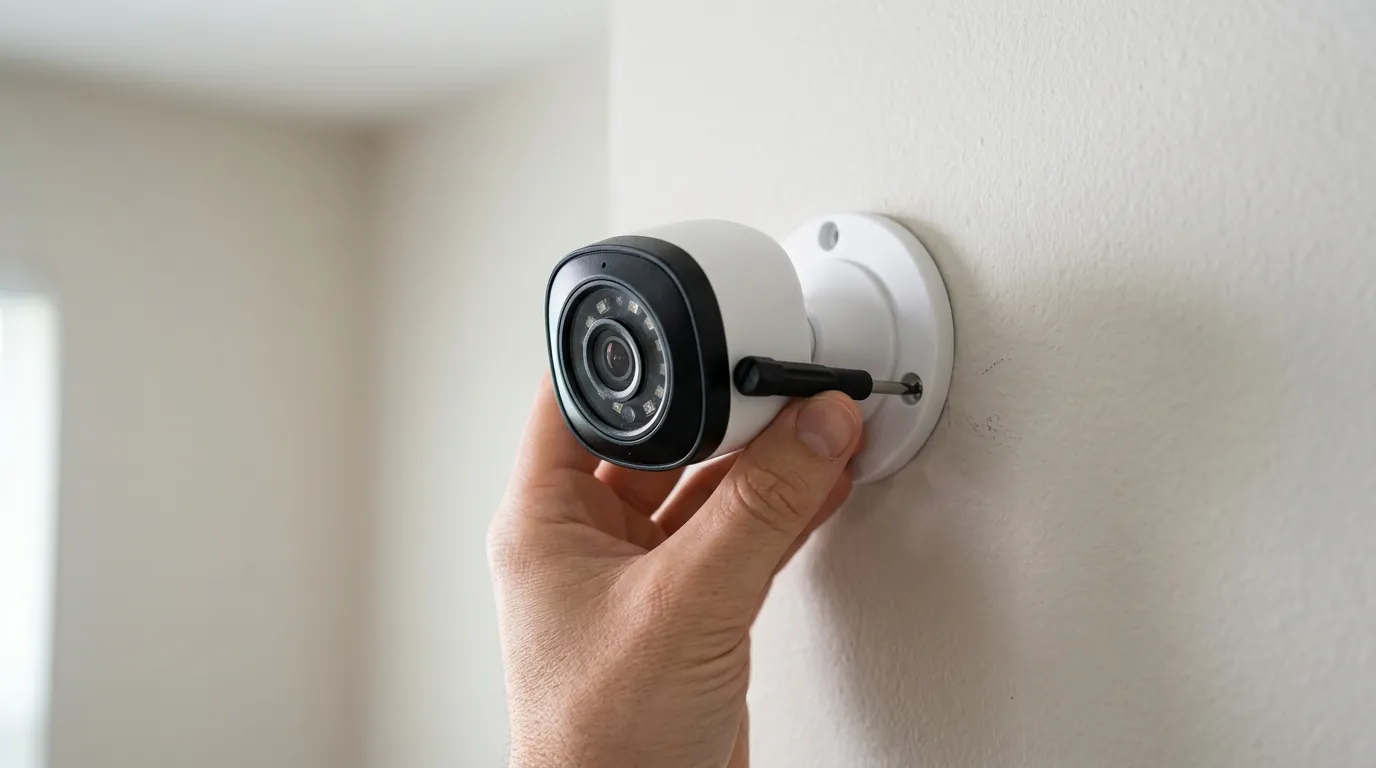
Relying on Eufy motion alerts for high-stakes security automations carries inherent risks due to the architecture described above.
The Latency Penalty
Because the signal must travel from the Camera to the HomeBase, then to Eufy’s AWS servers, then to Google’s FCM servers, and finally back down to your Home Assistant instance, there is a built-in “Latency Penalty.” In 2026, benchmarks across the Home Assistant community (r/HomeAssistant) show that Eufy cloud-based triggers typically have a delay of 2 to 8 seconds.
In contrast, local-only protocols like ONVIF (used by Amcrest or Reolink) or Matter-over-Thread cameras typically trigger in under 500 milliseconds. A 5-second delay might not matter for a package delivery notification, but it is far too slow for turning on a light to catch a fast-moving intruder.
Dependence on External Servers
If Eufy decides to change their encryption protocol or update their app’s API (as they did during the v4.0 HomeBase rollout), the Home Assistant integration often breaks for days or weeks until community developers can reverse-engineer the changes. This makes the system “high-maintenance.” Users must be prepared to check GitHub repositories like bropat/eufy-security-ws for updates whenever a firmware update is pushed to their HomeBase.
Maintenance Overhead for the User
To maintain a working system, you cannot “set it and forget it.” You must:
- Monitor the
eufy-security-wslogs for “Token Expired” errors. - Ensure the “Guest Account” used by HA hasn’t been locked due to suspicious login activity.
- Keep the Eufy Security app on your phone updated to ensure the cloud doesn’t deprecate the API version your account is using.
Common misconceptions
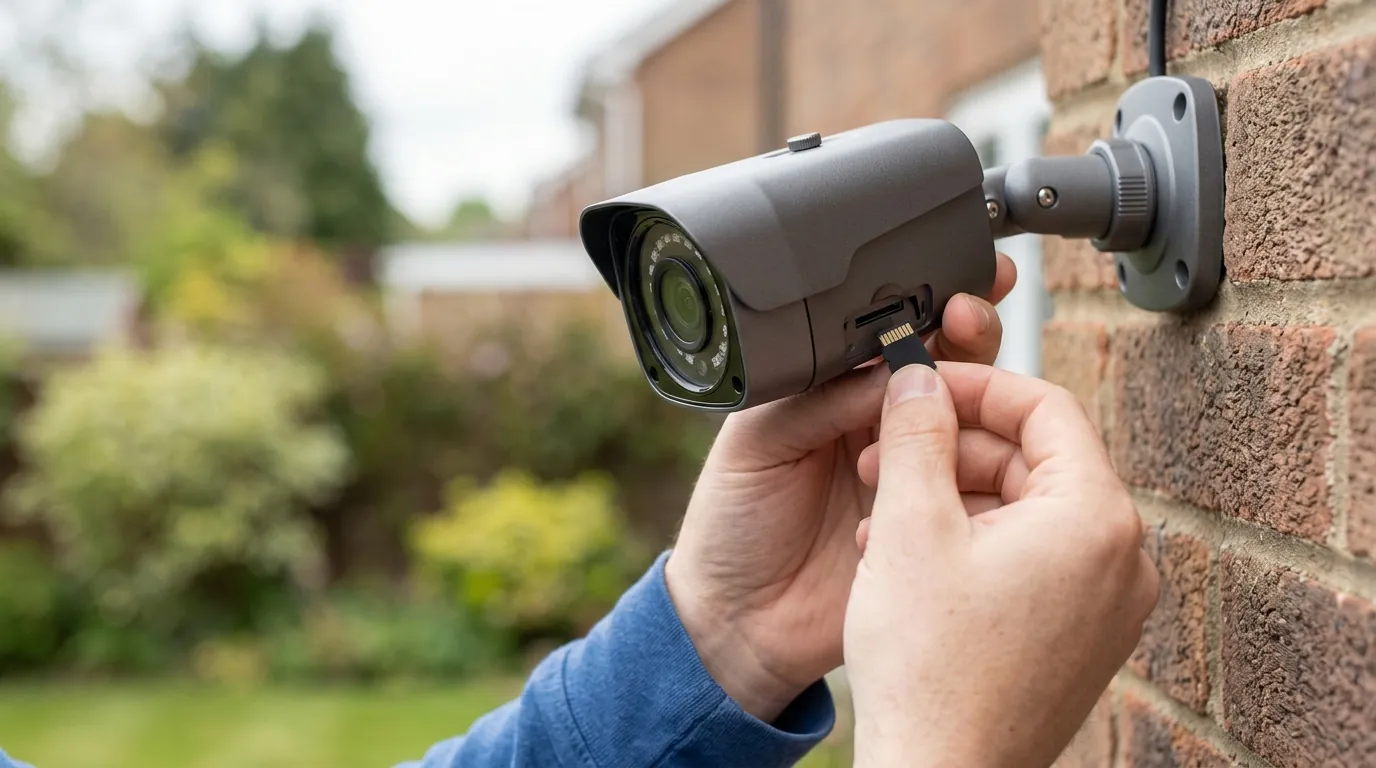
There are several persistent myths regarding how Eufy interacts with Home Assistant that lead users down the wrong troubleshooting paths.
RTSP vs. API Triggers
A common misconception is that enabling RTSP (Real-Time Streaming Protocol) on a Eufy camera will provide motion detection to Home Assistant. This is false. RTSP is a video-only protocol. While Home Assistant can use the generic_camera platform to view an RTSP stream, that stream does not contain the metadata required to trigger a motion sensor. You still need the eufy_security integration and its cloud-push dependency to get the “Motion Detected” signal.
The ‘Local-Only’ Myth
With the release of the HomeBase 3 (S380), many buyers believed the system would become 100% local. While the storage of video and the AI processing (BionicMind) happen on the HomeBase, the notification system remains tethered to Eufy’s servers. As of 2026, there is no way for a HomeBase 3 to send a local broadcast (like an MQTT message) directly to Home Assistant without going through the internet-based FCM path.
Dedicated Account Requirements
Many users try to fix motion alerts by logging out of the Eufy app on their phone, thinking it will “free up” the connection for Home Assistant. This does not work. The correct solution is to create a second Eufy account with a different email address, share your cameras from the main account to this “Guest” account, and use the Guest credentials exclusively for Home Assistant. This prevents session conflicts and is the single most effective way to stabilize motion alerts.
Decision Framework: Is Eufy Right for Your HA Setup?
| If you are a… | Recommendation |
|---|---|
| Renter | Eufy is excellent. Battery-powered SoloCams are easy to install, and the 5-second latency is acceptable for basic monitoring. |
| High-Security Homeowner | Look elsewhere. Prioritize PoE (Power over Ethernet) cameras from Reolink or Amcrest that support local ONVIF triggers for zero-latency response. |
| Automation Enthusiast | Use Eufy for video, not triggers. Use a dedicated PIR motion sensor (Zigbee/Z-Wave) for the actual automation and use Eufy only for the visual confirmation. |
Total Cost of Ownership (3-Year Estimate)
While Eufy is famous for its “no monthly fees” model, integrating it with Home Assistant involves hidden costs in time and hardware.
- Hardware (eufyCam 3 2-Cam Kit): Around $450 - $550.
- Subscription Fees: $0 (Local storage on HomeBase 3).
- HA Hardware: You need a stable host (Raspberry Pi 4, Home Assistant Green, or an NUC) to run the Websocket server 24/7. Cost: Around $100 - $200.
- Maintenance Time: Estimated 2-4 hours per year troubleshooting integration breaks after firmware updates.
Total 3-Year Cost: Approximately $550 - $750, plus the “cost” of technical maintenance. Compare this to a Ring system, which would cost around $300 upfront but $300 in subscription fees over three years ($10/month), totaling $600 with less technical DIY effort but no local control.
Further reading
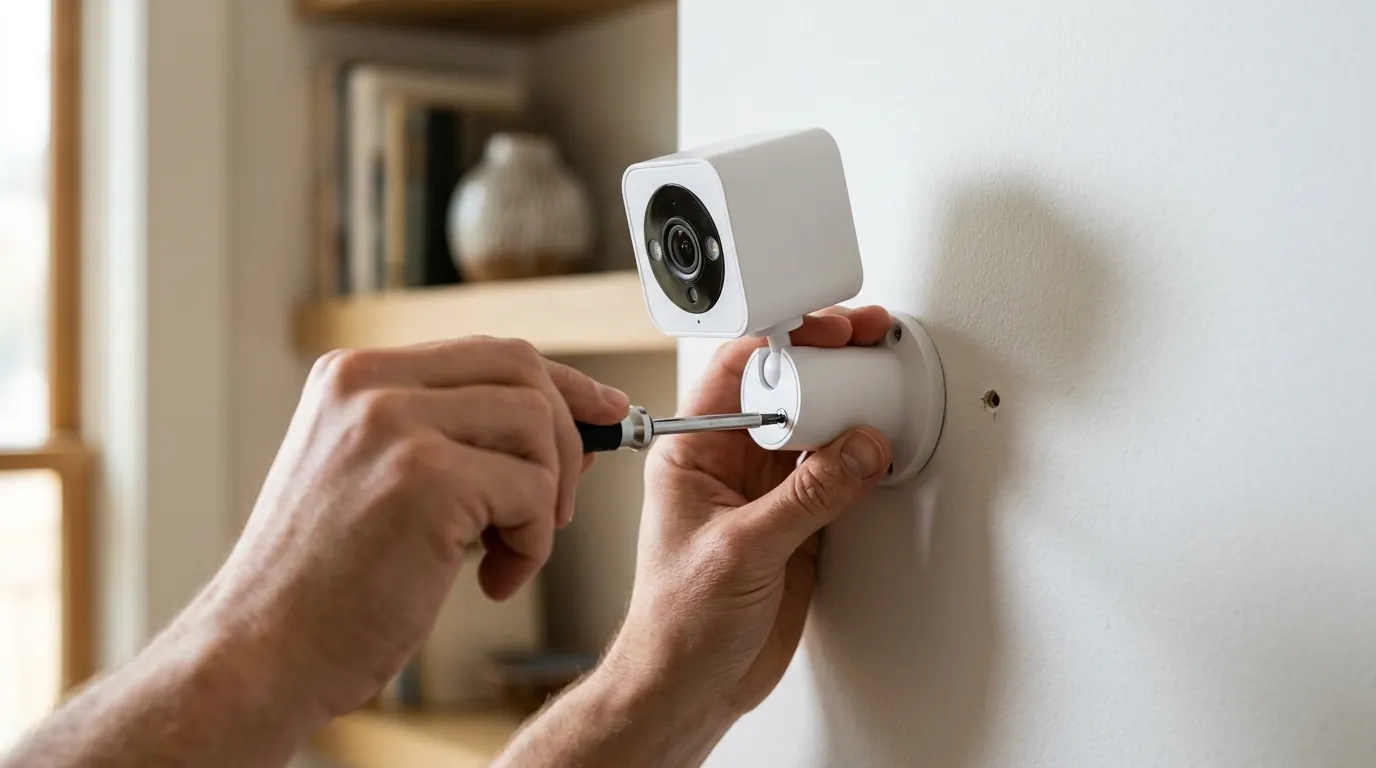
For those looking to optimize their setup, the community-led documentation is the only authoritative source for the latest API workarounds.
Advanced Troubleshooting Logs
If alerts stop, the first place to look is the Add-on Logs for eufy-security-ws. Look for the following strings:
[Push notification](https://quvii.com/blog/eufy-security-notification-failure-june-2026) connection closed: Indicates a network or firewall issue blocking Google’s FCM servers.Incompatible version: Indicates Eufy has updated their app protocol and you must update the Add-on.2FA Code Required: You must go to the Integration configuration in HA and re-submit your credentials to trigger a new 2FA prompt.
Alternative Local-First Brands
If the cloud-dependency of Eufy becomes a dealbreaker, consider these alternatives that offer true local push alerts:
- Reolink: Most models support ONVIF and a dedicated Home Assistant integration that works 100% locally.
- Amcrest: Offers robust RTSP and local API triggers that do not require an internet connection once configured.
- Foscam: While older, their local API remains one of the most stable for simple motion triggers.
[Information unavailable] regarding any official 2026 Eufy transparency reports; users should refer to the standard Eufy Privacy Policy for current data handling and police cooperation terms. Quvii tracks these trade-offs across the category to help users choose between convenience and hard-wired reliability.
Frequently Asked Questions
Does Eufy HomeBase 3 work with Home Assistant?
Yes, the HomeBase 3 is supported via the eufy-security-ws community integration. It allows for motion detection, AI person/pet identification labels, and siren control, though it still requires a cloud connection for push-notification-based triggers.
Why does my Eufy camera log me out of Home Assistant?
This happens because Eufy only allows one active session per account. If you log into the Eufy app on your phone using the same account as Home Assistant, the HA session is kicked. You must create a dedicated “Guest” account for Home Assistant to prevent this.
Can I get Eufy motion alerts without the cloud?
No. As of early 2026, all Eufy motion triggers in Home Assistant rely on Firebase Cloud Messaging (FCM). While the video storage is local, the “alert” signal must travel through Eufy’s cloud servers to reach the integration.
How do I fix the ‘Include Thumbnail’ requirement?
In the Eufy Security app, go to Settings > Notifications > Content Distribution and select “Include Thumbnail” or “Full Effect.” If set to “Most Efficient,” the cloud sends a bare-bones alert that often lacks the metadata required for the Home Assistant integration to identify the motion event.
Sources
- bropat eufy-security-ws GitHub — https://github.com/bropat/eufy-security-ws
- fuatakgun eufy_security Home Assistant Integration — https://github.com/fuatakgun/eufy_security
- Eufy Official Support: Notification Settings
- Home Assistant Community: Eufy Security Integration Thread
- RTINGS: Eufy Cam 3 (S330) Review