
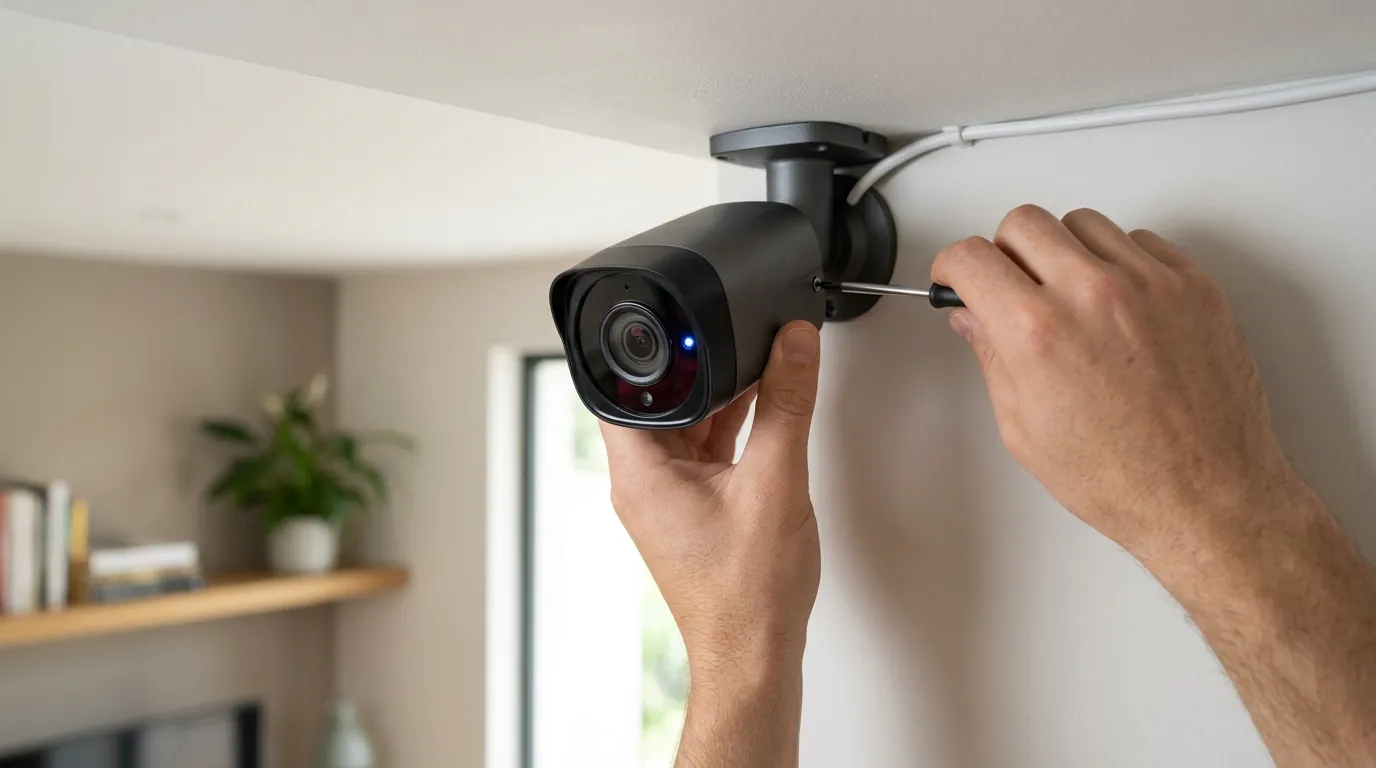
Arlo Essential Indoor Camera Blinking Blue: Meanings & Troubleshooting
A flashing light on a security camera is designed to be a helpful status indicator, but when that light enters an endless cycle, it often signals a breakdown in the communication between your device and your network.
For an Arlo Essential Indoor Camera, a blinking blue LED typically indicates it’s attempting to connect to Wi-Fi (slow blink) or has successfully connected (fast blink). A persistent ‘blinking blue loop’ often points to a failed connection during setup, a network issue, or a stuck firmware update, requiring troubleshooting steps like checking Wi-Fi, rebooting, or factory resetting the camera.
What it means
Related: Wyze Cam v4 RTSP Support: What You Need to Know (2026) · Pennsylvania’s Proposed Smart Glasses Recording Light Law Explained · Ring Stick Up Cam Pro Overheating: Causes, Effects, and Solutions
The Arlo Essential Indoor Camera (VMC2040/VMC3050) uses a single multi-color LED to communicate its internal state. Understanding the frequency and pattern of these blinks is the first step in diagnosing why a camera has fallen offline or failed to complete its initial setup.
Decoding the Blink Rate
The speed of the blue light is the most critical diagnostic tool for Arlo owners. According to Arlo’s official support documentation, the blue LED follows three primary patterns:
- Slow Blinking Blue: This indicates the camera is in pairing mode. It is actively searching for a Wi-Fi network or waiting for the user to present a QR code from the Arlo Secure App to its lens.
- Fast Blinking Blue: This is a positive signal during the setup phase. It means the camera has successfully scanned the QR code and is currently performing the digital handshake with the Arlo servers.
- Persistent Blinking Blue Loop: If the camera blinks blue slowly for several minutes without ever transitioning to a fast blink or a solid light, it is stuck in a “searching” loop. This typically means it cannot find the SSID (network name) provided or the credentials entered in the app are incorrect.
Blue vs. Other LED Colors
While blue signals “process” or “success,” other colors indicate errors or system-level changes. It is common for users to confuse a blinking blue loop with the alternating blue/amber pattern.
| LED Pattern | Meaning | Action Required |
|---|---|---|
| Slow Blinking Blue | Pairing mode / Searching for Wi-Fi | Present QR code or check app |
| Fast Blinking Blue | Successfully connected / Pairing complete | None (Wait for app confirmation) |
| Solid Blue | Camera is powered and connected | Normal operation |
| Alternating Blue/Amber | Firmware update in progress | DO NOT unplug the camera |
| Blinking Amber | Connection error / Out of range | Check router distance / Wi-Fi password |
| Solid Amber | No internet connection | Check ISP / Reboot router |
Why it exists
In an era of “headless” IoT devices—gadgets without screens—the LED is the only interface between the camera’s internal logic and the user. The Arlo Essential Indoor Camera relies on this light to provide a low-latency feedback loop during critical operations.
Communicating Status
The LED serves as a heartbeat. For a consumer, a camera that shows no light might be perceived as “dead” or “unpowered.” By utilizing a blinking blue light, Arlo confirms to the user that the internal processor is active and the wireless radio is functional, even if the connection hasn’t been finalized. This prevents users from prematurely unplugging a device that is simply waiting for a network response.
Setup Guidance
The setup process for the Essential Indoor series is purely visual. The Arlo Secure App generates a QR code containing your Wi-Fi credentials; the camera’s lens reads this code to configure itself. The blue LED blinks to tell you exactly when the camera is “looking” for that code. Without this visual cue, users would have no way of knowing if the camera was ready to scan or if it had failed to recognize the code.
Critical Alerts
Beyond setup, the LED acts as a warning system. The most critical state is the alternating blue and amber pattern. This signifies that the camera is writing new code to its internal flash memory (a firmware update). Because the LED exists, users are warned not to pull the power cord, which could result in a “bricked” device—a hardware failure where the operating system is partially erased and cannot boot.
How it works under the hood
The “blinking blue loop” isn’t just a light; it is the external manifestation of several hardware components failing to reach a consensus on the camera’s state.
Microcontroller Logic
Inside the Arlo Essential Indoor Camera is a low-power microcontroller (MCU) that manages the device’s Power Management Integrated Circuit (PMIC) and the LED driver. When you trigger a sync or power on the device, the MCU initiates a boot sequence. If the “connection” flag in the camera’s memory is set to “false,” the MCU sends a pulse-width modulation (PWM) signal to the blue diode, creating the blinking effect. It will continue this loop until the Wi-Fi module returns a “success” signal.
Wireless Communication Protocols
The Arlo Essential Indoor (1st Generation) operates exclusively on the 2.4 GHz Wi-Fi band. The “blinking blue loop” often occurs because modern mesh routers frequently combine 2.4 GHz and 5 GHz bands into a single name (SSID). If the camera’s Wi-Fi module attempts to handshake with a 5 GHz signal it cannot process, the handshake fails, and the MCU reverts the LED to the slow blue blink to retry. According to PCMag’s technical review, the 2nd Generation Essential Indoor cameras improved this with updated Wi-Fi radios, but 2.4 GHz stability remains the primary requirement for a successful handshake.
Firmware Management
When the camera connects to the Arlo cloud, it checks its current firmware version against the latest build on Arlo’s servers. If an update is pushed, the camera downloads the image to a temporary partition. During the “writing” phase, the LED driver is instructed to alternate colors. If the download is corrupted due to poor signal, the camera may fall back into a blinking blue loop as it attempts to reconnect and restart the download.
Real-world implications
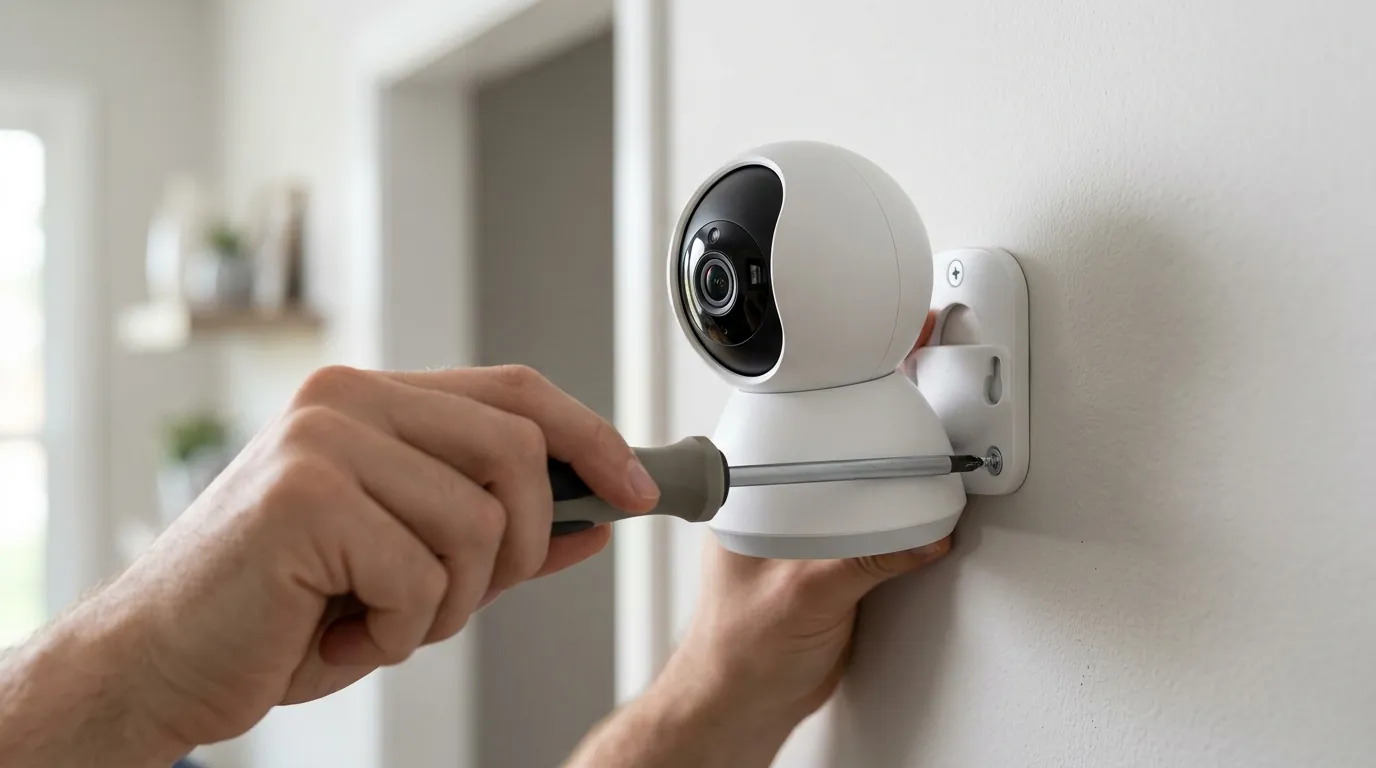
A camera stuck in a blinking blue loop is more than a technical nuisance; it represents a complete failure of the security perimeter for that area of the home.
Security Gaps
While the camera is blinking blue, it is offline. This means the PIR (Passive Infrared) sensor or the pixel-based motion detection logic is not uploading events. For users relying on the Arlo Essential Indoor for baby monitoring or front-entry security, this loop creates a blind spot where no video is recorded, and no alerts are sent. If an incident occurs during this window, there is no local “failover” recording on the Essential Indoor, as it lacks an onboard microSD slot.
User Experience Impact
The “loop” is a significant source of “setup friction.” Research into smart home adoption shows that if a device fails to pair within the first three attempts, user satisfaction drops significantly. For Arlo users, the frustration is compounded by the integrated privacy shield. On the Essential Indoor model, the mechanical shield often remains closed when the camera is in an error state, physically preventing the camera from even attempting to scan a QR code to fix the problem.
Subscription Service Interruption
Arlo’s business model is heavily dependent on the Arlo Secure subscription. Features like Person Detection, Package Detection, and Cloud Video History are processed on Arlo’s servers, not the camera itself. A blinking blue loop effectively “paywalls” the user from the features they are paying for monthly. If the camera cannot maintain a solid connection, the Arlo Secure subscription (ranging from approximately $5-8/month for a single camera in 2026) becomes a sunk cost.
Common misconceptions
Misdiagnosing the LED can lead to unnecessary “fixes” that may actually complicate the problem.
Misinterpreting LED Signals
A common misconception is that a blinking blue light always means the camera is broken. As noted, a fast blinking blue light is actually a sign of progress. Users often interrupt the process by unplugging the camera right as it is about to finish its handshake because they assume “blinking” equals “error.” Always wait at least two minutes after the light starts flashing blue before assuming the process has stalled.
Over-reliance on Factory Reset
Many community guides on r/Arlo suggest a factory reset as the first step for any blue light issue. However, if the cause is a router settings issue (such as a hidden SSID or a full DHCP table), resetting the camera will not help. A factory reset should be the last resort, as it requires you to remove the device from the Arlo app and re-configure all motion zones and sensitivity settings from scratch.
Universal Arlo LED Behavior
Users who own older Arlo Pro or Arlo Go models often assume the Essential Indoor follows the same patterns. However, the Essential Indoor is a “Direct-to-Wi-Fi” camera, whereas older Pro models often communicated via a Base Station (SmartHub). The LED behavior for a camera searching for a Base Station is different from one searching for a home Wi-Fi router. Always consult the specific manual for the “Essential” line to avoid applying outdated troubleshooting steps.
Decision Framework: Troubleshooting the Loop
If your camera is stuck in a blinking blue loop, use this logic to identify the fix:
| Scenario | Likely Cause | Recommended Fix |
|---|---|---|
| New setup, stuck on slow blue | Camera can’t see the phone’s QR code | Clean lens; adjust phone brightness to 100%. |
| Setup fails after scanning QR | 5 GHz Wi-Fi interference | Temporarily disable 5 GHz on router; use 2.4 GHz. |
| Was working, now blinking blue | Router rebooted or IP conflict | Power cycle the camera (unplug for 30 seconds). |
| Blinking blue after firmware alert | Interrupted update | Perform a factory reset using the physical button. |
Total Cost of Ownership (3-Year Estimate)
When purchasing the Arlo Essential Indoor, the “sticker price” is only the beginning. Because the camera lacks local storage and relies on cloud AI for basic utility (like distinguishing a person from a pet), the subscription is a functional requirement for most users.
- Hardware (Approx. Band): $50 - $90 (One-time)
- Arlo Secure Subscription (Single Camera, ~3 Years): $280 - $300 (Based on 2026 estimated $7.99/mo rates)
- Total 3-Year Cost: ~$330 - $390
Compared to brands like Reolink or Eufy, which offer local microSD storage with no monthly fees, the Arlo Essential Indoor is a premium-cost ecosystem over time, making a stable connection (and avoiding the “blue loop”) essential to getting your money’s worth.
Frequently Asked Questions
Why won’t my Arlo Essential Indoor scan the QR code?
This is usually due to screen glare or low brightness on your smartphone. Ensure your phone’s brightness is at maximum and hold the phone about 8 to 12 inches away from the camera lens. If the blue light doesn’t transition to a fast blink, the scan has not occurred.
Does the Arlo Essential Indoor support 5 GHz Wi-Fi?
The 1st Generation (VMC2040) is strictly 2.4 GHz. The 2nd Generation (VMC3050) added support for dual-band networks, but 2.4 GHz is still recommended for better range through walls, which often prevents connection loops.
Can I use the Arlo Essential Indoor without a subscription?
Yes, but functionality is limited. Without a plan, you receive basic motion notifications and can view the live stream, but you will not have any video recordings saved to the cloud, and the AI features (Person/Pet detection) will be disabled.
How do I factory reset the Arlo Essential Indoor?
Locate the reset button on the bottom or back of the camera (it may require a paperclip on older revisions). Press and hold it for about 15 seconds until the LED flashes amber, then release. The camera will reboot and eventually enter the slow-blinking blue pairing mode.
Sources
- Arlo Support — What do the LEDs on my Arlo camera mean?
- PCMag — Arlo Essential Indoor Camera Review
- Arlo Privacy — Arlo Privacy Pledge and Data Security
- The Verge — Arlo’s New Essential Lineup Details
- Arlo Secure — Subscription Plan Features and Pricing