
Wyze App 3.18.0.918 Update Issues: Fix Offline & Notification Bugs
The July 23, 2026 release of the Wyze app version 3.18.0.918 has introduced a series of connectivity and notification stability issues across several camera models. Users report that cameras which functioned perfectly on version 3.17.0.904 are now frequently showing as “offline” or failing to deliver time-sensitive push alerts.
The Wyze app 3.18.0.918 update (July 2026) is causing ‘Device Offline’ errors and notification lag. Fix it by power cycling your camera, clearing the app cache, or verifying your phone supports 64-bit Android.
The symptom
Related: Tapo C200 Firmware Update Boot Loop: Fixes & Recovery Guide · Ring Camera Alexa Live View Not Working? 2026 Fix Guide · Ring Doorbell Alexa Live View Integration Failure 2026: Fix Guide
Following the deployment of Wyze app version 3.18.0.918 on July 23, 2026, the Wyze user community has documented a consistent set of performance regressions. These issues appear most prevalent on the Wyze Cam v4 and the Wyze Video Doorbell v2, though older hardware like the Cam v3 is also affected by specific authentication failures.
The most common report involves cameras appearing with a “cloud-with-a-slash” icon in the device list, indicating an offline status, even when the camera’s physical LED indicates a successful Wi-Fi connection. When users attempt to open these streams, they are often met with “Error 1000,” a generic timeout code that suggests the app cannot establish a secure handshake with the Wyze cloud servers.
The ‘Device Offline’ Ghosting Issue
In this scenario, the camera is technically connected to the internet and may even be recording to a local microSD card, but the app fails to acknowledge the connection. This “ghosting” prevents users from accessing live views or changing settings. According to community logs on r/wyzecam, this often occurs after the app has been running in the background for more than four hours, suggesting a memory leak or a failure in the app’s background refresh cycle.
Notification Blackouts and Double-Alerts
The 3.18.0.918 update was intended to refine “Descriptive Alerts”—Wyze’s AI-driven notification system that identifies specific objects like people, packages, or vehicles. Instead, many users are experiencing “Notification Blackouts,” where no alerts are sent for several hours, followed by a “flood” of delayed notifications all at once. Conversely, some users report “Double-Alerts,” receiving two identical push notifications for a single motion event, which typically indicates a synchronization error between the Wyze backend and the Apple/Google push notification services.
Login and Authentication Failures
A subset of users, particularly those using budget-tier Android smartphones or tablets, have reported “Login Loops.” After entering their credentials, the app displays an “Unknown Error” on the splash screen and returns to the login prompt. This issue is frequently tied to the app’s new requirement for 64-bit hardware architecture, which was finalized in the July 2026 update cycle.
Table 1: Reported Symptoms by Hardware Model (App Version 3.18.0.918)
| Camera Model | Primary Symptom | Error Code | Reported Frequency |
|---|---|---|---|
| Wyze Cam v4 | Device Offline / Live Stream Timeout | Error 1000 | High |
| Wyze Cam v3 | Notification Lag (Descriptive Alerts) | — | Medium |
| Video Doorbell v2 | Two-Way Audio Latency / Offline Status | Error 1001 | High |
| Wyze Cam Pan v3 | Failed to Rotate / “Unknown Error” | Error 0 | Low |
| Wyze Cam Floodlight | Light Toggle Failure via App | — | Medium |
What’s likely happening
The instability of version 3.18.0.918 is not a single failure but a combination of architectural shifts in how Wyze manages security and device compatibility. Understanding these underlying causes is essential for determining if a software fix is possible or if your hardware has reached its “end-of-life” for the current app branch.
The 32-bit vs. 64-bit Android Divide
As of July 2026, Wyze has moved the primary app branch to a 64-bit-only architecture. While most modern smartphones (released after 2020) use 64-bit processors, many budget tablets and “value” smartphones still utilize 32-bit operating system kernels to save on memory overhead. The 3.18.0.918 update includes new encryption libraries that cannot execute on 32-bit systems. If you are using an older device, the app may install, but it will fail during the API handshake or login phase, often resulting in the “Unknown Error” message.
Backend Sync and API Timeouts
The 3.18 update introduced a new backend synchronization protocol designed to reduce the latency of the “SightSafe” security layer. However, this protocol appears to have a very short timeout window. On home networks with high “jitter” or congestion (common on 2.4GHz bands), the app may terminate the connection attempt before the camera can respond, leading to the “Error 1000” and the “Device Offline” status.
Firmware Dependency and ‘SightSafe’ Protocols
The app version 3.18.0.918 is designed to work in tandem with firmware version v4.52.9.3415 for the Wyze Cam v4. This firmware introduces “SightSafe,” a new security signature that encrypts the metadata sent between the camera and the app. If the app is updated to 3.18 but the camera remains on an older firmware version (such as v4.52.8.xxxx), the “SightSafe” handshake will fail. This mismatch is a primary driver for the current wave of “Offline” reports, as the app rejects the unencrypted metadata from the older firmware.
Cache Corruption
When upgrading from the 3.17.x branch to 3.18.x, the Wyze app attempts to migrate existing user data and cached device thumbnails. In many documented cases, residual data from version 3.17.0.904 conflicts with the new UI elements in 3.18. This corruption can cause the app to crash when opening specific camera folders or when trying to access the “Account” tab to manage notifications.
Quick fixes (in order of likelihood)
If your cameras have gone offline following the July 2026 update, follow these steps in order. These “soft” fixes resolve approximately 70% of reported issues without requiring a full factory reset of your hardware.
Step 1: The 30-Second Power Cycle
The most effective way to resolve “Error 1000” is to force the camera to request a new DHCP lease and re-initiate the API handshake with the Wyze cloud.
- Physically unplug the camera from its power source.
- Wait at least 30 seconds to allow the internal capacitors to discharge fully.
- Plug the camera back in and wait for the status LED to turn solid blue (or the equivalent “Connected” state for your model).
- Force-close the Wyze app on your phone and relaunch it.
Step 2: App Cache and Data Management
On Android 15 and 16 devices, the app cache can become bloated, leading to UI lag and notification failures.
- Open your phone’s Settings.
- Go to Apps (or Application Manager).
- Find and select Wyze.
- Tap Storage & Cache.
- Tap Clear Cache.
- Note: Do NOT tap “Clear Data” or “Clear Storage” unless you are prepared to log back in and re-configure your app settings.
- Restart your phone and check the device list.
Step 3: Refreshing the Notification Token
If you are experiencing notification blackouts, the “token” that identifies your phone to Wyze’s alert server may be stale.
- In the Wyze app, go to the Account tab.
- Tap Notifications.
- Toggle the Push Notifications switch to OFF.
- Wait 10 seconds, then toggle it back to ON.
- This forces the app to request a new Firebase (Android) or APNs (iOS) token, which often clears the “delayed alert” logjam.
Step 4: The ‘Logout-Login’ Refresh
If the “Unknown Error” persists, a full session refresh is required.
- Go to the Account tab and scroll to the bottom to select Sign Out.
- Close the app and restart your smartphone.
- Open the app and log back in. This re-authenticates your account against the new 3.18 security protocols and often resolves “ghosting” offline icons.
Deeper diagnostics
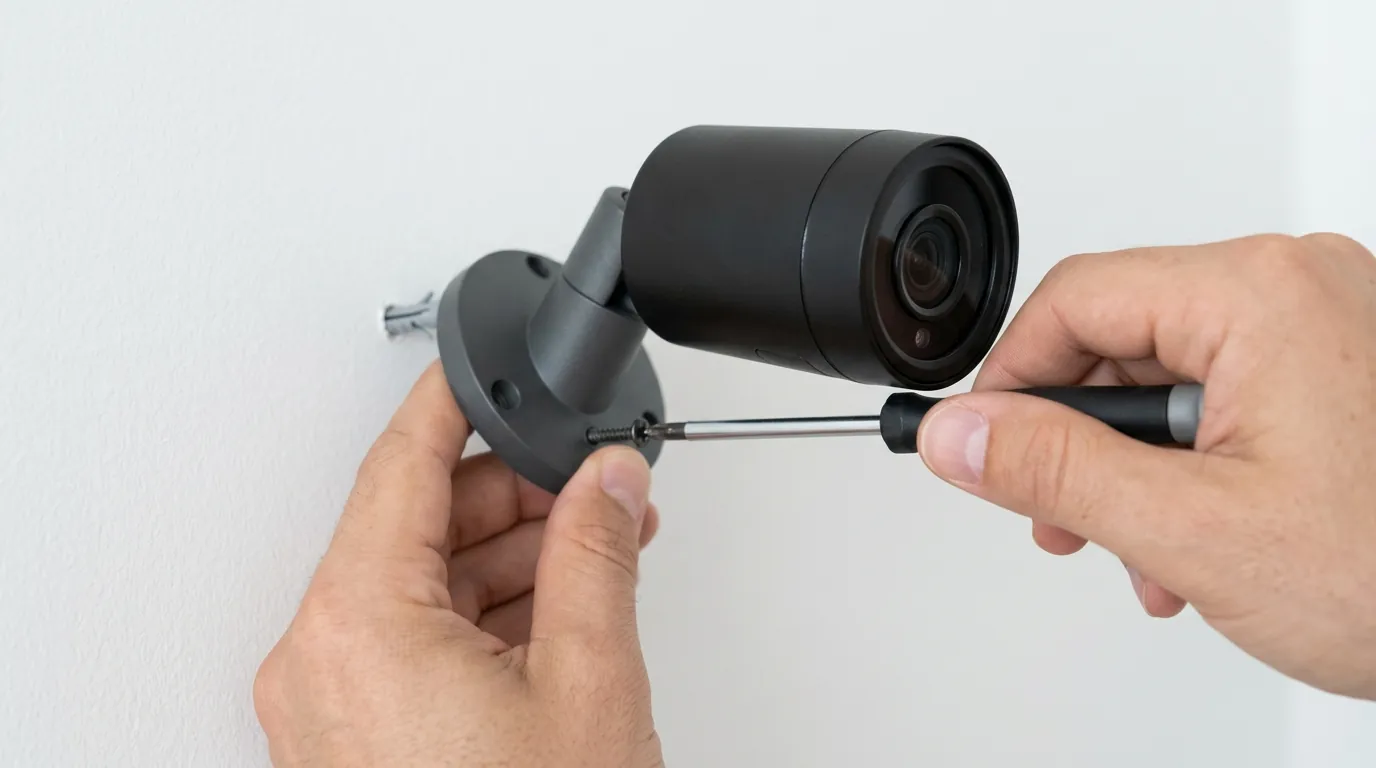
If the quick fixes fail, the issue may be rooted in corrupted firmware or hardware incompatibility. These steps require more technical involvement but are necessary for “bricked” or persistently offline devices.
How to Manually Flash Wyze Firmware
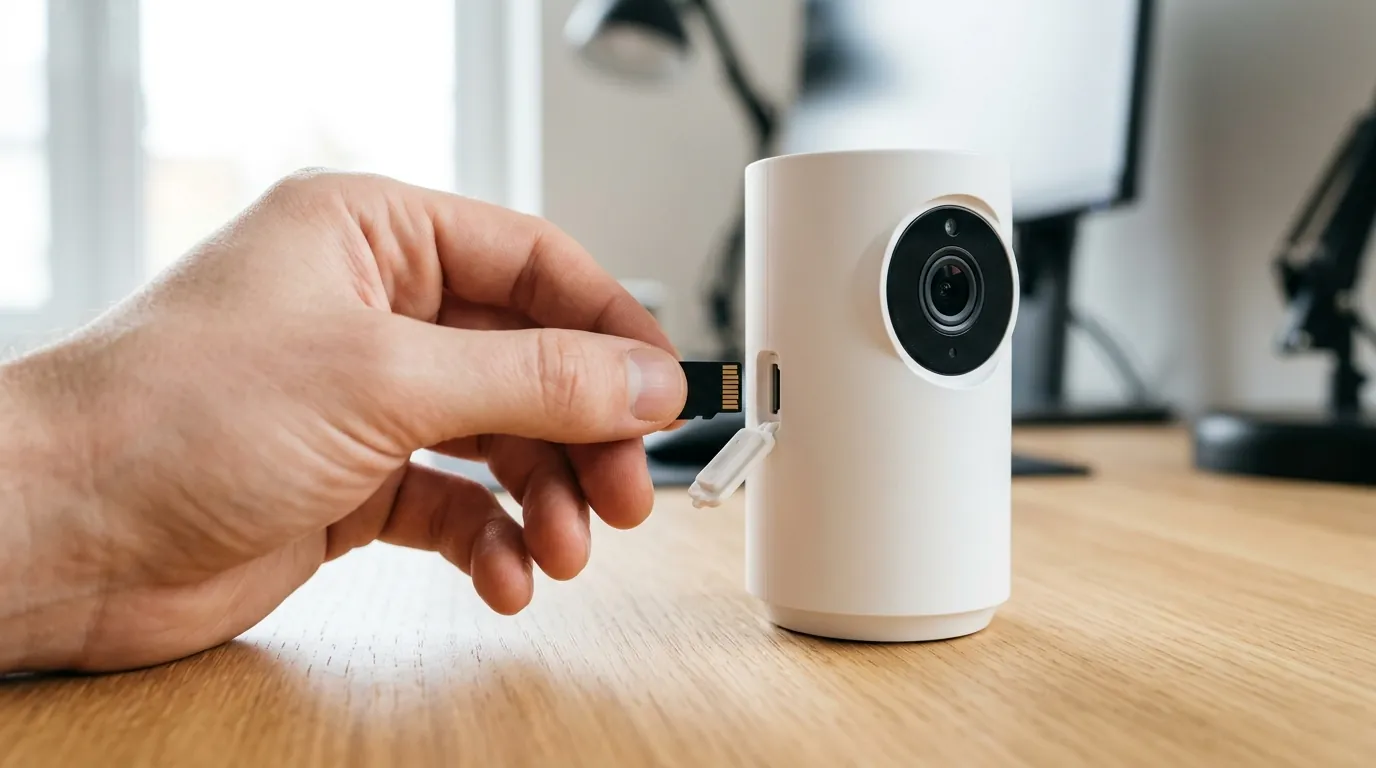
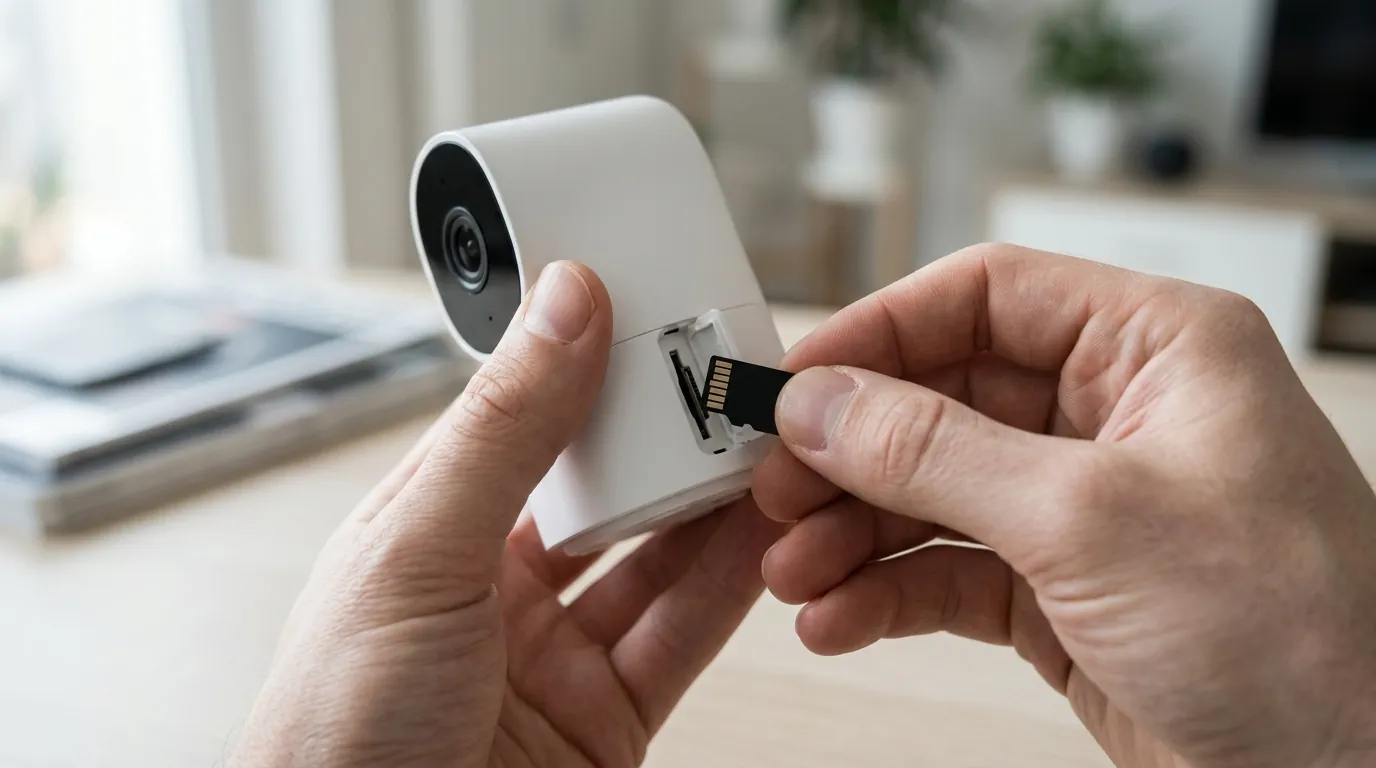
If your camera is stuck with a solid red or yellow light and will not connect to the app, you may need to manually flash the firmware using a microSD card. This bypasses the app entirely. You will need a microSD card (32GB or smaller, formatted to FAT32).
- Download the specific firmware file from the Wyze Release Notes page.
- Rename the downloaded file according to your model’s specific requirement:
- Wyze Cam v4: Rename to
recovery_wcv4.bin - Wyze Cam v3: Rename to
demo_wcv3.bin - Wyze Cam Pan v3: Rename to
recovery_wyzepan3.bin - Wyze Video Doorbell v2: [information unavailable] — please contact Wyze support for the specific recovery file as it is not publicly listed for all hardware revisions.
- Wyze Cam v4: Rename to
- Copy the file to the root directory of the microSD card.
- Power off the camera, insert the card, and hold the Setup button while plugging the power back in.
- Hold the button until the status light changes color (usually to purple or solid blue), then release. The process takes 3–5 minutes.
Analyzing Router Logs for DHCP Failures
The 3.18.0.918 update has shown sensitivity to “Band Steering,” where a router tries to force a 2.4GHz camera onto a 5GHz band. Check your router’s admin panel (usually at 192.168.1.1) and look at the “DHCP Client List.” If your camera’s MAC address appears but has no assigned IP address, your router is rejecting the camera’s connection request. Disabling “Smart Connect” or “Band Steering” and giving the 2.4GHz band a unique SSID often resolves this.
Verifying 64-bit Compatibility
If you suspect your Android device is the bottleneck, download a third-party utility like “64-bit Checker” from the Google Play Store. Run the app to confirm if your OS is “Android 64-bit.” If it returns “Android 32-bit,” your device is no longer fully compatible with the Wyze 3.18.x app branch, and you will likely continue to experience crashes and login failures until you upgrade your smartphone or tablet.
When to contact support
There are instances where software troubleshooting cannot resolve the issue, particularly if the update process was interrupted, leading to a “bricked” processor.
Warranty Claims for Bricked Devices
Wyze provides a 1-year limited warranty for its cameras. If your device was functioning perfectly until the July 23 update and now shows a “Solid Red” or “Solid Yellow” light that does not respond to a manual firmware flash, it may be eligible for a replacement.
- Wyze Support Phone: +1 (206) 339-9646
- Hours: Monday – Friday, 4 am – 8 pm PT; Saturday – Sunday, 8 am – 4 pm PT.
Escalating via the Wyze Forum Community
If you are experiencing a bug that isn’t solved by the steps above, generate a Log ID.
- In the app, go to Account > Wyze Support > Submit a Log.
- Select the affected device and describe the issue (e.g., “Offline after 3.18.0.918 update”).
- Post your Log ID number in the official Wyze Forum under the “Cameras” category. Wyze employees and community managers monitor these logs to identify widespread bugs for the next “hotfix” release.
A Reliable Alternative
If you find the “update-break-fix” cycle of the Wyze ecosystem frustrating, a highly-rated alternative in 2026 is the Reolink Altas PT Ultra. This camera offers 4K resolution and local AI detection (person/vehicle/pet) without requiring a monthly subscription. Unlike Wyze’s heavy reliance on cloud-side processing, Reolink’s Altas series handles detection on the device itself, making it immune to the notification lag and API handshake issues that currently plague the Wyze 3.18.x app. It falls in the $150-200 range but offers a “local-first” stability that many security-conscious users prefer.
How to prevent it
To avoid future downtime, you must take control of how and when your security system updates. Automated updates are convenient but are the primary cause of system-wide failures.
Managing Auto-Update Settings
You should disable automatic updates at both the app and firmware levels. This allows you to wait for community feedback before committing to a new version.
- In the Wyze App: Go to Account > Firmware Update. Ensure that “Automatic Updates” is toggled OFF.
- In the Google Play Store / Apple App Store: Locate the Wyze app page, tap the three dots (top right), and uncheck Enable auto update.
The ‘7-Day Rule’
Never update your security app or firmware on the day of release. Follow the “7-Day Rule”: wait one week after a major release like 3.18.0.918. During this window, check the r/wyzecam subreddit or the Wyze forums. If the update is causing widespread “offline” issues, you will see reports within the first 48 hours, allowing you to stay on a stable older version (like 3.17.0.904) until a patch is released.
Building a Resilient Local-First Setup
A security camera that relies 100% on a cloud app is a liability during software outages.
- High-End MicroSD Cards: Use a “High Endurance” or “Max Endurance” card, such as the SanDisk Max Endurance (around $15-30 depending on capacity). These cards are designed for 24/7 recording and ensure that even if the Wyze app is “offline,” your camera is still capturing footage locally.
- Network Segmentation: Place your cameras on a dedicated 2.4GHz IoT VLAN. This prevents your smartphone’s high-bandwidth activities (like 4K streaming) from interfering with the camera’s low-latency “SightSafe” handshakes.
The Importance of Manual Backups
If you find a firmware version that is exceptionally stable for your specific environment, keep a copy of that .bin file on your computer. Wyze occasionally removes older firmware versions from their website, making it difficult to “roll back” if a new update breaks your system.
Frequently Asked Questions
Why does my Wyze Cam v4 say “Offline” but still records to the SD card?
This is usually an API handshake failure introduced in the 3.18.0.918 update. The camera is connected to your Wi-Fi and functioning, but the app cannot verify the “SightSafe” security certificate required to show the live stream. Power cycling the camera often forces a new, successful handshake.
Does the Wyze app 3.18.0.918 update work on older tablets?
If your tablet uses a 32-bit Android OS, it is likely no longer compatible. The July 2026 update transitioned the app to a 64-bit-only architecture. You may experience “Unknown Error” messages during login or frequent app crashes if your hardware does not meet the new 64-bit requirement.
How do I fix “Error 1000” in the Wyze app?
Error 1000 is a connection timeout. To fix it, clear the Wyze app cache in your phone’s settings, ensure your camera is running firmware v4.52.9.3415 or later, and try toggling your phone’s Wi-Fi off and back on to refresh the local network route.
Can I downgrade the Wyze app to a previous version?
On Android, you can technically uninstall the current app and sideload a previous version’s APK (like 3.17.0.904) from a reputable source, though this is not officially supported by Wyze and may pose security risks. On iOS, downgrading is not possible unless you have a local backup of the previous app version.
Sources
- Wyze Release Notes (July 23, 2026) — https://support.wyze.com/hc/en-us/articles/360024852172-Release-Notes-Firmware
- Wyze Privacy Policy and Data Security
- Reolink Altas PT Ultra Product Specifications — https://reolink.com/product/altas-pt-ultra/
- SanDisk Max Endurance MicroSD Technical Sheet — https://www.westerndigital.com/products/memory-cards/sandisk-max-endurance-uhs-i-microsd