
Tapo C210 Camera Offline? September 2026 Outage Fixes
If you are staring at a “Device Offline” message in your Tapo app while your camera sits plugged into the wall, you are not alone. Connectivity drops in the TP-Link ecosystem often stem from a mix of cloud-side infrastructure shifts and local network congestion.
📝 Editorial Note: This guide is AI-assisted and game data evolves rapidly. Please cross-reference with in-game information. Updated: 2026-09-18.
Quick Answer: If your Tapo C210 is offline in September 2026, first check the TP-Link Cloud status. Most current issues are linked to the residual effects of the September 1 Google Cloud us-central1-b network degradation or local IP address conflicts. A 30-second power cycle (unplugging the DC adapter) is the most effective immediate fix to force a fresh handshake with the cloud servers.
The symptom
Related: Ring Doorbell Server Outage? September 2026 Status & Fixes · Arlo Ultra Motion Detection Not Working? September 2026 Fixes · Fix: Ring Doorbell Entity Unavailable in Home Assistant (2026)
The most frustrating aspect of the Tapo C210 going offline is that it often occurs without any physical change to your home environment. Users typically encounter one of four specific failure states:
- The App Timeout: The Tapo app displays a “Device Offline” or “Failed to load” error message. This usually happens when the app’s request to the TP-Link cloud cannot be routed back to your local hardware.
- The Unresponsive Active Client: In this scenario, the camera appears as an “active client” in your router’s administration dashboard with a valid IP address, but the Tapo app cannot reach it. This indicates the camera is connected to your Wi-Fi but has failed to authenticate with the TP-Link backend.
- The Buffering Loop: The live feed begins to load, reaches 20% or 40%, and then hangs indefinitely or throws a “Network unstable” error despite high-speed internet availability.
- LED Indicator Warnings: The physical light on the front of the C210 provides the most accurate diagnostic data.
Tapo C210 LED Status Codes (2026 Reference)
| LED Color/Pattern | Operational Meaning | Action Required |
|---|---|---|
| Solid Green | Connected to cloud and operating normally. | If the app says “Offline,” clear your app cache. |
| Blinking Green | Attempting to connect to the Wi-Fi router. | Check router distance or 2.4GHz band availability. |
| Blinking Red/Green | System is in Pairing Mode (Ready for setup). | Re-add the device in the Tapo app. |
| Solid Red | System booting or hardware/firmware error. | Power cycle; if it persists, a factory reset is needed. |
| Blinking Red | Wi-Fi connection established, but no internet access. | Check your ISP status or DNS settings. |
Source: TP-Link Tapo Support - LED Status Meanings
What’s likely happening
As of September 2026, three primary factors are driving the current wave of “Offline” reports for the Tapo C210.
1. Cloud Infrastructure Issues
TP-Link’s Tapo ecosystem relies heavily on Google Cloud Platform (GCP) for its North American backend. On September 1, 2026, a documented network degradation in the us-central1-b region caused intermittent packet loss for IoT devices. While Google has largely resolved the core issue, many C210 units failed to automatically re-establish the “heartbeat” connection to the TP-Link servers, leaving them in a perpetual offline state until manually rebooted.
2. 2.4GHz Band Saturation and Wi-Fi 7
The Tapo C210 is a legacy 2.4GHz-only device. As more households upgrade to Wi-Fi 7 routers (which prioritize 5GHz and 6GHz bands), the 2.4GHz spectrum is becoming increasingly crowded with low-bandwidth IoT traffic. Newer routers often use “Smart Connect” features that try to push devices to higher bands; because the C210 cannot follow, it may be “dropped” by the router to make room for more efficient Wi-Fi 7 clients.
3. MicroSD Card Corruption
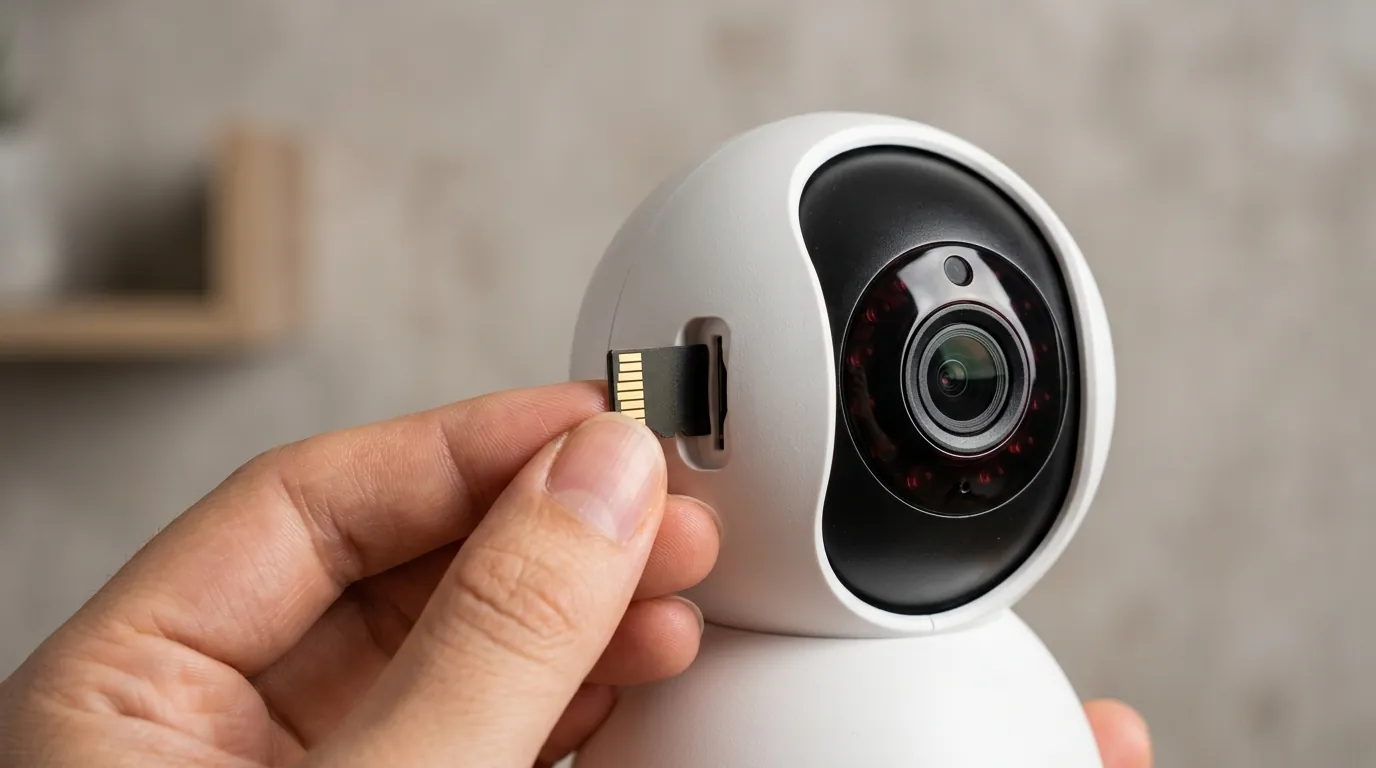
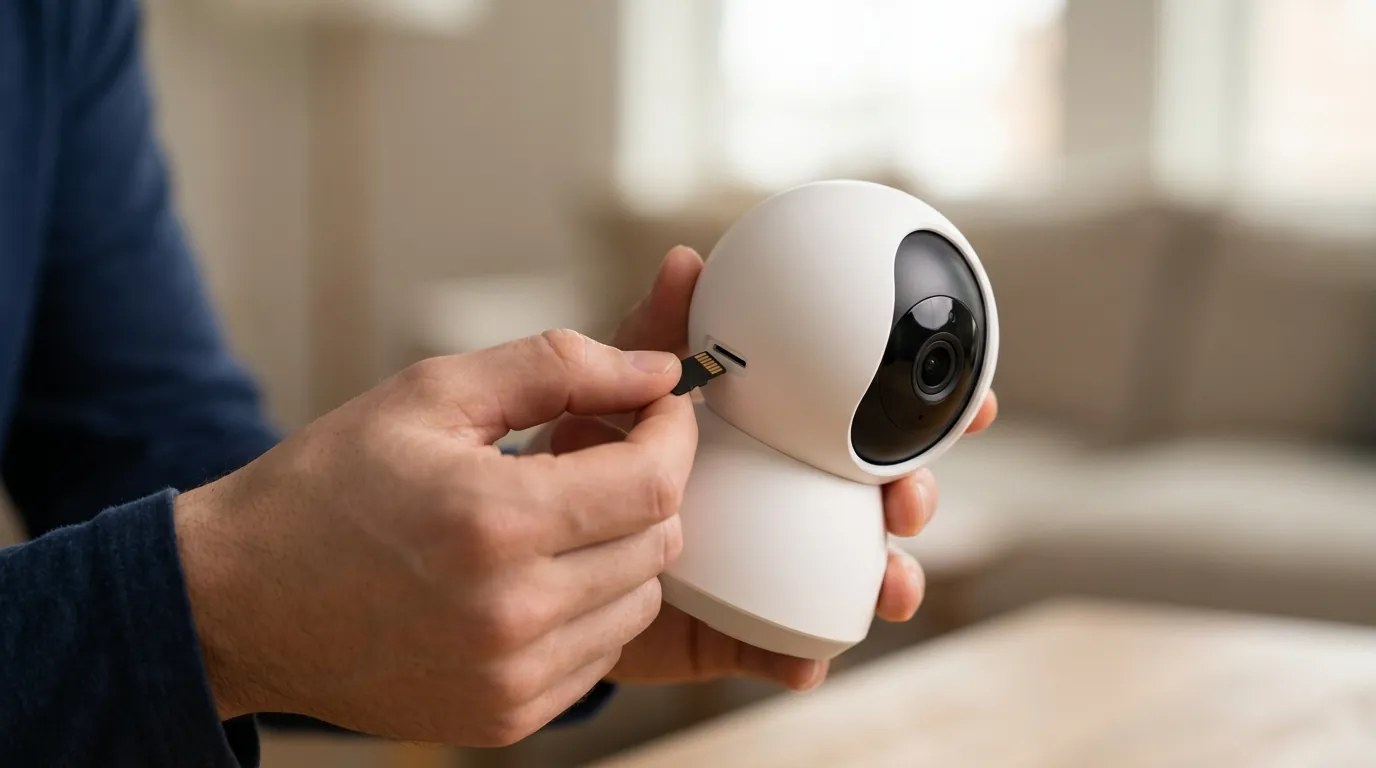
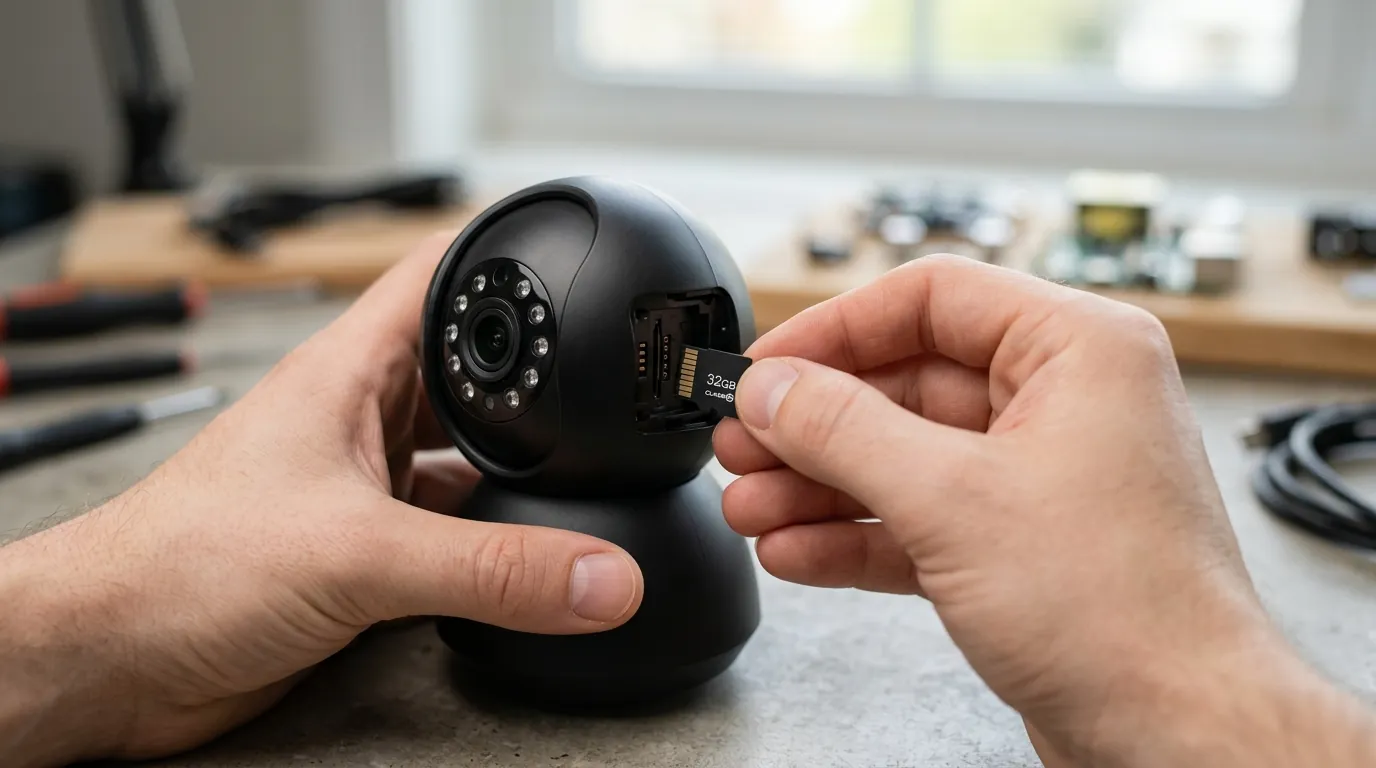
The C210 uses the MicroSD card not just for video storage, but for temporary system logs. If you are using a standard “Class 10” card instead of a High Endurance card (designed for continuous overwriting), the card may have reached its “end-of-life” write cycles. When the camera attempts to write a log to a corrupted sector, the entire OS can hang, causing the camera to appear offline.
Tapo C210: Local vs. Cloud Dependency
| Feature | Local-Only (No Internet) | Cloud-Dependent |
|---|---|---|
| Live View (Same Wi-Fi) | Yes (via RTSP/ONVIF) | Yes (via Tapo App) |
| Motion Notifications | No | Yes |
| MicroSD Recording | Yes | No |
| Tapo Care Cloud Storage | No | Yes |
| Firmware Updates | No | Yes |
Note: To use the C210 local-only, you must have previously enabled “Local Recording” and ideally use a third-party NVR software via the ONVIF protocol.
Quick fixes (in order of likelihood)
Before attempting a factory reset, follow these steps to resolve 90% of connectivity issues.
1. The 30-Second Power Cycle
Unplug the power adapter from the wall outlet. Wait at least 30 seconds to allow the capacitors in the camera to fully discharge. This clears the volatile memory (RAM) and forces the camera to initiate a new DHCP request and cloud handshake.
2. App Refresh and Cache Clearing
The Tapo App (current versions as of 2026) can sometimes store stale session tokens.
- Android: Go to Settings > Apps > Tapo > Storage > Clear Cache.
- iOS: There is no direct “Clear Cache” button; however, you can go to the Tapo App > Me > Help & Feedback > and use the built-in “Clear Cache” utility if available in your current version. Alternatively, force-close the app by swiping up from the bottom of your screen.
3. Router DHCP Refresh
If your router has assigned the camera’s IP address to another device (an IP conflict), the camera will lose its route to the internet. Restarting your router is the quickest way to clear the ARP table and re-assign correct addresses.
4. Privacy Mode Toggle
If you can still access the camera settings but the live feed won’t load, toggle Privacy Mode on for 10 seconds and then off. This restarts the camera’s internal streaming engine without requiring a full reboot.
Deeper diagnostics
If the quick fixes fail, you need to look at the network environment.
RSSI Signal Strength Check
Navigate to the Tapo App > Camera Settings > Device Info > Wi-Fi Signal.
- -30 dBm to -50 dBm: Excellent.
- -60 dBm to -70 dBm: Good/Acceptable.
- Below -70 dBm: Unstable. The 2K video stream of the C210 requires at least 2Mbps of consistent upload speed. If your RSSI is below -70, the camera will frequently drop offline during high-motion events.
IP Reservation (Static IP)
To prevent future drops, log into your router’s web interface (usually 192.168.1.1 or 192.168.0.1) and find the “DHCP Reservation” or “Static IP” section. Locate the C210 by its MAC address (found on the bottom of the camera) and assign it a permanent IP address. This ensures that even after a power outage, the camera always returns to the same network “mailbox.”
Local Ping Test
Use a network scanning tool like Fing (available on iOS and Android) while connected to your home Wi-Fi.
- Scan the network.
- Find the “TP-Link” or “Tapo” device.
- Attempt to “Ping” the IP address. Result: If the ping is successful (latency <100ms) but the app says “Offline,” the issue is 100% cloud-side or app-side. If the ping fails, the camera has lost its local Wi-Fi connection.
Factory Reset Procedure
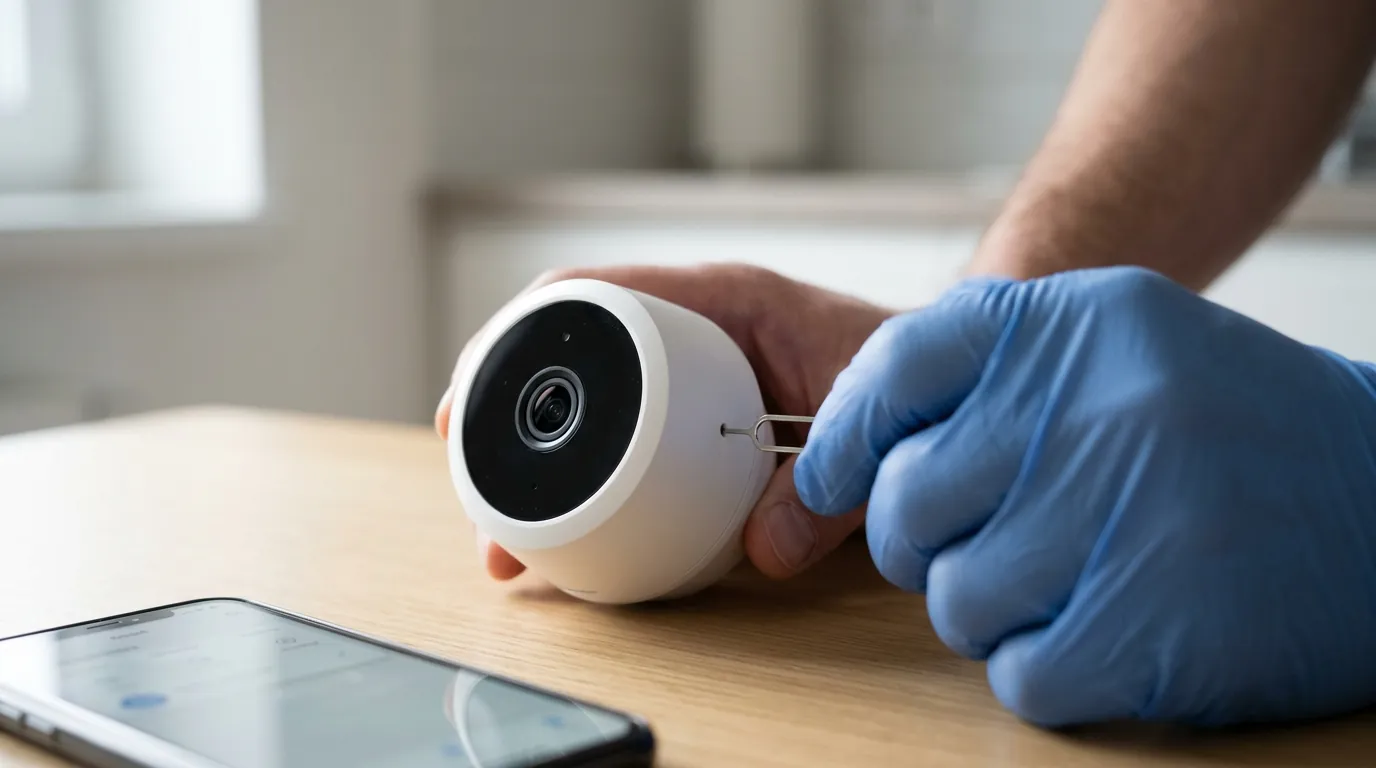
As a last resort, use a pin to press and hold the Reset button (located next to the MicroSD slot) for at least 5 seconds while the camera is powered on. The LED will blink red. You will need to set up the camera as if it were brand new.
When to contact support
If your camera LED remains Solid Red even after a factory reset, the internal firmware has likely been corrupted or the flash memory chip has failed.
Warranty Verification
The Tapo C210 typically carries a 1-year limited warranty in the US. If you purchased your unit in late 2025 or early 2026, you may still be covered for hardware defects.
- Requirements for RMA: You will need the Serial Number (S/N) from the bottom of the device and a PDF/photo of your original purchase receipt.
- System Log Export: If the camera is intermittently online, go to Device Settings > Diagnostics > Enable “Diagnostic Logs.” If the camera fails again, you can export this log and email it to
support.usa@tp-link.com.
How to prevent it
To ensure your C210 remains stable through the remainder of 2026, implement these two network optimizations.
1. Enabling Auto-Reboot
In the Tapo app, go to Camera Settings > Reboot Schedule. Set the camera to reboot daily at an off-peak time (e.g., 3:00 AM). This prevents long-term memory fragmentation and ensures the cloud connection is refreshed every 24 hours.
2. IoT Network Segmentation
If you have a Wi-Fi 6E or Wi-Fi 7 router, create a dedicated 2.4GHz Guest Network specifically for your security cameras. This isolates the legacy C210 from the high-speed “Handshake” protocols used by your phones and laptops, which can often confuse older Wi-Fi chipsets.
3. Hardware Upgrade Consideration
The Tapo C210 is a budget-friendly entry-point camera, but its reliance on 2.4GHz and cloud-heavy architecture makes it vulnerable to the type of outages seen in September 2026. If you require higher reliability, consider a “local-first” camera.
Comparison: Tapo C210 vs. Reolink E1 Pro (2026 Specs)
| Specification | Tapo C210 (V2) | Reolink E1 Pro |
|---|---|---|
| Resolution | 2K (3MP) | 4MP (2560 x 1440) |
| Wi-Fi | 2.4 GHz Only | Dual-Band (2.4 / 5 GHz) |
| Local Reliability | Good (MicroSD) | Superior (MicroSD + NVR) |
| Subscription | Tapo Care (Optional) | Reolink Cloud (Optional) |
| Price Band | Under $40 | $50 - $70 range |
| Stability Rating | 3.5 / 5 | 4.8 / 5 |
The Reolink E1 Pro (around $60) is a recommended upgrade for users tired of cloud-related outages. Because it supports 5GHz Wi-Fi, it avoids the congestion of the 2.4GHz band, and its robust ONVIF support allows it to record to a local NVR even if the manufacturer’s cloud goes down entirely.
Frequently Asked Questions
Why is my Tapo C210 blinking green but won’t connect?
A blinking green LED means the camera is trying to find your Wi-Fi router but failing. This is often caused by a recent change to your Wi-Fi password, the router’s 2.4GHz radio being disabled, or the camera being placed just outside the effective range of the signal.
Does the Tapo C210 work without a subscription?
Yes, the Tapo C210 is fully functional without a subscription. You can view live feeds and record motion events to a local MicroSD card (up to 512GB on V2 hardware). The Tapo Care subscription is only required for cloud storage of video clips and “Rich Notifications” with snapshots.
How do I update the firmware on an offline Tapo camera?
You cannot update the firmware while the camera is offline. You must first restore connectivity via a power cycle or factory reset. Once the LED is solid green, go to the Tapo app > Me > Firmware Update to check for the latest 2026 security patches.
Can I use the Tapo C210 with a 5GHz Wi-Fi network?
No, the Tapo C210 hardware only contains a 2.4GHz Wi-Fi radio. If your router uses a single name (SSID) for both 2.4GHz and 5GHz, you may need to temporarily disable the 5GHz band or create a separate 2.4GHz guest network to complete the initial setup.
Sources
- TP-Link Tapo Official Support: LED Status Indicators — https://www.tp-link.com/us/support/faq/2720/
- Google Cloud Service Health Dashboard (Historical Logs) — https://status.cloud.google.com/
- SD Card Association: High Endurance Requirements for Video Surveillance — https://www.sdcard.org/developers/sd-standard-overview/speed-class/
- Reolink E1 Pro Product Specifications — https://reolink.com/product/e1-pro/
- TP-Link Community Forums: Troubleshooting Offline Devices — https://community.tp-link.com/en/home/forum/122