
Tapo C200 Offline After Firmware Update? 2026 Fix Guide
A sudden “Device Offline” notification is the last thing you want to see after performing a routine firmware update on your Tapo C200. While these updates are intended to patch security vulnerabilities and improve stability, the reboot process can occasionally trigger a communication breakdown between the camera and your network.
If your Tapo C200 is offline after an update, power cycle it by unplugging the adapter for 30 seconds. If the LED remains solid red after plugging it back in, the update likely failed or the camera is stuck in a boot loop; perform a factory reset by rotating the lens upward and holding the reset button for 5 seconds to trigger a fresh setup.
The symptom
Related: Eufy E340 Doorbell Livestream Not Loading? 6 Fixes (2026) · Fix Eufy Home Assistant ‘Entity Unavailable’ Errors (2026 Guide) · Fix: Ring-MQTT Reolink Motion Sensor Integration (2026 Guide)
When a Tapo C200 drops offline following a firmware update, the first point of reference is the Tapo app (version 3.7.x or later as of August 2026). The device card will typically display a greyed-out thumbnail with an “Offline” or “Device Unreachable” overlay. However, the app status is only a symptom; the true diagnostic data is found on the camera hardware itself.
The Tapo C200 uses a multi-color LED located on the front of the lens assembly to communicate its internal state. Interpreting these codes accurately is the first step in determining if you are facing a simple network handshake error or a more serious firmware corruption.
Checking Your Hardware Version (V1 to V5)
Before troubleshooting, you must identify your hardware version, as firmware behavior varies significantly between the original V1 units and the modern V5 iterations released in late 2025. You can find this on the product label located on the bottom of the camera base, listed as “Ver:X.X” (e.g., Ver:1.0 or Ver:5.0).
As of August 2026, the V1 and V2 models are increasingly susceptible to “handshake timeouts” with modern WPA3 router protocols, while the V4 and V5 models are more likely to experience “Cloud Connection” failures due to regional DNS changes.
App Error Messages: ‘Device Offline’ vs. ‘Cloud Connection Failed’
It is critical to distinguish between a local network failure and a cloud sync failure.
- Device Offline: This usually indicates the camera has lost its IP address or cannot communicate with the local router.
- Cloud Connection Failed: The camera is connected to your Wi-Fi (often showing a Solid Green LED), but cannot reach TP-Link’s servers. This is frequently caused by the update resetting the camera’s DNS settings to a default that your ISP is blocking.
| LED Status | Meaning | Recommended Action |
|---|---|---|
| Solid Red | Starting up or firmware has crashed | Power cycle; if persistent, Factory Reset |
| Blinking Red/Green | Ready for setup | Re-add the device in the Tapo app |
| Blinking Green | Connecting to Wi-Fi | Check router DHCP settings or Wi-Fi password |
| Solid Green | Connected to TP-Link Cloud | Refresh app; check for “Cloud Isolation” settings |
| Blinking Red | Camera is resetting | Wait for the cycle to complete |
| Dark LED (with IR glow) | Power is present, but OS is not booting | Check power supply voltage; [information unavailable regarding specific IR LED patterns during failure] |
What’s likely happening
Firmware updates are high-risk operations for budget-tier IoT devices like the Tapo C200 because they rely on a perfectly stable power and data stream during the “flash” phase. If the camera’s LED was in the “Rapid Flashing Green” phase and the Wi-Fi signal dipped or the power flickered, the OS partition can become corrupted.
However, “bricking” is less common than simple configuration mismatches. In 2026, many home routers have moved to aggressive Wi-Fi 6E or Wi-Fi 7 standards that use “Band Steering” to push devices toward 5GHz or 6GHz bands. Since the Tapo C200 remains a 2.4GHz-only device (even in the V5 hardware revision), a post-update reboot can cause the router to attempt a 5GHz handshake that the camera cannot complete, leading to an infinite “Blinking Green” state.
Another common culprit is the IP Address Conflict. When the C200 reboots after an update, it requests a new lease from the router’s DHCP table. If the router has already assigned the camera’s previous IP address to another device (like a smartphone or smart plug) during the 120-second update window, the camera will fail to initialize its network stack.
Finally, the MicroSD card can interfere with the boot process. Following an update, the camera often migrates its local database to support new features. If the card has reached its “write endurance” limit—common with standard cards not rated for high endurance—the camera may hang while attempting to mount the storage partition.
Quick fixes (in order of likelihood)
Most “offline” issues are resolved by forcing a fresh handshake between the camera, the router, and the Tapo cloud servers. Start with the least invasive method.
Step 1: The Cold Boot
Unplug the power adapter from the wall outlet, not just the back of the camera. Wait exactly 30 seconds to allow the internal capacitors to discharge fully. Plug the unit back in and observe the LED. If it transitions from Solid Red to Blinking Green and finally to Solid Green within two minutes, the issue was a temporary software hang.
Step 2: Refreshing the Router’s Device List
If the camera is blinking green but won’t go “Online,” your router likely has a stale entry for the camera’s MAC address. Log into your router’s web interface and “Delete” or “Forget” the Tapo C200 from the connected devices list. Then, reboot the router. This forces the router to assign a fresh IP address to the camera upon the next connection attempt.
Step 3: The Network-Only Reset
The Tapo C200 allows for a “Soft Reset” that preserves your settings but clears the Wi-Fi credentials. This is useful if the firmware update changed how the camera handles WPA2/WPA3 security.
- Ensure the camera is powered on.
- Press and hold the Reset button for 5 seconds (not 10).
- The LED should flash amber/orange.
- Open the Tapo app and use the “Add Device” flow to re-input your Wi-Fi password.
Note on VPNs: As of 2026, the Tapo app’s handshake protocol is often blocked by mobile VPNs or system-wide ad-blockers (like AdGuard or DuckDuckGo App Tracking Protection). Ensure these are disabled on your phone during the recovery process, or the app will fail to “find” the camera even if it is in setup mode.
Deeper diagnostics
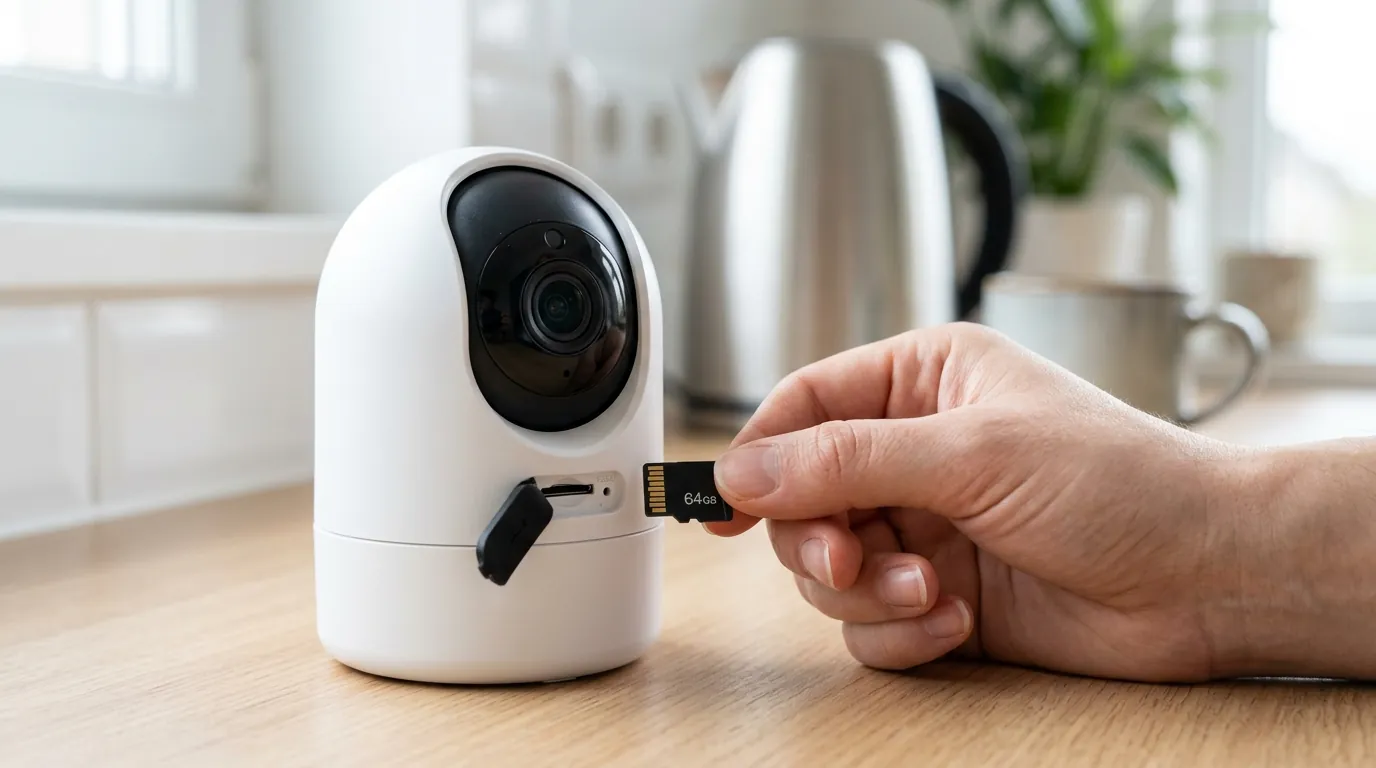
If the quick fixes fail, you are likely dealing with a deeper configuration error or a hardware-level boot failure.
Performing a Full Factory Reset
If your camera is stuck with a Solid Red LED, a full factory reset is required to wipe the corrupted configuration and revert to the factory-shipped firmware partition (if available on your hardware version).
- Physically tilt the camera lens upward until the hidden slot is revealed.
- Locate the Reset button next to the MicroSD slot.
- Use a pin or your finger to press and hold the button for at least 10 seconds.
- The LED will blink red, and you will hear a voice prompt (on V2-V5 models) indicating that the reset is successful.
- You must now set up the camera as if it were brand new.
Manual DNS and Static IP Configuration
If your camera frequently goes offline after updates, it is likely a victim of DHCP lease expiration. To fix this:
- In the Tapo App, go to Device Settings > Device Info.
- Locate the IP Address.
- In your router settings, reserve this IP address for the camera’s MAC address.
- Back in the Tapo App, go to Advanced Settings > IP Settings.
- Switch from DHCP to Static.
- Change the Primary DNS to
8.8.8.8(Google) or1.1.1.1(Cloudflare). This prevents the camera from losing connection if your ISP’s DNS servers fail to resolve TP-Link’s cloud addresses.
The MicroSD Test
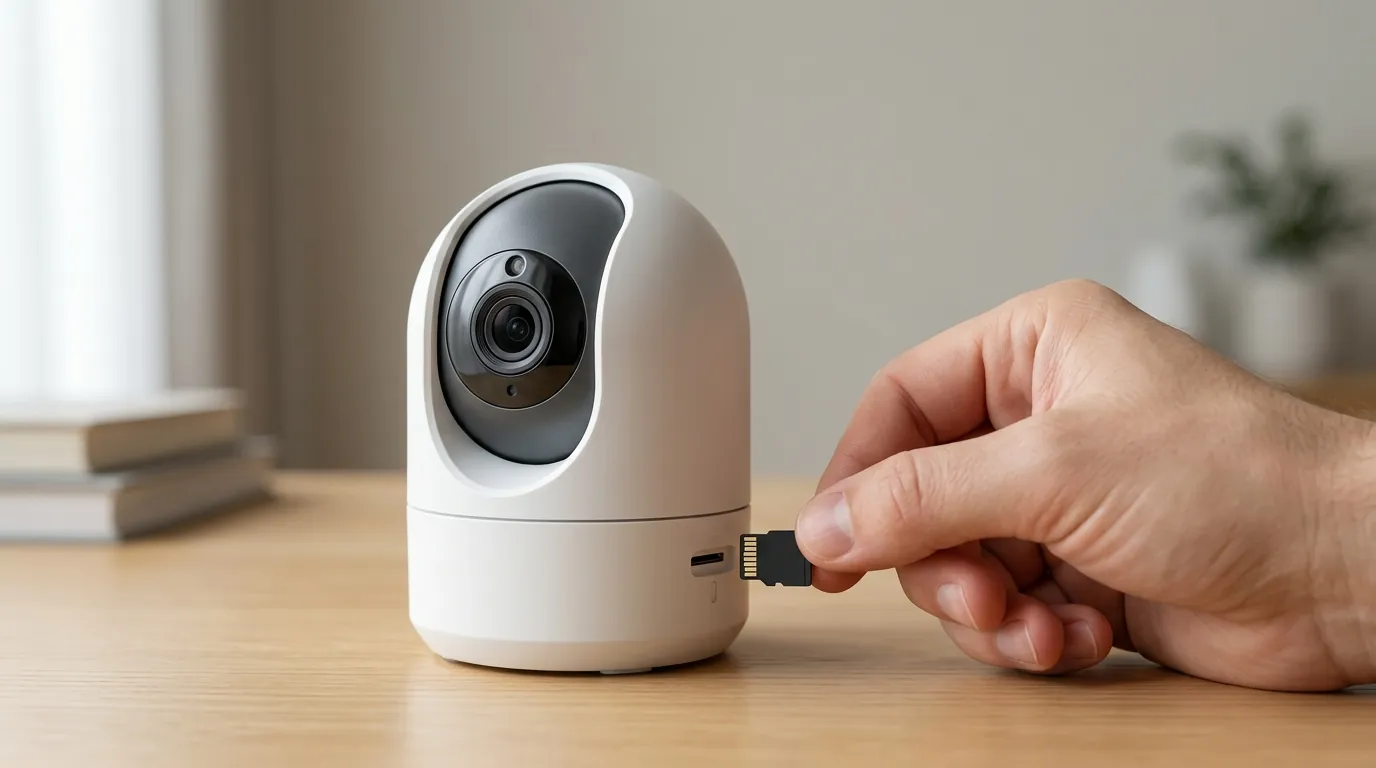
To rule out storage-related boot loops, remove the MicroSD card and power cycle the camera. If the camera comes online instantly without the card, the card is likely corrupted. For 2026 security standards, we recommend replacing failed cards with high-endurance models like the Samsung PRO Endurance or WD Purple, which are designed for the constant overwrite cycles of security footage.
When to Replace: The Bricked Camera Decision
Google has not published a specific “recovery tool” for a bricked Tapo C200 as of August 2026. If a full factory reset (10-second hold) does not move the LED away from Solid Red, the firmware flash has likely failed at the bootloader level.
For users with V1 or V2 hardware, a hardware failure in 2026 is often a sign to upgrade. The aging processors in these units struggle with the encrypted streams required by modern Tapo app versions. If the unit is out of warranty, the cost of repair exceeds the replacement value.
When to contact support
TP-Link offers a standard 2-year warranty for Tapo products purchased in the US between 2024 and 2026. If your camera is “bricked” due to an official firmware update, this is generally covered as a manufacturer defect.
The RMA Process
To initiate a replacement, visit myproducts.tp-link.com. You will need:
- A photo of the serial number (S/N) from the bottom of the camera.
- A copy of your original purchase receipt.
- Standard RMA: You pay to ship the broken unit to TP-Link; they ship a replacement for free (usually 7-10 days).
- Advanced RMA: For a fee (typically in the $15-25 range), TP-Link will ship a replacement unit first, and you use that box to return the defective one.
Gathering Logs
If your camera is still partially accessible via the app (even if the live view is down), go to Device Settings > Feedback. Check the box for “Add System Logs” and describe the issue. This sends the internal diagnostic data to TP-Link engineers, which can help them identify if a specific firmware version (like the security rollups seen in July 2026) has a widespread bug.
Commercial Recommendation
If your C200 is out of warranty and remains unresponsive, consider an upgrade to the Reolink E1 Pro. In the $50-70 price range, the 2026 E1 Pro offers a significant jump to 5MP resolution and supports both 2.4GHz and 5GHz Wi-Fi, which avoids many of the connection pitfalls found in the 2.4GHz-only Tapo C200. Furthermore, Reolink provides superior local-only storage options that do not require a cloud subscription to maintain full functionality.
How to prevent it
Preventing a future “bricked” state is easier than recovering from one. Most update failures are environmental rather than software-based.
Optimizing Your Update Settings
- Disable Auto-Update: Navigate to Me > Firmware Update in the Tapo app and toggle “Auto Update” to OFF. This ensures the camera doesn’t attempt to flash firmware at 3:00 AM when your ISP might be performing maintenance.
- Manual Flash Protocol: Only initiate updates when you are physically home. This allows you to power cycle the unit immediately if it hangs, preventing the “Solid Red” state from becoming permanent.
- Check Signal Strength: Never update a camera with a signal strength lower than -60dBm (viewable in Device Settings > Device Info). A weak signal increases the chance of a packet drop during the download, which can lead to a checksum error.
Wi-Fi Environment Best Practices
- Use the Original Power Supply: The Tapo C200 requires a stable 9V/0.6A input. Using a third-party USB-to-DC cable or a generic power adapter can cause voltage sags during the high-power-draw reboot phase of an update.
- Guest Network Isolation: For maximum stability, place your cameras on a dedicated 2.4GHz-only Guest Network. This prevents the router from attempting to “steer” the camera to a 5GHz band, which is the leading cause of post-update offline status in 2026 mesh Wi-Fi systems.
Frequently Asked Questions
Why is my Tapo C200 blinking green but still showing offline?
This indicates the camera is connected to your Wi-Fi router but cannot reach the TP-Link Cloud servers. This is often due to a DNS conflict or a firewall setting on your router. Try changing your router’s DNS to 8.8.8.8 or moving the camera to a guest network to bypass local traffic rules.
Does a factory reset delete my cloud recordings?
No, a factory reset only wipes the local settings and the MicroSD card data (if you choose to format it). Any footage already uploaded to the Tapo Care cloud service is tied to your TP-Link ID and will remain accessible once you re-link the camera to your account.
How do I know if my Tapo C200 is actually bricked?
A “bricked” camera will typically show a Solid Red LED that does not change even after a 30-second power cycle and a 10-second Reset button press. If the camera does not pan/tilt (calibrate) when plugged in, the internal hardware-level software has likely failed.
Sources
- TP-Link Tapo Support — LED Status Definitions
- TP-Link US — Product Warranty Terms 2026
- TP-Link Community — Firmware Update Troubleshooting
- TP-Link — How to configure Static IP for Tapo Cam