
Ring Doorbell Alexa Integration Not Working? 2026 Fix Guide
When your Echo Show suddenly refuses to display your front porch or your Alexa announcements go silent, the cause is rarely a broken camera and almost always a “handshake” failure in the cloud.
Quick Answer: Most Ring-Alexa failures today are caused by “stale” API tokens or AWS service lag. To fix it, disable and re-enable the Ring Skill in the Alexa app, then ensure “Doorbell Press Notifications” are toggled ON in the device settings.
The symptom
Related: Fix eufy E340 Doorbell Livestream Errors: 2026 Troubleshooting · Wemo Smart Video Doorbell Drops Off HomeKit? Fixes for 2026 · Eufy E340 Doorbell Mechanical Chime Not Working? Fixes & Tips
When the integration between Ring and Amazon Alexa fails, the symptoms usually fall into two categories: a complete breakdown of the video stream or a failure of the notification system. Because Ring and Alexa rely on a cloud-to-cloud connection, the Ring app on your phone might work perfectly while your Echo devices remain unresponsive.
Identifying ‘Device Unresponsive’ vs. ‘Live View Not Supported’
The most common error message on Echo Show devices is “Camera is not responding.” This typically indicates that the Alexa service has successfully sent a request to Ring’s servers, but the Ring server was unable to establish a secure WebRTC (Web Real-Time Communication) stream back to the Echo device.
In contrast, if you see “Live View is not supported on this device,” it often points to a firmware mismatch or an older Echo device (like a 1st Gen Echo Spot) that is no longer receiving the necessary security certificates to decode the modern Ring video stream. As of August 2026, Ring has transitioned many of its streams to higher-bitrate HEVC (H.265) encoding, which can cause older Alexa hardware to struggle if the integration isn’t refreshed.
The ‘Silent Chime’ Problem on Echo Devices
A frequent frustration for users is when the doorbell functions correctly, but the Echo “announcements” stop. You might notice:
- Doorbell presses no longer trigger the “Someone is at the front door” voice prompt.
- Routine-based automations, such as turning on porch lights via a Ring motion event, fail to execute.
- The mechanical chime inside the house rings, but the Echo devices remain silent.
This “Silent Chime” issue is frequently tied to the “Communication” settings within the Alexa app, where a global update or a “Do Not Disturb” schedule has inadvertently silenced the doorbell’s specific notification permissions.
| Symptom | Error Message | Likely Root Cause |
|---|---|---|
| Video Timeout | “Waiting for Ring…” | High Latency / Network RSSI |
| Connection Failure | “Camera is not responding” | Expired API Token / AWS Outage |
| No Voice Alert | [Silence] | ‘Doorbell Press’ Toggle OFF |
| Automation Failure | Routine doesn’t trigger | Alexa Skill ‘Stale’ State |
What’s likely happening
To understand why the integration fails, you have to look at the path the data takes. When someone presses your Ring doorbell, the signal goes to your router, then to Ring’s servers, then to Amazon Web Services (AWS), and finally back to your Echo device.
API Token Expiration
The security handshake between your Amazon and Ring accounts relies on an OAuth token. For security reasons, these tokens are designed to expire or “roll” periodically. If the Ring Skill in your Alexa app fails to refresh this token automatically—a common occurrence after a Ring app update or a change in your Amazon password—the two services will stop talking to each other. This is the most common reason for a sudden, unexplained failure “today.”
AWS Regional Outages
Ring is owned by Amazon and runs almost entirely on Amazon Web Services (AWS). If there is “weather” (instability) in specific AWS regions, such as US-East-1 (Northern Virginia) or US-West-2 (Oregon), the integration will fail even if your local internet is perfect. According to the Ring Status Page, integration services are often categorized under “Partner Integrations,” and a localized AWS lag can cause the video stream to time out before it ever reaches your Echo Show.
The Role of Amazon Sidewalk in 2026 Connectivity
By mid-2026, Amazon Sidewalk has become a core component of how Ring devices maintain low-bandwidth heartbeats. If your Ring doorbell has lost its primary Wi-Fi connection and is “failing back” to Sidewalk, it may have enough connectivity to send a push notification to your phone, but it will not have enough bandwidth to stream video to an Echo Show. This creates a confusing scenario where the doorbell “works” on your phone (via cellular/low-res) but “fails” on Alexa.
Subscription Status and Integration Features
While basic Alexa announcements are generally free, some advanced integration features—like “Rich Notifications” or specific AI-driven person alerts—are tied to your Ring Protect subscription. If your subscription has lapsed or a payment method has expired, the Ring-Alexa link may lose the “permissions” required to trigger certain smart home routines or high-resolution previews on Echo devices.
Quick fixes (in order of likelihood)
Before you start resetting your router or climbing a ladder to pull the doorbell off the wall, follow these steps in order. Over 90% of integration issues in 2026 are resolved by Step 2.
Step 1: Check the Ring and AWS Status Pages
Always verify that the problem isn’t universal before troubleshooting your local hardware.
- Visit status.ring.com to check for “Video Streaming” or “Alexa Integration” incidents.
- Check health.aws.amazon.com for outages in your specific region.
- If a “Degraded Performance” notice is active, no amount of troubleshooting on your end will fix the issue until the service is restored.
Step 2: The ‘Disable and Re-enable’ Maneuver
This is the “gold standard” fix for a broken Ring-Alexa link. It forces the generation of a brand-new API token.
- Open the Alexa App (as of August 2026, ensure you are on the latest version available in the App Store/Play Store; versioning follows a
2.2.xxxformat). - Tap More > Skills & Games.
- Search for Ring and tap on it.
- Tap Disable Skill. Confirm the choice.
- Once disabled, tap Enable to Use.
- You will be prompted to sign in to your Ring account and “Link” it to Amazon again. This re-establishes the secure handshake.
Step 3: Checking Alexa ‘Do Not Disturb’ Settings
If your Echo Show displays the video but won’t announce visitors, the “Do Not Disturb” (DND) feature is the likely culprit.
- In the Alexa app, go to Devices > Cameras > [Your Doorbell Name].
- Tap the Settings (gear icon) in the top right.
- Ensure Doorbell Press Notifications is toggled ON.
- Check your Echo device specifically: Go to Devices > Echo & Alexa > [Your Echo Device].
- Ensure Do Not Disturb is toggled OFF. Note that Alexa “Scheduled DND” can often silence doorbells at night without the user realizing it.
Step 4: The Power Cycle Sequence
If the Skill reset didn’t work, perform a “cold boot” in this specific order:
- Unplug your Echo device.
- If you have a battery-powered Ring, remove the battery for 30 seconds. If hardwired, flip the breaker or use the “Reboot” tool in the Ring App (found under Device Health).
- Plug the Echo device back in first and wait for it to fully boot.
- Restore power to the Ring doorbell. This ensures the Echo device is “listening” when the Ring doorbell reconnects to the cloud.
Deeper diagnostics
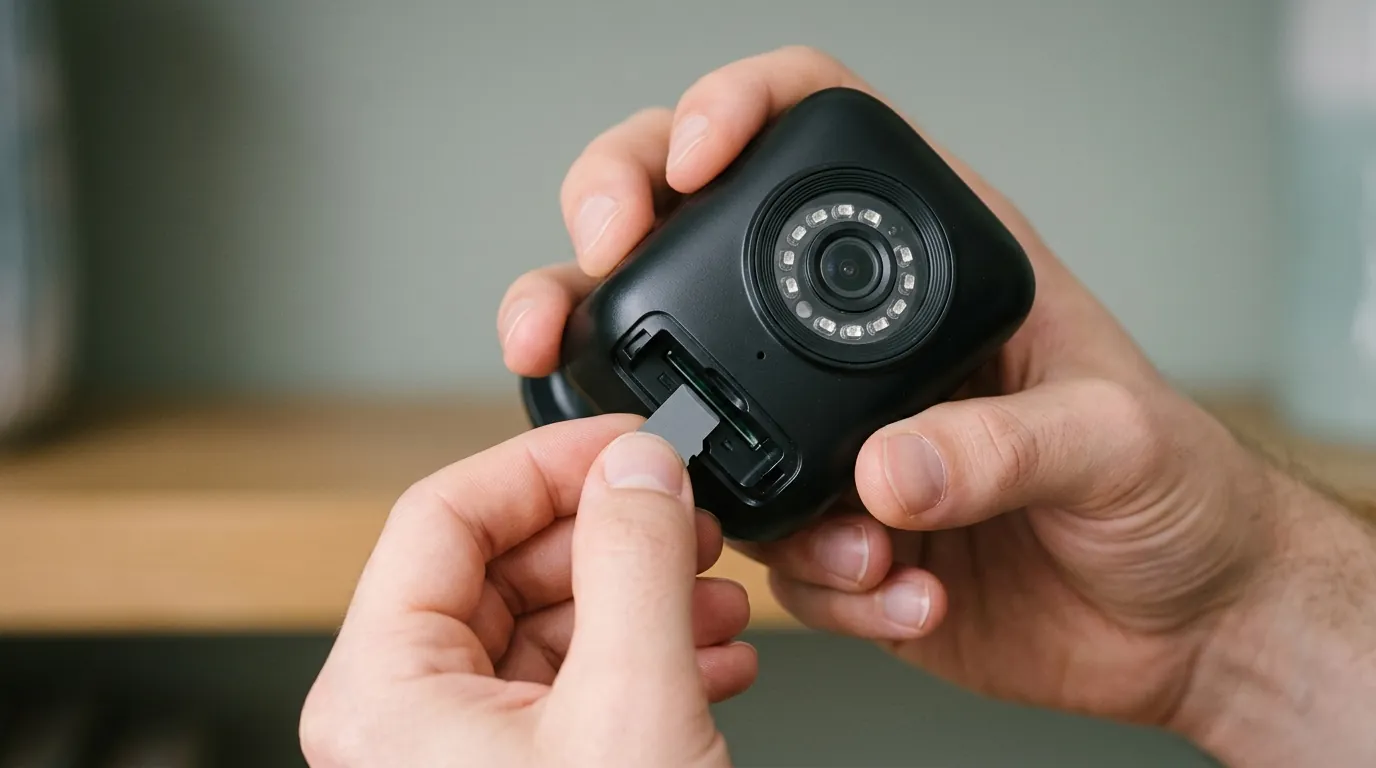
If the quick fixes failed, the issue is likely rooted in your network environment. Ring-to-Alexa streaming requires significantly more bandwidth and lower latency than simply viewing a recorded clip in the Ring app.
Analyzing Signal Strength (RSSI) in the Ring App
In the Ring App, go to Device Health and look at the RSSI value.
- -40 to -50: Excellent.
- -50 to -60: Good.
- -60 to -70: Critical Zone. The Ring app might work, but Alexa will likely time out.
- -70 or higher: Failure.
Alexa’s “Live View” request has a very short timeout window (usually around 10 seconds). If your RSSI is -65 or worse, the “handshake” between the Ring server and your Echo device may take 11 seconds, causing Alexa to give up and report “Camera is not responding” even though the camera is technically online.
Addressing 2.4GHz Wi-Fi Interference
Most Ring doorbells (except the Pro and Elite series) use the 2.4GHz band. In 2026, this band is incredibly crowded with smart home devices, Matter-over-Thread mesh nodes, and neighbor Wi-Fi.
- Airtime Fairness: Disable this setting in your router. It is intended to help fast devices, but it often “starves” slower IoT devices like doorbells, causing them to drop the Alexa stream.
- Smart Connect: Many modern routers (like Eero or TP-Link Deco) try to combine 2.4GHz and 5GHz into one name. Ring doorbells often struggle to “negotiate” this. If possible, create a dedicated 2.4GHz SSID just for your security cameras.
Checking for Alexa Routine Conflicts
Sometimes, a custom Alexa Routine can interfere with the default doorbell behavior. If you have a routine that triggers when “Front Door is Pressed,” it may override the default announcement.
- Open the Alexa app > More > Routines.
- Review any routine involving your Ring camera.
- Disable them temporarily to see if the default “Someone is at the front door” announcement returns.
When to contact support
Hardware does eventually fail. If you’ve performed a Skill reset and confirmed your network is strong, look for these physical signs.
Signs of Internal Hardware Failure
- The ‘White Ring of Death’: If the LED ring on your doorbell is spinning white or flashing white constantly and won’t respond to a 20-second setup button press, the internal firmware may be corrupted.
- Battery Swelling: On battery-powered models, if the faceplate is difficult to remove or the battery looks “puffy,” stop use immediately. Heat cycles over several years can degrade these cells, leading to insufficient power for the Wi-Fi radio to sustain an Alexa stream.
Warranty and the ‘Upgrade’ Decision
As of 2026, Ring’s standard warranty remains one year from the date of purchase, unless you have a Ring Protect Plus/Pro subscription that was active while the device was still under its original warranty.
If your Ring Video Doorbell (2nd Gen) or an older Video Doorbell 3 is failing, the cost of out-of-warranty repair is often higher than a new unit. If you are tired of the “subscription tax” required for basic Alexa features or cloud storage, consider an alternative like the Reolink Video Doorbell WiFi (typically in the $90-110 range). The Reolink offers:
- 2K+ (5MP) resolution.
- Local microSD storage (no monthly fee).
- Official Alexa integration for Live View and Announcements.
- Faster local processing which often reduces the “Camera is not responding” lag found in cloud-heavy systems.
How to prevent it
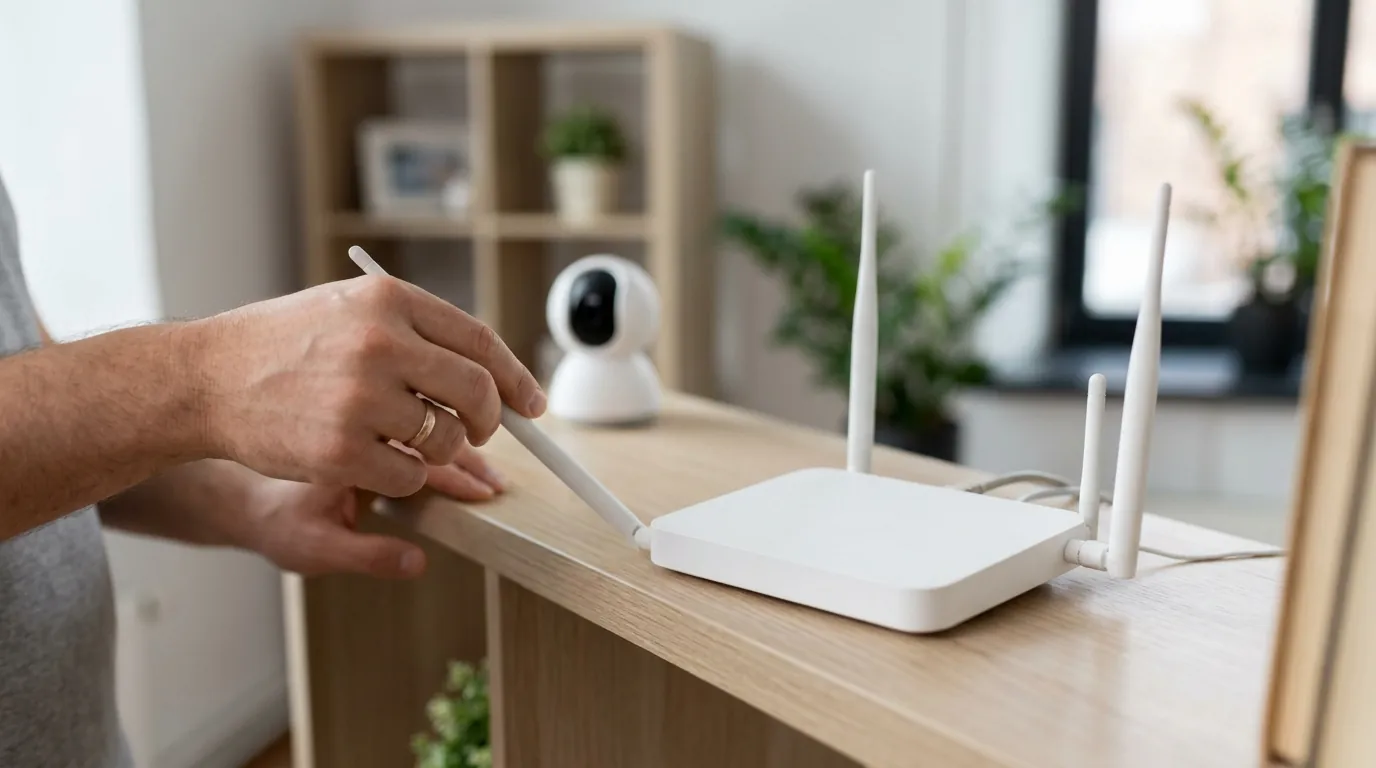
Once you have the integration working again, take these steps to ensure it stays that way.
Assigning a Static IP
Routers periodically “rotate” IP addresses (DHCP lease). When this happens, the Alexa Skill may lose track of the Ring doorbell’s local “address” for a few seconds, breaking a routine. You can assign a “Static IP” or “DHCP Reservation” for your Ring doorbell within your router’s settings to keep its address permanent.
Setting Up a Dedicated IoT Network
Most 2026 Wi-Fi 6E and Wi-Fi 7 routers allow for an “IoT Network.” Moving your Ring doorbell and your Echo devices to this dedicated SSID keeps them away from the “noise” of your laptops, gaming consoles, and streaming 8K TVs. This significantly reduces the latency that causes Alexa timeouts.
Monitoring Battery Health for Consistent Connectivity
For battery-powered doorbells, the Wi-Fi radio’s power is throttled as the battery drops below 20%. To maintain a “snappy” Alexa integration, try to swap or charge your batteries when they hit 30%. Using a Ring Chime Pro, which acts as a dedicated Wi-Fi extender for Ring devices, can also offload the processing strain from your main router.
Frequently Asked Questions
Why does my Ring app work but Alexa says “Device Unresponsive”?
This happens because the Ring app connects directly to Ring’s servers, while Alexa requires an additional “bridge” to Amazon’s servers. If the security token between Amazon and Ring has expired, or if there is a lag in the AWS-to-Ring handshake, the Alexa connection will fail even while the Ring app remains functional.
Do I need a Ring Protect subscription for Alexa to work?
No, basic Alexa integration—including Live View on Echo Show and “Someone is at the door” voice announcements—does not require a paid subscription. However, features like “Person Detection” announcements and “Rich Notifications” (image previews) do require a Ring Protect plan.
How do I fix the “Waiting for Ring” screen on my Echo Show?
This is almost always a network latency issue. Check your doorbell’s RSSI in the Ring app. If it is higher than -60, you likely need a Wi-Fi extender or a Ring Chime Pro to bring the signal closer to the door.
Can Alexa announce Ring motion alerts?
Yes. In the Alexa app, go to Devices > Cameras > [Your Doorbell] > Settings and toggle on Motion Announcements. You can also select which specific Echo devices should make the announcement.
Sources
- Ring Official Status Page — https://status.ring.com
- Amazon Web Services Health Dashboard — https://health.aws.amazon.com/health/status
- Ring Support: Alexa Integration Guide — https://support.ring.com/hc/en-us/articles/115003247146-Integrating-Amazon-Alexa-with-Ring-Devices
- Reolink Video Doorbell WiFi Product Specs — https://reolink.com/product/reolink-video-doorbell-wifi/
- Downdetector: Ring Status Archives — https://downdetector.com/status/ring/