
Reolink Doorbell Cutting Off? Fix Motion Recording Duration
Missing the moment a package is actually dropped or failing to see a visitor’s face because the recording cut out too early is a common frustration for Reolink Video Doorbell owners. While Reolink offers some of the highest resolution sensors in the consumer doorbell market, their default software logic often prioritizes storage efficiency over event completeness.
Quick Answer: To fix short recordings on a Reolink doorbell, increase the “Post-Motion Record” setting to 30s or 1m in the Camera Settings > Surveillance > Record menu. Ensure “Pre-Record” is enabled to capture the 6 seconds before motion starts, and verify that “Smart Detection” is prioritized over “Any Motion” to prevent the recording from ending the moment a subject stops moving.
The symptom
Related: Gladys Assistant & Tuya Doorbell Integration Issues (2026 Guide) · Swann Security Camera Firmware Patch July 2026: Update Now · Frigate NVR vs. Reolink: Best Local Storage Choice 2026
Owners of the Reolink Video Doorbell (available in both PoE and WiFi versions) frequently report a specific set of recording failures that occur despite the camera having a clear view of the event. The most common complaint is the “15-second cutoff,” where a clip ends abruptly while a person is still clearly visible on the porch.
These symptoms generally fall into three categories:
- The “Tail End” Gap: You see the person approaching, but the clip ends while they are still fumbling with a package or ringing the bell.
- The Delayed Trigger: The recording starts only as the person is walking away, missing the approach entirely.
- Fragmented Events: Instead of one continuous two-minute clip of a conversation, the Reolink App shows four separate 15-second clips with 5-10 second gaps between them.
The behavior differs slightly between the PoE and WiFi models, primarily due to how the camera handles the “heartbeat” connection to the recording destination (SD card vs. NVR).
Short Clips vs. Delayed Triggers
A short clip is usually a software setting issue, whereas a delayed trigger is often a hardware or placement issue. If your doorbell captures the person but cuts off early, the AI detection has successfully “locked” onto the subject but the “Post-Record” timer was too short. If it misses the first 5 seconds of movement, the “Pre-Record” buffer is likely disabled or the PIR (Passive Infrared) sensor—or digital motion algorithm—is struggling to differentiate the subject from the background.
The 15-Second Default Trap
Out of the box, many Reolink firmware versions default the “Post-Motion Record” to 15 seconds. This is designed to save space on the MicroSD card, but in a doorbell scenario, 15 seconds is rarely enough to cover a standard delivery interaction. Because Reolink’s AI logic is aggressive, if a delivery driver stands perfectly still for a split second while scanning a package, the camera may interpret this as “motion ended” and start the 15-second countdown to stop recording.
| Symptom | Affected Firmware (approx.) | Status / Workaround |
|---|---|---|
| Clips cut off at exactly 15s | v3.0.0.x and earlier | Adjust “Post-Motion Record” to 30s+ |
| 5-10s delay before recording starts | All versions | Enable “Pre-Record” (6s buffer) |
| Missing “Person” detection at night | v3.0.0.2033_23041302 | Update to v3.0.0.3215 or higher |
| Recording fails to trigger on NVR | RLN8-410 (v3.3.0.x) | Sync “Record Schedule” on NVR UI |
What’s likely happening
To fix the duration issues, you must understand how Reolink’s onboard processor decides when an “event” starts and ends. Unlike some competitors that use a fixed recording length (e.g., “always record 60 seconds”), Reolink uses dynamic event-based recording.
How Reolink’s AI Detection Logic Works
The Reolink Video Doorbell uses digital image processing to identify “Person” or “Vehicle” shapes. The recording trigger follows this sequence:
- Pre-Record (Buffer): The camera constantly keeps 6 seconds of video in its RAM.
- The Trigger: The AI identifies a “Person” shape. It then commits those 6 buffered seconds plus the current live feed to the storage medium.
- The Active Phase: The camera continues to record as long as the AI detection “sees” the person.
- The Post-Record Phase: Once the AI no longer detects a person, the “Post-Motion Record” timer begins. If it’s set to 15 seconds, the camera records for 15 more seconds and then closes the file.
The “early cutoff” happens when the AI loses its “lock” on the person. If the person turns sideways or bends down to pick up a box, the AI might momentarily stop recognizing them as a “Person.” If your Post-Record timer is too short, the camera closes the file prematurely.
The Role of the Post-Motion Record Timer
This timer is the “safety net” for the AI. If the AI loses the subject for 2 seconds but the Post-Record timer is set to 30 seconds, the camera will keep recording. If the person moves again and the AI re-identifies them within that 30-second window, the camera treats it as the same continuous event rather than starting a new file.
SD Card and Network Bottlenecks
On the WiFi model specifically, if the write speed of the MicroSD card is too slow (Class 10 but not U3/V30), the camera’s internal buffer may fill up during a high-bitrate 2K or 5MP recording. When the buffer overflows, the camera may force-close the current file to clear RAM, resulting in a “chopped” clip. Similarly, if the WiFi signal (RSSI) drops below -65dBm, the “heartbeat” between the doorbell and a Reolink NVR can fail, causing the NVR to stop the recording even if the doorbell is still seeing motion.
Quick fixes (in order of likelihood)
Most event duration issues can be resolved within the Reolink App (v4.40 or higher) without touching the hardware.
1. Adjust Post-Motion Record
This is the single most effective fix.
- Open the Reolink App and select your Doorbell.
- Tap the Settings (gear icon) > Surveillance > Record.
- Select Post-Motion Record Duration.
- Change this from “15 Seconds” to “30 Seconds” or “1 Minute”.
- Note: Using “2 Minutes” provides the most security but will significantly reduce the lifespan of your SD card due to increased write cycles.
2. Enable Pre-Record
If you find that your clips start with the person already at the door (missing the walk-up), ensure Pre-Record is toggled ON in the same Record menu. This uses the camera’s internal memory to “look back” 6 seconds before the trigger.
3. Increase Detection Sensitivity
If the camera is cutting off because it “loses” the person:
- Go to Settings > Detection Alarm > Sensitivity.
- Select Smart Detection (not “Any Motion”).
- Adjust the Person slider to 80 or 90.
- Avoid 100, as this often leads to “ghost” triggers from shadows or moving trees.
4. Firmware: The Silent Fix
Reolink frequently pushes “silent” updates to their AI models. As of July 2026, the Reolink Video Doorbell (WiFi/PoE) typically operates on the v3.0.0.x firmware branch.
- Check your version: Settings > Device Info > Firmware Version.
- Update: Visit the Reolink Download Center. As of this writing, firmware versions such as
v3.0.0.3308(released late 2024) and subsequent 2025 patches have significantly improved the “Person” detection lock-on stability. - Note: If your version number is not listed on the public site, contact Reolink support; they often provide “beta” firmware (like the
v3.0.0.2033branch fixes) to users reporting recording issues.
The 30-Second Sweet Spot
For most residential users, a 30-second Post-Record combined with a 6-second Pre-Record creates a 36-second minimum clip. This is generally enough to bridge the gap if a person stands still at the door, ensuring the AI has time to re-trigger before the file closes.
Deeper diagnostics
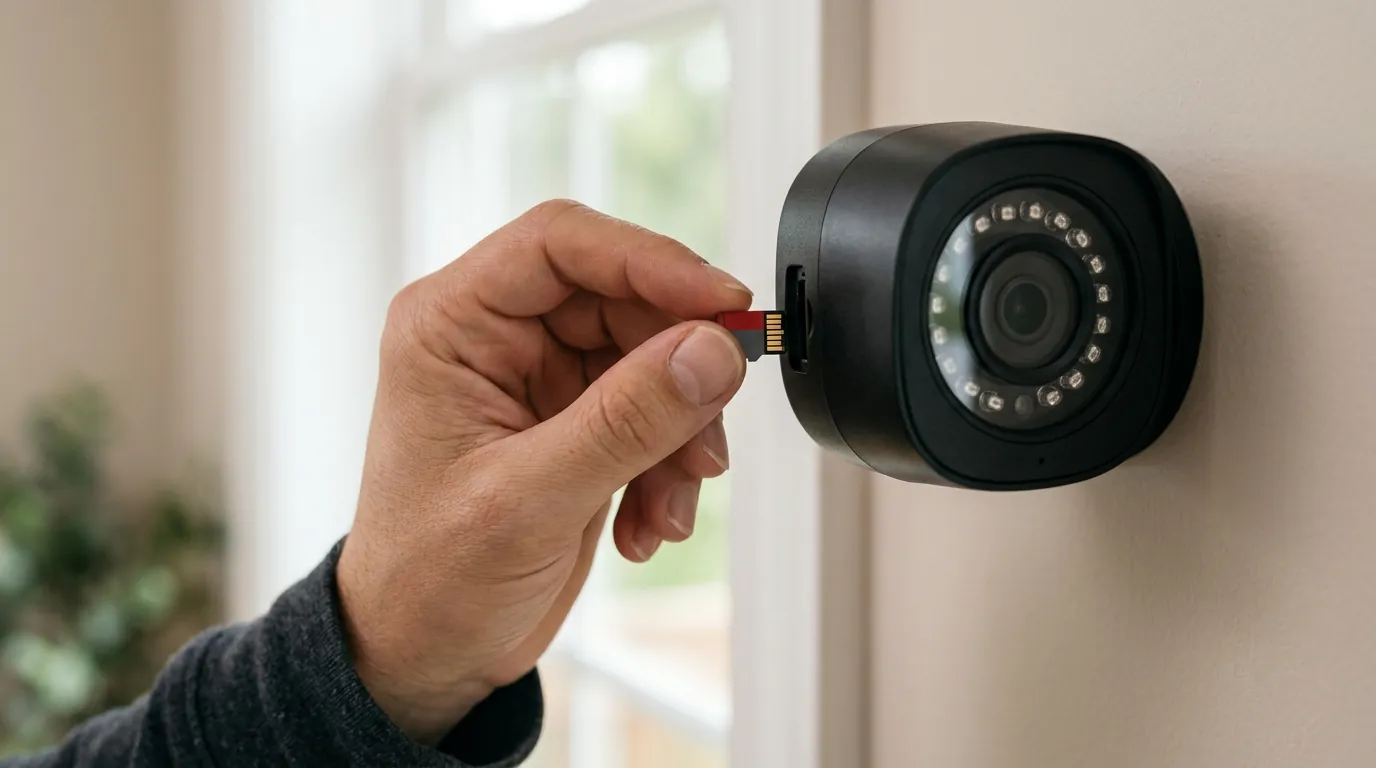
If software adjustments don’t work, the issue may be physical media or integration conflicts.
Hardware Recommendation: The SD Card Factor
Reolink doorbells record at high bitrates (up to 8192 kbps for the 5MP model). A standard “Class 10” card is often insufficient for the sustained write speeds required during a motion event, especially as the card fills up.
- Requirement: Use a U3 (UHS Speed Class 3) or V30 (Video Speed Class 30) MicroSD card.
- Endurance: Standard cards fail quickly in security cameras. Use “High Endurance” cards (e.g., Samsung PRO Endurance or SanDisk High Endurance).
| Card Type | Max Bitrate Supported | Reliability for Doorbell |
|---|---|---|
| Standard Class 10 / U1 | 4-5 Mbps | Low (Causes fragmented files) |
| U3 / V30 High Endurance | Up to 30 Mbps | High (Recommended) |
NVR vs. Standalone Recording Logic
If your doorbell is connected to a Reolink NVR (like the RLN8-410), the NVR’s settings often override the camera’s internal settings.
- The Conflict: If the NVR is set to “Continuous Recording” but the camera is set to “Motion Only,” you may see gaps in the timeline.
- The Fix: Access the NVR UI directly (using a monitor and mouse). Go to Storage > Schedule and ensure the Doorbell channel is set to “Alarm” (Motion) with a “Post-Record” time that matches the camera’s standalone settings.
Bitrate Analysis
On the WiFi doorbell, a weak signal can cause the stream to “stutter,” which the AI interprets as the end of an event. Try lowering the Max Bitrate (Kbps) in the Stream settings from 8192 to 4096. This reduces the load on the WiFi chip and often results in smoother, longer recordings.
When to contact support
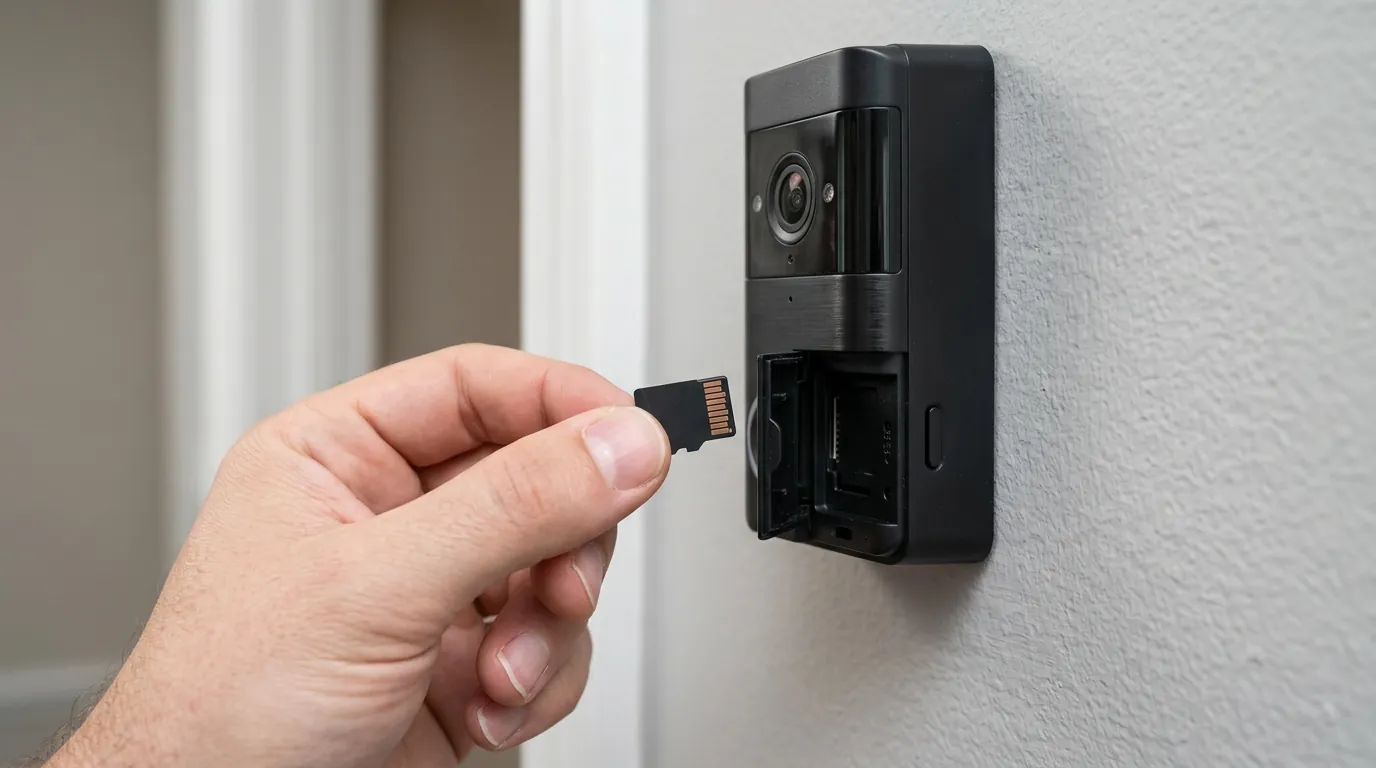
If you have adjusted the Post-Record settings and updated the firmware but the issues persist, you may have a hardware defect.
Contact Reolink Support if:
- Reboot Cycles: The doorbell reboots every time the button is pressed or a motion event starts. This indicates a voltage drop (common with old 16V AC transformers).
- Greyed-Out Menus: The “Record” menu is inaccessible even after formatting a known-good U3 SD card.
- “Failed to Play”: You see the clip in the timeline, but clicking it results in a “Connection Failed” or “Playback Failed” error, suggesting the file was never finalized correctly.
What to provide support:
- UID: Found under Device Info.
- Firmware Version: Be exact (e.g.,
v3.0.0.3308_2407315183). - SD Card Model: Specify if it is High Endurance and its speed class.
How to prevent it
Preventing recording issues starts with installation. The way the camera “sees” the world dictates how well the AI can maintain a recording lock.
The Importance of the 15-Degree Wedge
Reolink includes a 15-degree mounting wedge in the box. Use it. Digital motion detection works best when subjects move across the frame rather than directly toward the lens. By angling the doorbell, you increase the “pixel change” the camera sees as someone approaches, making it much harder for the AI to “lose” the person and cut the recording early.
Power Supply Requirements for 2026 Models
While the WiFi doorbell can run on 12V DC, it is highly recommended to use a 24V AC transformer (standard in many US homes). The higher voltage ensures that the onboard AI processor has enough “headroom” to handle 5MP video processing, IR light activation, and WiFi transmission simultaneously. Insufficient power is a leading cause of the processor “hiccuping” and ending a recording prematurely.
Regular Maintenance
Set an Auto-Reboot schedule in Settings > System > Maintenance. Setting the doorbell to reboot at 3:00 AM every Tuesday clears the system cache and can prevent the software “memory leaks” that sometimes cause recording durations to drift over time.
Frequently Asked Questions
Why does my Reolink doorbell only record 15 seconds?
This is usually due to the factory default “Post-Motion Record” setting. Reolink’s AI stops the recording timer as soon as it no longer detects a human shape; if this timer is set to 15 seconds, any pause in the visitor’s movement will cause the clip to end. Increase this to 30 or 60 seconds in the app settings to fix it.
Does Reolink require a subscription for longer clips?
No. Unlike Ring or Nest, Reolink does not gate recording duration behind a subscription. All recording duration settings are controlled locally on the device and apply to both the MicroSD card and Reolink NVR storage.
How do I stop gaps between my Reolink motion clips?
Gaps occur when the “Post-Motion Record” expires before the next motion trigger occurs. To create a seamless experience, increase the Post-Motion Record duration to 1 minute and ensure “Pre-Record” is enabled. This ensures the “tail” of the first clip overlaps with the “head” of any subsequent trigger.
Can I record 24/7 on a Reolink Doorbell?
Yes, but only if you are using a MicroSD card or a Reolink NVR. In the Surveillance > Record > Schedule menu, you can change the timer from “Alarm” (motion) to “Timer” (continuous). Note that continuous recording will wear out a standard SD card quickly; a High Endurance card is mandatory for this mode.
Sources
- Reolink Support — How to Set Up Record Schedule for Reolink Devices
- Reolink Firmware Archive — Doorbell WiFi/PoE Firmware Changelogs
- r/Reolink Community — Official Subreddit Discussion on Doorbell Recording Issues
- SD Association — Understanding Speed Classes (U3 vs V30) for 4K/2K Video