
Fixing the Reolink Camera App 'Connection Failed' Error (2026)
The “Connection Failed” error on the Reolink app remains one of the most persistent hurdles for users of both the RLC and Argus series cameras. In 2026, as network protocols transition toward Wi-Fi 7 and more aggressive mobile VPN filtering, troubleshooting this error requires a specific understanding of how Reolink’s Peer-to-Peer (P2P) handshake operates.
Quick Answer: Reolink ‘Connection Failed’ errors are usually caused by disabled UID settings, VPN interference, or P2P server timeouts. Try switching from Wi-Fi to cellular data or disabling your VPN to restore the connection instantly.
The symptom
Related: Ring Doorbell Alexa Live View Connection Failed? 2026 Fixes · Reolink Battery Doorbell Wake Capture Not Working? 2026 Fixes · eufy Doorbell HomeKit Integration Not Working? 2026 Fix Guide
When a Reolink camera fails to load, the app provides specific visual cues that distinguish a network timeout from a credential error. Understanding these cues is the first step in avoiding unnecessary factory resets.
Remote vs. Local Connection Failures
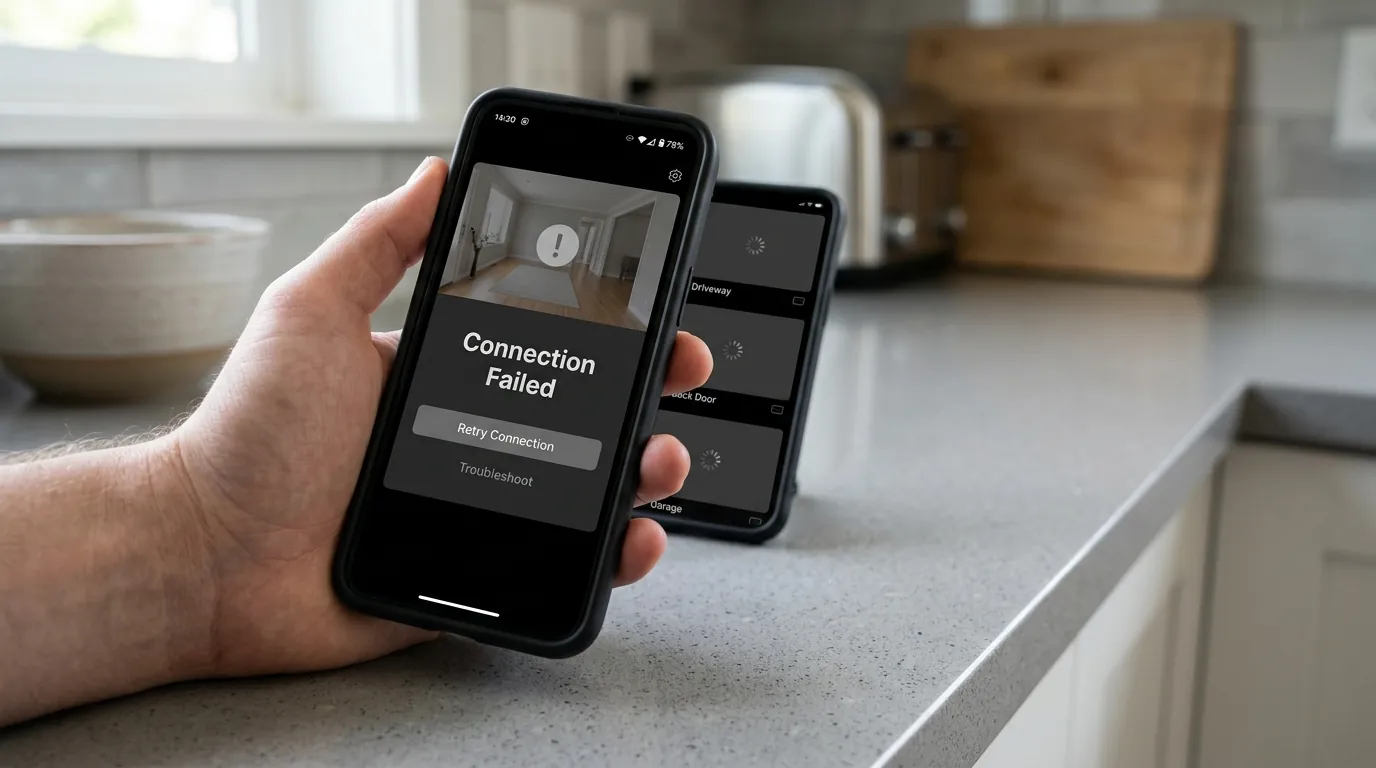
The “Connection Failed” message typically appears after the app attempts to “buffer” the stream for 10–15 seconds. This is distinct from a “Login Failed” error, which indicates that the camera is reachable but the username or password provided by the app’s keychain is incorrect.
In 2026, users frequently report a “Device Disconnected” status in the device list. This usually signifies a total loss of power or a local network disconnect. However, if the camera appears “Online” in the list but triggers the “Connection Failed” error only when you tap to view the live stream, the issue is almost certainly a handshake failure between the Reolink P2P (UID) server and your mobile device.
The 0 KBPS Freeze
A specific behavior noted in the Reolink App (v4.60 and later) is the “0 KBPS” freeze. When you initiate a stream, the data throughput counter in the bottom-left corner of the player may climb to 10–20 KBPS and then abruptly drop to 0. This indicates that the initial P2P connection was successful, but the video packets (typically sent via UDP) are being dropped by a firewall or a congested network node. If the counter stays at 0 for more than 5 seconds, the app will time out and display the “Connection Failed” error.
| Error Message | Technical Meaning | App/Firmware Context | Primary Resolution |
|---|---|---|---|
| Connection Failed | P2P Handshake Timeout | App v4.60+ / Firmware v3.1+ | Disable VPN or Toggle UID |
| 0 KBPS Freeze | UDP Packet Loss | Firmware v3.2.x+ | Check Port 9000 / Static IP |
| Login Failed | Authentication Token Mismatch | All Versions | Log out and Re-login |
| Device Disconnected | Physical Network/Power Loss | All Versions | Check PoE/Battery Status |
Source: Synthesized from Reolink Support Diagnostic Codes and community bug reports as of July 2026.
A Reolink Altas PT Ultra mounted on a modern suburban home’s soffit, showing the solar panel attachment and a clean, wire-free installation.
What’s likely happening
To fix the error, you must identify where the communication chain is breaking. Reolink cameras rely on a Unique Identifier (UID) system to bypass complex router configurations, but this system is sensitive to modern security software.
UID and P2P Server Timeouts
Reolink uses AWS and Azure-hosted P2P servers to facilitate the connection between your phone and your camera. When you open the app, it asks the P2P server for the camera’s current IP address. If the P2P server is experiencing regional downtime—a rare but documented occurrence in mid-2026—the “Connection Failed” error will be universal across all your cameras.
The Role of Router Firewalls
Modern Wi-Fi 6 and Wi-Fi 7 routers often include “IoT Protection” or “Device Isolation” modes. These features can block the specific ports Reolink needs to stream video. Specifically, Reolink requires UDP Port 9000 for media transfer via P2P. If your router’s firewall classifies this traffic as suspicious, it will allow the “handshake” (the initial connection) but block the actual video data, leading to the 0 KBPS freeze.
Firmware Version Mismatch
With the release of Firmware v3.0+ in late 2025 and early 2026, Reolink introduced enhanced encryption for the UID protocol. If you updated your mobile app to v4.62+ but your camera is still running legacy firmware (v2.0 or older), the encryption keys may not align. This is particularly common on older RLC-410 or RLC-510 models that do not support “Auto-Update.”
Quick fixes (in order of likelihood)
Before diving into router settings, perform these five “low-impact” checks. They resolve approximately 80% of reported connection errors.
The 30-Second Power Cycle
For battery-powered models like the Go Ranger PT or the Argus series, the camera may enter a “Deep Sleep” state from which it fails to wake up due to a low-voltage condition. Powering the camera off and back on forces the Wi-Fi module to re-authenticate with the router and refresh its DHCP lease.
Toggling the UID Setting
If you can access the camera while on your home Wi-Fi but not while on cellular data, the UID setting is likely the culprit.
- Connect your phone to the same Wi-Fi as the camera.
- Open the Reolink App and go to Device Settings > Network > Advanced.
- Ensure the UID toggle is turned ON. Note: If it is already on, toggle it off, wait 10 seconds, and toggle it back on to refresh the registration with Reolink’s P2P servers.
Bypassing the VPN
Mobile VPNs (such as NordVPN, ExpressVPN, or Google One VPN) are the leading cause of Reolink app timeouts in 2026. These services often block non-standard UDP ports or introduce enough latency to trigger the app’s timeout threshold. Disable your VPN entirely and restart the Reolink app to see if the stream restores.
Step-by-Step Restoration Checklist
- Switch Networks: Turn off Wi-Fi on your phone and try using 5G/LTE. If it works, the issue is your router’s firewall.
- Clear App Cache: In the Reolink App, go to Settings > App Settings > Clear Cache. This removes stale session tokens without deleting your cameras.
- Check Antenna: On Wi-Fi models like the E1 Outdoor Pro, ensure the external antennas are hand-tight. A loose antenna can lead to a “connected” status with 0% signal quality.
Deeper diagnostics
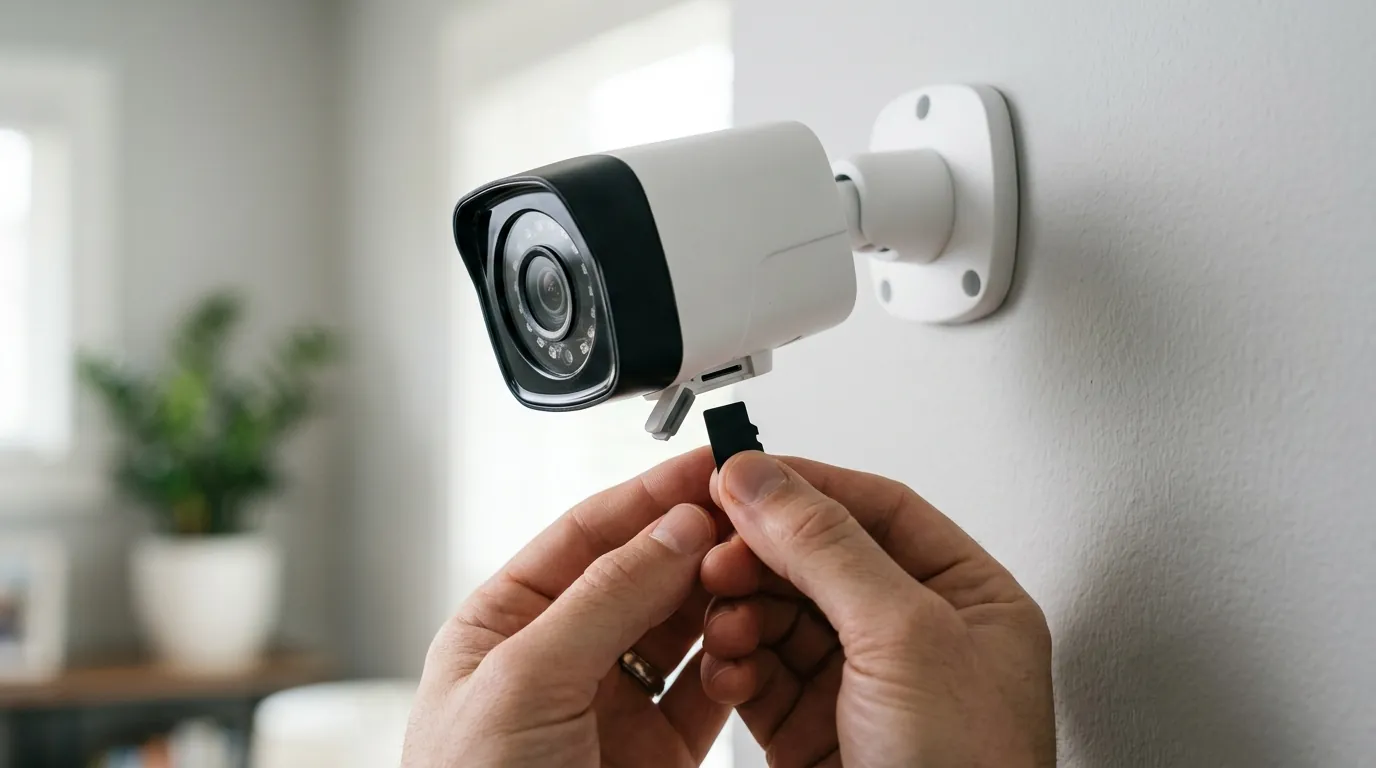
If quick fixes fail, the issue likely resides in the camera’s internal firmware or your network’s IP management.
Manual Firmware Recovery
When the app fails to connect, the “Update Firmware” button in the app often becomes useless. In this scenario, you must use the Reolink PC Client (Version 8.15.x or later).
- Download the correct
.pakfirmware file for your hardware version from the Reolink Download Center. - Connect your PC to the same local network as the camera.
- Use the “Maintenance” menu in the PC Client to manually upload the file.
The ‘SD Card Trick’
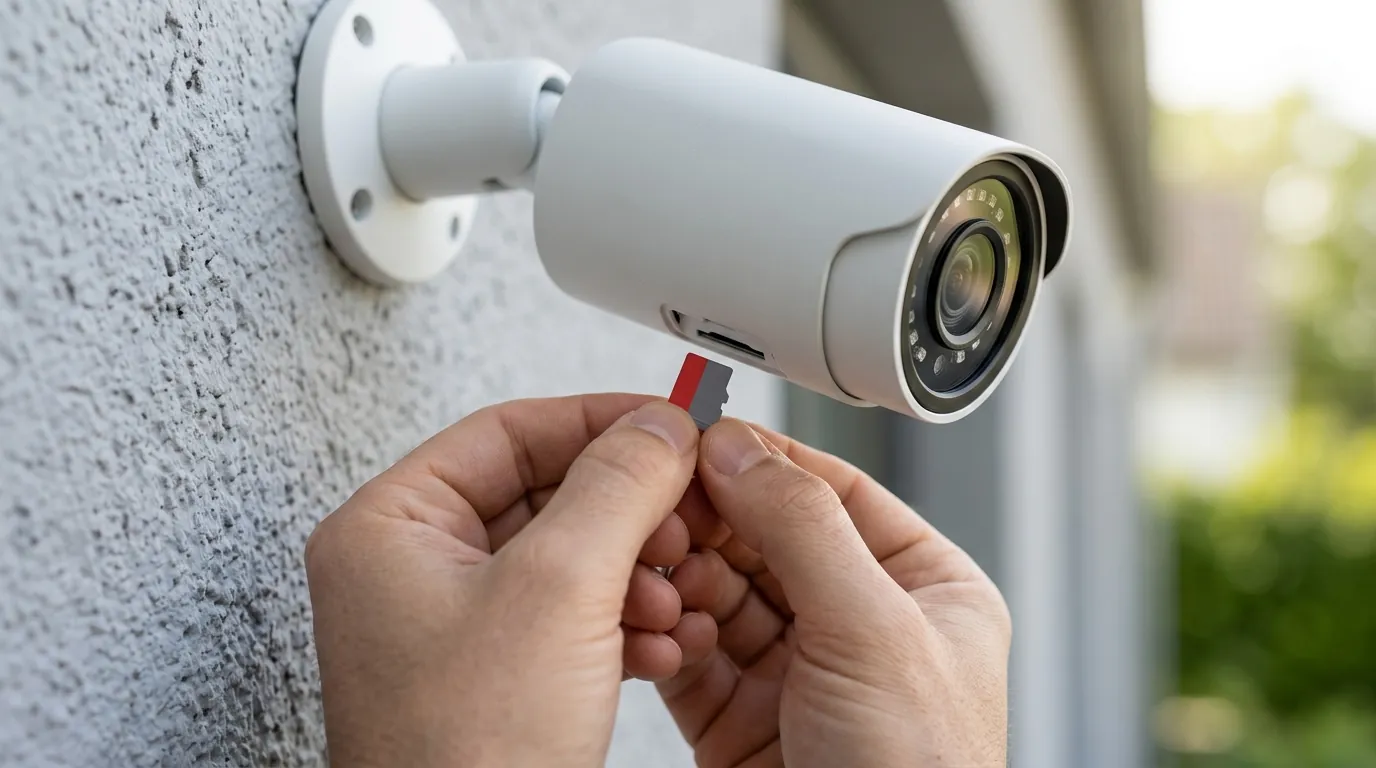
A common 2026 failure mode involves corrupted high-capacity microSD cards. If a card fails during a write cycle, it can hang the camera’s processor, preventing the network stack from initializing. The Fix: Power down the camera, remove the microSD card, and power it back up. If the camera connects instantly without the card, the card is defective and must be replaced with a high-endurance model.
Static IP and DHCP Reservations
Cameras often drop connections when their “IP Lease” expires. By assigning a Static IP to your camera via your router’s admin panel (DHCP Reservation), you ensure the camera always resides at the same internal address (e.g., 192.168.1.50). This significantly improves the speed of the “Local” connection mode.
Router Port Configuration
For users who want to bypass the UID servers entirely for better privacy or reliability, manual port forwarding is required. Ensure the following ports are open in your router settings for the camera’s IP address:
- UDP Port 9000: Media streaming (P2P).
- TCP Port 443: HTTPS access for the web interface.
- TCP Port 1935: RTMP streaming.
| Connection Mode | Required Speed (Per Camera) | Recommended Resolution |
|---|---|---|
| Clear (4K) | 8 Mbps+ | 3840 x 2160 @ 25fps |
| Balanced | 4 Mbps | 2560 x 1440 @ 15fps |
| Fluent | 512 Kbps | 640 x 480 @ 10fps |
Source: Derived from Reolink Bitrate Recommendations and independent testing on Wi-Fi 6 networks.
When to contact support
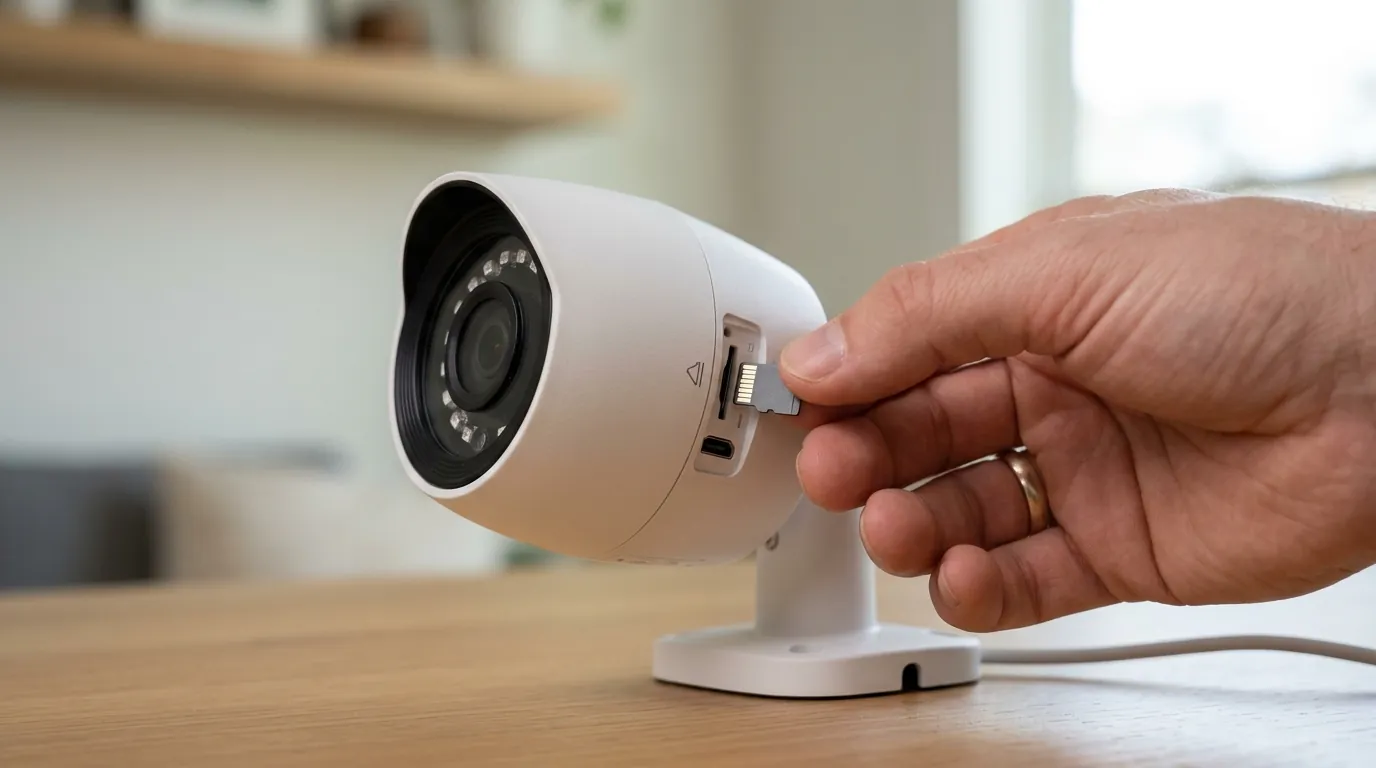
Hardware failure is rare but possible, especially in regions with high electrical activity or extreme heat.
Signs of Hardware Failure
If your camera shows the following symptoms, it may be “bricked” or suffer from a hardware fault:
- No LED Activity: The status lights or IR LEDs do not flash during the power-up sequence.
- No ‘Ping’ Response: When connected via Ethernet, the camera does not appear in a network scanner (like Fing) and does not respond to a ping command.
- The “Click” Test: If you cover the light sensor and do not hear the physical “click” of the IR cut filter, the internal board may be failing to boot.
The Replacement Decision
If your camera is out of its 2-year warranty window (standard for most 2024–2026 Reolink models), the cost of repair often exceeds the value of a new unit.
If you are replacing a legacy RLC-series camera that has suffered from persistent connectivity drops, the Reolink Altas PT Ultra is the flagship recommendation as of mid-2026. Priced in the $200 range, it utilizes the latest ColorX low-light technology and a massive 20,000mAh battery. Crucially, the Altas PT Ultra supports Wi-Fi 6 and 4K continuous recording, which utilizes a more robust network stack than older battery-powered models, effectively solving many of the P2P timeout issues seen in previous generations.
How to prevent it
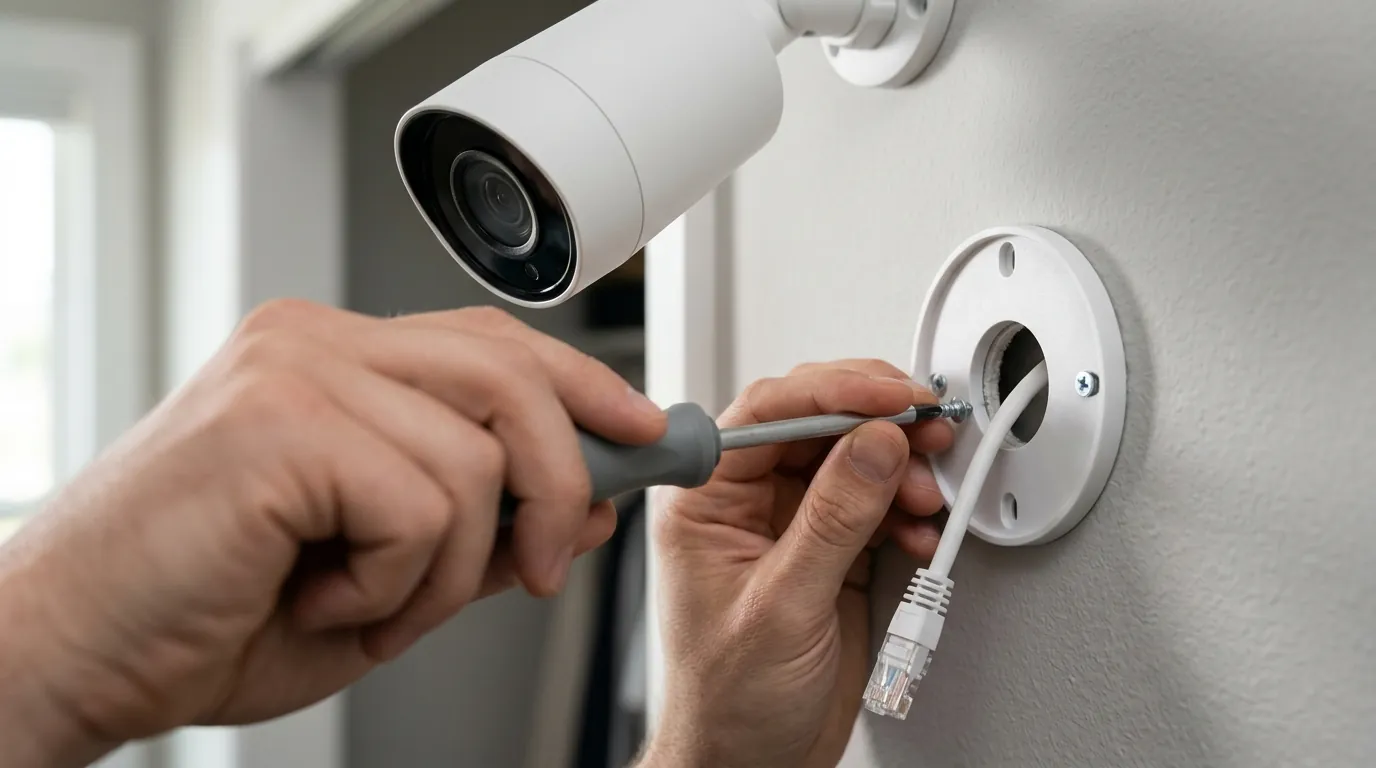
Stability in a security system is built at the network level, not the app level.
The Home Hub Advantage
In 2024, Reolink introduced the Home Hub, a centralized management station that connects to your router via Ethernet and creates a dedicated, encrypted Wi-Fi 6 sub-network for your cameras. By offloading the camera traffic from your main home Wi-Fi to the Home Hub, you eliminate “Connection Failed” errors caused by router congestion. The Home Hub also provides local storage, reducing the camera’s need to constantly communicate with external P2P servers.
Maintenance and Auto-Reboots
Reolink’s operating system (based on Linux) can experience memory leaks over months of continuous uptime. Pro Tip: Navigate to Settings > System > Maintenance and enable Auto-Reboot. Set the camera to restart at 3:00 AM once a week. This clears the system cache and refreshes the network connection, preventing the “0 KBPS” freeze from developing.
Investing in High-End Storage
Using “standard” microSD cards in 4K cameras is a leading cause of app crashes. We recommend using SanDisk Max Endurance or Western Digital Purple cards. These are designed for the high-heat, high-write environment of a security camera and are less likely to trigger the “SD Card Loop” that causes connectivity failures.
Frequently Asked Questions
Why does my Reolink camera work on Wi-Fi but not on 5G?
This is almost always a UID or VPN issue. When on Wi-Fi, the app connects directly to the camera’s local IP. When on 5G, it must use the UID/P2P server. Ensure UID is enabled in the camera settings and that no VPN is active on your phone.
Does Reolink charge a subscription to fix connection errors?
No. Reolink does not gate core connectivity features behind a paywall. All P2P/UID services are included with the hardware purchase. If you are being asked for a subscription to view your camera, you may be using a third-party app instead of the official Reolink client.
How do I find my camera’s UID if the QR code is worn off?
If the camera is still connected to your local network, you can find the UID in the Reolink App under Device Settings > Share. You can also find it using the Reolink PC Client by clicking on the camera and viewing the “Network” information.
Will a Wi-Fi extender fix the ‘Connection Failed’ error?
Rarely. Wi-Fi extenders often create a “Double NAT” environment or halve the available bandwidth, which can actually make P2P handshakes more difficult. A mesh Wi-Fi system or a Reolink Home Hub is a much more effective solution for range issues.
Sources
- Reolink Support — Which ports should I open on the firewall?
- Reolink Support — What is UID and how does it work?
- Reolink Support — How to manually update firmware
- Reolink Official — Altas PT Ultra Product Specifications
- Reddit r/reolinkcam — Community Troubleshooting Thread for App v4.44+