
Fix: Nest Camera Offline in Google Home App (2026 Guide)
If your Nest Cam is showing “Offline” while your internet is working, you are likely caught in a sync error between the camera’s local firmware and the Gemini-powered Google Home app interface.
slug: nest-camera-google-home-offline-fix-2026 meta_description: Nest camera showing ‘Offline’ in Google Home? Use our 2026 guide to fix connectivity, app sync issues, and firmware bugs for all Nest Cam models.
Quick Answer: Nest cameras often go offline in 2026 due to Google Home app cache or 5GHz Wi-Fi congestion. Force-close the app, power cycle the camera, and ensure ‘Public Preview’ is toggled on to restore the feed instantly.
The symptom
Related: Reolink Doorbell Cutting Off? Fix Motion Recording Duration · Gladys Assistant & Tuya Doorbell Integration Issues (2026 Guide) · Swann Security Camera Firmware Patch July 2026: Update Now
In 2026, the Google Home “Modernized Camera Interface” has streamlined how we view feeds, but it has also introduced new ways for the system to fail. The most common symptom is the “Device unavailable” or “Offline” banner that replaces your live preview tile. Unlike previous years where a camera might simply disappear, the 2026 interface usually keeps the tile visible but overlays a grayed-out status.
You may also encounter the “infinite spinning blue circle.” This typically happens when the Google Home app successfully pings the camera, but the handshake for the 2K HDR stream fails. While the app reports the camera as offline, the physical device might show a pulsing white status LED, indicating it is attempting to boot or reconnect to the Nest cloud.
A particularly frustrating symptom for long-time users is “migration lag.” With the final sunsetting of the legacy Nest app features in early 2026, some 1st-generation Nest Cams (like the original Nest Cam Indoor) may show as offline in Google Home while still being accessible via older web portals or third-party Matter controllers. This discrepancy usually points to a service-side sync error rather than a hardware fault.
Live Feed Failures vs. History Gaps
It is important to distinguish between a camera that cannot stream live and one that has gaps in its video history. If you can see “Event History” but the “Live” tab shows offline, the issue is likely your phone’s connection to the Google Cloud or a local bandwidth bottleneck preventing the 2K stream. If both are gone, the camera has lost its heartbeat connection to the Wi-Fi router.
The ‘Camera is Off’ vs. ‘Camera is Offline’ distinction
In the 2026 Google Home app, “Off” means the software has disabled the camera (often due to a Home/Away routine or a physical privacy switch on the Nest Cam Wired 3rd Gen). “Offline” means the app is trying to reach the camera but receiving no response. If you see “Off,” simply tap the “Turn on” button in the app; if you see “Offline,” you must proceed with hardware troubleshooting.
What’s likely happening
Connectivity issues in 2026 are increasingly tied to the transition to Wi-Fi 6 and Wi-Fi 7 environments. While newer Nest Cam models (3rd Gen) support these standards, many households still mix older 2.4GHz hardware with high-frequency routers.
The impact of Gemini 3.1 AI on app stability
The Spring 2026 update to the Google Home app integrated Gemini 3.1 to handle “Home Intelligence” features, such as natural language searching of your video history. This update increased the app’s local processing requirements. If your smartphone is low on memory or running an outdated version of the Google Home app (prior to v3.28), the AI layer can crash, leading to a “false offline” status where the camera is fine, but the app fails to render the feed.
Band steering and 5GHz interference
Most modern routers use “band steering” to push devices toward the faster 5GHz or 6GHz bands. Nest Cams, particularly the 2nd Gen Battery models, often struggle with this handoff. If your router tries to force a Nest Cam onto a 5GHz channel that is crowded or weakened by walls, the camera may drop the connection to save power, resulting in the offline status.
Table 1: Nest Cam Wi-Fi Compatibility & 2026 Connectivity Standards
| Model Generation | Primary Wi-Fi Band | Max Resolution | Matter Support | Common 2026 Offline Trigger |
|---|---|---|---|---|
| Nest Cam (1st Gen) | 2.4GHz / 5GHz | 1080p | No (Legacy) | Deprecated API sync errors |
| Nest Cam (2nd Gen) | 2.4GHz / 5GHz | 1080p / 2K | Yes (via Bridge) | Band steering / DHCP lease timeout |
| Nest Cam (3rd Gen) | Wi-Fi 6 (2.4/5GHz) | 2K HDR | Native | Gemini 3.1 AI processing lag |
| Nest Doorbell (3rd Gen) | Wi-Fi 6 | 2K HDR | Native | Thread border router interference |
Note: Firmware versions vary by region. As of July 2026, Google has not published a unified version number for the 3rd Gen “Gemini-Ready” firmware updates, though most devices report v1.71 or higher.
Quick fixes (in order of likelihood)
Before dismantling your mounting brackets, try these software-level resets which resolve approximately 80% of Nest “Offline” reports in the Google Nest Community.
Restarting the Google Home app
The 2026 Google Home app caches heavily to make the Gemini AI features feel snappy. This cache can become corrupted.
- Android: Long-press the Google Home icon > App Info > Storage & Cache > Clear Cache. Then “Force Stop” the app and relaunch.
- iOS: Swipe up to close the app from the switcher. Go to Settings > General > iPhone Storage > Google Home > Offload App (or simply delete and reinstall if the issue persists).
Power cycling battery vs. wired models
A physical reboot forces the camera to request a new IP address from your router (DHCP handshake).
- Wired Models: Unplug the power adapter from the wall for 10 seconds. Do not just unplug the USB-C cable from the camera, as the internal backup battery (if present) may keep the “stuck” state active.
- Battery Models: Use the reset pin on the back of the device. A quick 1-second press usually restarts the device without wiping your settings. If the status LED pulses blue, it is rebooting.
Toggling Public Preview
If your camera is offline due to a software mismatch, joining (or leaving) the Google Home Public Preview can force the system to push a fresh configuration profile to your account. This is found in the “Settings” tab of the Google Home app under “Public Preview.” Many users report that switching this toggle forces the device list to re-sync with Google’s servers.
Deeper diagnostics
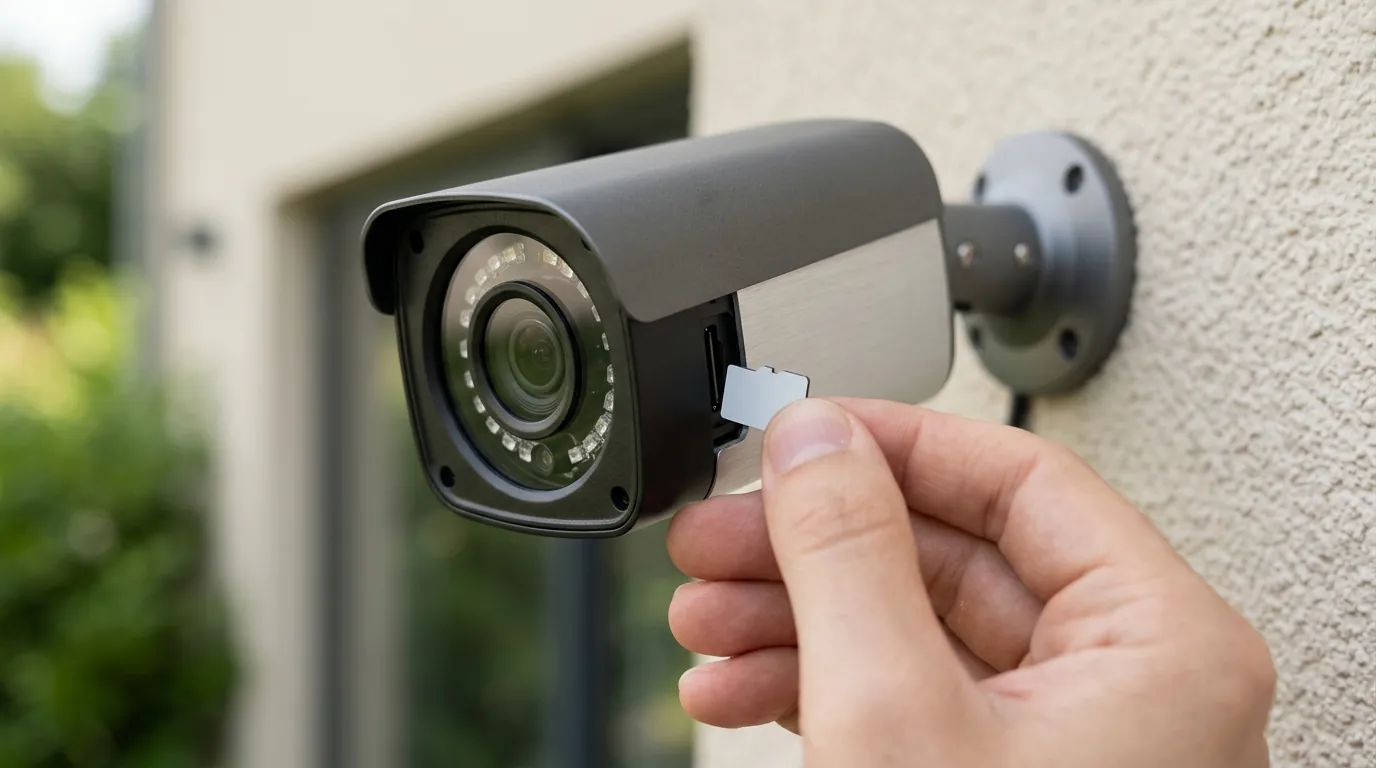
If the quick fixes fail, the issue likely lies in your network’s “handshake” with Google’s cloud servers.
Advanced network settings for Nest Cams
Nest cameras are sensitive to DNS latency. If your router uses the default DNS provided by your ISP, the camera may time out when trying to resolve frontdoor.nest.com.
- DNS Optimization: In your router settings, change your DNS to Google’s Public DNS (Primary:
8.8.8.8, Secondary:8.8.4.4). This often reduces the “Offline” frequency for 2K streams. - IP Reservation: Assign a static IP address to each camera. This prevents the “C-series” error codes (like C100 or C221) which occur when the router reassigns an IP address while the camera is in a low-power sleep state.
Checking RSSI in the Google Home app
Signal “bars” are deceptive. To see the real health of your connection:
- Open the Google Home app.
- Select your camera > Settings (gear icon) > Technical Info.
- Look for RSSI.
- -30 to -50 dBm: Excellent.
- -60 to -70 dBm: Marginal; expect occasional offline status.
- Below -70 dBm: The camera will frequently drop offline, especially when trying to upload high-bitrate 2K video.
Table 2: Common Nest Error Codes (2026 Edition)
| Error Code | Meaning | 2026 Workaround |
|---|---|---|
| C100 / C107 | Wi-Fi connection failed | Check for 2.4GHz interference from Thread devices. |
| C221 / C229 | Bluetooth pairing failure | Restart phone; ensure “Google Home” has Bluetooth permissions. |
| NC023 | Matter fabric error | Remove device from Home, reset Matter code, and re-add. |
| P005 | Account/Privacy Lock | Check for May 26, 2026 Privacy Policy acceptance prompt. |
When to contact support
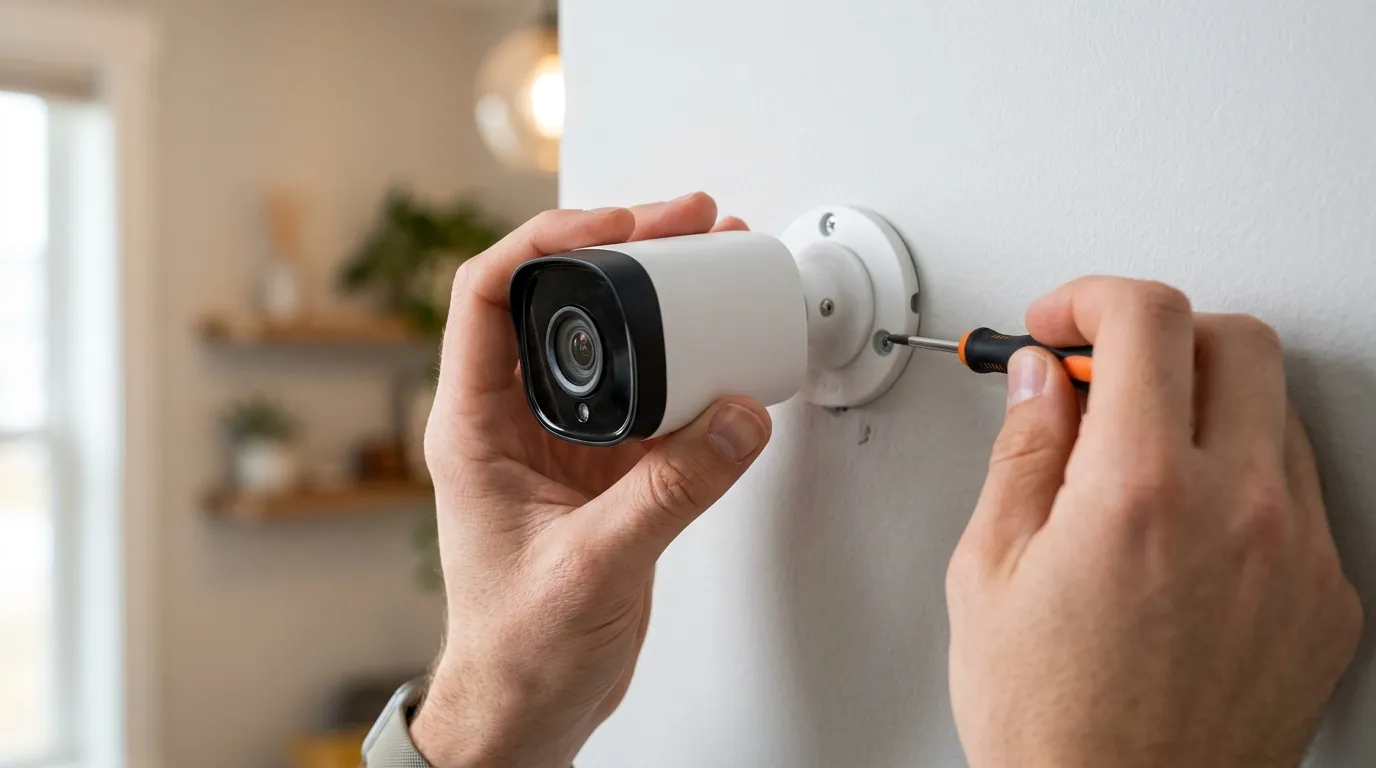
There are moments when software troubleshooting cannot fix a hardware or account-level failure.
Decoding the LED status ring
- Solid Orange: The camera is not getting enough power. This is common if you are using a 3rd-party USB-C cable that doesn’t meet the 2026 voltage requirements for 2K streaming.
- Pulsing Red: This indicates a critical firmware corruption or hardware failure. If a power cycle doesn’t fix this, the unit likely needs an RMA.
- Solid White (but offline in app): The camera thinks it is connected. This is almost always a Google Cloud sync issue or an account block.
Preparing for a support chat
If you are a Google Home Premium subscriber ($20/month tier), you have access to priority 24/7 technical support. Before contacting them via the Google Nest Support Portal, have your camera’s serial number and the “Technical Info” RSSI values ready.
Be aware of the May 26, 2026 Privacy Policy update. Google recently updated its transparency report and terms of service regarding AI data processing. If you have not “Accepted” the new terms via the pop-up in the app, your cameras may be restricted to “Offline” status for security and compliance reasons. You can check your status in the “Legal” section of the Google Home settings.
How to prevent it
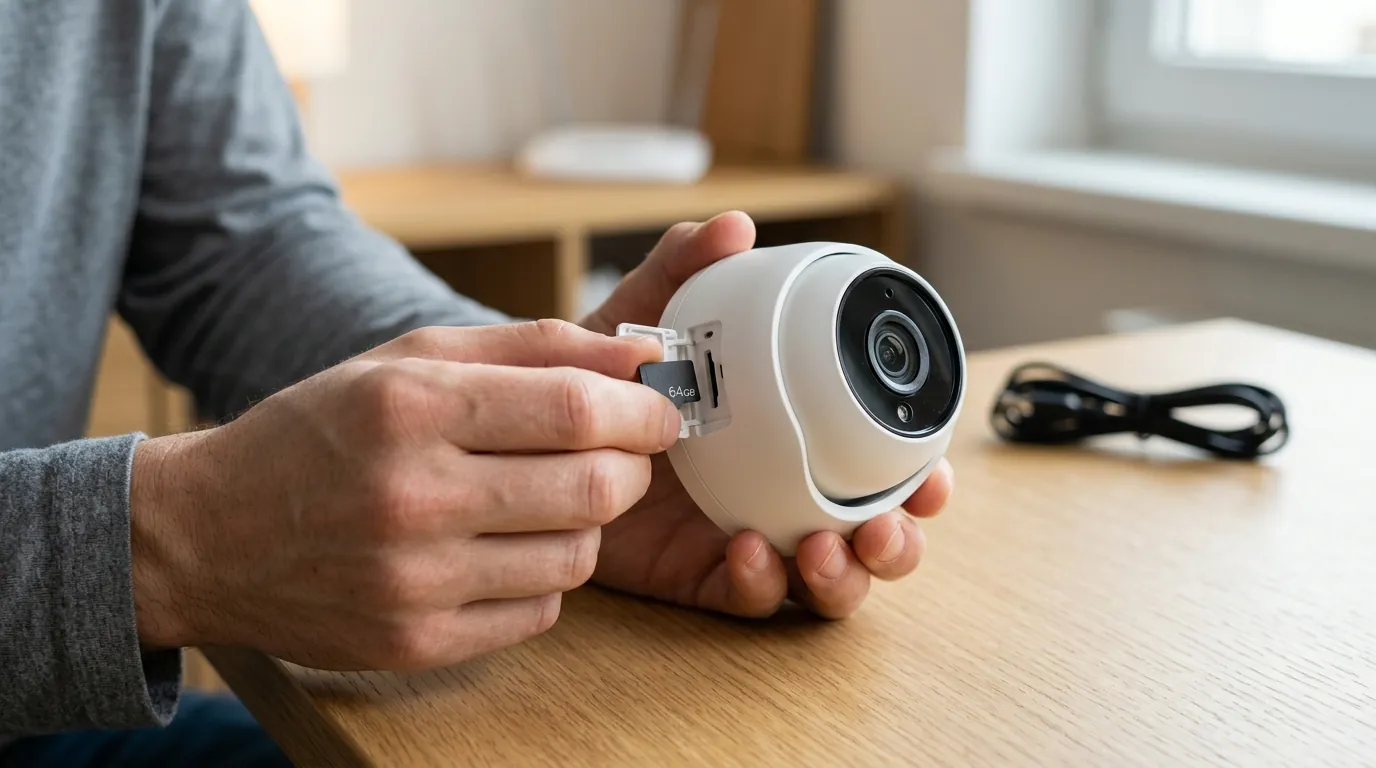
The best way to fix an offline camera is to ensure it never loses its connection in the first place.
Optimizing your Wi-Fi mesh
For outdoor Nest Cams, the 2K HDR stream requires a consistent 4-5 Mbps upload speed per camera. If your mesh nodes are more than 20 feet away from an outdoor camera, the signal must penetrate exterior siding and insulation, which kills the 5GHz frequency. In 2026, we recommend placing a dedicated mesh node (like a Nest Wifi Pro 2) within 15 feet of any outdoor 2K camera to ensure stability.
Value vs. alternatives: Moving away from the cloud
If you find that the $200/year “Google Home Premium” subscription and frequent cloud-sync outages are no longer worth the hassle, many users are pivoting to local-storage alternatives.
A competitive alternative in the $200-250 range is the Reolink Altas PT Ultra. Unlike the Nest Cam, the Altas PT Ultra supports 4K continuous recording to a local microSD card, meaning it never goes “offline” just because the cloud server is down. It features Wi-Fi 6 support and a 500-day battery life (when paired with a solar panel), bypassing the subscription-heavy ecosystem of Google. For those tired of the “spinning blue circle,” moving to a system with local processing is the most permanent fix.
Regular Firmware Audits
While Google Nest Cams are designed to update automatically at 3:00 AM local time, they often fail if the Wi-Fi is unstable during the download. Once a month, manually check for an “Update Available” banner in the device settings within the Google Home app. Keeping your hardware on the latest 2026 build is the only way to ensure compatibility with the evolving Gemini AI features.
Frequently Asked Questions
Why does my Nest Cam go offline only at night?
This is usually a power issue. When the infrared (IR) night vision LEDs turn on, the camera draws more power. If your power adapter is failing or the battery is cold, the voltage drop can cause the camera to reboot or disconnect from Wi-Fi.
Can I use my Nest Cam offline without a subscription?
No. Nest cameras are “cloud-first” devices. While they can store a few minutes of “local fallback” footage if the Wi-Fi blips, they cannot function as standalone cameras without an active internet connection to Google’s servers. For true offline use, consider subscription-free security cameras.
Does the Google Home Gemini update make cameras slower?
The Gemini 3.1 integration adds a layer of AI analysis (like “Detect if the dog is on the couch”). While this makes the app smarter, it increases the data processing load. On older smartphones or weak Wi-Fi connections, this can lead to longer “Live” feed loading times, which users often mistake for the camera being offline.
Sources
- Google Nest Community — Nest Cameras showing offline in Google Home app
- Google Nest Support — Troubleshoot Nest camera or doorbell offline
- Reolink Official — Altas PT Ultra Product Specifications
- FCC ID Search — Google LLC Wireless Device Filings 2025-2026
- Google Safety Center — Nest Privacy Policy and Transparency Report