
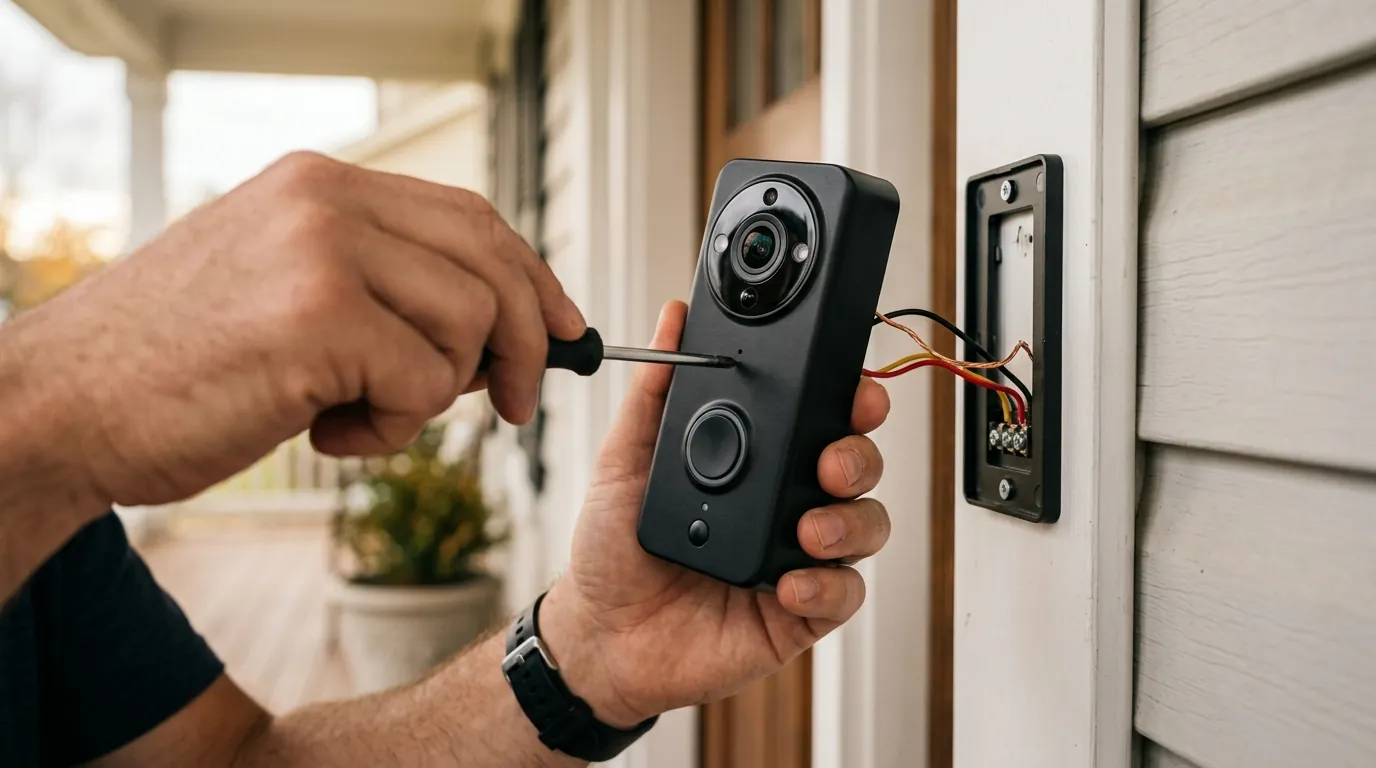
Fixing the Eufy T8210 2K Doorbell 'Authorization Failed' Error
Seeing a “Failed to request” or “Authorization failed” message when a visitor is at your door is more than a technical glitch—it is a significant gap in your home security. For owners of the Eufy T8210 (S220) 2K Battery Doorbell, this error often stems from a breakdown in the digital handshake between the Eufy Security app, the Eufy cloud servers, and your local HomeBase.
The “Authorization Failed” error on the Eufy T8210 is typically caused by an expired app token or a 2FA sync mismatch. To fix it, log out of the Eufy Security app and log back in to refresh your credentials. If the issue persists, ensure your HomeBase and doorbell are running the latest firmware to maintain compatibility with the 2026 Eufy Security app ecosystem.
The symptom
Related: Is Your Blink Camera Down? September 2026 Status & Fixes · Tapo C210 Camera Offline? September 2026 Outage Fixes · Ring Doorbell Server Outage? September 2026 Status & Fixes
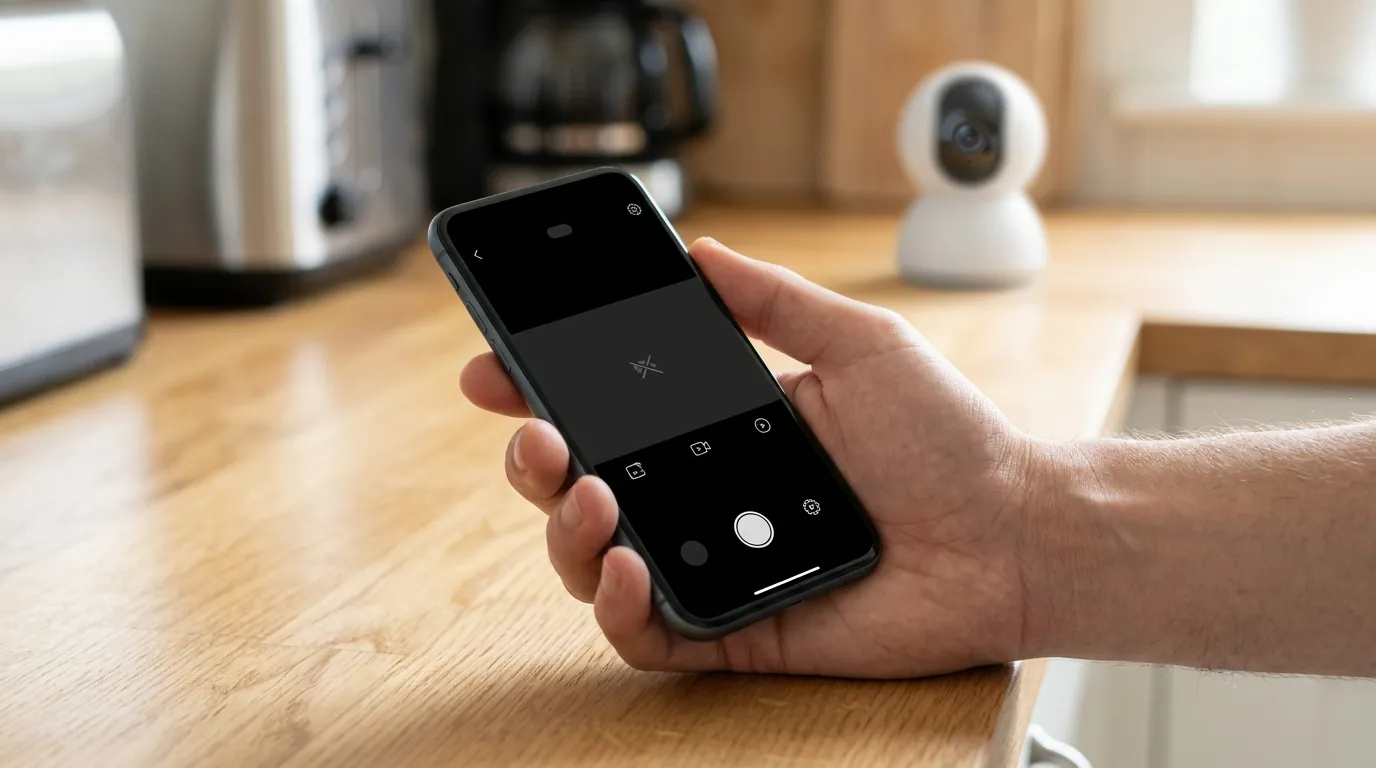
The “Authorization Failed” error rarely occurs when the device is idle; instead, it tends to trigger exactly when you need the camera most. Users typically encounter this during two specific actions: attempting to open a live stream following a motion notification or trying to change device settings (such as Motion Detection zones or Power Manager modes).
Common manifestations of this issue in late 2026 include:
- The Pop-up Overlay: A modal window appears in the Eufy Security app (v6.0.x) stating “Authorization failed” or “Failed to request.”
- The Login Loop: You enter your credentials, the app appears to load, but then immediately kicks you back to the login screen or displays a “Request expired” message.
- Error Code -203 or -3: While Eufy has simplified its UI, technical logs often point to Error -203 (Authentication Timeout) or Error -3 (Handshake Failure).
- The “Immediate Exit Requested” Log: For users utilizing third-party integrations or monitoring logs (such as those documented in the mscodemonkey/eufy-mega-security GitHub repository), the stream may initialize for a fraction of a second before the server forces a disconnect with an “Immediate Exit Requested” status.
- Notification Disconnect: You receive a push notification that “Someone is at the door,” but tapping the notification leads to a black screen with the authorization error, even though the doorbell’s LED ring may be solid blue.
Common Error Codes (-203, -411, and -3)
In the 2026 software environment, Eufy’s error codes have become more specific. Error -203 generally indicates that the security token stored on your phone no longer matches the one expected by the HomeBase. Error -411 is frequently tied to server-side communication issues where the Eufy AWS (Amazon Web Services) instance cannot verify your account’s “Trusted Device” status. Error -3 is a catch-all for a connection that timed out before the authorization could complete, often due to high network latency.
The ‘Failed to Request’ Login Loop
This specific variation occurs when the app fails to authenticate the user at the account level. You may find that you can log in on a tablet but not on your primary phone. This suggests that the Eufy server has “blacklisted” the specific session ID of the phone, requiring a manual refresh of the authentication cache.
What’s likely happening
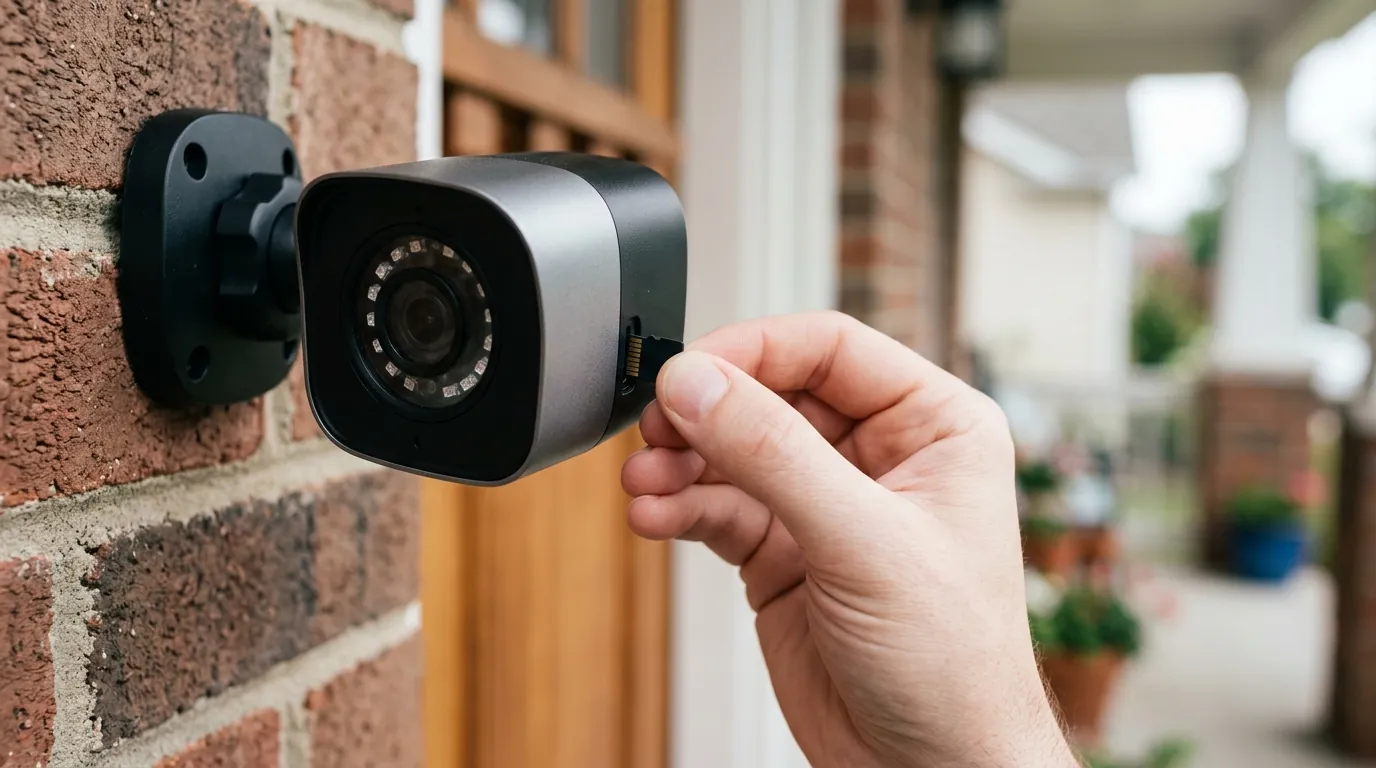
To resolve the error, it is helpful to understand that the T8210 does not talk directly to your phone in most configurations. Instead, it communicates with a HomeBase (HomeBase 2 or HomeBase 3/S380), which then communicates with Eufy’s servers to verify you have permission to view the footage.
Security Token Expiration
Eufy uses OAuth 2.0 tokens for security. These tokens are designed to expire periodically to prevent unauthorized access if a device is stolen. If the Eufy Security app fails to “silent-refresh” this token in the background—often due to aggressive battery-saving settings on Android 17 or iOS 19/20—the HomeBase will reject the app’s request for a video stream, resulting in the “Authorization Failed” message.
HomeBase 2 vs. HomeBase 3 Authentication Differences
As of 2026, many T8210 users have migrated their doorbells from the original HomeBase 2 to the more powerful HomeBase 3 (S380). While the T8210 is compatible with HomeBase 3, the authentication protocols differ. HomeBase 3 utilizes BionicMind AI to process facial recognition locally. If the “Authorization” error occurs, it may be because the HomeBase 3 is attempting to verify a “Known Person” but fails to sync that metadata with the cloud-based user permissions.
| Feature | HomeBase 2 (Legacy) | HomeBase 3 (S380) |
|---|---|---|
| Auth Protocol | Standard Cloud-Relay | Local AI-Verified Handshake |
| Storage Type | 16GB eMMC (Fixed) | Expandable (up to 16TB) |
| Typical T8210 Firmware | v2.1.x.x | v3.2.x.x |
| Common Auth Error | Token Expiration | AI Metadata Mismatch |
| Max Trusted Devices | 5 | 10 |
Server-Side Desync
Eufy’s infrastructure relies on regional servers. If there is a desync between the local HomeBase and the regional server (e.g., US-East), your app may be “authorized” on the server but “unauthorized” by the HomeBase. This is frequently reported during Eufy server maintenance windows or following major app updates.
Quick fixes (in order of likelihood)
Before diving into complex network configurations, follow these steps which resolve approximately 80% of reported “Authorization Failed” incidents.
The ‘Log Out’ Method
This is the most effective fix because it clears the local session cache and forces the generation of a brand-new security token.
- Open the Eufy Security App.
- Tap the three-line menu (hamburger icon) or your Profile icon in the top left.
- Select your Email/Account.
- Scroll to the bottom and tap Log Out.
- Force Close the app (swipe it away from your recent apps).
- Re-open the app and log back in.
Clearing App Cache (Android 17)
If you are on an Android device, the app cache can store “ghost” credentials that interfere with new logins.
- Go to Settings > Apps > Eufy Security.
- Select Storage & Cache.
- Tap Clear Cache (do not tap “Clear Data” unless you are prepared to set up app preferences again).
- Restart your phone.
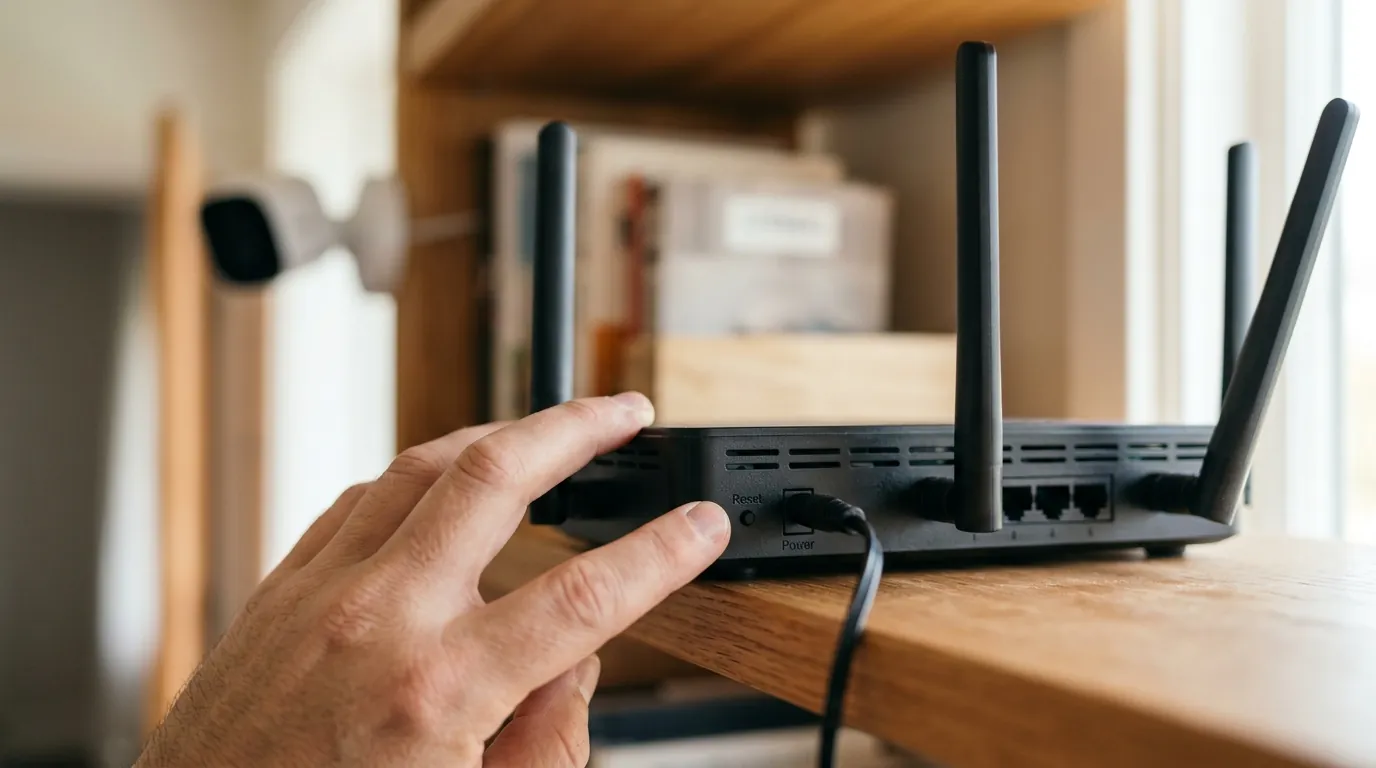
Power Cycle the HomeBase
The HomeBase maintains a local database of authorized devices. If this database becomes corrupted, it may reject valid requests.
- Unplug the power cable from the back of your HomeBase 2 or 3.
- Wait at least 30 seconds.
- Plug the power back in and wait for the LED to turn solid blue (this can take up to 2 minutes).
Toggle 2FA
Two-factor authentication (2FA) is a common point of failure. If your “Trusted Device” list is full or glitched, toggling 2FA can reset the handshake.
- In the app, go to Account Settings > Two-Step Verification.
- Turn it OFF temporarily.
- Log out and log back in.
- Turn 2FA back ON (highly recommended for security).
Deeper diagnostics
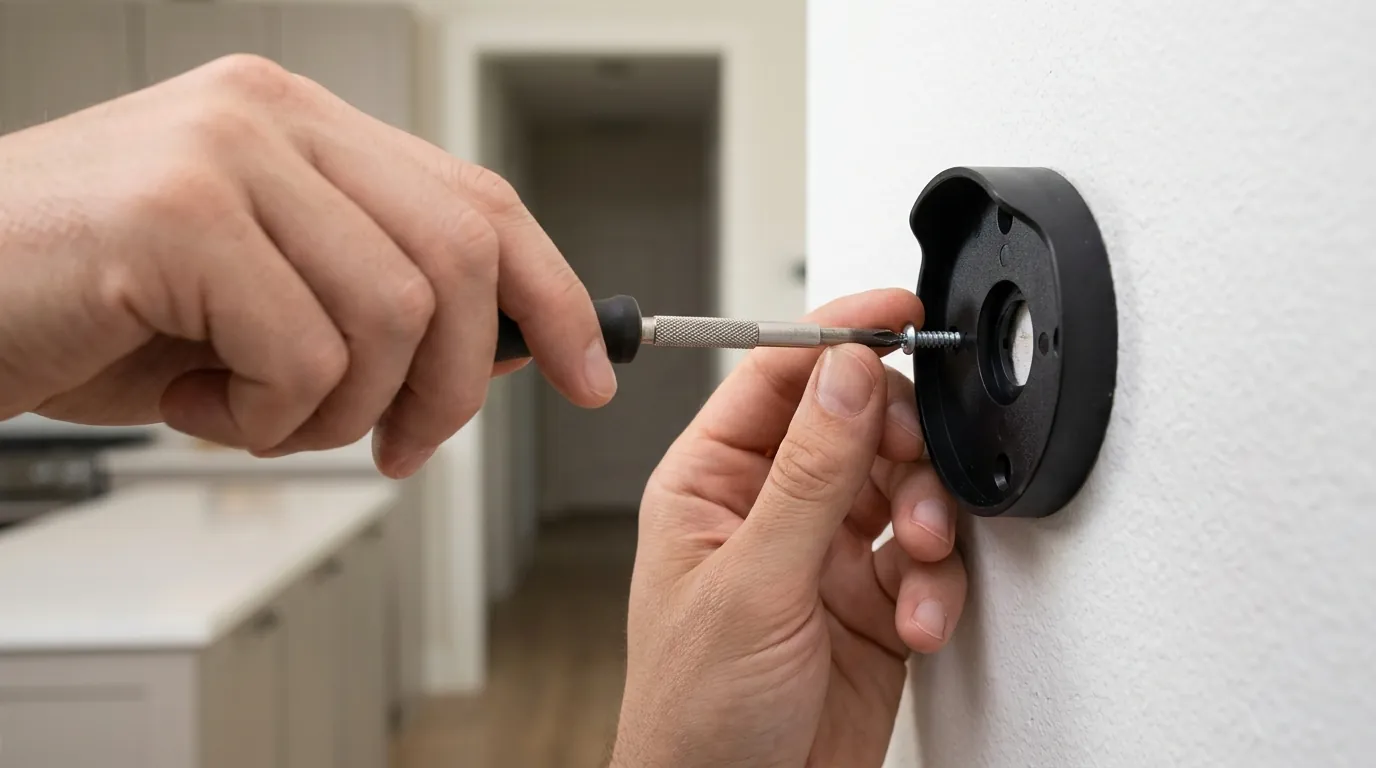
If the quick fixes fail, the issue likely resides in how your network handles the persistent connection required for Eufy’s security handshake.
Static IP Assignment for HomeBase
The T8210 relies on the HomeBase to act as a bridge. If your router reassigns a new IP address to the HomeBase (DHCP lease renewal), the Eufy cloud may lose track of the device’s “Authorization” path.
- Log into your router’s web interface.
- Locate the DHCP Reservation or Static IP section.
- Find the HomeBase (usually listed as “eufyHomeBase” or by its MAC address).
- Assign it a fixed IP address.
- Reboot both the router and the HomeBase.
Shared User Permissions
If you are not the primary account holder, “Authorization Failed” often means the primary user has updated their security settings or changed the HomeBase configuration, and your “Shared” invitation hasn’t updated.
- The Fix: Ask the primary account holder to remove your access in the “Family & Guests” menu and then send a fresh invitation. Ensure you accept the invitation on the same mobile device you intend to use.
When Hardware Age Becomes the Problem
The Eufy T8210 was a flagship 2K model, but as units age, internal battery degradation can play a role. When the doorbell button is pressed or the Wi-Fi chip engages for a live stream, there is a momentary “voltage sag.” If the battery cannot provide enough peak current, the Wi-Fi chip may brown out or reset. This causes the connection to drop mid-handshake, which the app interprets as an “Authorization Failed” error because the device stopped responding during the security check.
T8210 vs. Eufy Video Doorbell E340 (The 2026 Upgrade Path) If your T8210 is consistently failing despite software fixes, it may be reaching its end-of-life.
| Spec | Eufy T8210 (S220) | Eufy E340 (Dual Camera) |
|---|---|---|
| Resolution | 2K (Single Lens) | 2K (Main) + 1080p (Package Lens) |
| AI Features | Basic Motion | BionicMind (Face/Package/Vehicle) |
| Power Type | Battery/Wired | Battery/Wired (Removable Battery) |
| Connectivity | 2.4GHz Wi-Fi | 2.4GHz / 5GHz Dual-Band |
| Storage | HomeBase 2/3 | HomeBase 3 or Local SD |
When to contact support
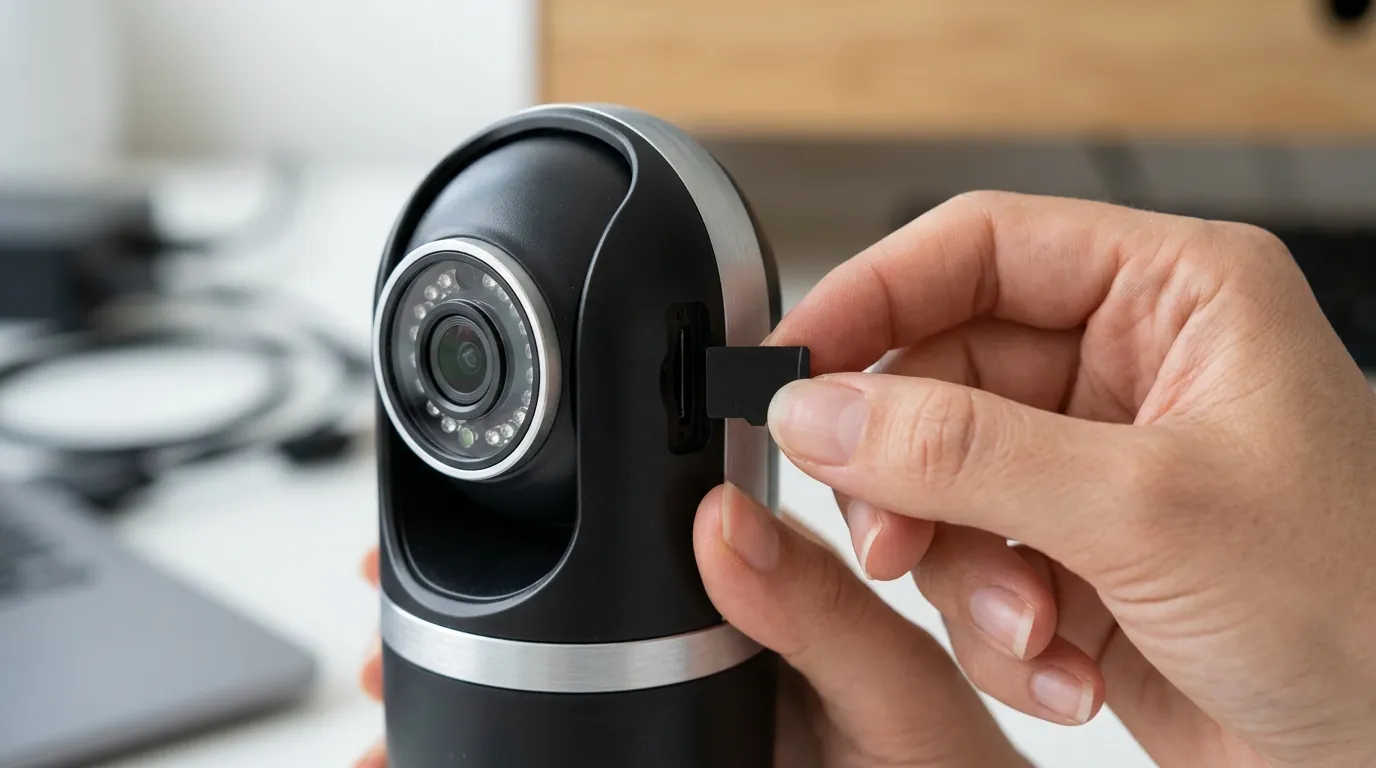
If you have performed a factory reset (pressing the Sync button five times in rapid succession) and the “Authorization Failed” error persists across multiple smartphones, the issue is likely an account-level corruption on Eufy’s backend.
Preparing Your Device Logs
Before calling support, generate a log report so the technicians can see the specific error codes.
- In the Eufy app, go to Help > Feedback.
- Select the T8210 Doorbell.
- Check the box for “Upload App Logs”.
- Describe the error as “Authorization Failed / Error -203” and note the date/time it occurred.
Warranty and Replacement Options
Eufy typically offers a 12-month limited warranty for the T8210. If you are within this window, they may offer a replacement unit. If you are out of warranty, Eufy support often provides a discount code (typically 15-20% off) toward a newer model like the E340 or the C210.
Eufy Support Contact (US):
- Phone: 1-800-988-7973 (Mon-Fri 6 AM - 5 PM PT)
- Email: support@eufy.com
- Live Chat: Available via the eufy.com support portal.
How to prevent it
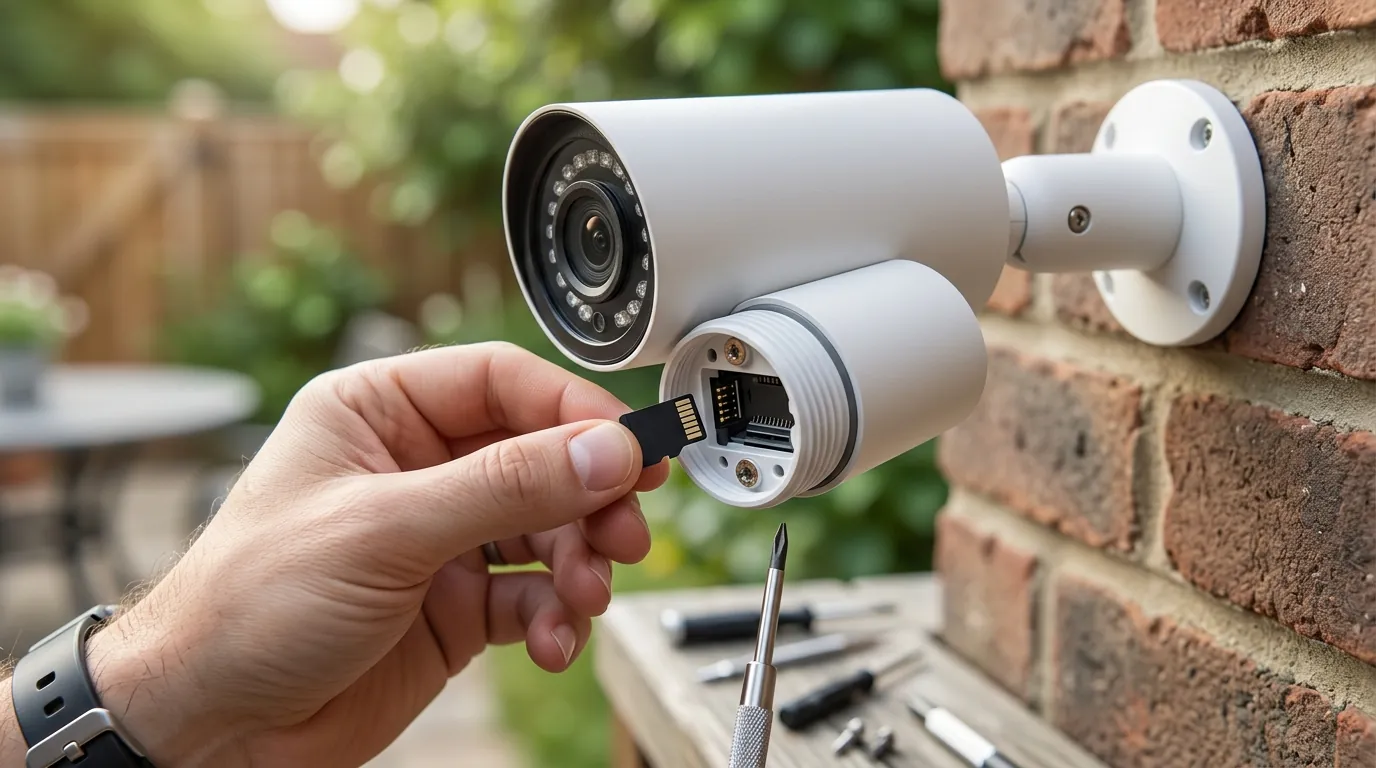
Maintaining a stable authorization state requires proactive management of your Eufy ecosystem.
Maintenance Schedules
- Monthly Reboot: Use a smart plug or a manual schedule to reboot your HomeBase once a month. This clears the internal cache and forces a fresh check-in with Eufy’s authorization servers.
- App Updates: Ensure the Eufy Security app is set to “Auto-Update.” As of September 2026, Eufy frequently pushes “hotfixes” for authentication bugs that are not explicitly listed in the main changelogs.
Optimizing Your 2.4GHz Network
The T8210 uses the 2.4GHz band, which is prone to interference. If a “handshake” packet is lost due to interference from a microwave or a neighbor’s router, the authorization will fail.
- Dedicated SSID: Create a dedicated 2.4GHz SSID for your security cameras.
- Channel Selection: Use non-overlapping channels (1, 6, or 11) to reduce the likelihood of packet loss during the security handshake.
Best Practices for Eufy Account Security
| Action | Benefit |
|---|---|
| Limit Trusted Devices | Prevents database bloat in your account profile. |
| Use Strong Passwords | Reduces the risk of account locking due to “brute force” attempts. |
| Update Firmware Promptly | Ensures compatibility with new AWS security protocols. |
| Check ‘Service Status’ | Verify if Eufy’s cloud is down before troubleshooting your hardware. |
Frequently Asked Questions
Why does my Eufy doorbell say “Authorization Failed” only when I’m away from home?
This is usually a DNS or IP routing issue. When you are on your home Wi-Fi, the app can sometimes bypass certain cloud checks. When you are on mobile data, the app must go through Eufy’s servers. If your phone’s cellular provider has a strict firewall or if your HomeBase cannot reach the Eufy “Heartbeat” server, the authorization will fail. Switching your phone’s DNS to Google (8.8.8.8) can often resolve this.
Does the “Authorization Failed” error mean I’ve been hacked?
Not necessarily. While “Authorization Failed” means the security credentials don’t match, it is almost always a software sync bug rather than a malicious intrusion. However, as a precaution, you should log out of all devices, change your password, and re-enable 2FA if you suspect any unusual activity.
Can I use the T8210 without a HomeBase to avoid these errors?
No, the T8210 2K Battery Doorbell requires a HomeBase (2 or 3) to function. The HomeBase acts as the local security gatekeeper. If you want a doorbell that connects directly to Wi-Fi and may avoid HomeBase-specific handshake issues, you would need to look at the Eufy Video Doorbell C210 or similar “solo” models.
Will a factory reset fix the “Authorization Failed” error permanently?
A factory reset is a “nuclear option” that clears all settings. While it can fix the error temporarily by wiping corrupted local data, the error may return if the root cause is a server-side account issue or a bug in the current app version. Always try logging out and back in before performing a full factory reset.
Sources
- Eufy Support: Troubleshooting “Failed to Request”
- GitHub: mscodemonkey/eufy-mega-security Issue Tracking — https://github.com/mscodemonkey/eufy-mega-security/issues
- Eufy Privacy Policy and Data Handling — https://www.eufy.com/privacy-policy
- HomeBase 3 (S380) Compatibility Matrix