
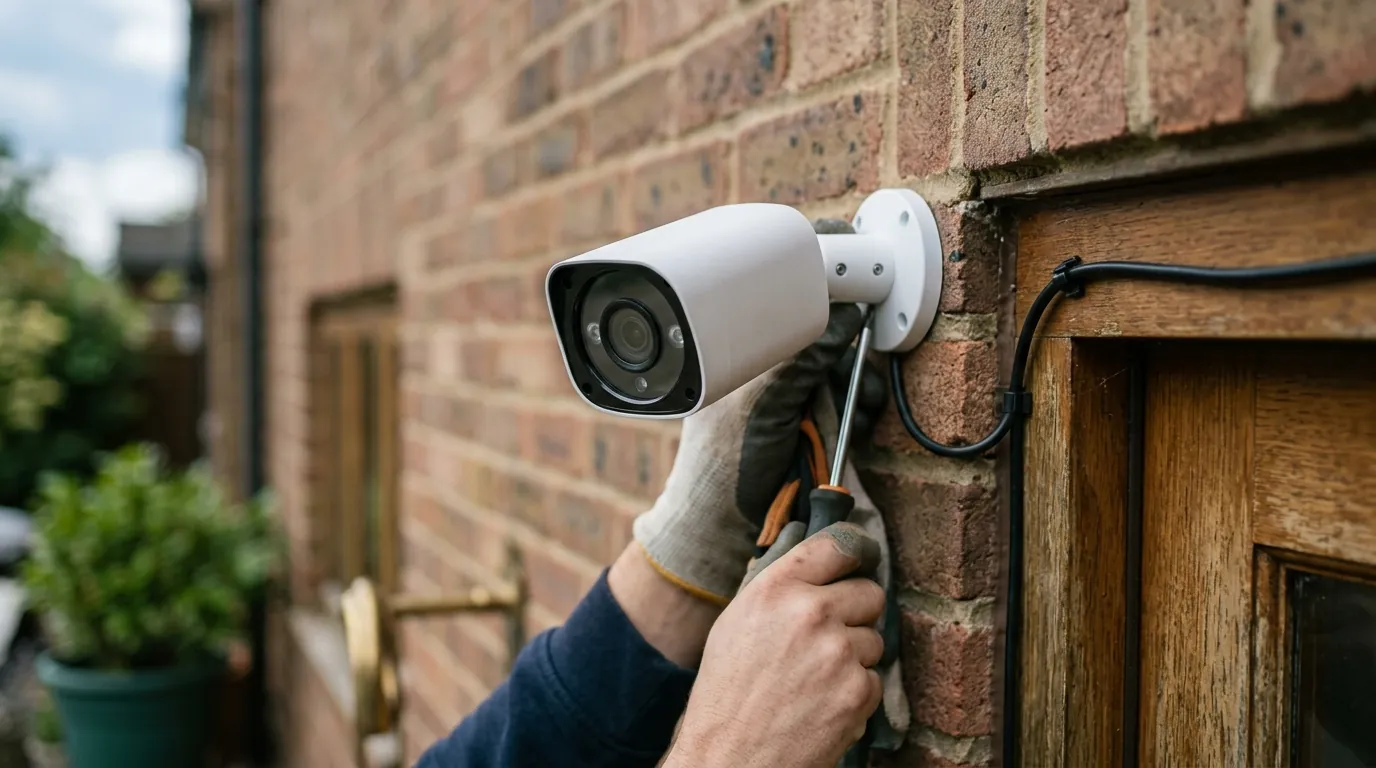
Eufy P2P Cameras Not Recording? Fix Motion Detection Failures
The reliability of a security system hinges on its ability to record when it matters, yet many users find their local storage empty exactly when a critical event occurs.
Eufy motion detection failures are usually caused by strict AI ‘Human Only’ filters, PIR sensor positioning, or P2P handshake timeouts. Resetting the HomeBase and switching to ‘All Motion’ mode often restores reliable recording.
The symptom
Related: Fix: Eufy Home Assistant Integration Not Loading (2026 Guide) · Fixing the Reolink Camera App ‘Connection Failed’ Error (2026) · Ring Doorbell Alexa Live View Connection Failed? 2026 Fixes
When a Eufy system begins to fail, the breakdown typically occurs in the communication between the camera’s local detection and the user’s mobile app. Users often report that the hardware appears functional—the “Live View” loads quickly and the signal strength shows as “Great”—but the “Events” tab remains a chronological desert.
Missing Clips vs. Connection Failures
There is a distinct difference between a camera that doesn’t “see” and a camera that cannot “talk.” In a missing clip scenario, the camera’s Passive Infrared (PIR) sensor may trigger, but the BionicMind AI logic determines the motion is not worth saving, resulting in no record of the event. Conversely, a connection failure occurs when the camera successfully records a clip to the HomeBase 3 (S380), but the P2P (Peer-to-Peer) protocol fails to transmit that data to your phone. This often manifests as a spinning loading circle or a specific error code, such as -13 (P2P connection timeout) or -11 (handshake failure), as documented in community troubleshooting logs on the fuatakgun/eufy_security GitHub tracker.
The ‘Ghost Notification’ Phenomenon
Perhaps the most frustrating symptom is the “Ghost Notification.” Your smartphone chirps with an alert—“Someone has been spotted”—but when you tap the notification, the app displays “Failed to play video” or “The video was deleted.” This indicates that the motion detection event was triggered and the cloud alert was sent, but the actual video file failed to write to the local storage or was interrupted during the P2P transfer process. In 2026, this has been increasingly linked to high latency in the HomeBase 3 “Edge” ecosystem, where the local encryption handshake takes longer than the app’s timeout threshold.
What’s likely happening
To fix the issue, one must understand the two-stage gatekeeping process Eufy cameras use: the physical PIR sensor and the BionicMind AI processing.
The Role of the P2P Protocol
Eufy markets its lack of monthly fees by relying on a P2P architecture. Unlike cloud-based systems (like Ring or Nest) that upload footage to a central server, Eufy cameras attempt to create a direct, encrypted tunnel between the HomeBase 3 and your smartphone. According to Eufy’s technical documentation, this P2P handshake requires both devices to synchronize encryption keys in real-time. If your HomeBase is under heavy CPU load or your local Wi-Fi has high jitter, this handshake fails, and the “motionDetected” event is never successfully handed off to the user interface.
HomeBase 3 Storage Bugs in 2026
In the first half of 2026, a specific technical hurdle emerged regarding the HomeBase 3 (S380) and its handling of expanded storage. Reports from April and May 2026 indicated that certain firmware versions in the 3.5.x branch caused the HomeBase to intermittently “drop” the connection to internal 2.5-inch SSDs or HDDs. When the drive drops, the camera has nowhere to write the event clip. While the camera still sends a notification (which is handled by the HomeBase’s small internal flash memory), the actual video file is lost because the primary storage medium was temporarily unmounted.
| Component | Detection Method | Range (Typical) | Common Failure Point |
|---|---|---|---|
| PIR Sensor | Heat Signature | 15–30 Feet | Slow “wake up” time (latency) |
| BionicMind AI | Pixel Analysis | 10–25 Feet | Filtering out “non-human” motion |
| P2P Handshake | Encrypted Tunnel | Global (via Web) | High network jitter/latency |
| Local Storage | SSD/HDD Write | N/A | Corrupted sectors or drive disconnects |
Quick fixes (in order of likelihood)
Before dismantling your mounting brackets, these software-level adjustments solve approximately 70% of reported motion detection failures.
Testing with ‘All Motion’ Mode
The most common culprit is the BionicMind AI being “too smart” for its own good. If you have your camera set to “Human Only,” the system will discard any motion that doesn’t clearly match a human silhouette or a recognized face. To diagnose if your sensor is failing or if the AI is simply filtering too aggressively, switch the camera to “All Motion” mode.
- Open the Eufy Security App.
- Go to Settings > Motion Detection.
- Change Detection Type to “All Motion.”
- Set Sensitivity to Level 7 (Maximum). If the camera begins recording every passing car or swaying branch, your PIR sensor is fine, and the issue lies in the AI’s ability to identify humans at that specific distance or angle.
Optimizing the Power Manager
Eufy’s “Optimal Battery Life” setting is a frequent cause of missed events. In this mode, the camera enforces a “re-trigger interval” (often 60 seconds or more) during which it will not record another clip even if motion continues. If a delivery driver walks to your door and leaves, and then a porch pirate arrives 30 seconds later, the second event will be missed entirely.
- Fix: Switch to “Optimal Surveillance” in the Power Manager settings. This allows for clips up to 60 seconds long and significantly reduces the “cool down” period between recordings. Note that this will decrease battery life, but it is necessary for security integrity.
Deeper diagnostics
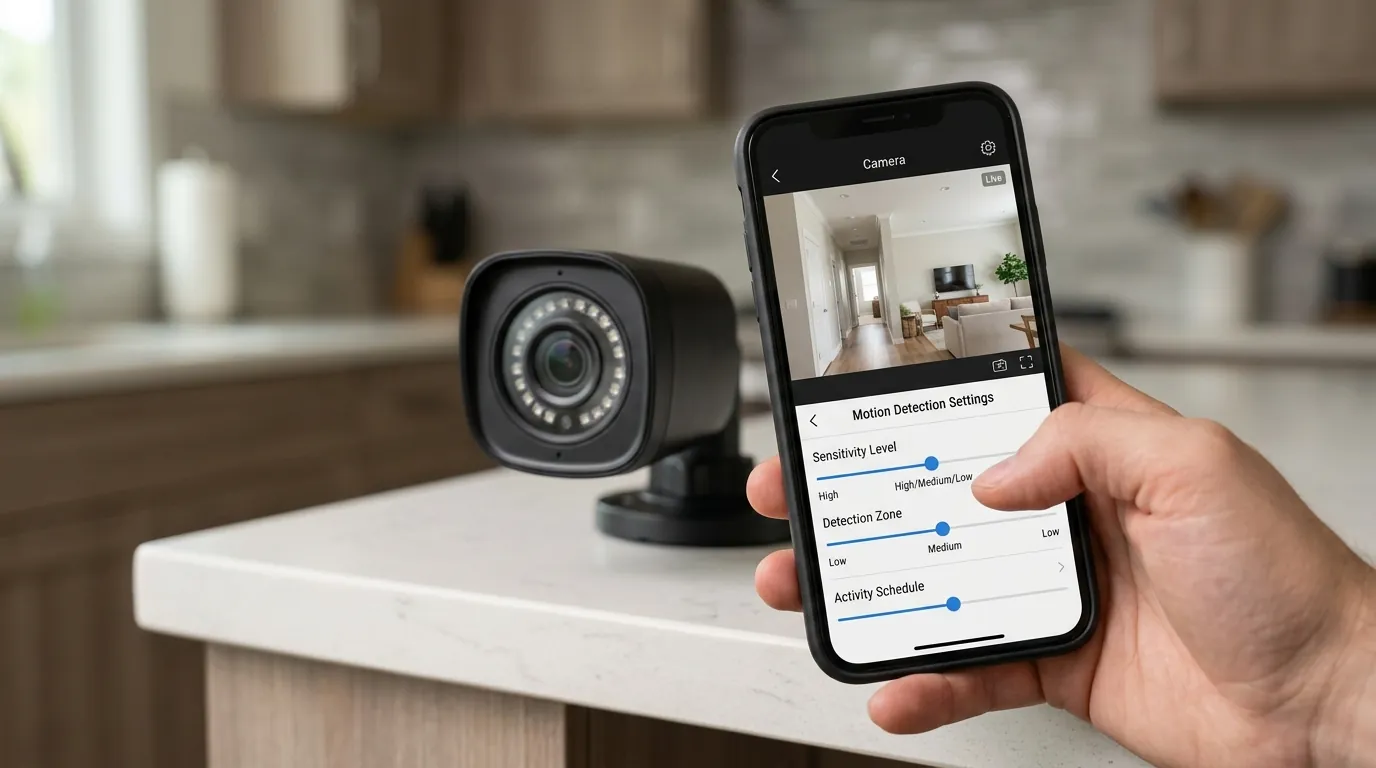
If the quick fixes fail, the problem likely resides in the physical environment or the integrity of the local database.
Verifying HomeBase 3 Storage Integrity
As of August 2026, the stability of the HomeBase 3 is highly dependent on the health of the internal storage drive. If you are experiencing missing thumbnails in the “Events” tab, your drive may have corrupted sectors following the April 2026 firmware transition.
- The Reformat Procedure: Navigate to HomeBase Settings > Storage Management. Check the “Health” status of the drive. Even if it says “Normal,” performing a fresh format via the Eufy app can clear the database cache that stores event metadata.
- Firmware Check: Ensure your HomeBase is running version 3.5.x or higher. Eufy released a stability patch in June 2026 specifically to address the P2P handshake timeouts (Error -13) that plagued earlier versions of the 3.5 branch. If your version is lower and the app says “Up to date,” you may need to contact support to have the update pushed manually to your serial number.
Analyzing Signal Interference
Eufy cameras use a proprietary 2.4GHz wireless protocol to communicate with the HomeBase. This is separate from your home Wi-Fi. Check the RSSI (Received Signal Strength Indicator) in the app’s “Mounting Guide.”
- -60dBm or better: Excellent connection.
- -70dBm to -75dBm: Marginal; P2P handshakes will frequently time out, leading to “Failed to play” errors.
- -80dBm or worse: The camera will frequently show as “Offline” and fail to record 90% of events. If your RSSI is poor, moving the HomeBase closer to the exterior wall or using a dedicated Wi-Fi chime extender (for doorbells) is the only permanent solution.
| Error Code | Meaning | Primary Fix |
|---|---|---|
| -11 | Server Handshake Failure | Check HomeBase Ethernet/Internet connection |
| -13 | P2P Connection Timeout | Improve RSSI or restart HomeBase |
| -106 | Device Not Found | Re-sync camera to HomeBase |
| N/A | Missing Clip (No Error) | Increase Sensitivity / Switch to “All Motion” |
When to contact support
There are scenarios where software troubleshooting cannot overcome hardware limitations or manufacturing defects.
Identifying Hardware Failure
If your camera fails to record even in “All Motion” mode with sensitivity at Level 7, and the “Motion Test Mode” (a tool in the app that flashes the camera’s LED when motion is sensed) does not trigger, the PIR sensor may be dead. PIR sensors are sensitive to moisture ingress; if the seal on your eufyCam has degraded, the sensor will lose the ability to detect heat signatures.
The Case for Continuous Recording
For users who find the “wake-up” latency of battery-powered cameras unacceptable, the limitation is inherent to the technology. Battery cameras “sleep” to save power and take 0.5 to 2 seconds to “wake up” and begin recording. If a person is running, they may be out of the frame before the recording starts.
- Upgrade Recommendation: If missing the first 2 seconds of an event is a dealbreaker, consider the Reolink Altas PT Ultra (around $200-250). Unlike Eufy’s current battery lineup, the Altas PT Ultra features a massive 20,000mAh battery and specialized low-power circuitry that allows for continuous 4K recording without a power wire. This eliminates PIR wake-up delays entirely, as the camera is always “seeing,” not just “reacting.”
How to prevent it
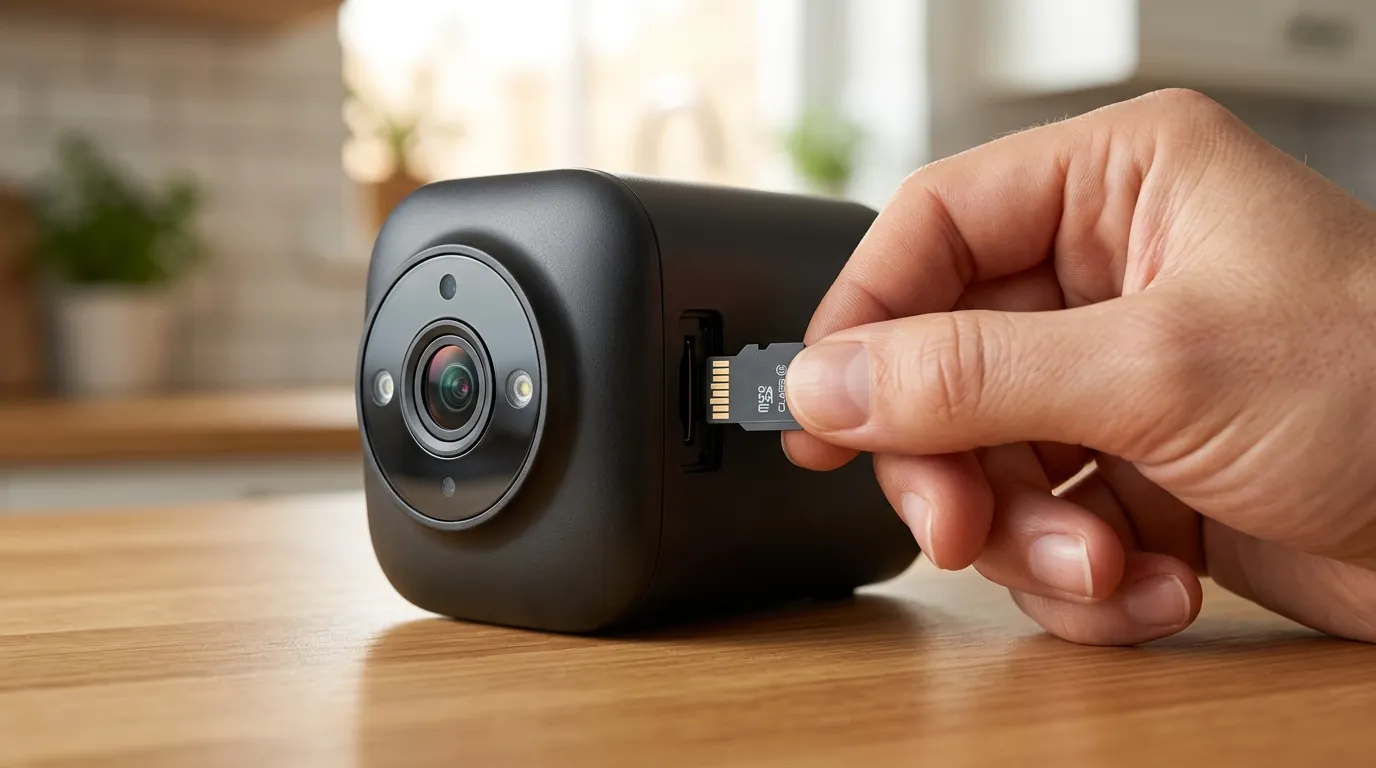
Maintaining a local-storage security system requires more “hygiene” than a cloud-based one.
Maintenance for Local Storage
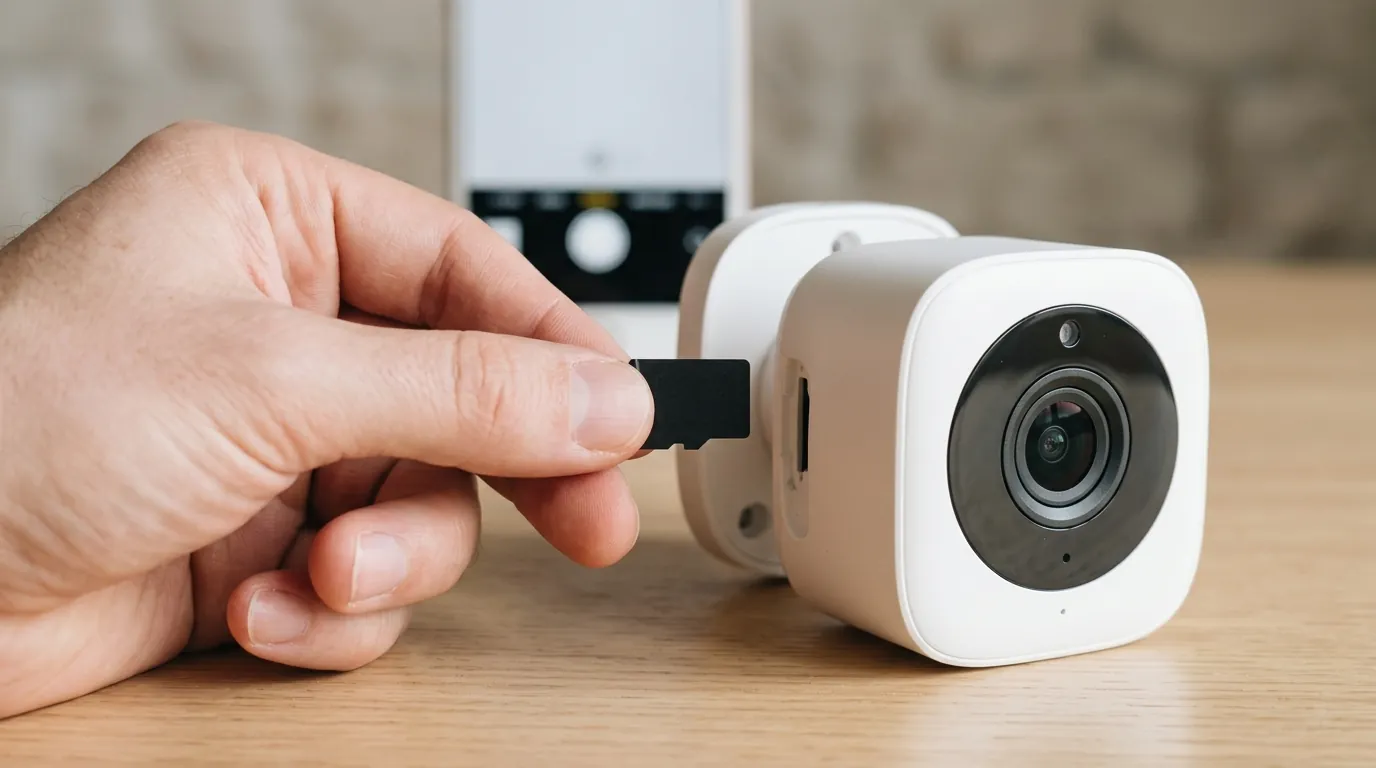
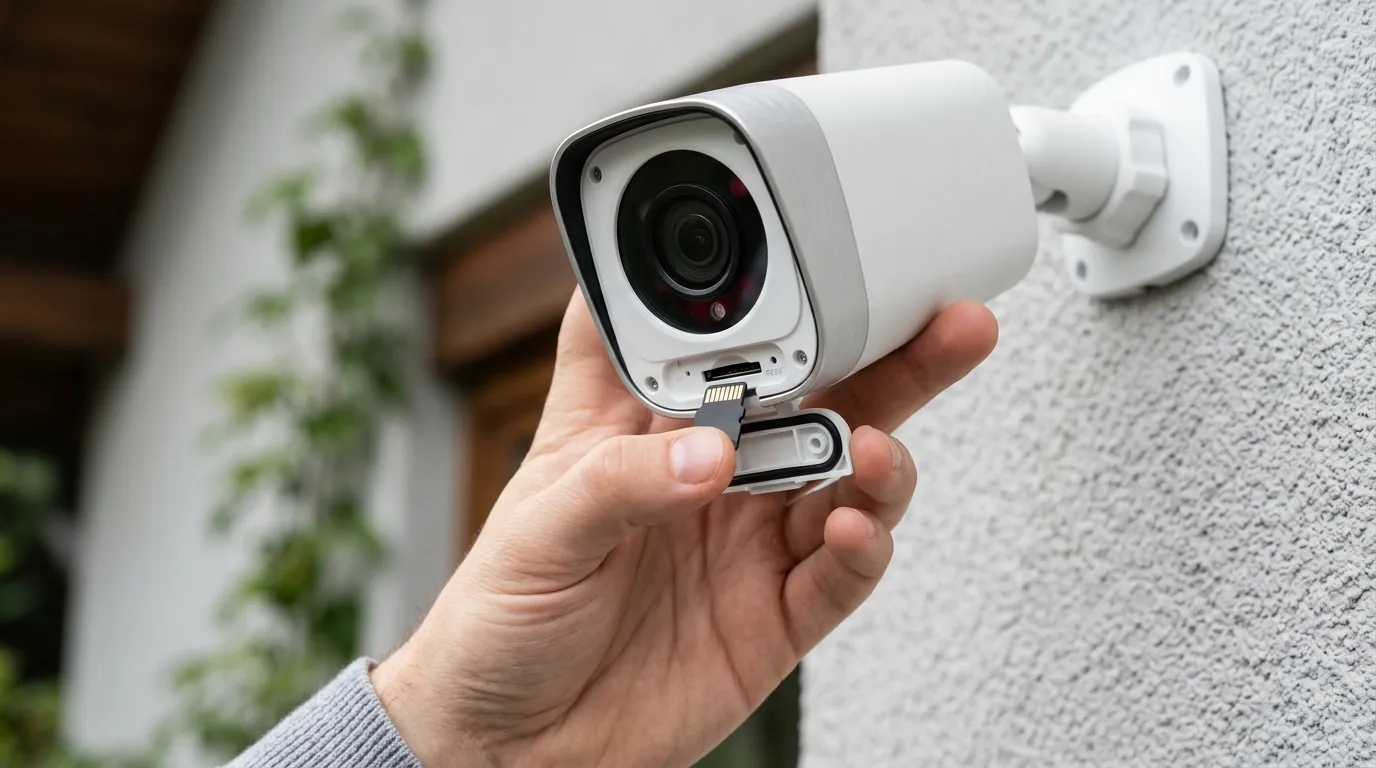
If you are using Eufy Indoor Cams or SoloCams that rely on microSD cards rather than a HomeBase, the card is the most likely point of failure. Security cameras perform constant “write/overwrite” cycles that can burn through cheap consumer-grade cards.
- Recommendation: Always use High-Endurance cards (Class 10, U3, V30). These are designed for the high-heat, high-write environment of security cameras. Schedule a manual format of the card every six months to prevent file system fragmentation.
Environmental Factors
PIR sensors detect the movement of heat across their field of view. To maximize detection:
- Angle Matters: Install cameras so that people walk across the field of view rather than directly toward the lens. PIR sensors are much more sensitive to lateral movement.
- Height: The sweet spot is 7 to 10 feet. Mounting a camera too high (e.g., on a second-story soffit) increases the distance the heat signature must travel, often falling outside the PIR’s effective 25-foot range.
- Avoid Glass: Never point a PIR camera through a window. The glass blocks the infrared heat signatures entirely, making motion detection impossible even if the “Live View” looks clear.
Frequently Asked Questions
Why does my Eufy camera record cars but not people?
This usually happens when the “Human Only” AI filter is active. A car has a much larger visual and heat signature than a human, making it easier for the sensor to trigger. If the AI cannot clearly identify a head and shoulders on the person (perhaps due to a hat or the angle), it will discard the clip. Switching to “All Motion” will fix this.
Does Eufy delete clips automatically?
Eufy follows a “First In, First Out” (FIFO) protocol. When your HomeBase 3 or microSD card reaches capacity, it will automatically delete the oldest footage to make room for new clips. If you notice clips disappearing, check your storage capacity in the app to see if the drive is full.
Why is there a delay before my Eufy camera starts recording?
Battery-powered cameras remain in a low-power “sleep” state until the PIR sensor detects heat. The time it takes to wake up the processor and start writing to the disk is known as “wake-up latency.” This is a hardware limitation of almost all battery cameras, which can be mitigated by increasing sensitivity or using a camera capable of “Pre-Roll” or continuous recording.
Can I fix the -13 P2P error without a new HomeBase?
Yes, the -13 error is often a network timeout. You can often resolve it by assigning a “Static IP” to your HomeBase 3 in your router’s settings and ensuring the HomeBase is connected via Ethernet rather than Wi-Fi. This reduces the latency during the P2P handshake.
Sources
- Eufy Support: Troubleshooting Motion Detection
- GitHub: eufy_security Issue Tracker — https://github.com/fuatakgun/eufy_security/issues
- Eufy Privacy & Trust Center
- Reolink Product Specs: Altas PT Ultra — https://reolink.com/product/altas-pt-ultra/