
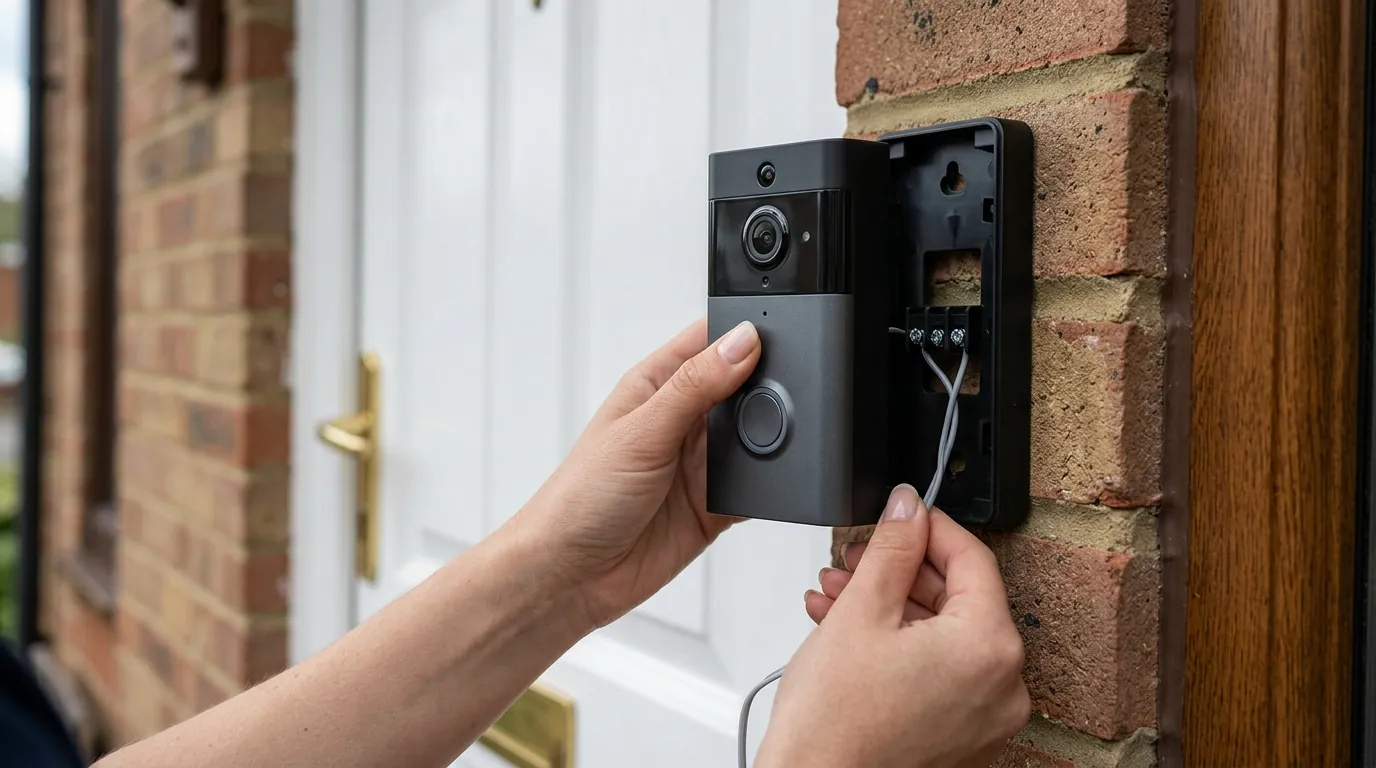
Eufy E340 Doorbell Livestream Not Loading? 6 Fixes (2026)
A security camera that cannot provide a live view fails its most fundamental purpose: providing immediate situational awareness. For owners of the Eufy Video Doorbell E340, the “Preparing to play” loading spinner has become a documented hurdle in an otherwise high-performance dual-lens system.
To fix a Eufy E340 livestream that won’t start, update to firmware v3.2.6, disable ‘Multi-Bridge’ in settings, and ensure your transformer provides 16-24VAC. If hardware fails, the Reolink Video Doorbell is a top subscription-free alternative.
The symptom
Related: Fix Eufy Home Assistant ‘Entity Unavailable’ Errors (2026 Guide) · Fix: Ring-MQTT Reolink Motion Sensor Integration (2026 Guide) · Fix Eufy E340 (T8214) Livestream Unknown Error: 2026 Guide
The Eufy E340 is a “Dual-Cam” device, meaning it simultaneously processes a 2K main feed and a 1080p downward-facing package feed. When the livestream fails to initialize, the failure usually manifests in one of three distinct ways within the Eufy Security app.
The ‘Preparing to Play’ Loop
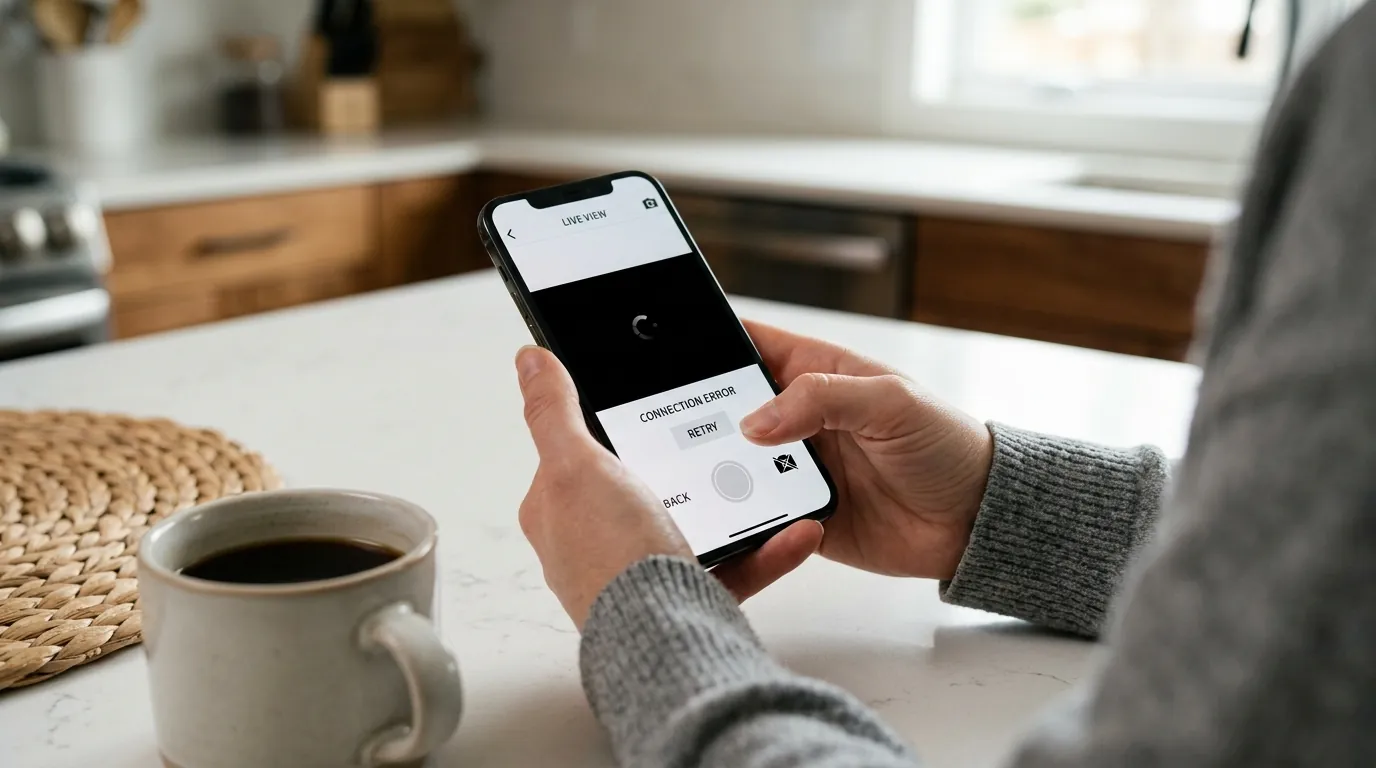
The most common report involves the app getting stuck on the “Preparing to play” or “Establishing secure video channel” screen. In this state, the app is attempting to establish a Peer-to-Peer (P2P) connection between your smartphone and the doorbell (or the HomeBase 3). If the handshake is not completed within 20-30 seconds, the app typically times out, showing a “Retry” button or Error Code -203.
Partial Rendering (Dual-Lens Issues)
Because the E340 utilizes two separate sensors, users occasionally experience a “Partial Load.” In this scenario, the bottom 1080p package camera may render successfully, while the primary 2K lens remains black or displays a loading icon. This indicates that the low-bandwidth stream has been established, but the high-bandwidth 2K stream is being throttled or blocked by network congestion or insufficient power to the dual-processing chipset.
Other symptoms include:
- Intermittent ‘Failed to connect’ errors: Specifically Error Code -203 or Error Code -3, even when the device signal strength is reported as “Great.”
- Cellular vs. Wi-Fi Disparity: The livestream fails consistently on 5G/LTE but works perfectly when the phone is on the same local Wi-Fi network as the doorbell.
- Immediate Timeouts: Tapping the play icon results in an almost instantaneous “Failed to connect” message, suggesting a software-level block rather than a slow connection.
What’s likely happening
Understanding why the E340 fails to stream requires looking at how Eufy handles data. Unlike cameras that stream directly to a local NVR via RTSP, Eufy relies on a P2P handshake mediated by AWS-hosted servers.
P2P Handshake Failures
When you tap “Live View,” your phone sends a request to Eufy’s servers, which then “pokes” your doorbell to start an encrypted tunnel. If your router’s firewall or your ISP’s CGNAT (Carrier-Grade NAT) prevents this direct tunnel from forming, the “Preparing to play” loop occurs. As of July 2026, firmware v3.2.5.4 and v3.2.6 have introduced stricter encryption protocols that, while more secure, have led to increased handshake timeouts on older Wi-Fi 5 routers.
Processing Overhead of Dual-Lens Streaming
The E340 is computationally expensive. It must encode two video streams, manage PIR (Passive Infrared) sensors, and maintain a Wi-Fi 6 connection simultaneously. According to Eufy’s official product specifications, the dual-stream setup requires significantly more upload bandwidth than single-lens models like the E220. If your upload speed is below 2 Mbps at the mounting point, the 2K stream will often fail to initialize while the 1080p stream struggles.
Power-Related Wi-Fi Instability
The E340 can run on battery or existing doorbell wires. However, the dual-lens system and high-output LEDs draw significant peak current. If your transformer is a standard 10VAC or 16VAC/10VA unit, it may provide enough “trickle” to keep the battery charged but fail to provide the “burst” power needed for the Wi-Fi 6 chip to maintain a high-bitrate 2K livestream. This leads to the Wi-Fi chip momentarily dropping the connection exactly when the stream starts.
| Feature | Eufy E340 (Dual Cam) | Eufy S220 (SoloCam) | Reolink Video Doorbell (Wi-Fi) |
|---|---|---|---|
| Resolution | 2K (Main) + 1080p (Bottom) | 2K | 2K+ (5MP) |
| Connection Type | P2P (Server-mediated) | P2P (Server-mediated) | Local (RTSP/ONVIF/P2P) |
| Required Voltage | 16-24VAC, 30VA | Battery Only | 24VAC or 12VDC |
| Wi-Fi Standard | Wi-Fi 6 (802.11ax) | Wi-Fi 4 (802.11n) | Wi-Fi 5 (802.11ac) |
| Local Storage | 8GB (Built-in) / HomeBase 3 | 8GB (Built-in) | MicroSD / NVR |
Quick fixes (in order of likelihood)
Before dismantling hardware, address the software session. Most “Preparing to play” hangs are caused by a stale app session or a temporary glitch in the doorbell’s local cache.
Resetting the App Session
On Android, navigate to Settings > Apps > Eufy Security > Storage and select Clear Cache. On iOS, “Offload” the app via the iPhone Storage settings to clear temporary data without deleting your login. This forces the app to re-authenticate with Eufy’s P2P servers, often resolving the Error -203 loop.
The 30-Second Power Cycle
If the doorbell is battery-powered, use the detaching pin to remove the unit and pull the quick-release battery for 30 seconds. For hardwired installations, flip the breaker dedicated to your doorbell transformer. This clears the E340’s onboard RAM. Upon rebooting, the status LED should pulse blue, indicating it is re-establishing its connection to the HomeBase 3 or your router.
Adjusting Streaming Resolution
If your network is congested, the 2K handshake may be too heavy for the initial connection.
- Open the Eufy Security App.
- Tap the Settings (gear icon) on your E340.
- Navigate to Video Settings > Streaming Quality.
- Change the setting from “2K” to “Auto” or “Low.” If the stream loads instantly on “Low,” the issue is confirmed as a bandwidth or signal strength bottleneck.
Deeper diagnostics
If quick fixes fail, the problem likely lies in the physical power delivery or the network’s handling of UDP traffic.
Testing Hardware Voltage
The E340 is more power-hungry than its predecessors. While Eufy claims compatibility with 16VAC transformers, community consensus on r/EufyCam suggests that a 16-24VAC, 30VA transformer is required for stable dual-lens operation.
To test this:
- Set a multimeter to AC voltage.
- Touch the probes to the two terminals on the back of the doorbell (while wired).
- If the reading is below 16V, or if the voltage drops significantly when the doorbell button is pressed, your transformer is underpowered.
Network & DNS Troubleshooting
Eufy cameras use P2P protocols that rely on fast DNS resolution to find the optimal relay server. If your ISP’s DNS is slow, the handshake will time out.
- Change Router DNS: Access your router settings and set the DNS servers to 1.1.1.1 (Cloudflare) or 8.8.8.8 (Google).
- Disable VPNs: If your smartphone has an active VPN (like NordVPN or Google One VPN), it will often block the direct P2P tunnel required for Eufy livestreams. Disable the VPN and test the stream again.
HomeBase 3 Storage Bottlenecks
If your E340 is paired with a HomeBase 3 (S380) and you have installed an aftermarket SSD or HDD, a failing or slow drive can prevent the livestream from starting. The HomeBase 3 buffers the live feed to the drive for “Edge Connection” processing.
- Go to HomeBase 3 Settings > Storage Management.
- Check for “Disk Error” or “Slow Drive” warnings.
- Try temporarily removing the drive and using the HomeBase’s internal 16GB storage to see if streaming stability improves.
When to contact support
If you have verified 20VAC+ power, updated to firmware v3.2.6, and the doorbell still fails to stream on both Wi-Fi and Cellular data, you may be facing a hardware failure of the Wi-Fi 6 radio or the internal EMMC storage.
RMA and Warranty Procedures
Eufy typically provides a 12-month limited warranty for the E340 in the United States. You will need your proof of purchase and the device SN (found under Settings > General > About Device). Before contacting support, perform a final Factory Reset: press and hold the Sync button for 10 seconds until you hear a beep, then re-add the device to the app. If the “Preparing to play” loop persists after a factory reset on a high-voltage transformer, the unit is likely defective.
Identifying Permanent Hardware Failure
- LED Indicators: A blinking red LED that persists after a reset usually indicates a system error or internal storage failure.
- Thermal Issues: If the E340 feels excessively hot (over 120°F) while idle, the internal processor may be thermal throttling, which kills the livestream to protect the hardware.
If your E340 remains unreliable, the Reolink Video Doorbell (Wi-Fi) is the current gold-standard alternative for users prioritizing reliability. Unlike Eufy, Reolink supports the RTSP protocol, allowing you to bypass proprietary apps and stream directly to third-party platforms like Home Assistant or VLC, which eliminates the P2P handshake entirely.
How to prevent it
Preventing future livestream hangs requires optimizing the environment for the E340’s high-bandwidth Wi-Fi 6 requirements.
Network Optimization for Dual-Lens Cameras
The E340 supports Wi-Fi 6 (802.11ax), which is designed to handle “congested” environments better than Wi-Fi 5. However, if your router is an older Wi-Fi 5 (802.11ac) model, it may struggle to prioritize the dual-stream packets from the doorbell.
- Dedicated SSID: Create a dedicated 2.4GHz Wi-Fi SSID specifically for your security cameras. This prevents interference from high-bandwidth devices like 4K TVs or gaming consoles.
- Disable ‘Multi-Bridge’: If your doorbell is connected to a HomeBase 3, Eufy offers a “Multi-Bridge” feature that allows the doorbell to connect to both the HomeBase and your router. While this sounds beneficial, it can cause “routing loops” where the doorbell constantly switches between the two, breaking the livestream handshake. Disable this in the HomeBase settings to force a single, stable path.
Thermal Management and Placement
Direct sunlight is the enemy of the E340’s Wi-Fi chip. If the doorbell is mounted on a south-facing wall with no overhang, the internal temperature can rise rapidly. This causes the Wi-Fi 6 chip to reduce its power output to prevent damage, leading to the “Failed to connect” errors. Using a third-party silicone “sun shield” or mounting the doorbell at a slight angle using the included wedge can provide enough shade to maintain operational temperatures.
Decision Framework: Is the E340 Right for Your Setup?
- If you are a Renter: Stick to the battery-powered mode but keep “Streaming Quality” on Auto. Without the ability to upgrade the transformer, you may experience occasional lag.
- If you are a Homeowner with HomeBase 3: Prioritize a Wired 24VAC/30VA transformer. This allows the E340 to stay in a “High Performance” state, significantly reducing the “Preparing to play” time.
- If you use Home Assistant: Be aware that the
fuatakgun/eufy_securityintegration often reports an “Unknown error” when the P2P stream fails. This is a known limitation of reverse-engineered P2P protocols. For 100% reliability in smart home dashboards, a camera with native RTSP support (like Reolink) is recommended.
Frequently Asked Questions
Why does my Eufy E340 work on Wi-Fi but not on 5G?
This is usually caused by a P2P handshake failure. Your cellular provider may be using a firewall or CGNAT that blocks the specific UDP ports Eufy uses for streaming. Switching your router’s DNS to 1.1.1.1 can sometimes help the app find a “relay” server that bypasses these cellular restrictions.
Does the E340 require a HomeBase 3 for livestreaming?
No, the E340 can connect directly to your 2.4GHz Wi-Fi network. However, using it with a HomeBase 3 (S380) allows for “Edge Connection,” which can speed up the livestream start time by processing the video locally before sending it to your phone.
What transformer do I need for the E340 dual camera?
Eufy recommends a transformer with 16-24VAC and at least 30VA. Standard 10VA transformers often provide enough power for a single-lens doorbell but can cause the E340 to drop its Wi-Fi connection during the high-drain “Live View” initialization.
How do I update my E340 to firmware v3.2.6?
Open the Eufy Security app, go to Settings > General > About Device > Check for Firmware Update. If the update is not appearing, Eufy may be rolling it out in stages; as of August 2026, you can contact Eufy support to have the update pushed manually to your device SN.