
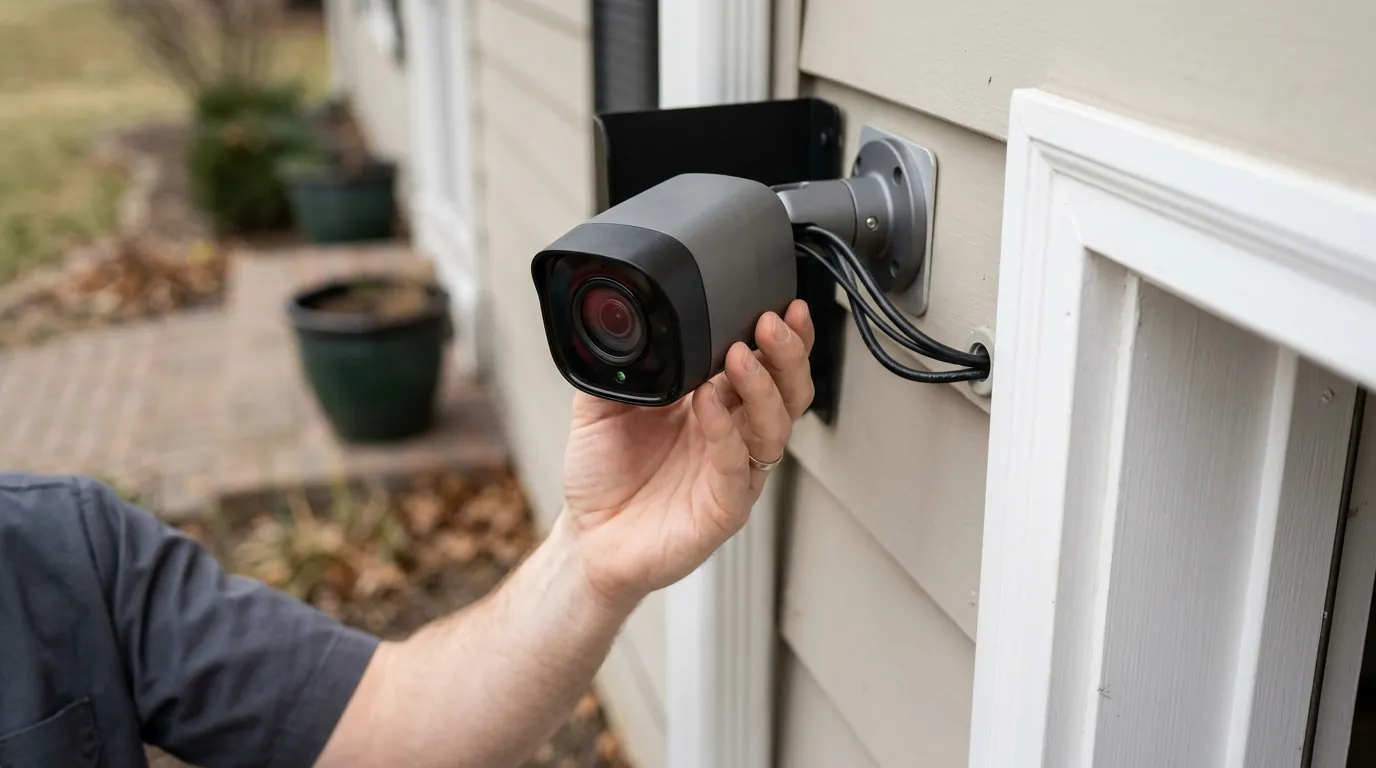
Fixing Blink Outdoor 4 & Sync Module 2 Connection Errors (2026)
Users of Blink Outdoor 4 cameras and Sync Module 2 hubs have recently reported a surge in connection issues, threatening the reliability of these popular home security setups. Understanding the root causes and implementing effective troubleshooting steps is key to restoring your system’s functionality and maintaining peace of mind.
Fix Blink connection errors by updating to firmware 16.0.36, ensuring your USB is FAT32 formatted (max 256GB), and pinning your Sync Module 2 to a 2.4GHz Wi-Fi band. If ‘Command Failed’ persists, contact support for a manual push.
What happened
Related: Reolink Doorbell PoE Firmware Bugs: Current v3.0.0.6460 & Past Issues · How to Protect Your Smart Home Cameras from Summer Heat Damage · Arlo Essential 2K Firmware Update Bricking: What Buyers Need to Know
Since early 2026, many Blink Outdoor 4 and Sync Module 2 owners have encountered persistent connectivity problems. These issues often manifest as cameras failing to communicate with the Sync Module, leading to interrupted live views, missed motion events, and compromised local storage capabilities. The problems appear to be widespread, impacting both new installations and previously stable systems.
The 16.0.36 Firmware Bug
A significant portion of the reported issues correlates with the rollout of Sync Module 2 firmware version 16.0.36 in April 2026. Users describe scenarios where, following this update, their Sync Module 2 frequently goes offline or cameras struggle to establish a consistent connection. While firmware updates are intended to enhance performance and security, this particular version seems to have introduced unforeseen compatibility challenges for some users, particularly concerning the handshake between the Outdoor 4 camera and the Sync Module 2.
Common Error Messages: ‘Camera Busy’ vs. ‘Sync Module Offline’
Two primary error messages dominate user reports when these connection issues arise. The “Sync Module Offline” error indicates a fundamental communication breakdown between the Sync Module 2 and the Blink servers or the home Wi-Fi network itself. This often prevents any camera connected to that module from functioning. Conversely, the “Camera Busy” message typically appears when a specific Blink Outdoor 4 camera is attempting to connect or record but cannot complete the action, often due to a poor or intermittent link with its assigned Sync Module 2. Other related messages include “Command failed to complete” when trying to arm the system or initiate a live view.
Hardware Conflicts with Modern Mesh Routers
Modern home networks increasingly rely on mesh Wi-Fi systems that often combine 2.4GHz and 5GHz bands into a single network name (SSID). While convenient, this “band steering” can cause issues for devices like the Blink Sync Module 2, which primarily operates on the 2.4GHz band. The Sync Module 2 may struggle to maintain a stable connection if the router constantly tries to push it to a less optimal band or if it’s too far from the primary access point. This conflict can lead to intermittent connectivity, where the Sync Module appears online briefly before dropping off again.
2026 Blink Firmware Versions
| Device | Common Firmware Versions (2026) |
|---|---|
| Sync Module 2 | 16.0.36, 4.5.38 |
| Blink Outdoor 4 | [information unavailable] |
| Sync Module Core | [information unavailable] |
Why it matters for buyers
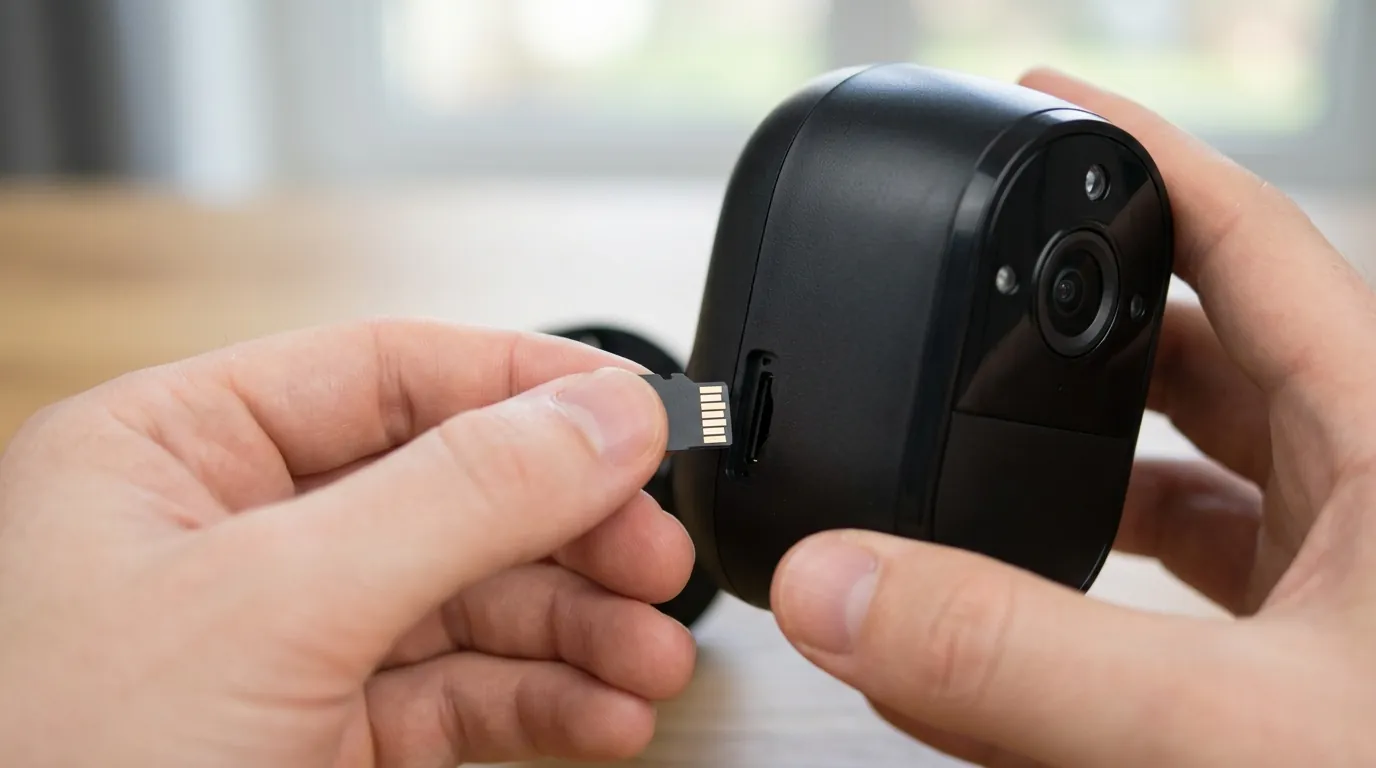
For prospective buyers, these connection issues significantly impact the value proposition of the Blink system. Blink’s appeal often lies in its promise of subscription-free local storage via the Sync Module 2, but persistent errors undermine this core benefit.
The Subscription Trap: Cloud vs. Local Storage
The Blink Sync Module 2 is designed to enable local video storage when a compatible USB drive is inserted, allowing users to avoid monthly cloud subscription fees. However, when connection errors prevent clips from saving locally or accessing the local storage, users may feel pressured to subscribe to the Blink Plus plan. This plan, typically around $10 per month or $100 per year, offers unlimited cloud recording for an unlimited number of cameras, along with other features like Live View recording and extended warranties. For buyers specifically seeking to avoid ongoing costs, this can transform a budget-friendly purchase into a recurring expense.
Total Cost of Ownership (TCO) Over 3 Years
Considering the total cost of ownership (TCO) is crucial when evaluating security cameras. While Blink cameras and the Sync Module 2 often fall into a competitive price range (around $100-200 for a starter kit), potential connection issues can add hidden costs. If local storage fails, the annual subscription cost adds up. Over three years, a Blink system that requires a subscription could cost an additional $300 beyond the initial hardware purchase. This contrasts with systems that reliably offer free local storage.
3-Year TCO Comparison (Approximate)
| System | Hardware Cost (Approx. 1 camera kit) | Subscription Cost (3 Years) | Total 3-Year Cost |
|---|---|---|---|
| Blink Outdoor 4 + Sync M2 (No Subscription) | $100-200 | $0 | $100-200 |
| Blink Outdoor 4 + Sync M2 (With Blink Plus) | $100-200 | $300 (3 x $100/year) | $400-500 |
| Eufy S330 eufyCam 3 + HomeBase 3 | $250-350 (often higher initial) | $0 | $250-350 |
| Reolink Argus 4 Pro (Local SD Card) | $100-200 | $0 | $100-200 |
Privacy Implications of Hub Failures
The choice between cloud and local storage also has significant privacy implications. Local storage, managed by the Sync Module 2, means video clips remain within the user’s home network, theoretically offering greater control over personal data. When the Sync Module 2 fails to connect or store locally, recordings may either be lost entirely or, if a subscription is active, default to cloud storage. This shift could expose sensitive footage to third-party servers, potentially raising concerns for users who prioritize maximum data privacy and control. Blink’s privacy policy states that it uses “industry-standard encryption to protect your videos in transit and at rest”. However, users should review the full policy to understand data retention, sharing practices, and law enforcement cooperation, especially if relying on cloud services.
Local Storage Comparison: Blink vs. Eufy vs. Reolink (2026)
| Feature | Blink Sync Module 2 | Eufy HomeBase 3 | Reolink Argus 4 Pro (Camera-based) |
|---|---|---|---|
| Storage Method | USB drive via Sync Module 2 | Internal eMMC + HDD/SSD via HomeBase 3 | MicroSD card in camera |
| Max Capacity | 256GB USB drive | Up to 16TB HDD/SSD (user-added) | Up to 256GB MicroSD card |
| Subscription Required | No, for local storage | No, for local storage | No, for local storage |
| Redundancy | None (single point of failure) | Yes (internal + external options) | None (single point of failure) |
| Data Encryption | [information unavailable] | AES-128 or AES-256 | [information unavailable] |
Impact on existing owners
For those who already own Blink Outdoor 4 and Sync Module 2 systems, these connection errors translate directly into a degraded security experience and increased frustration.
Security Gaps During Downtime
Intermittent “Live View” failures and “Sync Module Offline” errors create critical security gaps. If the system is not actively monitoring or recording, motion events can be missed, leaving the property vulnerable. This undermines the fundamental purpose of a security camera system and can significantly reduce the peace of mind for owners. The inability to check live feeds or review recorded footage promptly can be particularly problematic during emergencies or suspicious activity.
The Frustration of Manual Firmware Pushes
While Blink systems are designed to update firmware automatically, many users have reported that the problematic 16.0.36 firmware update for the Sync Module 2 did not resolve their issues, or that their Sync Module wasn’t updating at all. In some cases, existing owners have had to contact Amazon technical support directly to request a manual firmware push to their Sync Module 2. This process can be time-consuming and frustrating, requiring multiple support interactions and extended troubleshooting, diverting valuable time from other tasks.
USB Drive Compatibility and Corruption Risks
Local storage relies heavily on the health and compatibility of the USB drive inserted into the Sync Module 2. Improper handshakes or sudden disconnections due to connectivity issues can lead to file system corruption on the USB media. This means that even if clips eventually record, they may be inaccessible or unplayable, rendering the local storage useless. Furthermore, not all USB drives are compatible, with Blink recommending drives under 256GB and formatted to FAT32. Using an incompatible drive can exacerbate local storage issues.
Benchmark: Battery Life Impact of Poor Sync Module Connectivity
When a Blink Outdoor 4 camera struggles to connect to its Sync Module 2, it enters a “searching” or “reconnecting” state. This constant effort to establish a link consumes significantly more power than normal operation. While Blink Outdoor 4 cameras are advertised to last up to two years on two AA lithium batteries (such as Energizer Ultimate Lithium) under optimal conditions, prolonged connection issues can drastically reduce this lifespan. Users have reported battery depletion in a matter of weeks or a few months when their cameras are stuck in a persistent “searching” mode. This increased battery consumption adds to the total cost of ownership through frequent battery replacements and diminishes the convenience factor of a wire-free system.
What to do now
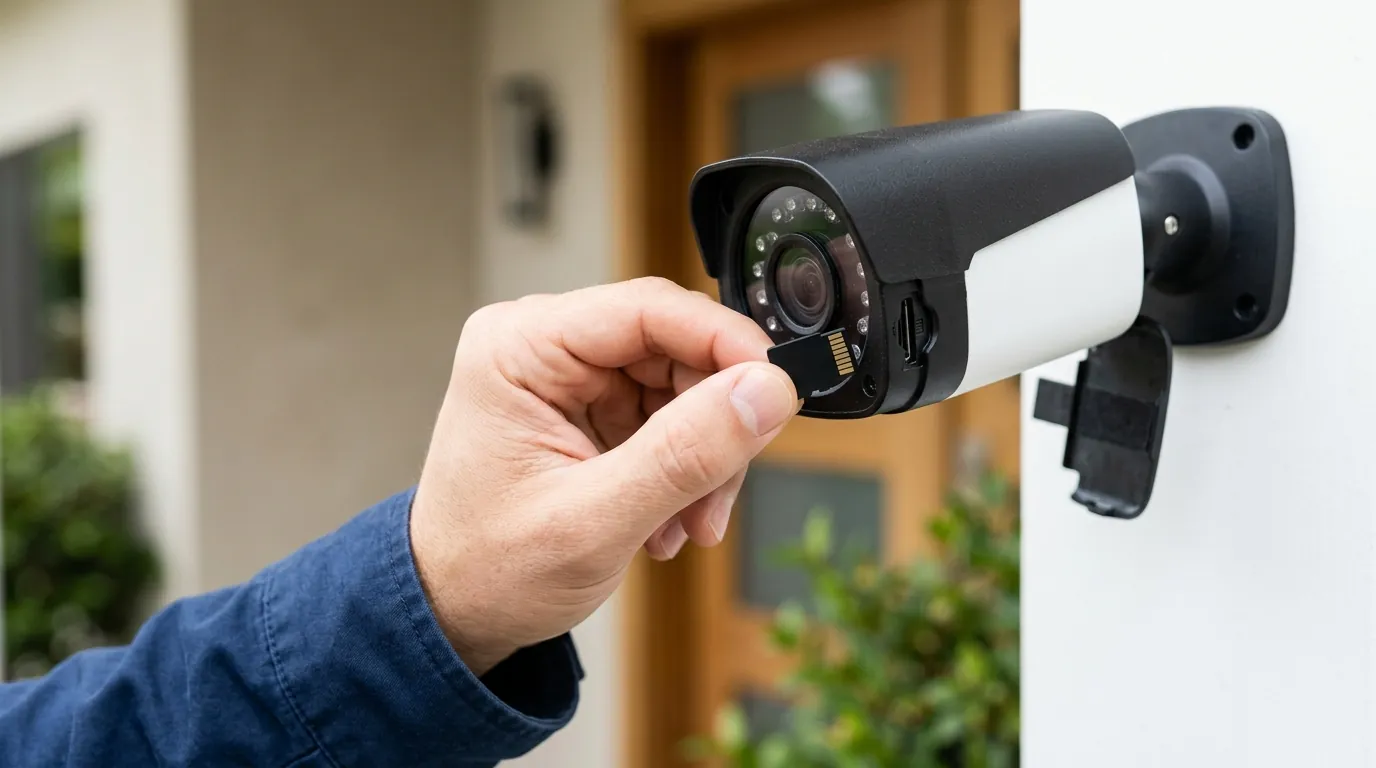
If you’re experiencing connection errors with your Blink Outdoor 4 and Sync Module 2, a systematic approach to troubleshooting is essential.
Step 1: Perform a Hardware Power Cycle
A simple power cycle can often resolve temporary glitches.
- Sync Module 2: Unplug the Sync Module 2 from its power outlet for at least 30 seconds, then plug it back in. Wait for the blue and green lights to become solid.
- Blink Outdoor 4 Camera: Remove the batteries from your Blink Outdoor 4 camera for 10 seconds, then reinsert them. The camera should attempt to reconnect.
Step 2: Network Optimization—Assigning a Static IP/DHCP Reservation
To ensure your Sync Module 2 always gets the same network address, consider assigning it a static IP address or a DHCP reservation through your router’s settings.
- Access Router Settings: Log in to your home router’s administration page (usually via a web browser).
- Find DHCP/LAN Settings: Locate the DHCP settings, often under “LAN” or “Network.”
- Identify Sync Module 2: Find the Sync Module 2 in the list of connected devices (its MAC address should be printed on the device or its packaging).
- Assign Reservation: Create a DHCP reservation for the Sync Module 2’s MAC address, ensuring it always receives the same IP address. This can prevent connectivity drops caused by IP address conflicts or changes.
Step 3: USB Reformatting—Ensuring FAT32 and Under 256GB
If local storage is failing, the USB drive might be the culprit.
- Remove USB Drive: Safely eject the USB drive from your Sync Module 2.
- Connect to PC: Insert the USB drive into a computer.
- Backup Data (Optional): If there are any important clips, back them up.
- Format Drive: Format the USB drive to FAT32. Windows users can do this by right-clicking the drive in ‘This PC,’ selecting ‘Format,’ and choosing ‘FAT32’ as the file system. For drives larger than 32GB, third-party tools may be needed for FAT32 formatting. Ensure the drive is 256GB or smaller.
- Reinsert Drive: Safely eject the drive from your PC and reinsert it into the Sync Module 2.
Checklist: Blink Sync Module 2 USB Requirements (2026 Update)
- Capacity: Maximum 256GB
- Format: FAT32 (not exFAT, NTFS, or HFS+)
- Type: USB 2.0 or 3.0 compatible (speed not critical for local storage)
- Condition: Error-free, not corrupted
- Power: Self-powered or low-power draw (no external power needed for most flash drives)
Step 4: The ‘Hard Reset’ Sequence
A hard reset can sometimes force the Sync Module 2 to re-establish its connection and check for firmware updates.
- Locate Reset Button: On the Sync Module 2, find the recessed reset button (often on the side or back).
- Press and Hold: Use a paperclip or similar thin object to press and hold the reset button for 5 seconds. The lights should change, indicating a reset.
- Re-setup (if needed): You may need to re-add your Sync Module 2 and cameras through the Blink app if the reset puts it back into setup mode.
Advanced Router Tweaks: Disabling Band Steering
If you have a mesh Wi-Fi system or a router that combines 2.4GHz and 5GHz bands, consider temporarily disabling band steering or creating a separate 2.4GHz network.
- Access Router Settings: Log in to your router’s administration page.
- Find Wi-Fi Settings: Look for wireless or Wi-Fi settings.
- Separate Bands: If possible, give your 2.4GHz and 5GHz networks distinct names (e.g., “MyWiFi_2.4GHz” and “MyWiFi_5GHz”).
- Connect Sync Module: Ensure your Sync Module 2 is connected exclusively to the 2.4GHz network. This can prevent the module from constantly switching bands and losing connection.
The ‘RouteThis’ App: How to Use It for Blink Support
When troubleshooting network issues with Blink, customer support may recommend using the “RouteThis Helps” app. This app is designed to diagnose home network problems that might affect smart home devices.
- Download App: Install the “RouteThis Helps” app on your smartphone from your app store.
- Generate Code: Blink support will provide you with a unique code to enter into the app.
- Run Scan: The app will then perform a scan of your home network, analyzing Wi-Fi signal strength, interference, and other potential issues.
- Share Results: The diagnostic report generated by the app can be shared directly with Blink (Amazon) support, providing them with detailed insights into your network configuration to assist in resolving connection problems. This can streamline the troubleshooting process and help identify whether the issue lies with your home network or the Blink device itself.
Alternative Hardware: Is it Time to Switch to the Sync Module XR?
The Sync Module XR is not a current Blink product, and the primary hub for current Blink cameras is the Sync Module 2. If existing troubleshooting steps fail and you suspect hardware failure, contacting Blink (Amazon) support for warranty replacement or considering alternative camera systems might be necessary. The Sync Module 2 is the latest iteration designed for features like local storage and compatibility with newer cameras like the Outdoor 4. There is no “Sync Module XR” as a separate, newer product line.
When to give up: Identifying hardware failure vs. software bugs
If, after trying all the above steps, your Sync Module 2 or Blink Outdoor 4 camera still exhibits consistent connection errors, it might be time to consider whether you’re dealing with a deeper hardware issue rather than a software bug or network misconfiguration.
- Consistent LED patterns: If the Sync Module 2’s LEDs are consistently red or flashing in an unusual pattern that doesn’t resolve with reboots, it might indicate hardware failure.
- Device not recognized: If the Blink app consistently fails to recognize the Sync Module 2 during setup, even after a hard reset, it could point to a faulty unit.
- Isolation test: If you have another Blink camera that works fine with the same Sync Module 2, the issue might be with the problematic camera itself. Conversely, if all cameras connected to a specific Sync Module 2 fail, the module is likely the problem.
In such cases, contacting Blink (Amazon) customer support for advanced diagnostics or warranty replacement is the next logical step. Industry analysis tracks these trade-offs across the category, noting that even budget-friendly systems can incur hidden costs through troubleshooting time and potential hardware replacements.
Frequently Asked Questions
Why is my Blink Sync Module 2 always going offline?
Your Blink Sync Module 2 might be going offline due to weak Wi-Fi signal, interference from other devices, or issues with your router’s band steering. Ensure it’s connected to a stable 2.4GHz network, is within range of your router, and consider assigning it a static IP address for better stability.
What is the latest firmware version for the Blink Sync Module 2 in 2026?
As of 2026, common firmware versions for the Blink Sync Module 2 include 16.0.36 and 4.5.38. It’s recommended to keep your Sync Module 2 updated to the latest available version, which often happens automatically, but can sometimes require a manual push from support.
Can I use any USB drive for local storage with the Blink Sync Module 2?
No, you cannot use just any USB drive. The Blink Sync Module 2 requires a USB flash drive formatted to FAT32 and with a maximum capacity of 256GB. Using drives with other formats or larger capacities may result in local storage not working correctly or file corruption.
Does Blink require a subscription for local storage?
No, Blink does not require a subscription for local storage if you use a compatible USB drive with your Sync Module 2. The Sync Module 2 enables clips to be saved directly to the USB drive without any monthly fees. A subscription is only necessary for cloud storage and additional features.
How do I know if my Blink camera’s battery drain is normal or due to a connection error?
Normal battery life for a Blink Outdoor 4 camera is up to two years with lithium AA batteries. If your batteries are depleting in weeks or a few months, especially when accompanied by connection errors like “Camera Busy” or “Sync Module Offline,” it’s likely due to the camera constantly searching for the Sync Module, which consumes excessive power.
Sources
- reddit.com — r/BlinkHome - Sync Module 2 Firmware 16.0.36 Issues
- support.blinkforhome.com — Blink Support - Optimizing Your Wi-Fi Network
- blinkforhome.com — Blink Plans
- blinkforhome.com — Blink Privacy Notice
- support.blinkforhome.com — Blink Support - Using Local Storage with Sync Module 2
- us.eufy.com — Eufy Security - HomeBase 3
- reolink.com — Reolink Argus 4 Pro
- us.eufy.com — Eufy Security - HomeBase 3 Specifications
- support.blinkforhome.com — Blink Support - Battery Life and Type for Blink Cameras